# Edit an invoice
> Learn how to revert an invoice to Draft so you can make changes or corrections.
Source: https://support.caspen.com/billing/invoices/edit-an-invoice
Documentation index: https://support.caspen.com/llms.txt
## Before you begin
You can only edit invoices while they are in **Draft** status.\
If you need to make changes to a finalized invoice, you must **revert it back to Draft** first.
You can only revert an invoice to Draft if:
- **No payments** are applied, and
- **No credit notes** are attached.
If payments are applied, you must **unlink or void** them before reverting.\
If a credit note is attached, it must be **voided** before changes can be made.\
See **Handling linked payments and credit notes** below.
Once reverted, you can edit the invoice as needed and finalize it again when ready.
---
## Revert an invoice to draft
> **Warning:**
>
> Important note: You can only revert an invoice to Draft if no payments or credit notes are attached. See _Before you begin_ for details.
If an invoice is finalized, you can revert it to **Draft** to make updates or corrections.
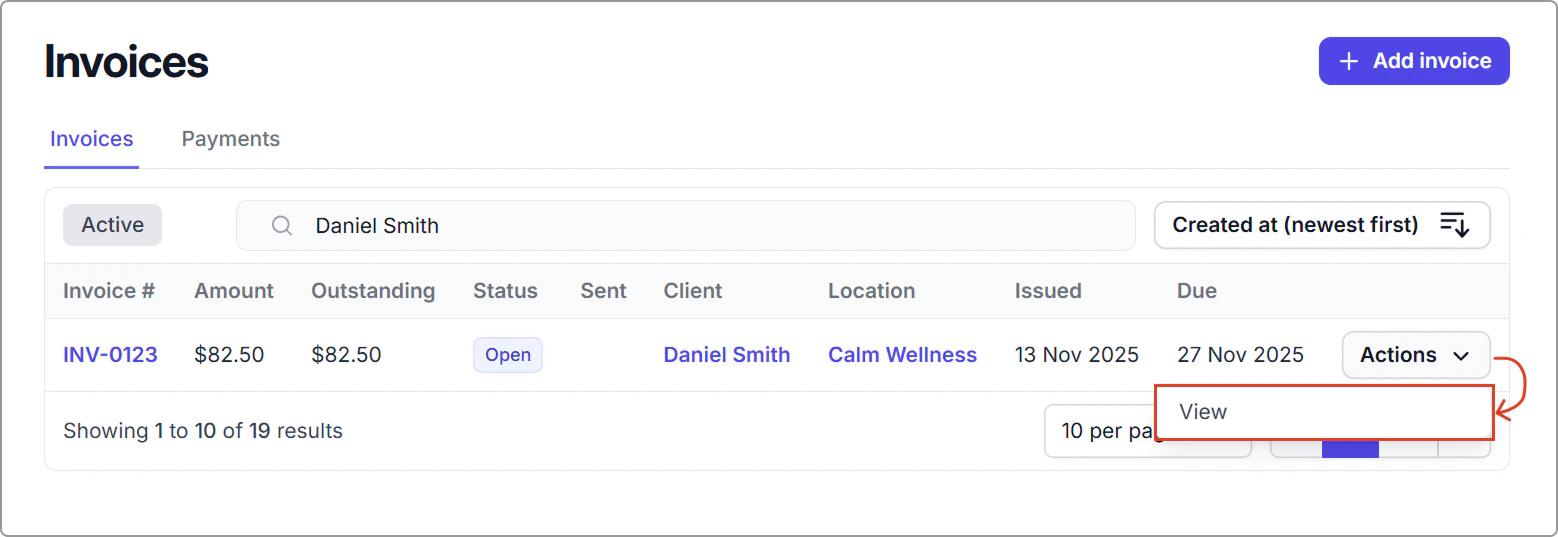
1. Go to **Billing** → **Invoices** and open the invoice.
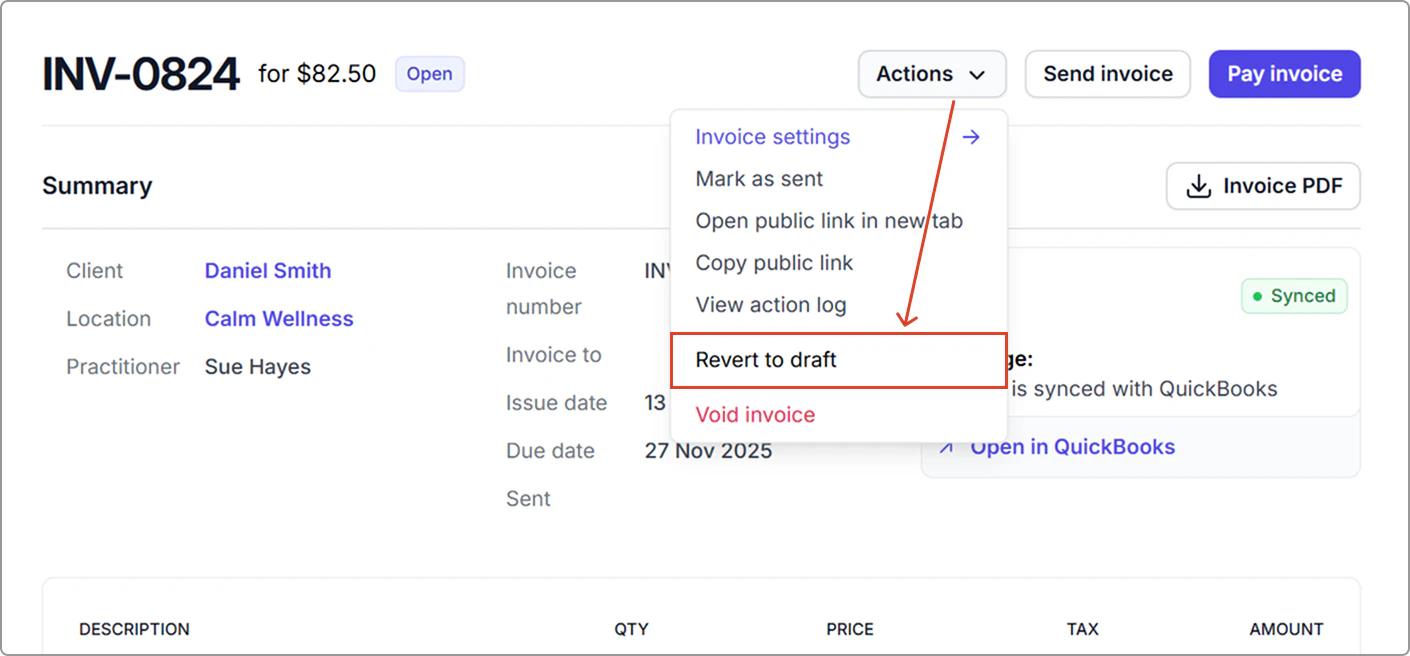
2. Click **Actions** → **Revert to draft.**
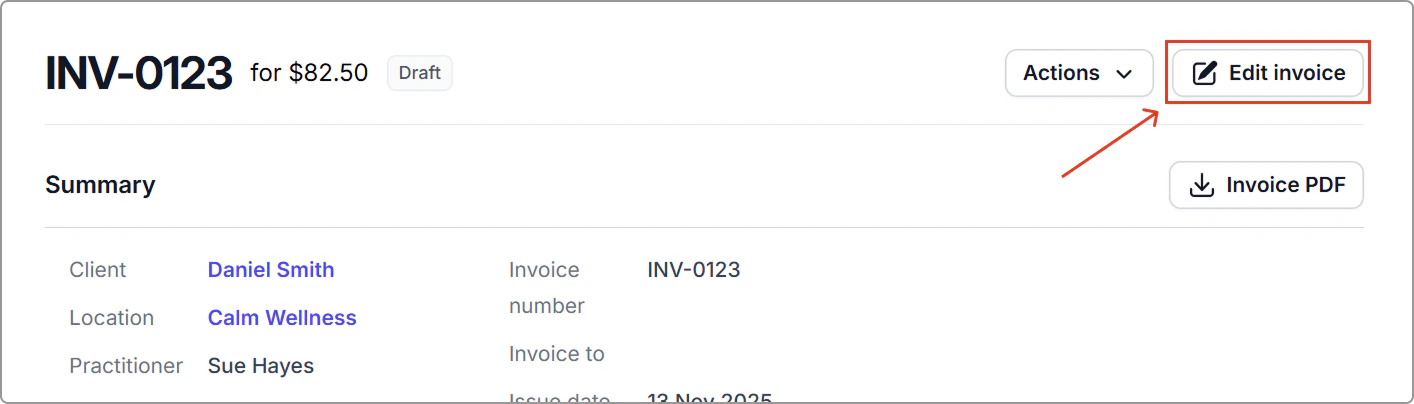
The invoice will return to **Draft** status.\
The **Pay invoice** and **Send invoice** buttons will be replaced by an **Edit invoice** button.
3. Click **Edit invoice** to open the invoice editor and make your changes.
**Once you’ve finished editing, you can:**
- Exit to keep the invoice in **Draft**, or
- Click **Finalize invoice** when you are ready to issue it again.
---
## Handling linked payments and credit notes
If the invoice has payments or credit notes applied, you must remove or void them before reverting the invoice.
#### Payments
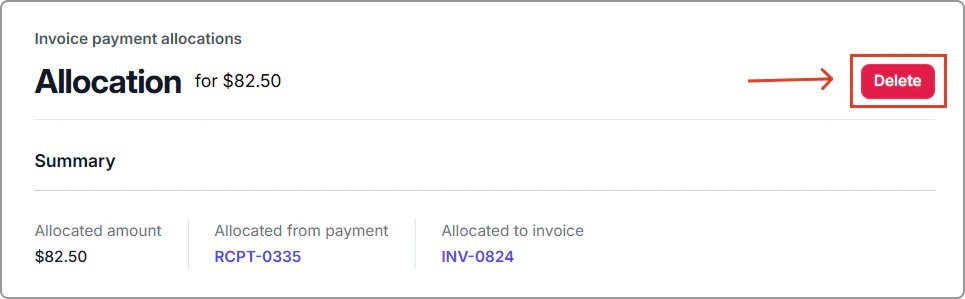
1. Click the **payment allocation link** on the invoice.
2. Select **Delete** to unlink the payment.
After unlinking, you can locate the payment record separately and choose to:
- Refund it
- Void it
- Reapply it after the invoice is finalized again
#### Credit notes
If a partial credit note is attached, it must be **voided** before the invoice can be reverted or deleted.
To do this:
1. Open the credit note by clicking the **credit note number**.
2. Go to **Actions** → **Void credit note** and confirm.
#### Next step
After removing any linked payments or credit notes, return to the steps above to revert the invoice to Draft.
---
These steps ensure your financial records remain accurate and consistent across your billing and reporting.
---