# Invoice for a canceled appointment
> Invoice a client for a canceled appointment based on your cancellation policy.
Source: https://support.caspen.com/billing/invoices/invoice-for-a-canceled-appointment
Documentation index: https://support.caspen.com/llms.txt
## How to invoice a canceled appointment
To learn how to cancel an appointment, see [Cancel an appointment](https://support.caspen.com/calendar/appointments/cancel-an-appointment).
You can create an invoice for a canceled appointment if the service still needs to be billed (for example, for late cancellation fees).
1. Go to the **Schedule** tab.
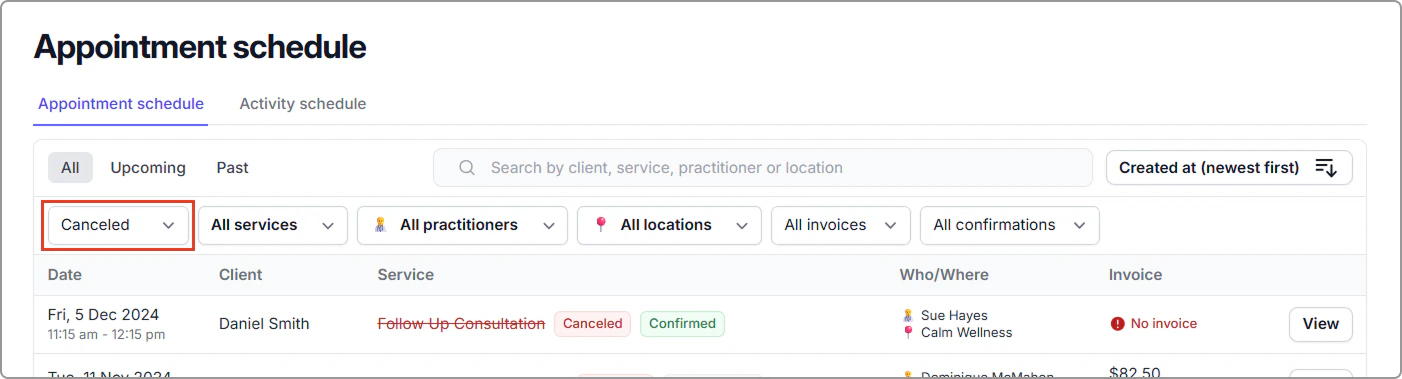
2. In the appointment list, set the **Status** filter to **Canceled**, and apply any additional filters or search terms if needed.
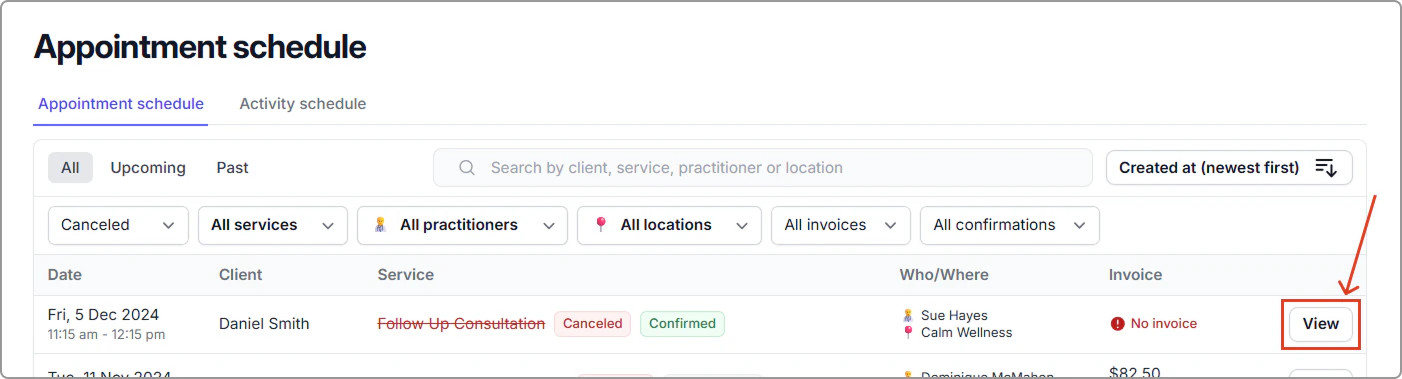
3. Locate the canceled appointment and click **View** to open the appointment information side panel.
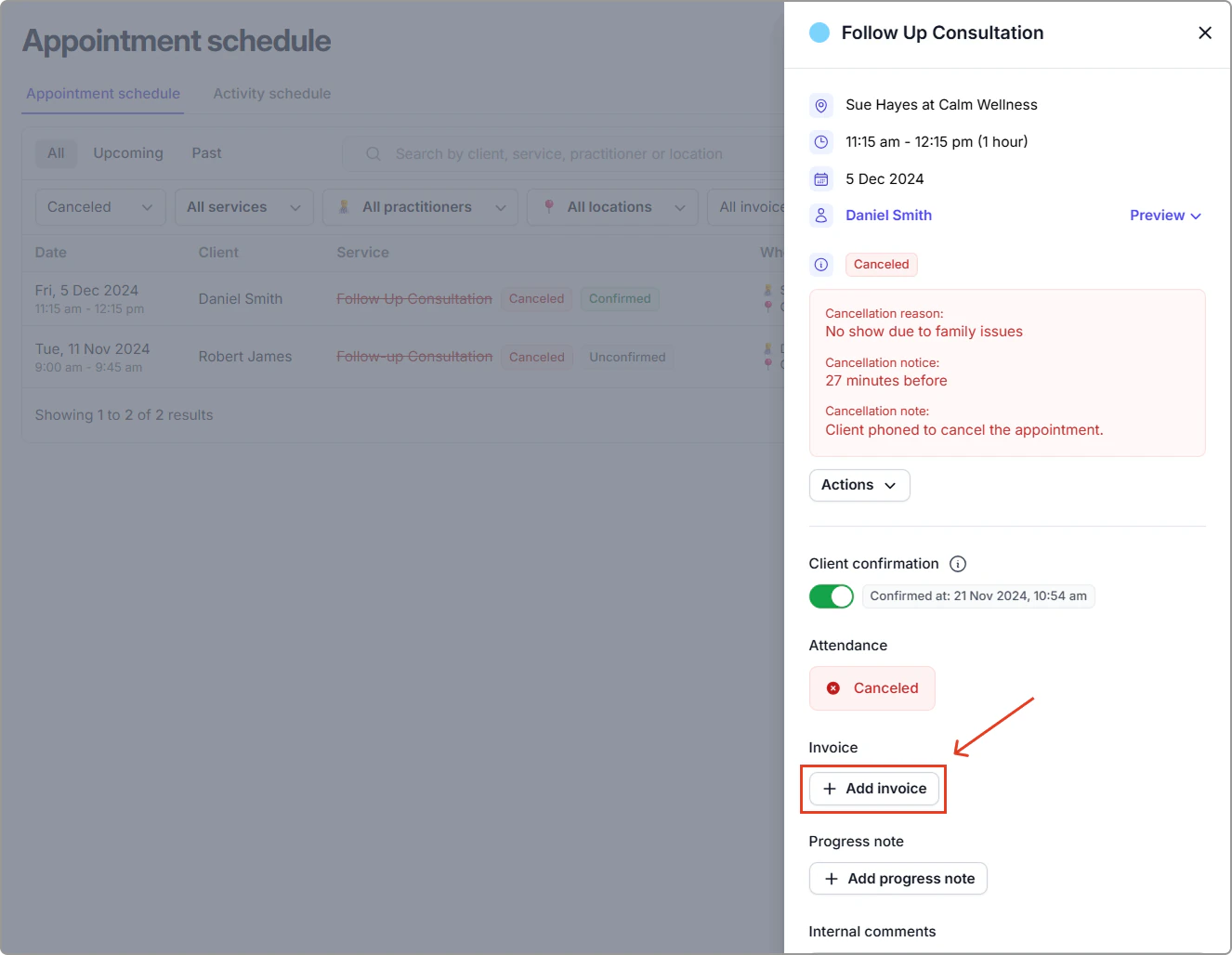
4. Click **Add invoice** and follow the steps to create your invoice.