# Add a standalone payment
> Learn how to record a payment that is not tied to an invoice.
Source: https://support.caspen.com/billing/payments/add-a-standalone-payment
Documentation index: https://support.caspen.com/llms.txt
## Overview
Standalone payments let you record money received from a client that is **not tied to a specific invoice**. This is useful for deposits, bulk payments, prepayments, or general payments taken in advance.
When a standalone payment is created, it appears as **Unallocated** until you apply it to one or more invoices.
You can add standalone payments from **Billing** or directly from a **client profile**.
---
## Add a standalone payment
To record a payment that is not linked to an invoice:
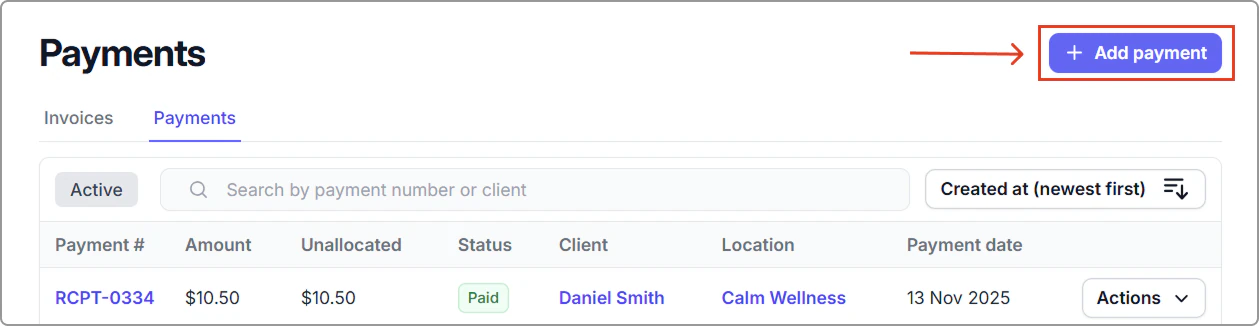
1. Go to **Billing** → **Payments** tab.
2. Click **Add payment.**
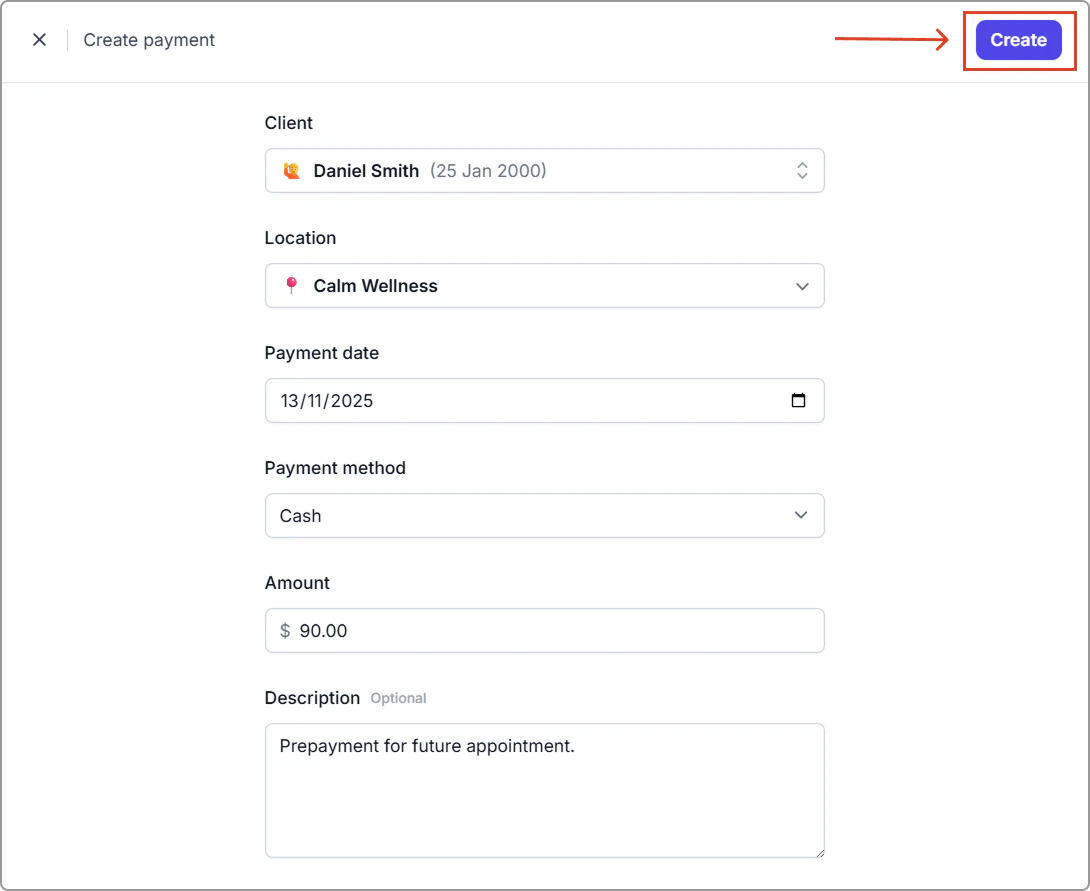
3. Enter the payment details:
- **Client**
- **Location**
- **Payment date**
- **Payment method**
- **Amount**
- **Description** (optional)
4. Click **Create**.
The payment will appear as **Unallocated** until it is applied to an invoice.
---
## Where standalone payments appear
Once created, standalone (unallocated) payments appear in:
- **Billing** → **Payments.**
- The client profile under **Payments.**
- The **Pay invoice** → **Existing payment** panel on a finalized invoice.
You can apply the payment to one or more invoices at any time.\
See [Apply an existing payment to an invoice](https://support.caspen.com/billing/payments/apply-an-existing-payment-to-an-invoice) for instructions.