# Create an activity
> Learn how to create an activity in your calendar.
Source: https://support.caspen.com/calendar/activities/create-an-activity
Documentation index: https://support.caspen.com/llms.txt
## Overview
Activities are non-face-to-face and do not send client notifications or appear in online bookings.
---
## How to create an activity
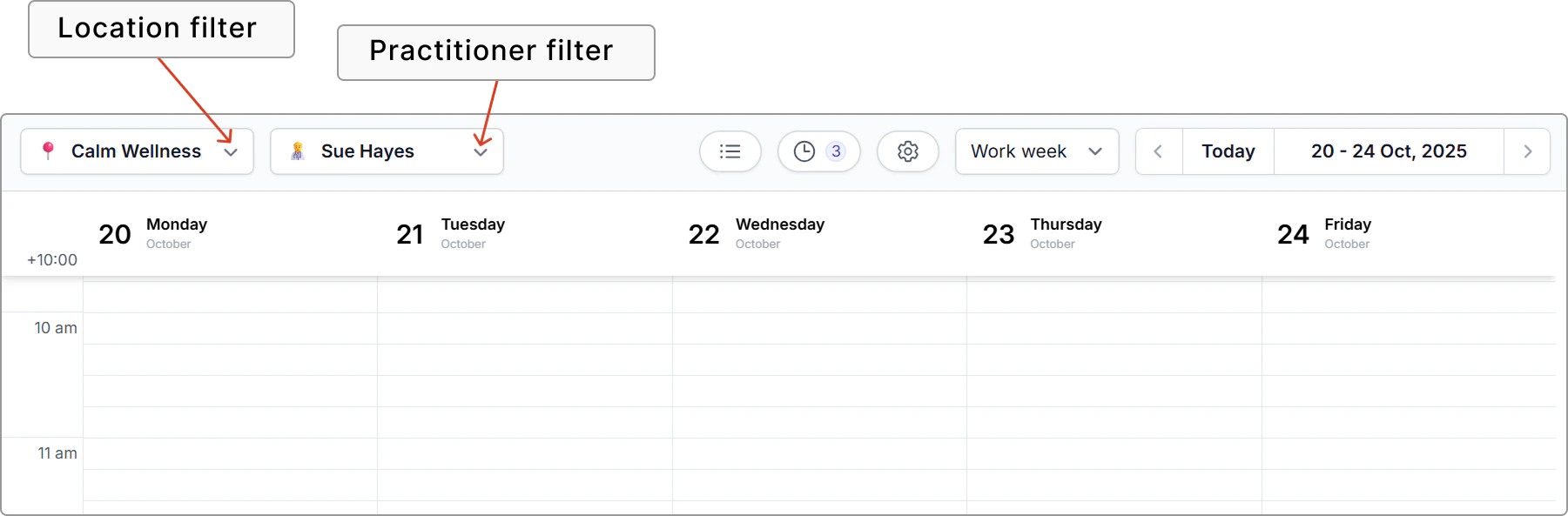
1. Open the **Calendar** and set the **location** (clinic/practice) and **practitioner**.
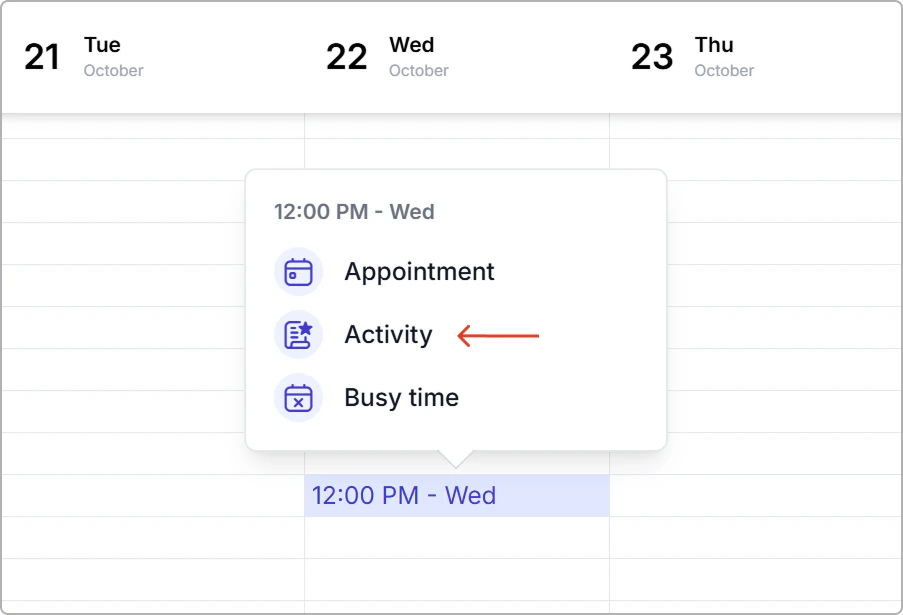
2. Click a time slot, then choose **Activity**.
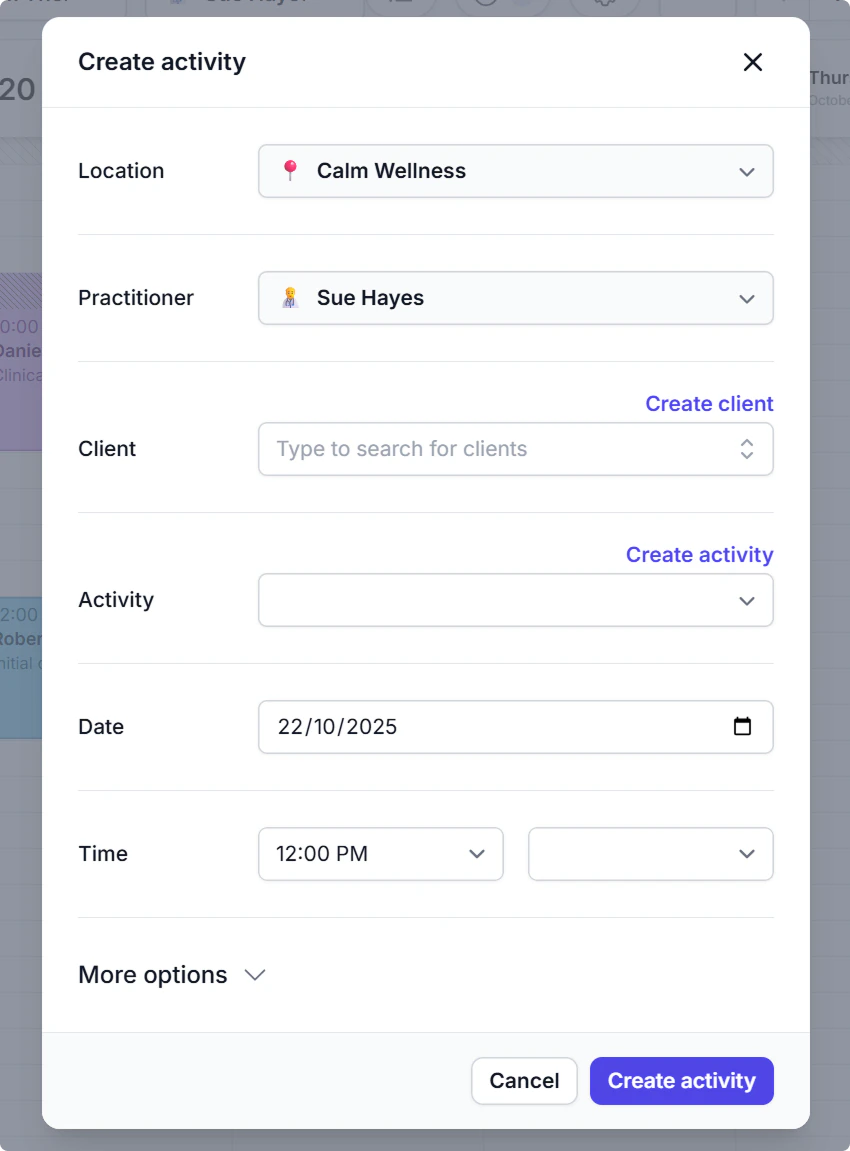
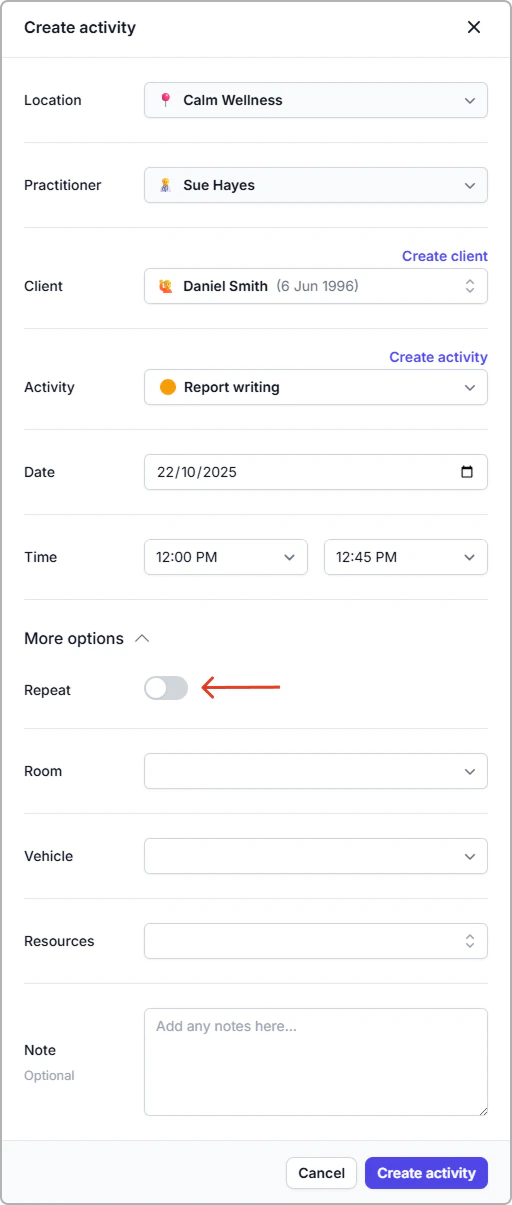
3. Enter the activity details (see the **Field reference** table below)_:_
1. **Client:** Select an existing client or click **Create client**.
2. **Activity:** Select an activity or click **Create activity**.
3. **Date and time:** Confirm the start and end.
4. **More options** **(optional)**: Room, Vehicle, Resources, Note, or Repeat.
> **Info:**
>
> When you click a time slot, the start time is prefilled. After you select an activity, the end time is automatically calculated from the activity duration.
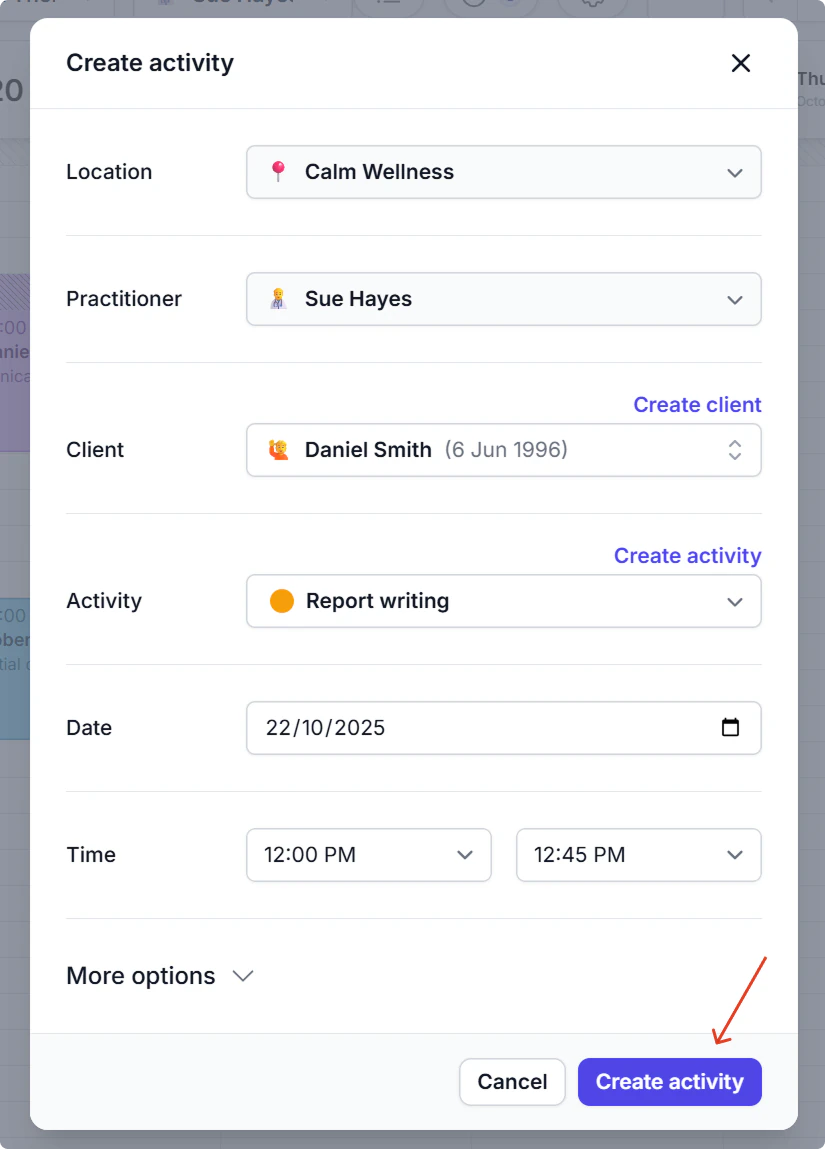
4. Click **Create activity**.
### Fields reference
| Field | Description |
| ------------ | ---------------------------------------------------------------------------------------------------------------------------------------------------------------------------------------------------------------------------------------------------------------------------------------------------------------------------------------- |
| Location |
Where the activity will occur. Prefilled from the selected calendar location.
|
| Practitioner |
Who is responsible. Prefilled from the practitioner you have selected in the calendar.
|
| Client | The person this activity is for. |
| Activity | The activity type. |
| Date | Day of the activity. |
| Time |
Start is prefilled from the slot you click.
Set End time as needed (you can change either before saving).
|
| Repeat |
Create a repeating series:
Repeat on days — choose one or more weekdays.
Repeat every — Week, 2 Weeks, 3 Weeks, or 4 Weeks. This sets the interval between repeats, not the duration. For example, 2 Weeks repeats on the selected days every second week.
Room — reserve a room if required.
|
| Vehicle | Reserve a vehicle if required. |
| Resources | Reserve equipment or items. |
| Note | Internal notes for staff. |
---
## Create repeat activity
1. Open **Calendar** and set the **location** (clinic/practice) and **practitioner**.
2. Click a time slot, then choose **Activity**.
3. Enter the **Client**, **Activity**, and **Date and time**.
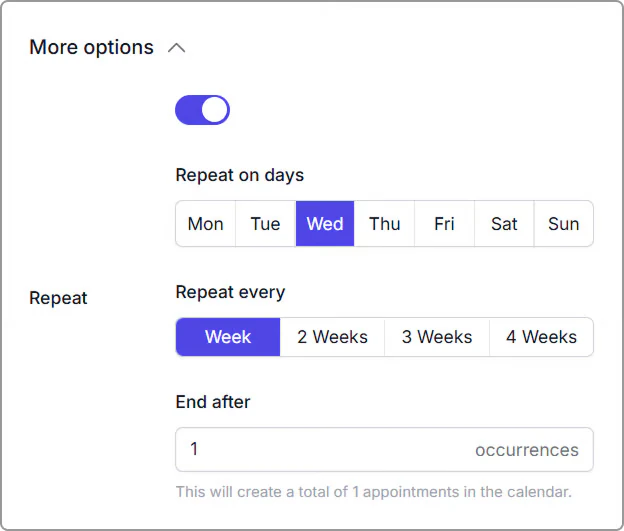
4. Open **More options** and turn **Repeat On**.
5. Enter the repeat details:
1. **Repeat on days:** pick the weekdays you want.
2. **Repeat every:** choose **Week**, **2 Weeks**, **3 Weeks**, or **4 Weeks**. This sets the interval between repeats (not the duration); for example, **2 Weeks** repeats on the selected days every second week.
3. **End after:** enter the number of occurrences. A helper note shows the total that will be created.
6. Review details, then click **Create activity**.
**Notes**
- The helper note under **End after** shows how many activities will be added.
- Each activity in the series appears in your calendar. Edit or cancel any one as needed.
---
**Add room, vehicle, resources, or notes**
- Open **More options** and select **Room**, **Vehicle**, or **Resources** to reserve what you need.
- Use **Note** for context such as preparation steps or access instructions.
---
## After you create an activity
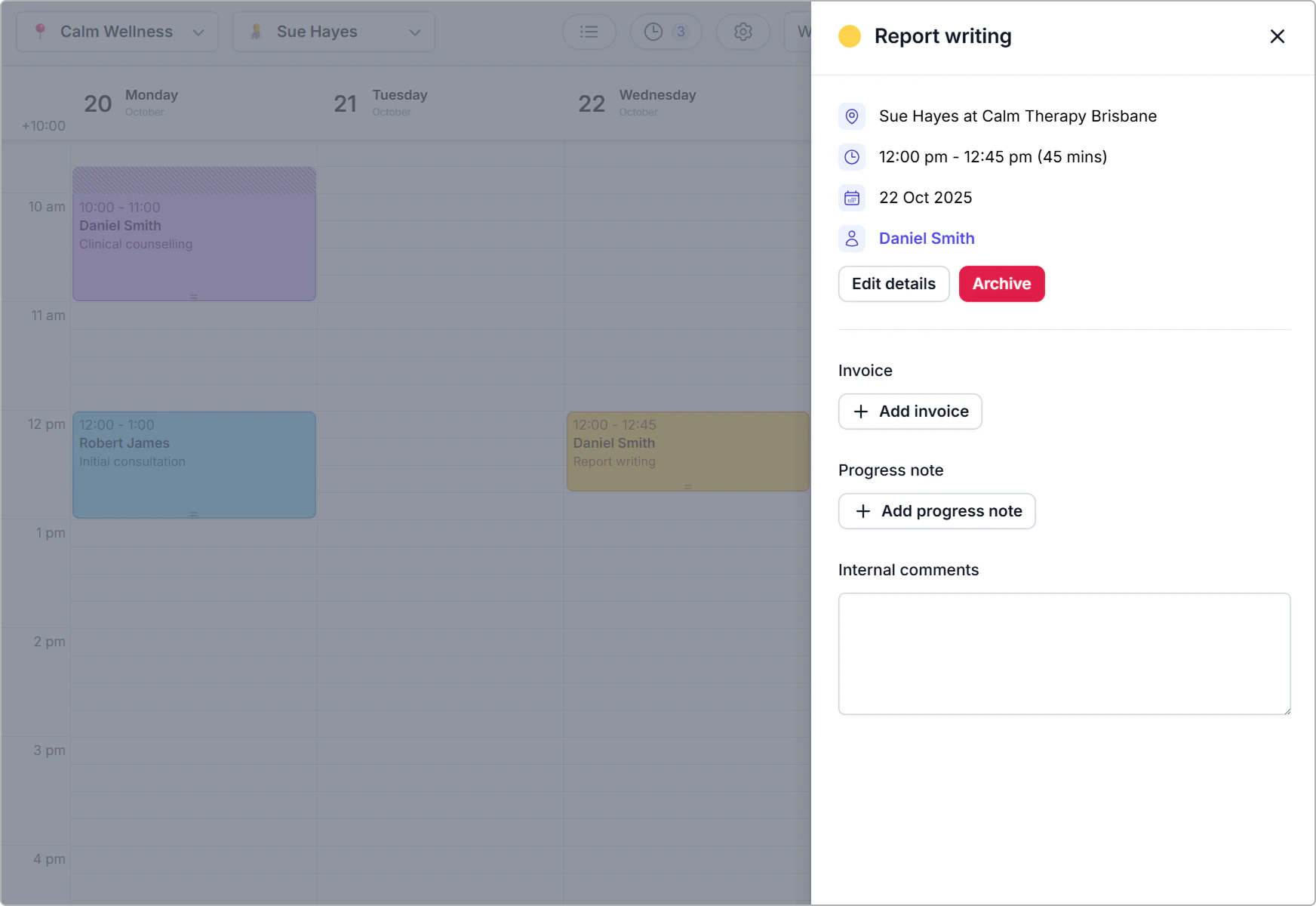
Example: Activity information panel.
From the activity information panel you can:
- Invoice the activity
- Add a progress note
- [Edit an activity](https://support.caspen.com/calendar/activities/edit-an-activity)
- [Reschedule an activity](https://support.caspen.com/calendar/activities/reschedule-an-activity)
- [Archive an activity](https://support.caspen.com/calendar/activities/archive-an-activity)
- **Add internal comments:** Staff-only notes for this activity. Autosaves as you type and does not appear on the client record or other appointments.