# Reschedule an activity
> Learn how to move an existing activity to a new time or day.
Source: https://support.caspen.com/calendar/activities/reschedule-an-activity
Documentation index: https://support.caspen.com/llms.txt
## Ways to reschedule
- Drag and drop on the calendar (fastest), or
- **Edit the activity** and change **date and time** (opens the edit window).
---
### Drag and drop
1. Go to the **Calendar**.
2. Click and drag the appointment to the new **time or day** in the same week**.**
3. Release to place it, then confirm the change by clicking **Reschedule activity**.
---
### Edit the activity
1. Open the **Calendar**.
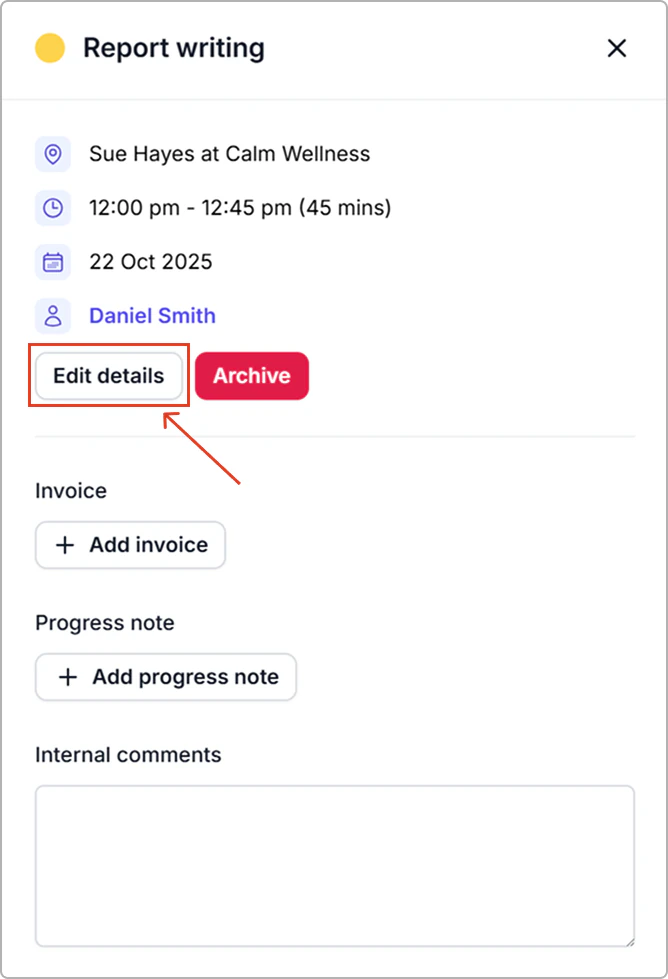
2. Click on the activity to open the info panel, then click **Edit details**.
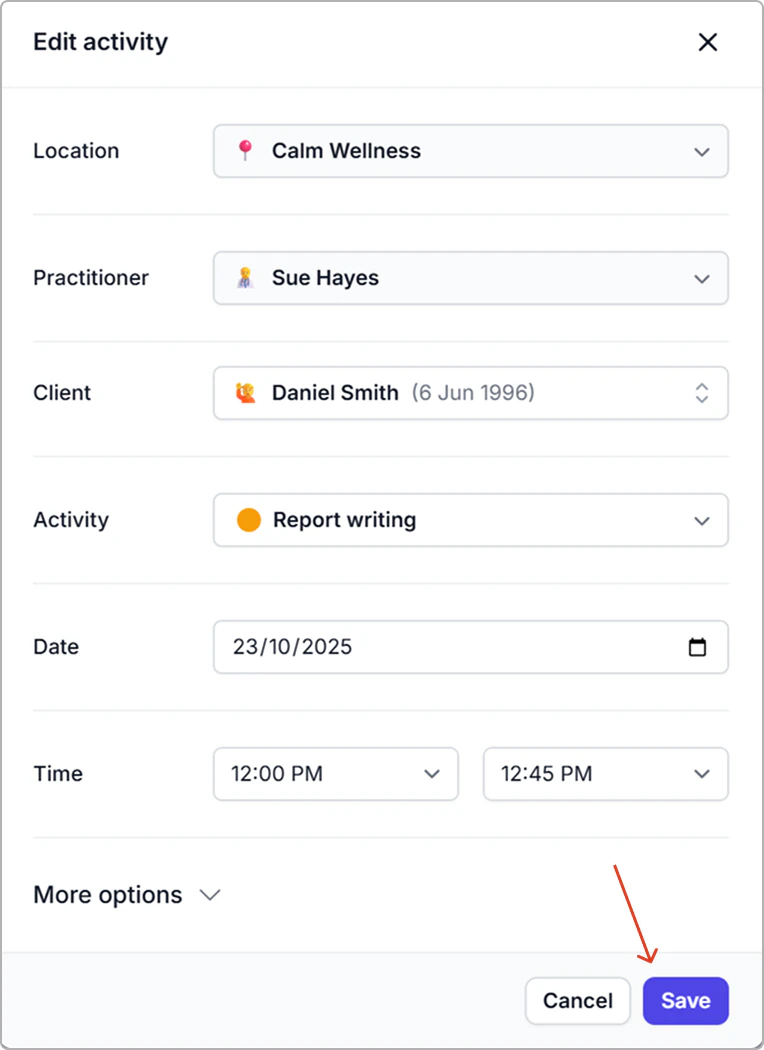
3. Update **date and/or time.**
4. Click **Save**.
**Result**
- The calendar updates immediately .