# Client confirmations

> Learn how to view and manage client confirmations.

Source: https://support.caspen.com/calendar/appointments/client-confirmations
Documentation index: https://support.caspen.com/llms.txt

Client confirmations show whether a booking has been acknowledged by the client. Each appointment has a **Client confirmation** state: **Unconfirmed** or **Confirmed**. This is separate from **Attendance** (Arrived / Missed / Canceled).

---

## How clients confirm

- After booking, clients receive a confirmation message (email and/or SMS) with a link to confirm their appointment.
- The client taps the link to confirm. The appointment updates to **Confirmed** automatically.

**Where you’ll see it**

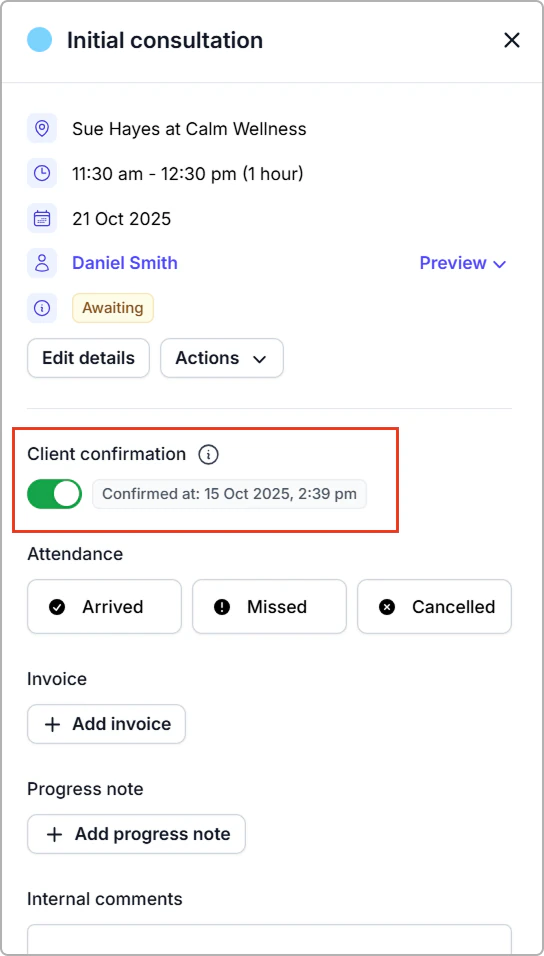
- **Appointment panel:** Confirmation toggle. If confirmed (by client or staff), you will see **Confirmed at: \[date, time]**.

<figure><img src="https://support.caspen.com/files/M1mAi8oYHsTRs5Qtld5U.webp" alt="Appointment panel showing a confirmed appointment." width="408"><figcaption><p>Appointment panel showing a confirmed appointment.</p></figcaption></figure>


> **Info:**
>
> The **“Awaiting”** status you see in the image above relates to the appointment **Attendance** status, not Client confirmation.


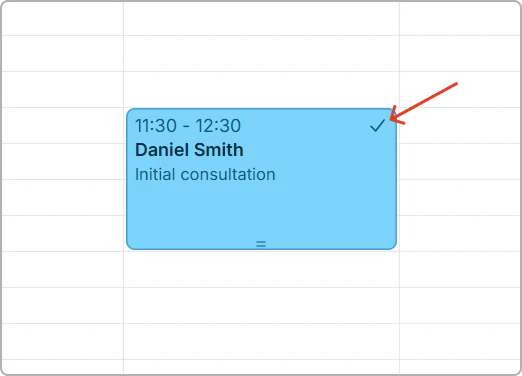
- **Calendar:** Confirmed appointments show a **single tick** icon.

<figure><img src="https://support.caspen.com/files/KNxt4dpLxx2lpdzTu3h5.webp" alt="Confirmed booking shown with a single tick on the appointment." width="404"><figcaption><p>Confirmed booking shown with a single tick on the appointment.</p></figcaption></figure>

---

## Confirm (or unconfirm) manually

When to use: phone confirmations or front-desk confirmations.

You can set the confirmation state yourself from the appointment panel:

1. Open the appointment from **Calendar**.
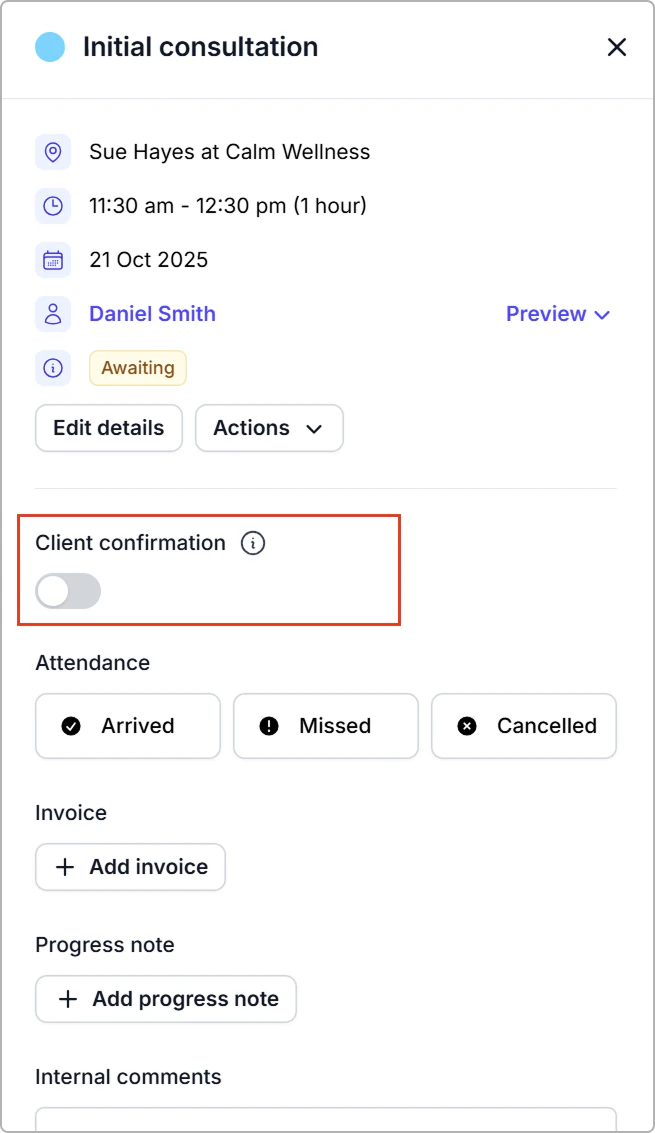
2. In the appointment panel, turn **Client confirmation** **on** to mark **Confirmed**, or **off** to return it to **Unconfirmed**.

<figure><img src="https://support.caspen.com/files/ll8mjDxjCtDiB7jdwq90.webp" alt="Client appointment not confirmed." width="491"><figcaption><p>Client appointment not confirmed.</p></figcaption></figure>

<figure><img src="https://support.caspen.com/files/M1mAi8oYHsTRs5Qtld5U.webp" alt="Confirmed appointment: “Confirmed at 15 Oct 2025, 2:39 pm”"><figcaption><p>Confirmed appointment: “Confirmed at 15 Oct 2025, 2:39 pm”</p></figcaption></figure>


> **Info:**
>
> **Tip:** See the [Schedule](https://support.caspen.com/schedule) and use the **Unconfirmed** filter to focus on bookings still awaiting confirmation.<br>