# Update an appointment status
> Set an appointment to arrived, missed, or canceled from the calendar.
Source: https://support.caspen.com/calendar/appointments/update-an-appointment-status
Documentation index: https://support.caspen.com/llms.txt
## Where to change a status
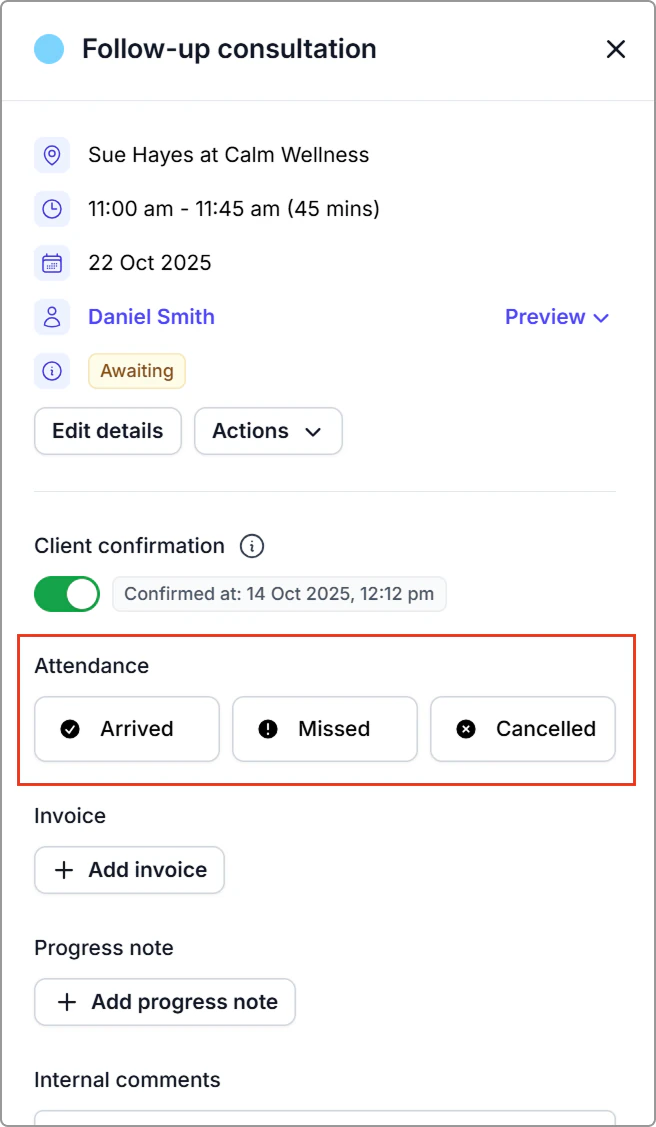
1. Open **Calendar** and click the appointment.
2. In the info panel, go to **Attendance** and choose **Arrived**, **Missed**, or **Canceled**.
---
## Mark appointments as arrived
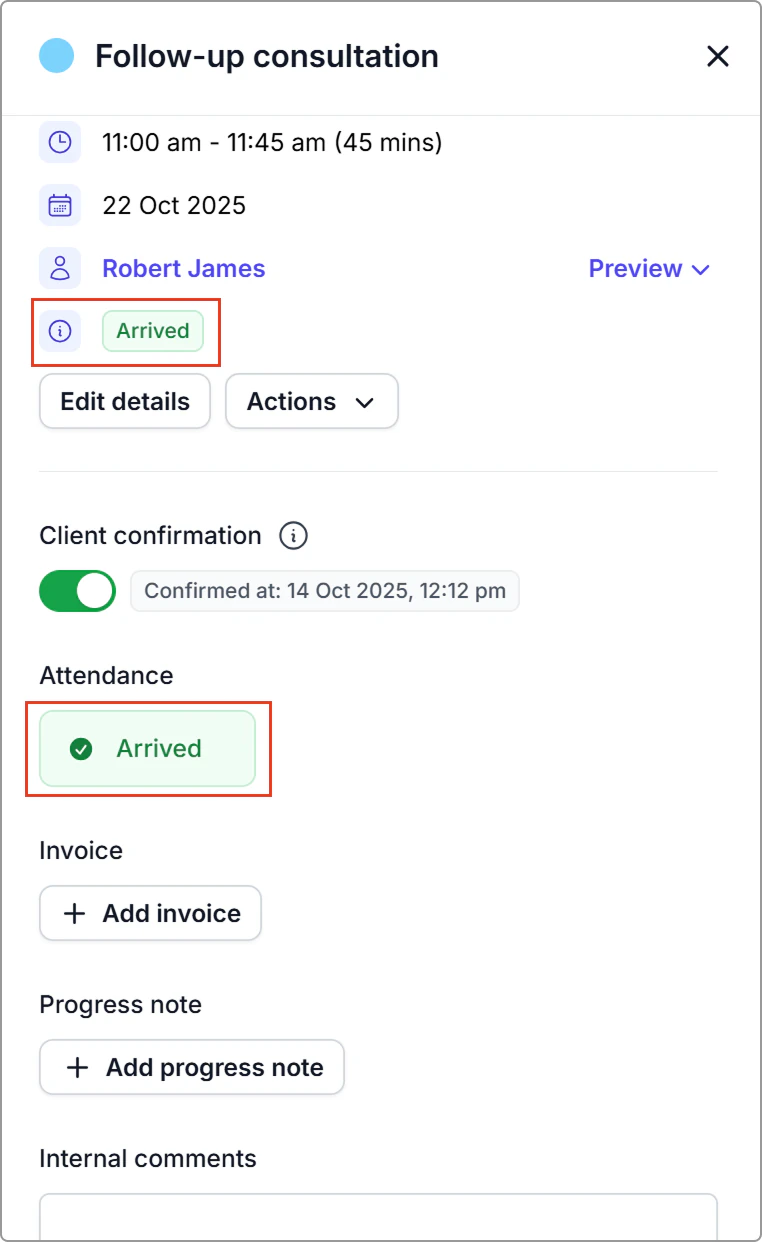
- Open the appointment → Attendance → Click **Arrived**.
- Use this when the client has checked in.
**What happens**
- The appointment is recorded as **Arrived**.
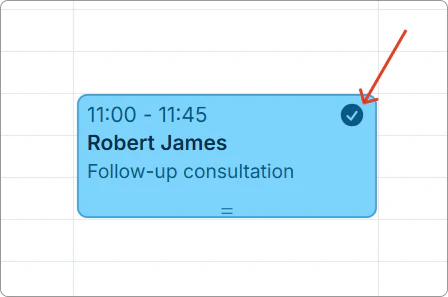
- A check mark appears on the appointment in the calendar.
---
## Mark appointments as missed
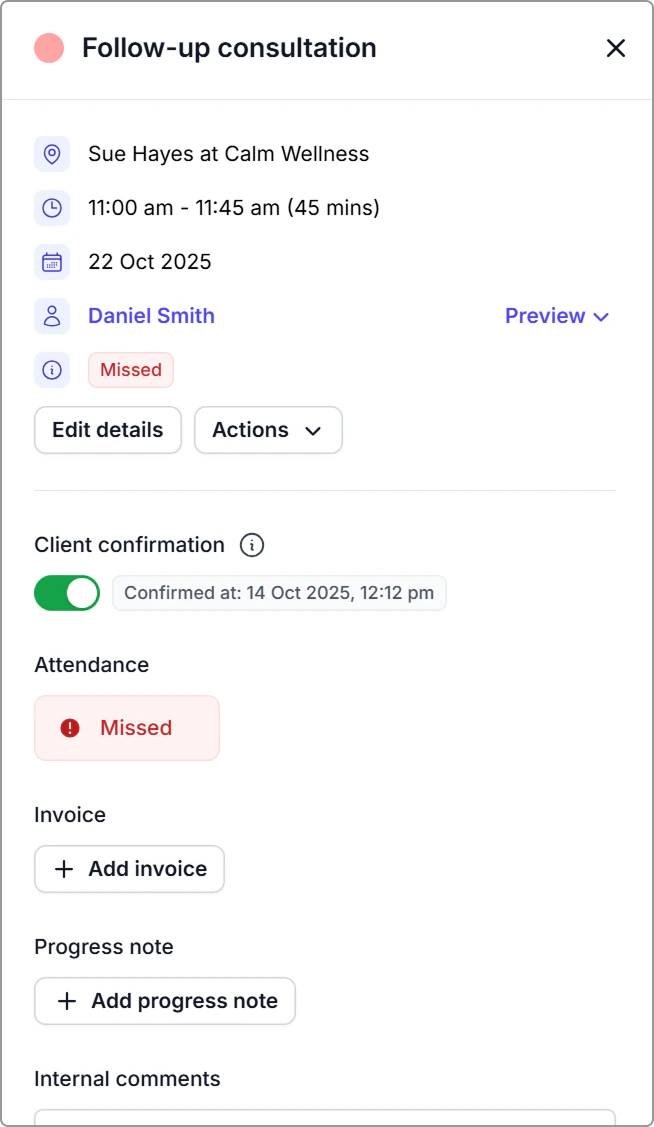
- Open the appointment → Attendance → Click **Missed**.
**What happens**
- The appointment remains on the calendar but is marked **Missed** (no-show).
- No client message is sent by default.
- You can still add notes or invoice if your policy allows.
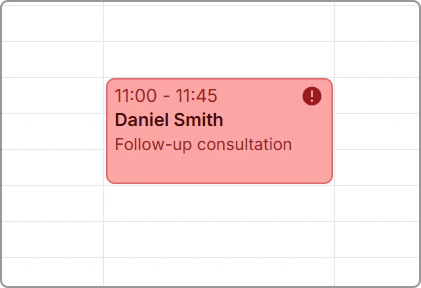
- The appointment colour shows **red** on the calendar with an **exclamation-mark** badge.
---
## Mark appointments as canceled
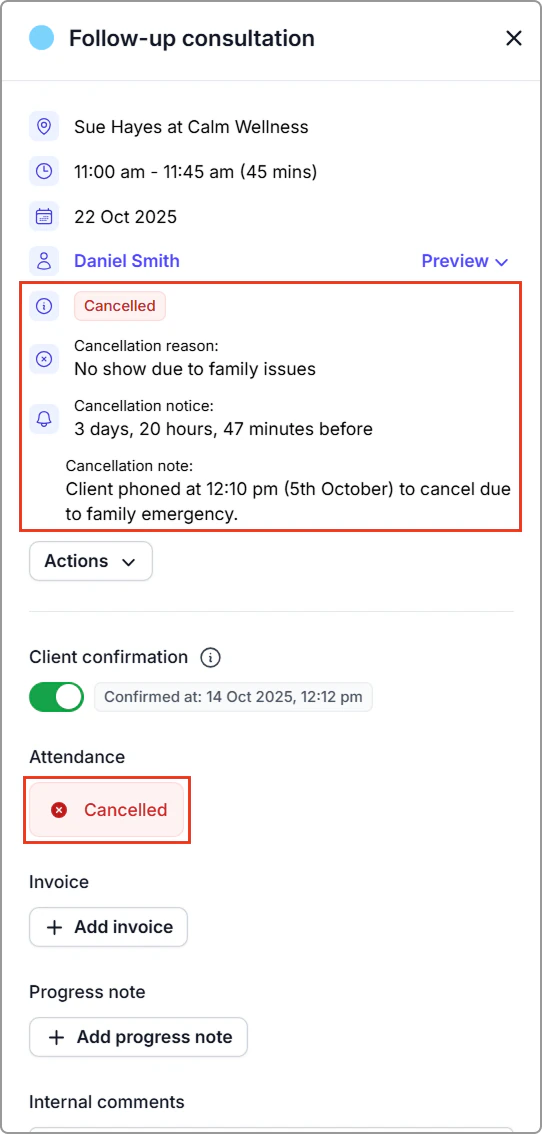
- Open the appointment → **Attendance** → Click **Canceled.**
- Enter (**cancellation reason**, **date and time**, **notes**, and (for repeating appointments) choose whether to **cancel future appointments**.
- See [Cancel an appointment](https://support.caspen.com/calendar/appointments/cancel-an-appointment) for full steps.
**What happens**
- The appointment is removed from the calendar, freeing the time for new bookings.
- Any rooms or resources linked to the appointment become available again.
---
## Change an incorrect status
Open the appointment, click the current status under **Attendance**, and the status options will reappear. Then select **Arrived**, **Missed**, or **Canceled**.
---
**Need to find a canceled appointment?** Canceled appointments don’t appear on the calendar.\
Go to **Schedule** and filter by **Canceled** under Status. For more details, see [Schedule](https://support.caspen.com/schedule).
---
## Frequently asked questions
What’s the difference between missed and canceled appointments?
**Canceled** means the booking was called off before it started. **Missed** means the client did not attend. A canceled appointment (in the future) frees the slot, while a missed one stays recorded as not attended.