# Edit a busy time
> Update the time, details, or busy time type for an existing busy time event in your calendar.
Source: https://support.caspen.com/calendar/busy-times/edit-a-busy-time
Documentation index: https://support.caspen.com/llms.txt
## How to edit a busy time
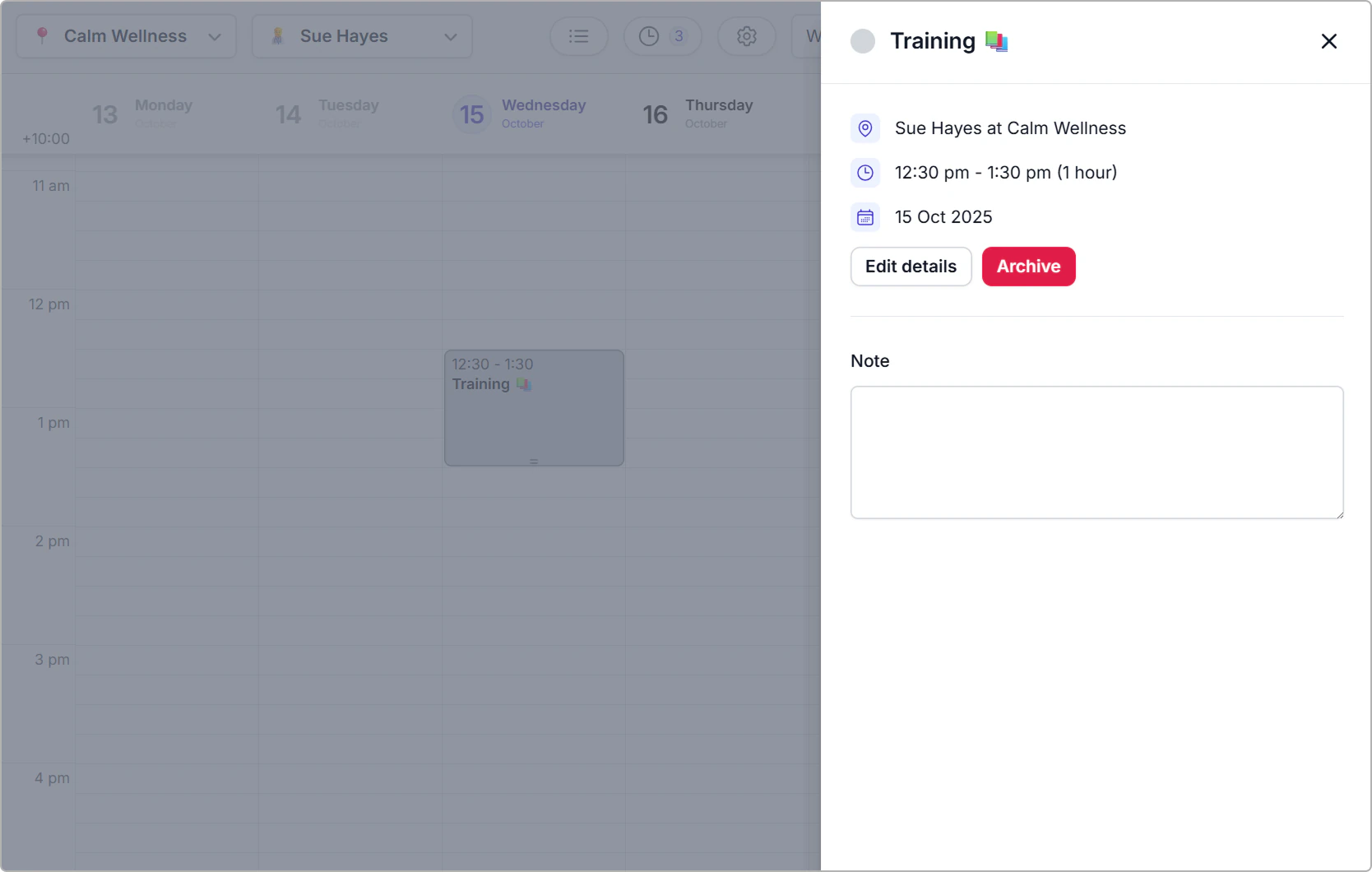
1. Click the busy time block in the calendar to open the information panel.
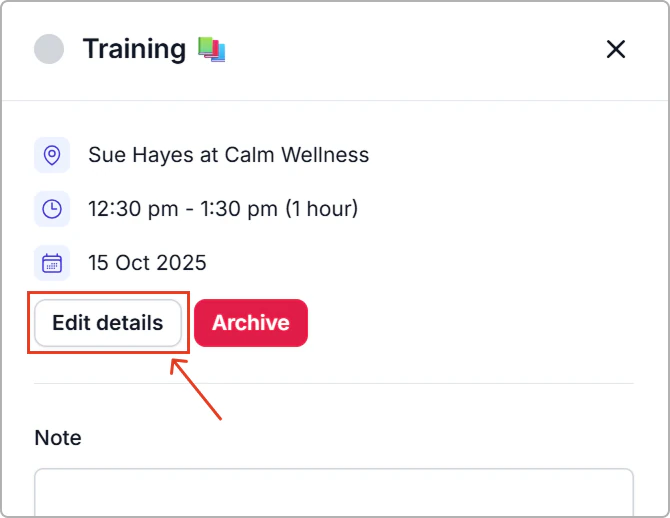
2. Click **Edit details**.
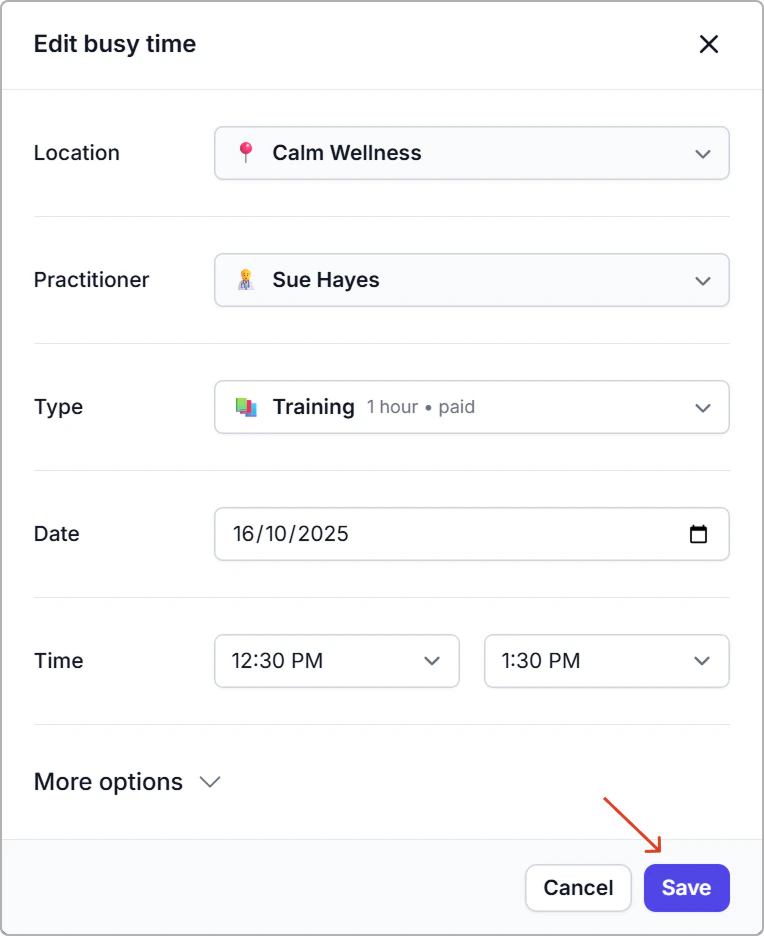
3. **Update any fields**: Location, Practitioner, Type, Date, Time, Room, Vehicle, Resources, Note.
4. Click **Save**.
> **Tip:**
>
> **Note:** Editing a busy time immediately updates availability for that period.