# Manage your calendar display settings
> Adjust calendar hours, switch views, and blur client details.
Source: https://support.caspen.com/calendar/calendar-settings/manage-your-calendar-display-settings
Documentation index: https://support.caspen.com/llms.txt
## Overview
Control what you see on the calendar, set your working hours, choose a view, and turn on privacy when needed.
---
## Open calendar display settings
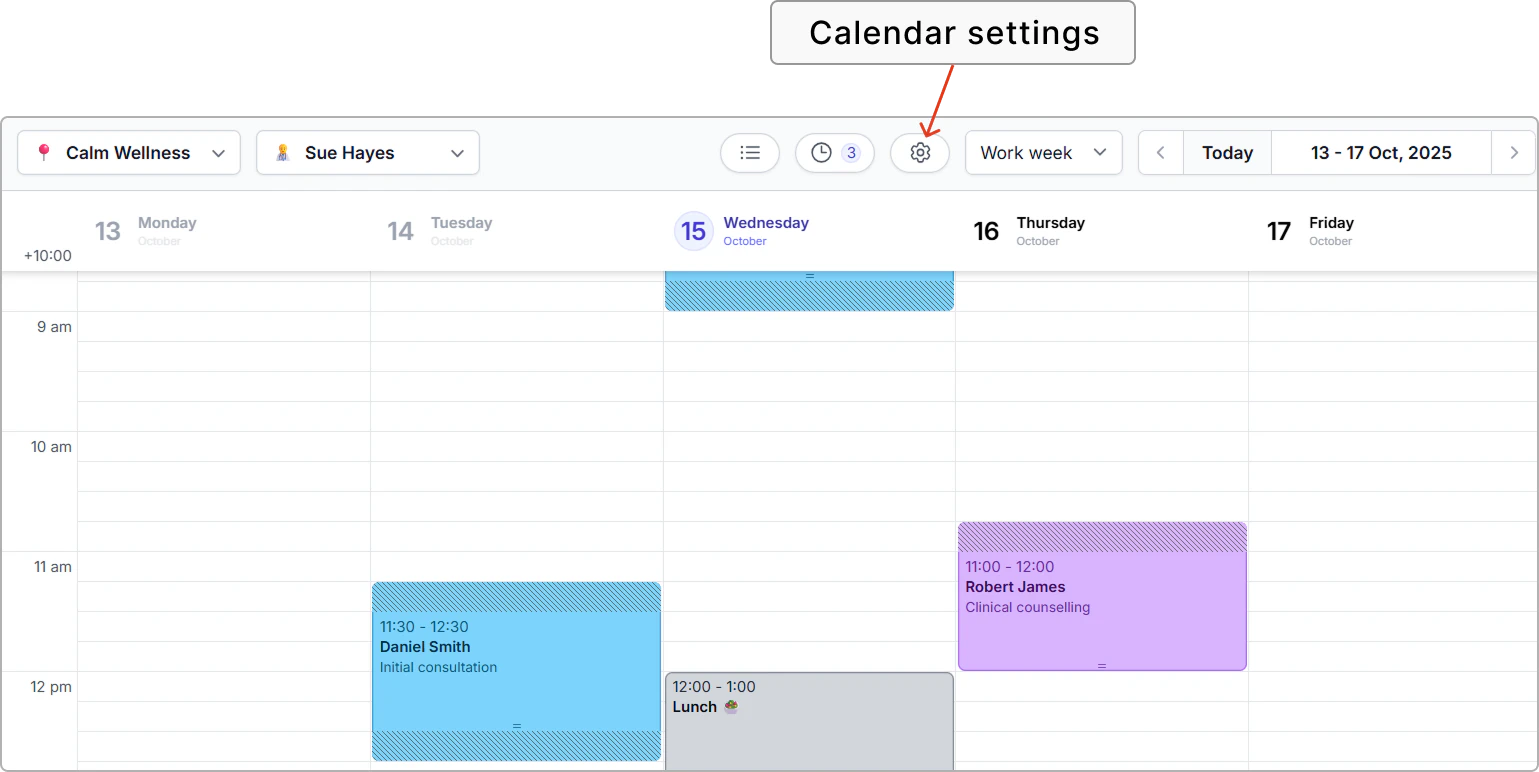
1. Go to **Calendar.**
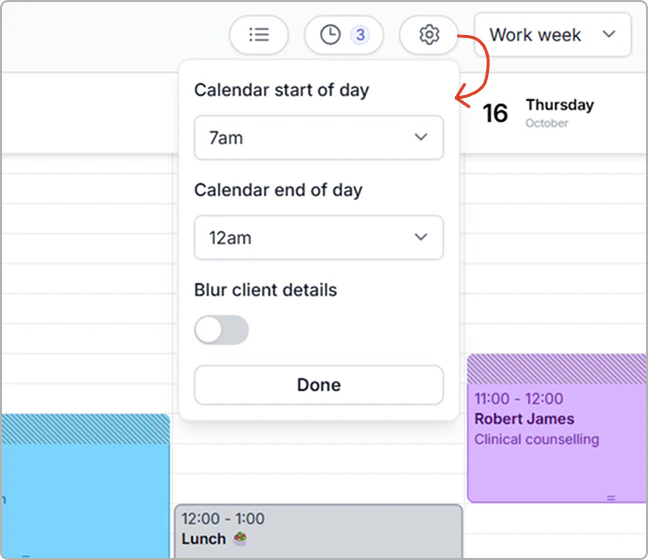
2. Click **Settings** (gear icon) in the top bar.
**Visible hours (for you only)**
- Calendar start of day: Choose the earliest time shown.
- Calendar end of day: Choose the latest time shown.
> **Info:**
>
> Changing visible hours affects **only what you see**. It does not block bookings or limit online bookings.
Want to prevent bookings during certain times? Add **Busy time** in the calendar or adjust your **availability.**
---
### Enable privacy mode on your calendar
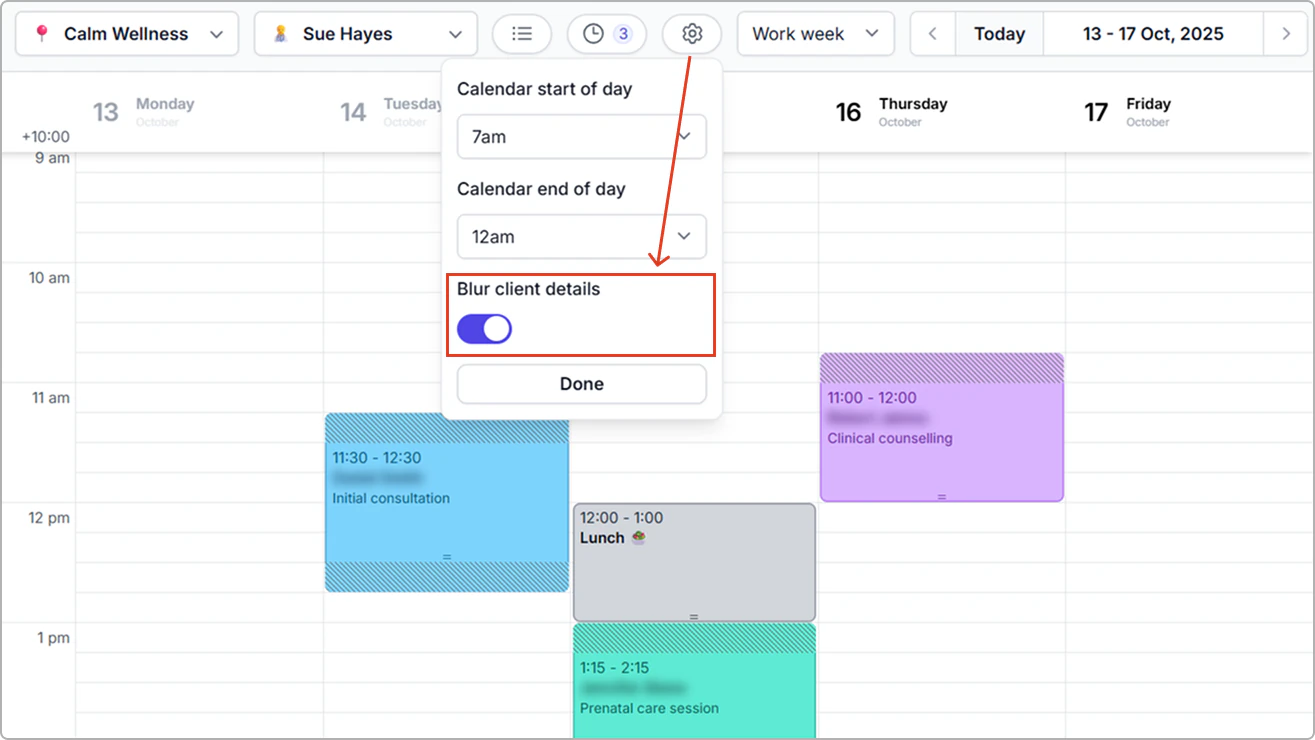
Privacy mode hides client-identifying details on the calendar while keeping your schedule usable (handy at reception or in public spaces).
- Toggle **Blur client details** **On** to hide names.
- Toggle **Off** to show full details again.
---
## Change the calendar view
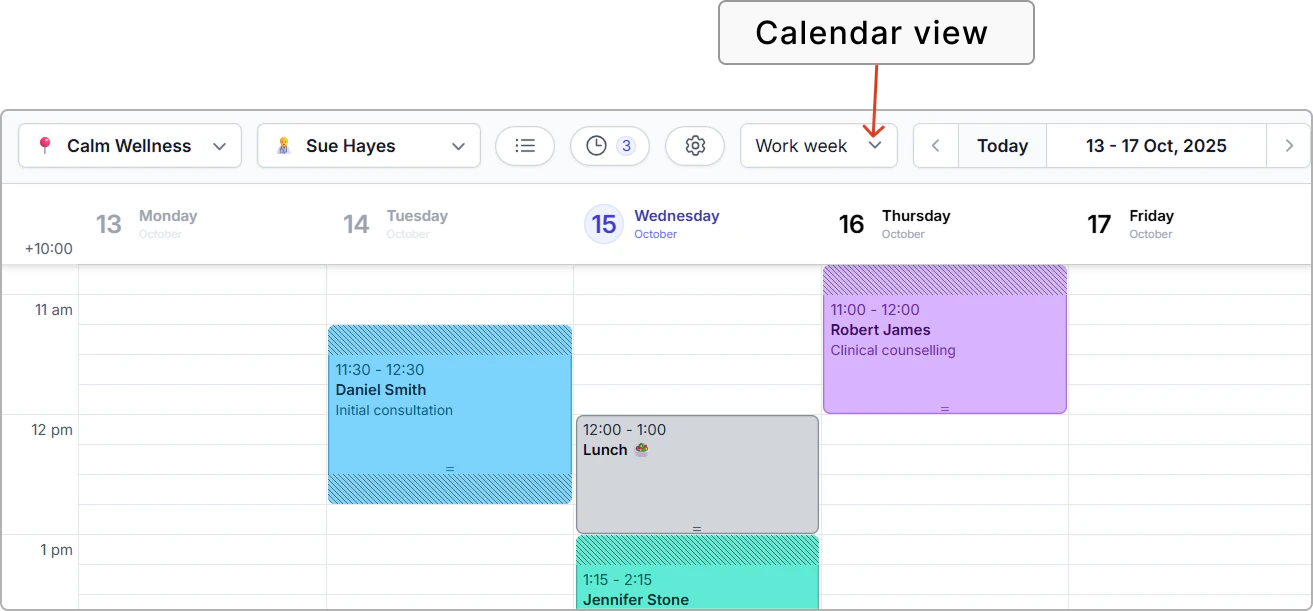
Use the **View** menu on the top bar to switch between:
- **Day:** A single day
- **3 days** : Three days side-by-side
- **Work week:** Monday to Friday
- **Week:** The full week