# Activity categories
> Learn how to add categories for activities in Caspen.
Source: https://support.caspen.com/catalog/activities/activity-categories
Documentation index: https://support.caspen.com/llms.txt
## How to add a category
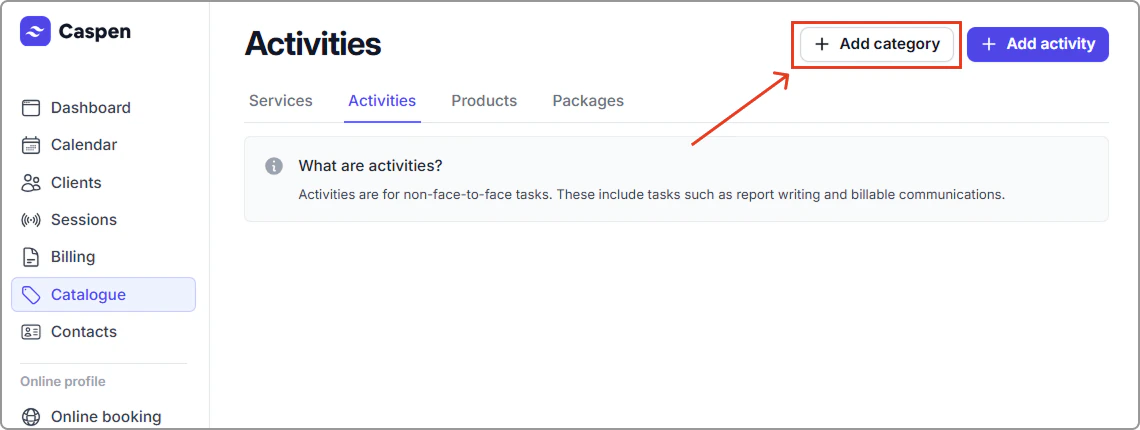
1. Go to **Catalog** → **Activities** tab.
2. Click **Add category**.
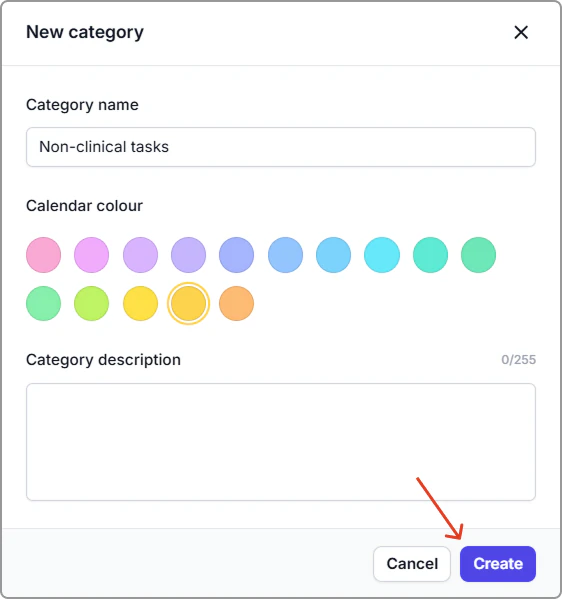
3. Enter the details, then click **Create**.
---
### Category field reference
| Field | Description |
| -------------- | --------------------------------------------------------------------------------------------------------------------- |
| Name |
The category name shown in lists and menus.
Examples: Reports, Case Notes, Admin, Communications.
|
| Calendar color | The color activities in this category use on the calendar. |
| Description | Internal note about how this category is used. |
---
### How calendar colours work
**How it works**
- Activities inherit their category color in the calendar.
- If you change a category’s color later, all activities in that category update to the new color.
**Why it helps**\
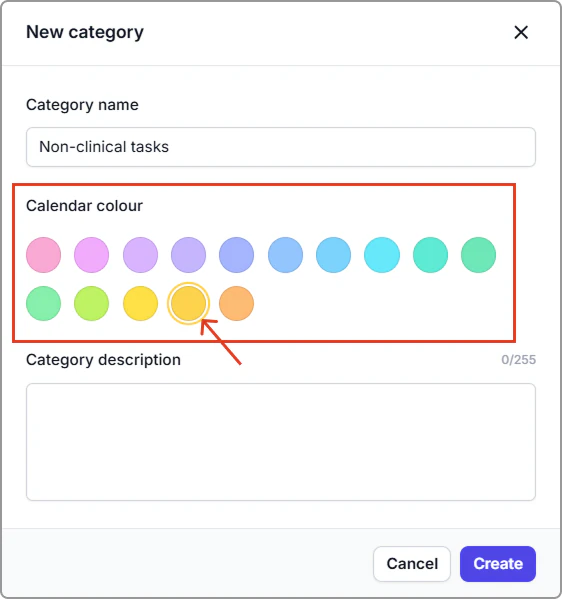
Color coding makes it faster to scan lists and the calendar. Use distinct colors for each activity category (for example: Non-clinical tasks = yellow).
**Example: set a category color**\
**Actions → Edit category → Calendar color → select yellow → Save.**
**Where you’ll see it**
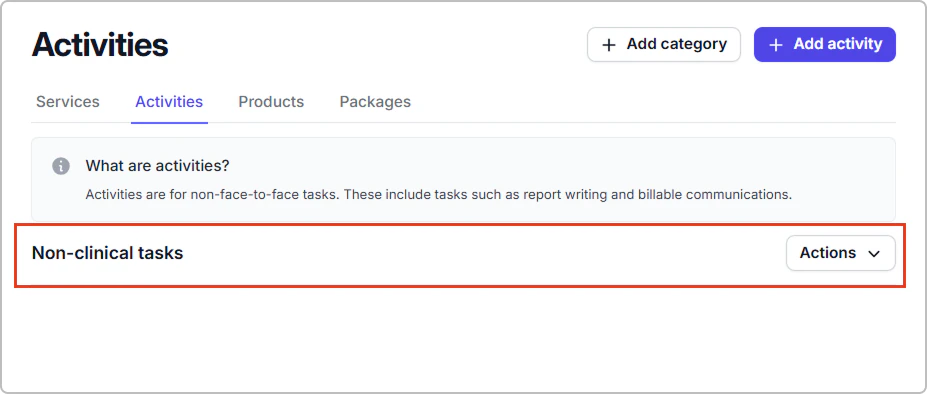
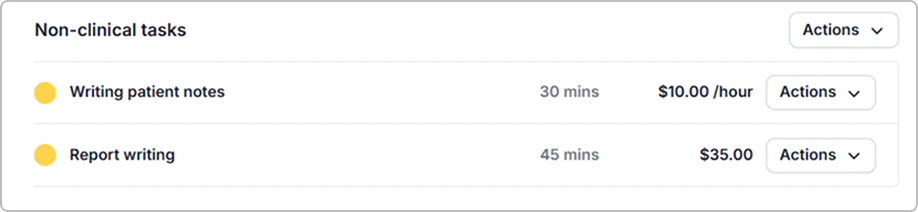
- **Activities list:** Activities in the **Non-clinical tasks** category show in yellow.
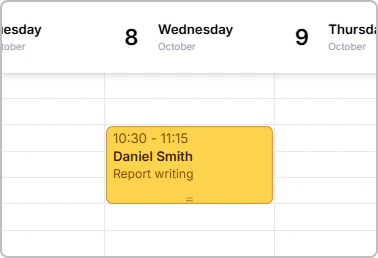
- **Calendar:** Those activities appear in yellow on the calendar.
Activities list using the Non-clinical category color (yellow).
Calendar event using the Non-clinical category color (yellow).
---
## Edit an activity category
1. Go to **Catalog** → **Activities**.
2. Find the category, then click **Actions** → **Edit category**.
3. Update the **Name**, **Calendar color**, or **Description**, then click **Save**.
---
## Archive an activity category
> **Info:**
>
> **Note:** You can only archive an empty category. Reassign or archive its activities first.
1. Go to **Catalog** → **Activities**.
2. Find the category, click **Actions** → **Archive category**.
It is now removed from the Activities list.