# Add an activity

> Learn how to add activities to your catalog in Caspen.

Source: https://support.caspen.com/catalog/activities/add-an-activity
Documentation index: https://support.caspen.com/llms.txt

> **Info:**
>
> What are Activities?
>
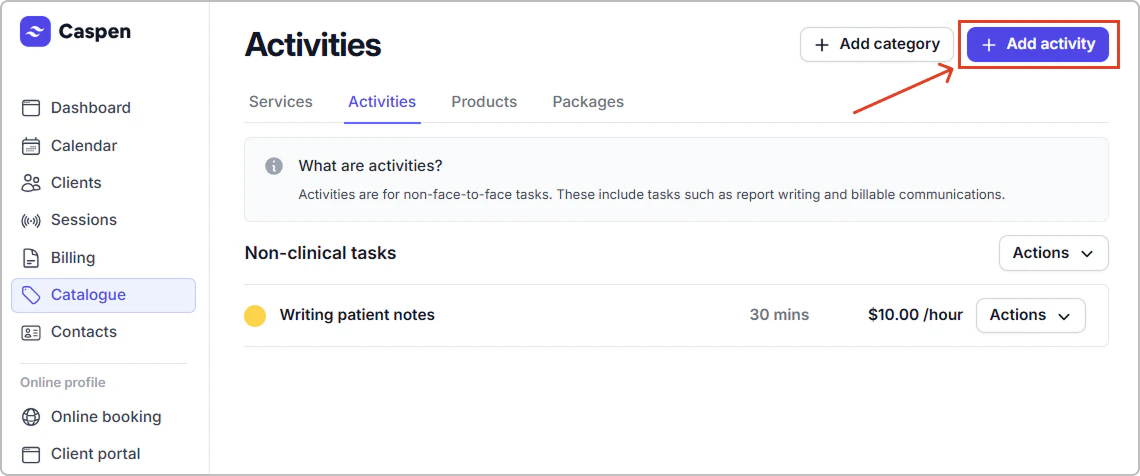
> Activities are non face-to-face items (e.g., report writing, case notes, billable communications). They do not send client notifications and are not shown in online bookings.


## How to add an activity

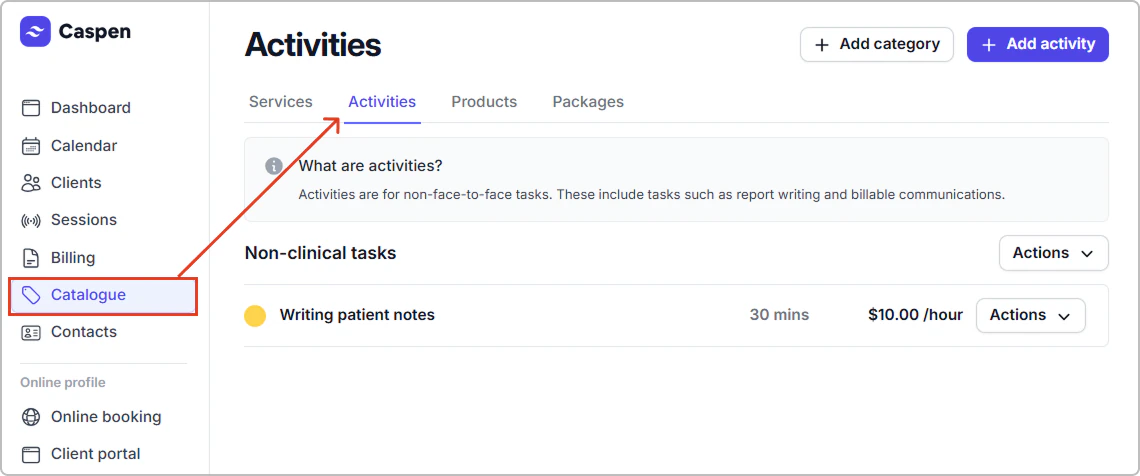
1. Go to **Catalog** → **Activities**, then click **Add activity**.

<figure><img src="https://support.caspen.com/files/jvjWXZDj8fwgyUBPZ0hW.webp" alt=""><figcaption></figcaption></figure>

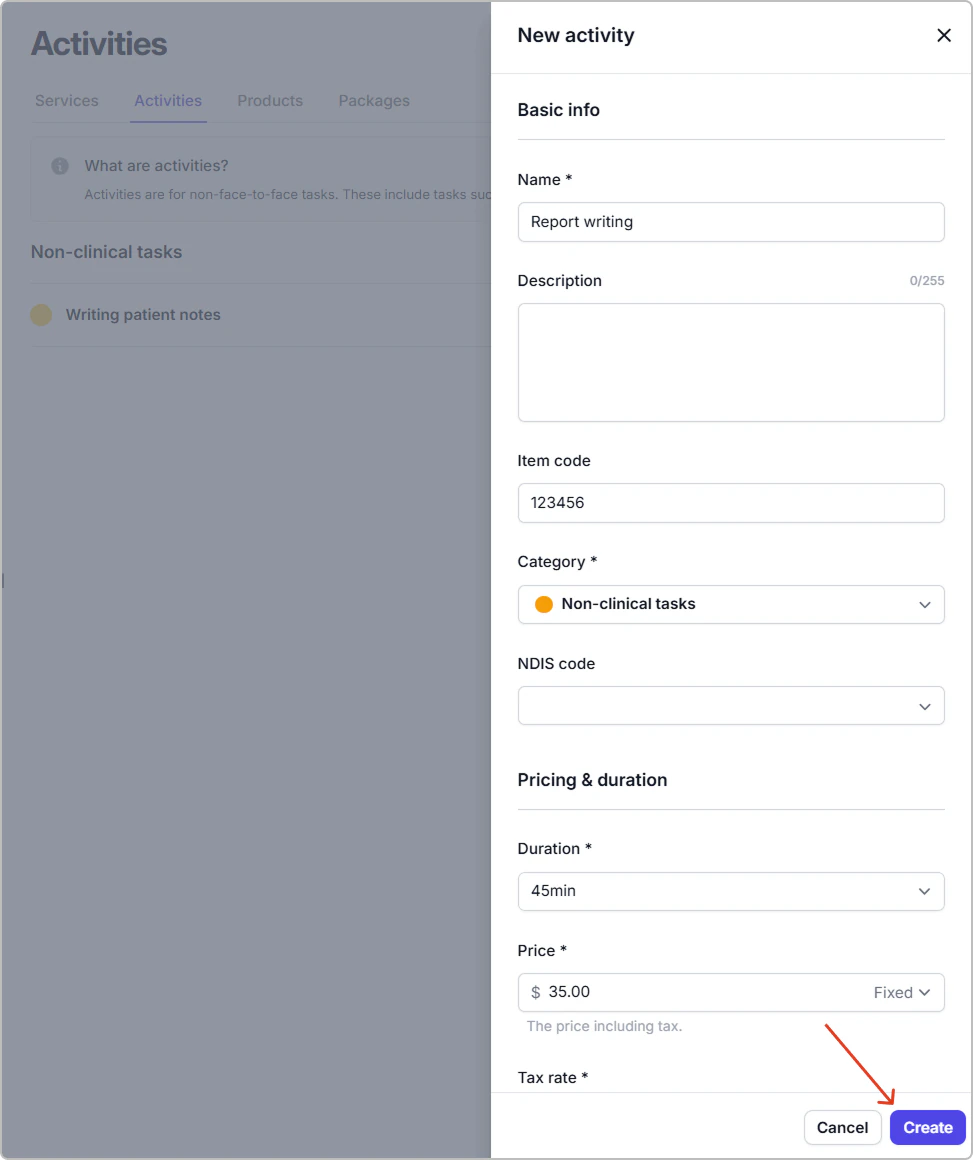
2. Enter the details (see **Activity fields reference** below).

<figure><img src="https://support.caspen.com/files/QkskQ3tYJxRKFFnuqQn3.webp" alt=""><figcaption></figcaption></figure>

3. Click **Create**.

<figure><img src="https://support.caspen.com/files/Eefrb1qxZXyfLDcHJAzt.webp" alt="" width="563"><figcaption></figcaption></figure>

The activity appears in your catalog and can be scheduled in your calendar for the practitioners and locations you selected (and added to invoices if needed).


> **Info:**
>
> **Tip:** Assign at least one **location** and **practitioner** so the activity can be scheduled.


---

### Activity field reference

| Field         | Description                                                                                                                                                                                                                                                                                      |
| ------------- | ------------------------------------------------------------------------------------------------------------------------------------------------------------------------------------------------------------------------------------------------------------------------------------------------ |
| Name          | The activity name shown in the calendar and on invoices where applicable.                                                                                                                                                                                                                        |
| Item code     | Internal or funding reference.                                                                                                                                                                                                                                                                   |
| Category      | The category this activity belongs to. Used for grouping and color.                                                                                                                                                                                                                              |
| NDIS code     | Australia-specific NDIS related funding code. If not applicable, leave blank.                                                                                                                                                                                                                    |
| Duration      | Length in minutes.                                                                                                                                                                                                                                                                               |
| Price         | <p>The amount you charge. Either <strong>Fixed</strong> or <strong>Hourly</strong>.</p><ul><li><strong>Fixed</strong>: A set price. You can still change it on the invoice.</li><li><strong>Hourly</strong>: An hourly rate. The invoice total is based on the hours you enter.</li></ul> |
| Tax rate      | The tax that applies to this activity.                                                                                                                                                                                                                                                           |
| Practitioners | Who can perform this activity.                                                                                                                                                                                                                                                                   |
| Locations     | Where this activity is recorded.                                                                                                                                                                                                                                                                 |


> **Info:**
>
> #### Entering the price
>
> Enter prices according to your **account tax setting**:
>
> - **Prices exclude tax:** enter the price without tax; tax is added on the invoice.
> - **Prices include tax:** enter the price with tax; the tax portion is shown on the invoice.<br>
>
> See **Settings** → **Taxes** to change the account tax setting.
>
> \
> **Note:** This is separate from the activity’s **Tax rate**, which sets which rate (for example 10 percent or tax free) to apply on the invoice.


---

#### Quick add from a category

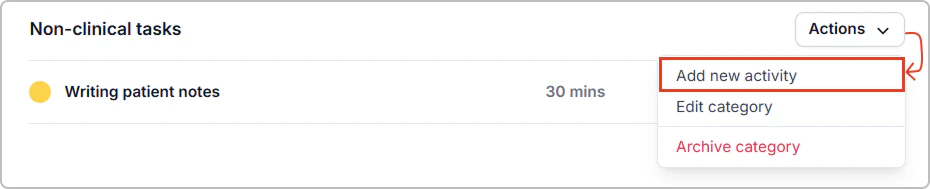
You can also add an activity from a category: **Actions → Add new activity**. This opens the same form with **Category** prefilled.

<figure><img src="https://support.caspen.com/files/i6Rm2RNShGJev0DOoZ9r.webp" alt=""><figcaption></figcaption></figure>

---

## Frequently asked questions

<details>

<summary><strong>Do activities send client notifications?</strong></summary>

No. Activities do not send client notifications.

</details>

<details>

<summary><strong>Can activities appear on invoices?</strong></summary>

Yes. If you add an activity to an invoice, its name, price, and item code (where enabled) will appear like other billable items.

</details>

<details>

<summary><strong>What if I do not use NDIS?</strong></summary>

Leave **NDIS code** blank. It is only relevant for Australian NDIS billing.
</details>

<br>