# Assign a package to a client
> Learn how to add an existing package to a client so credits can be used when you book an appointment.
Source: https://support.caspen.com/catalog/packages/assign-a-package-to-a-client
Documentation index: https://support.caspen.com/llms.txt
## How to assign a package to a client
> **Warning:**
>
> **First time with packages?**\
> If you don't have any packages set up yet, **create a package in your catalog** first, then **assign it to a client**.
>
> **Create a package** → [**Add a package**](https://support.caspen.com/catalog/packages/add-a-package)**.**
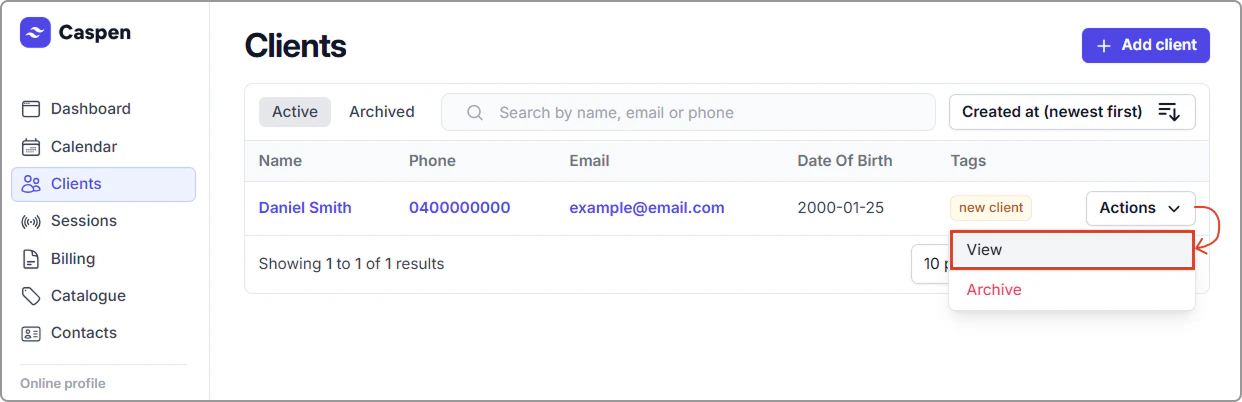
1. Go to **Clients**, search and open the client (click their name or **Actions** → **View**).
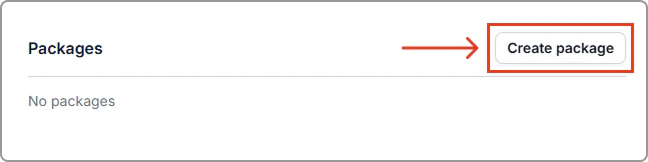
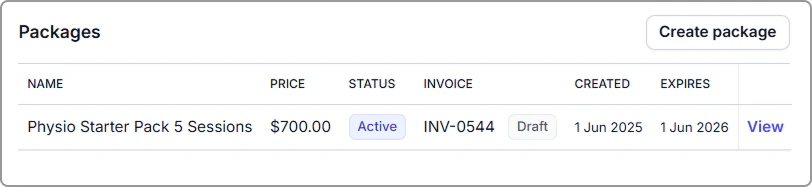
2. In the **Overview** tab, find the **Packages** section, then click **Create package**.
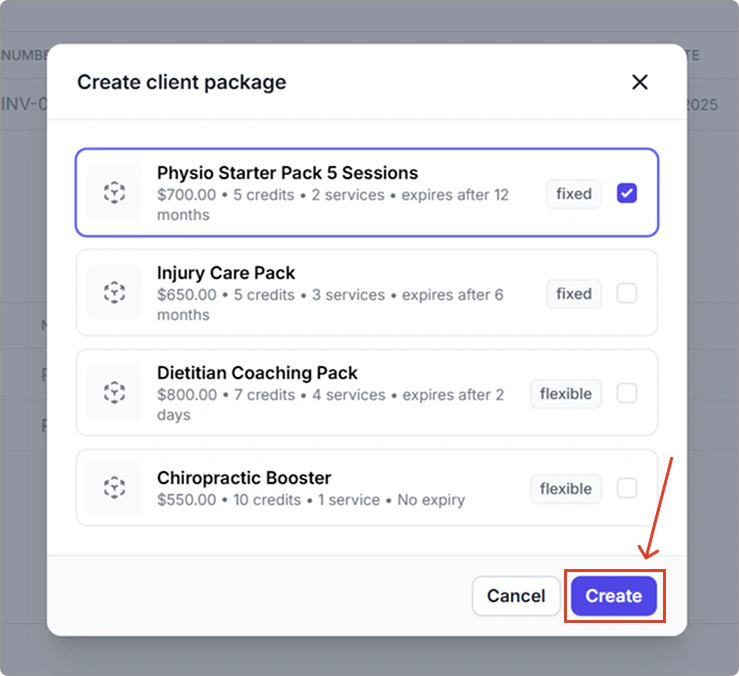
3. Select a package from the list (you’ll see price, credits, services, and expiry), then click **Create** to assign it to the client.
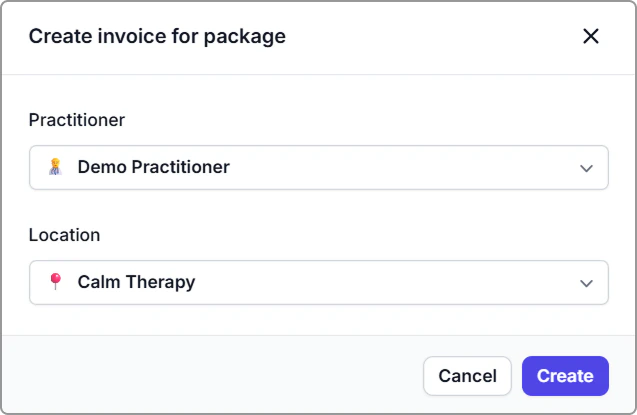
4. (_Optional_) A **Create invoice for package** window opens. Choose **Practitioner** and **Location**, then click **Create** to generate the invoice or click **Cancel** to skip and invoice later.
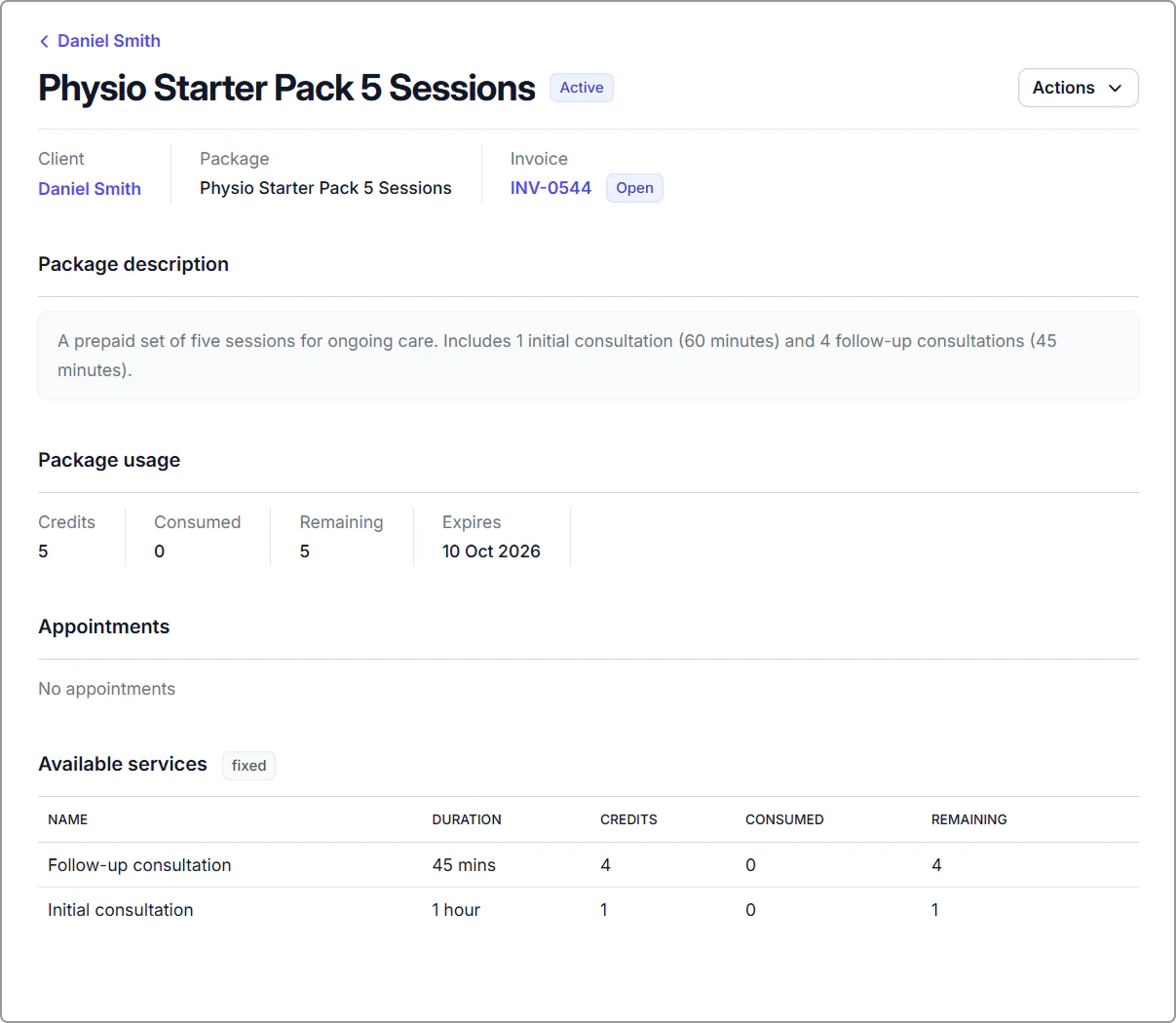
**After assignment you will see:**
- **Status:** Active, Completed, Expired, Canceled.
- **Usage:** Credits, Consumed, Remaining, Expires.
- **Available services** for this package.
- **Any linked appointments** and **invoices**.
#### Find the package later
You can view a client package from their profile, go to **Overview → Packages**. Click **View** on the row to open the package.
---
## Use a package when booking
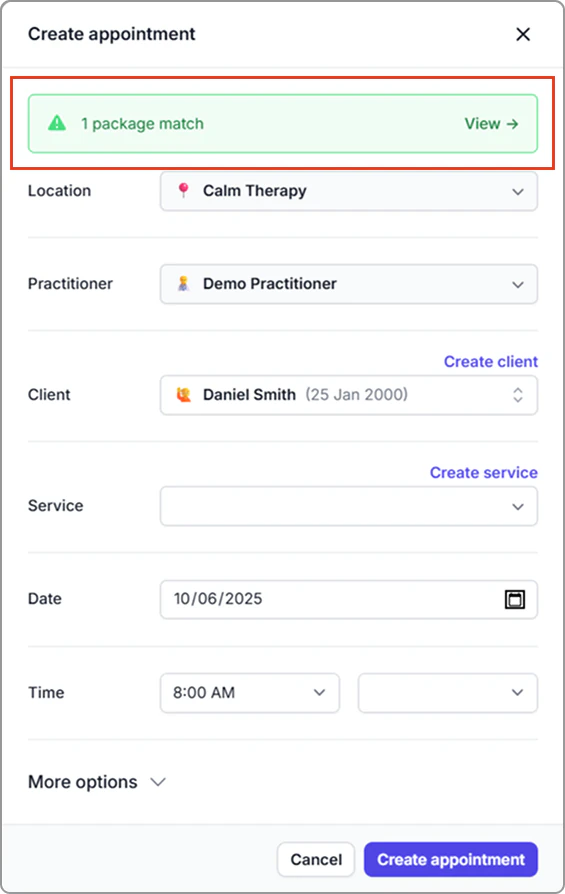
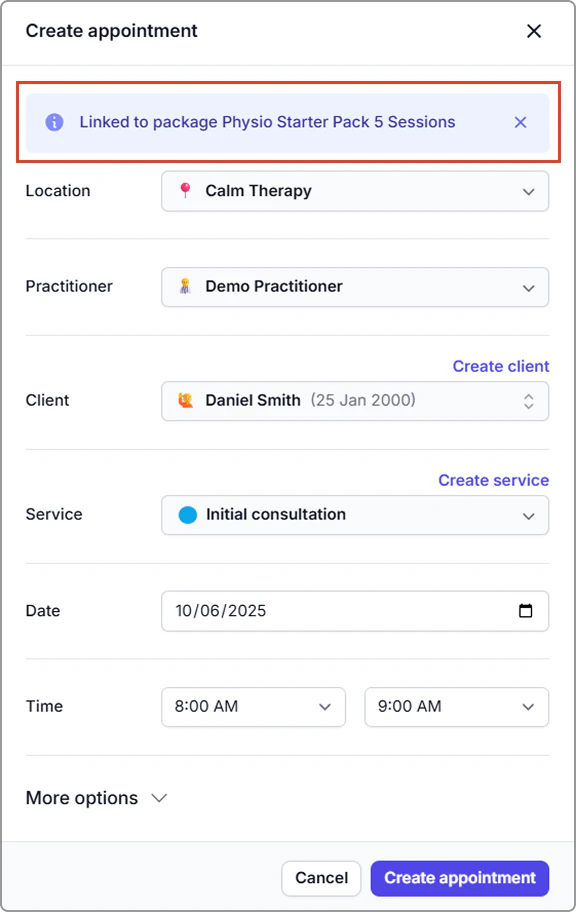
1. Open **Calendar** → **Create appointment** and choose the **Client**.
2. If the client has eligible packages, a green banner shows “**X package matches — View**”.
- _X = the number of the client’s **eligible** packages (Active, not Expired or Canceled)._
3. Click **View**.
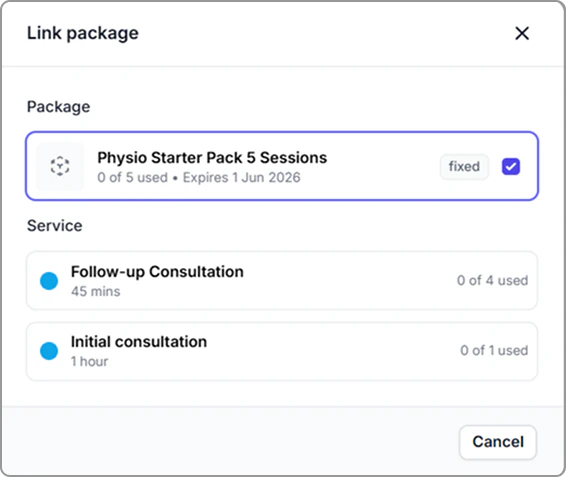
4. In the **Link package** popup screen, select the **package**, then choose the **Service** it covers.
- _For fixed packages, you will see the remaining allowance for that service (e.g., 0 of 3 used). For flexible packages, there is no per service allowance shown. Remaining credits are shown at the package level._
5. Complete the appointment details and click **Create appointment**.
**Result:**
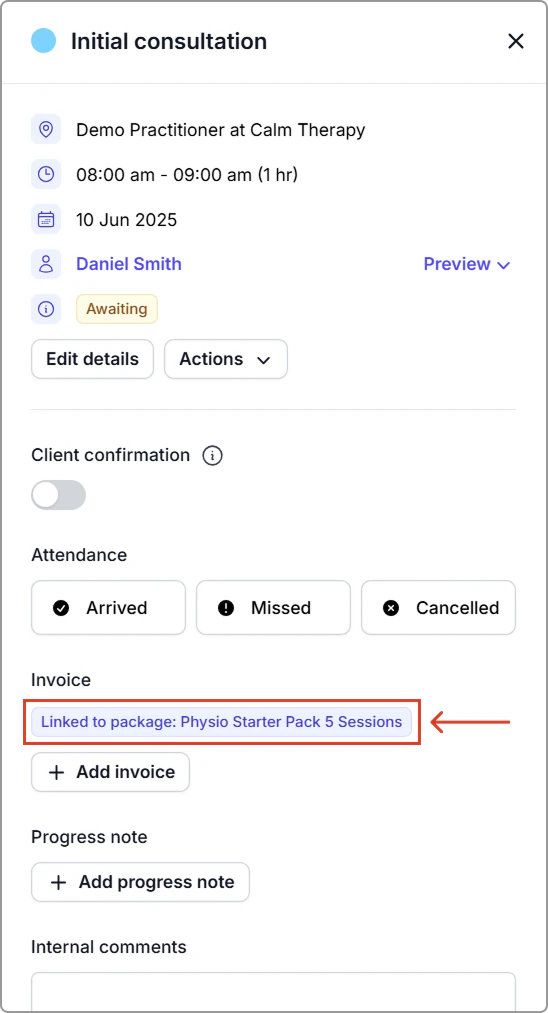
- One credit is consumed from the selected package (per the package rules).
- The appointment information panel shows **Linked to package:** **\[Package name]** to confirm the booking uses that package (shown below).
---
## Invoice a package
You can:
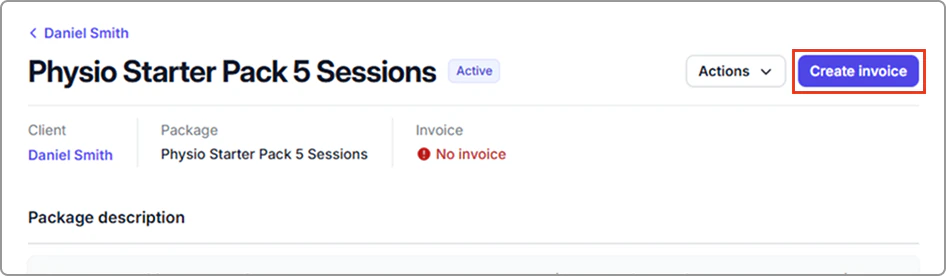
- Invoice the package **when you assign it**, or
- Invoice later from the client profile: open the package and click **Create invoice**.
---
## Unlink an appointment from a package
> **Info:**
>
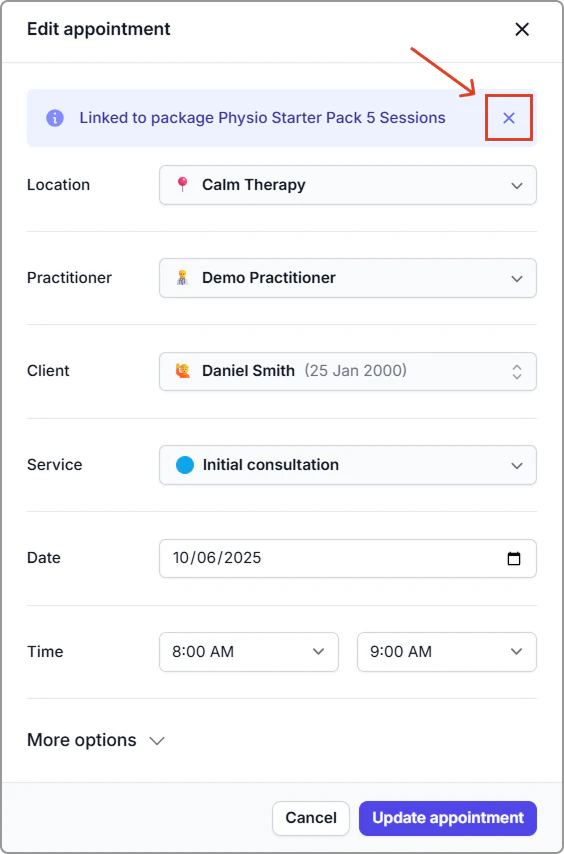
> After unlinking, the appointment will not use a package credit. To link a different package, unlink the current one first. If a matching client package exists, a **Package matches** banner appears at the top of the appointment panel so you can select it.
1. Open **Calendar** and click the appointment.
2. In the appointment information panel, click **Edit details**.
3. At the top, find **Linked to package \[package name]** and click the **X** to remove the link.
4. Click **Update appointment**.
---
**Tips:**
- **Fixed vs flexible:** Fixed packages show per-service allowances (e.g., 0 of 3 used). Flexible packages draw from a shared credits pool.
- **Not seeing a package?** It may be **Completed**, **Expired**, or **Canceled**.
---
## Frequently asked questions
Can I take a deposit for a package?
Yes. Create the client package and finalise its invoice. On the invoice, select Pay invoice, choose a payment method, and enter a deposit. Caspen records a part payment and leaves the remaining balance open.
Need a hand? Reach out to us and we’ll walk you through it.
What happens when a package expires?
The package is marked Expired. Any remaining credits can’t be used and won’t show as a match when booking.
How do I see remaining credits for a client?
Go to Clients → open the client → Overview → Packages. Find the package and click View to see Remaining credits and Expiry.
What if I want to bill for something else after I have created the invoice?
- If the invoice is in draft, open it and add the extra items, then save or finalize.
- If the invoice is finalized, create a new invoice for the additional charges.
Can I use repeating appointments with packages?
No. Packages can’t be applied to repeating appointments. Book each appointment separately to use package credits.
Can clients book packages online?
Not at this stage. Most practices discuss packages with clients before purchase. If online package sales would help your practice, please let our team know.
\