# Upload files for a client
> Add documents and images to a client profile.
Source: https://support.caspen.com/clients/client-files/upload-files-for-a-client
Documentation index: https://support.caspen.com/llms.txt
## Overview
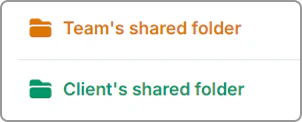
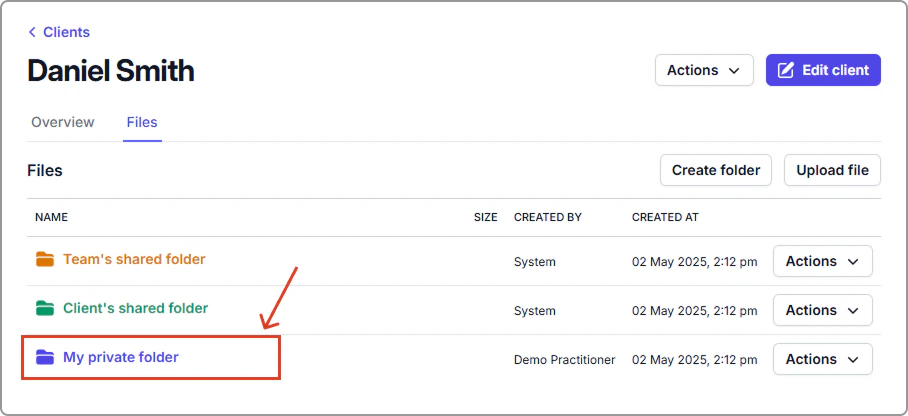
We automatically create two folders for each client added to the system:
- **Team’s shared** (orange) = Client can see it in their portal. Staff can upload files they want to share with the client.
- **Client’s shared** (green) = Client uploads only; staff can’t upload here (staff can view/download only).
> **Info:**
>
> Both the Team’s shared (orange) and Client’s shared (green) folders and contained contents are visible to the client in their portal.
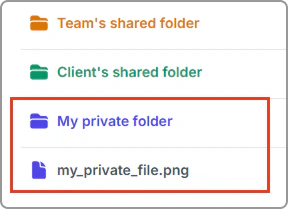
**Private folders:** Any folder or file created outside **Team’s shared** is private (team-only) and not visible to the client. Private folder and files appear with a blue icon.
---
## Upload client files
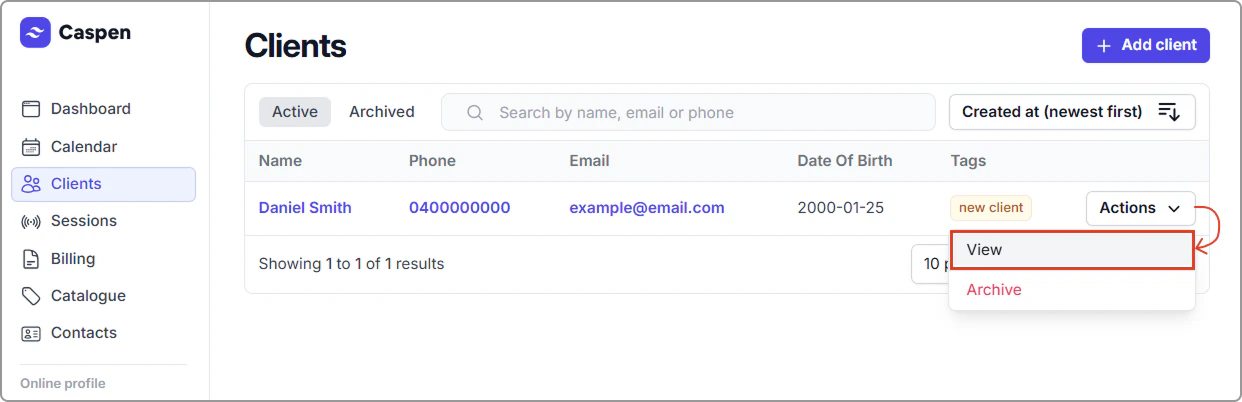
1. Open **Clients**, find the client, then select **Actions** → **View** (or click the client’s name).
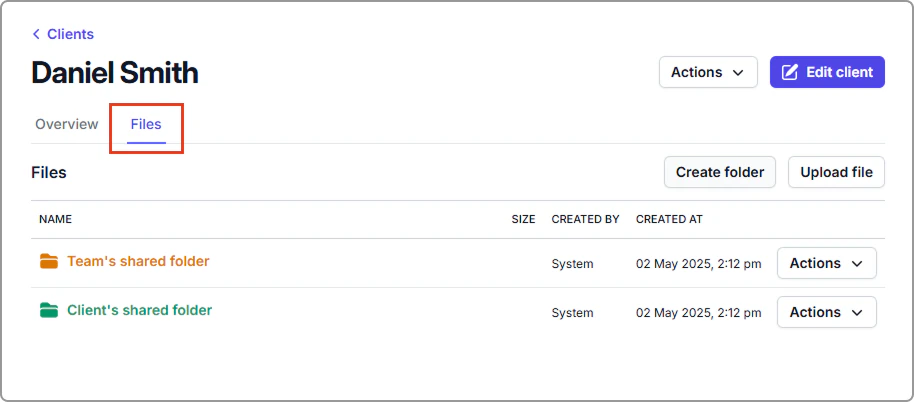
2. Go to the **Files** tab.
3. Open the destination folder by clicking on the **name**:
This may be any **Private** (blue) folder you have created for internal files or the **Team’s shared folder** (orange) (client-visible).
> **Info:**
>
> Remember:
>
> - Private / internal folder (blue) — team-only, not shown in the portal, or
> - Team’s shared folder (orange) — visible to the client in their portal.
> - You cannot upload to Client’s shared folder (green) (this is the client’s area).
> **Warning:**
>
> If you need a private folder: make sure you are not inside Team’s shared, click Create folder, name it, then Save.
Selecting **My private folder** (team-only). Files here are not visible to clients.
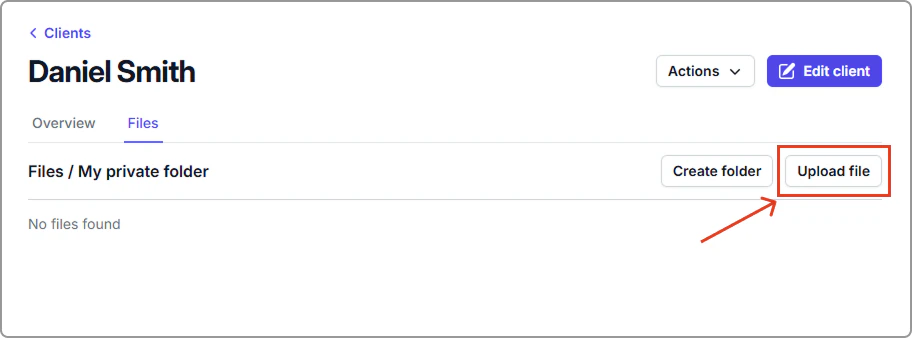
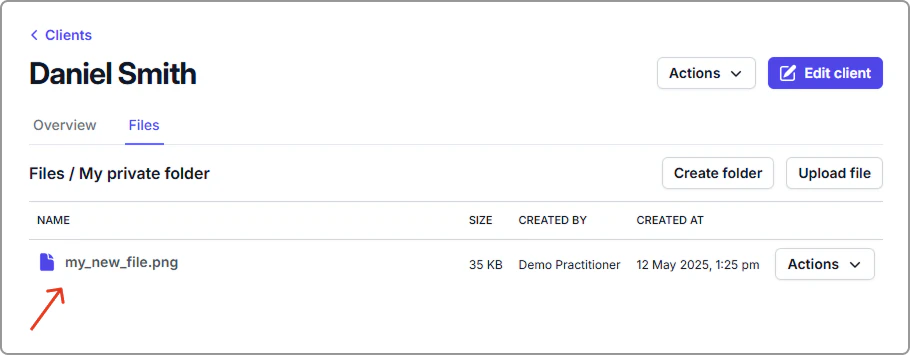
4. Click **Upload file**, browse your computer, and **select the file**. It’s saved to Caspen in the folder you’re currently in.
**Result**
- Files in Private are internal only.
- Files in Team’s shared are visible to the client in their portal.
---
**Tips**
- Use clear names (e.g., Referral_GP_2025-03-12.pdf ).
- Add short descriptions for client-visible files.
- Quick rule: If you want the client to see it, put it in Team’s shared. If you want it internal only, keep it in Private.
---
## Frequently asked questions
What is the maximum file size I can upload at a time?
100 MB per file.
Which file extension types can I upload?
- Images: jpg, jpeg, png, gif, webp
- Video: mp4, mpg, mov, m4v, wmv, avi, 3gp, mp2t
- Audio: mpeg, ogg, wav
- Documents: pdf, csv, rtf, txt, zip, doc, docx, xls, xlsx, ppt, pptx
Where can I ask for another file type to be added?
Contact our team and tell us the file type you need. We review requests regularly.
How do I keep an internal copy of a file the client uploaded?
Download the file from Client’s shared (green), then Upload it to a Private folder.