# Add a client alert
> Make key information visible to your team at a glance.
Source: https://support.caspen.com/clients/manage-clients/add-a-client-alert
Documentation index: https://support.caspen.com/llms.txt
## Overview
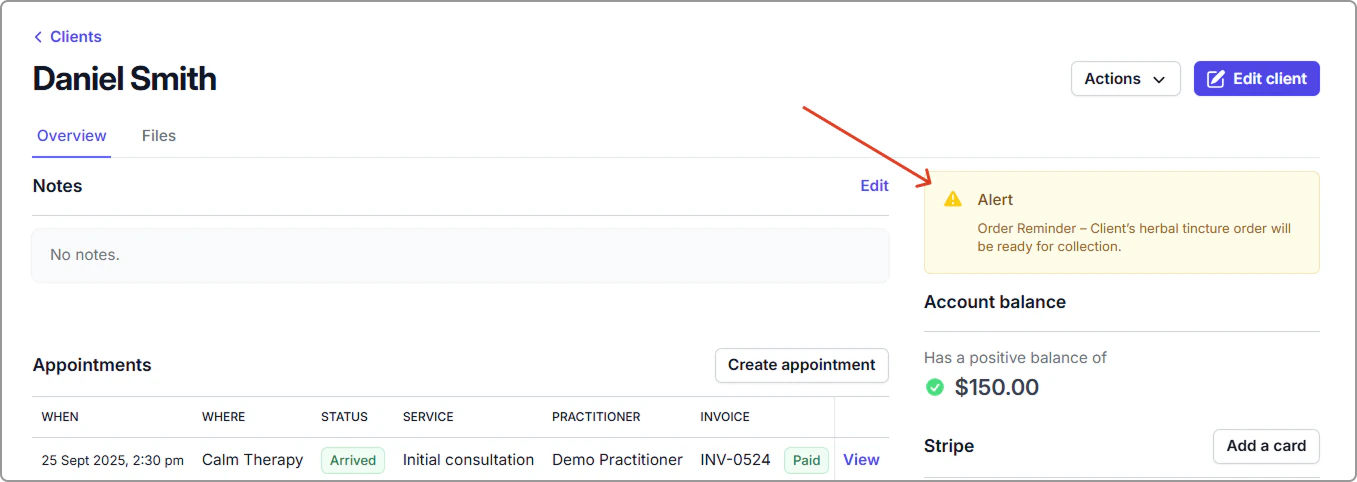
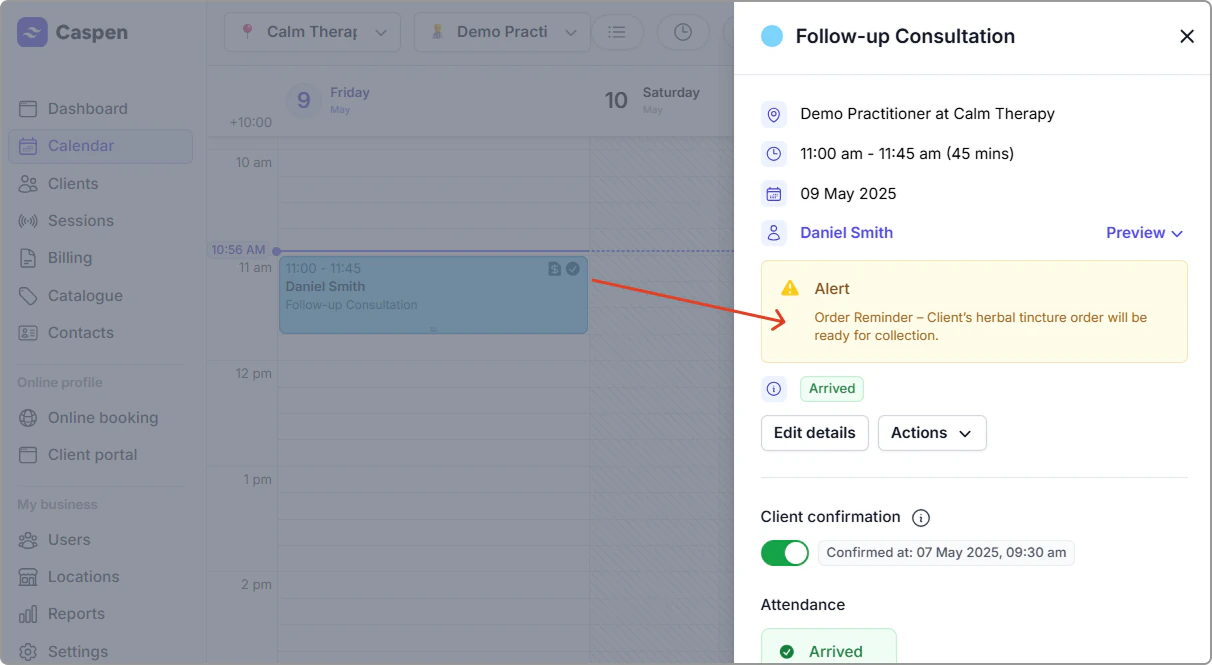
Client alerts are important short notes that appear next to a client’s name in two places:
1. Client profile (right panel)
2. Appointment information panel (on the calendar)
Alerts are instantly visible, helping staff see important information when dealing with certain patients.
Examples
- Safety considerations: e.g., known risks or de-escalation guidance.
- Accessibility or support needs: e.g., mobility support, interpreter required.
- Quick reminders: e.g., confirm referral details, follow up on a form, return a left item.
---
## Add a client alert
1. Open **Clients**, find the client, and select **Actions** → **View** (or click the client’s name).
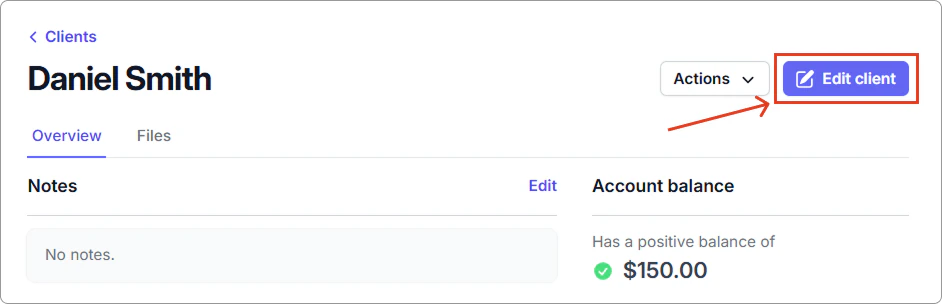
2. Click **Edit client**.
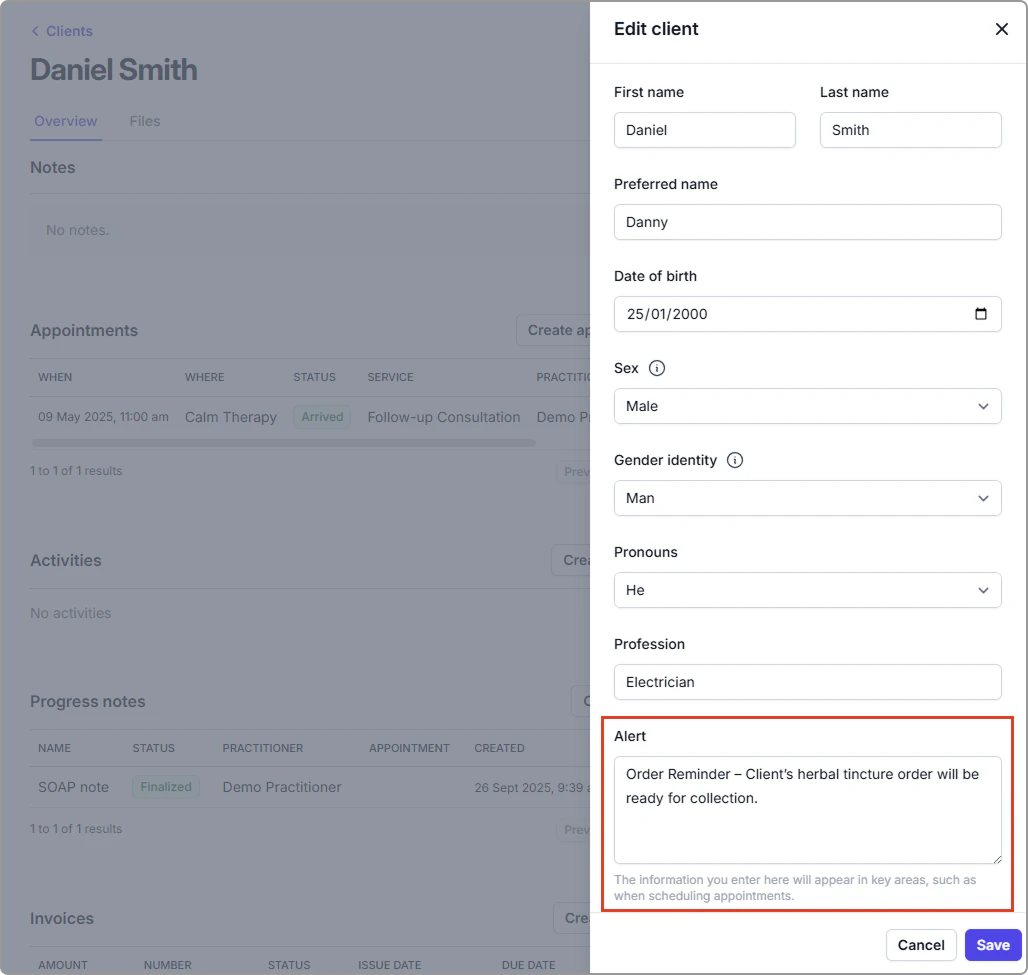
3. In the **Alert** field, enter the note you want shown.
4. Click **Save**.
The alert is now visible on the client profile and in the calendar appointment panel.