# Add notes to a client profile
> Add notes to client profiles so your team can track key details.
Source: https://support.caspen.com/clients/manage-clients/add-notes-to-a-client-profile
Documentation index: https://support.caspen.com/llms.txt
## Overview
Notes store important details on a client’s profile (for example, Quiet room works best; avoid strong scents). Notes are internal and not visible to clients, and they stay on the client’s profile.
If something must be immediately noticeable to your team (for example, a health concern), add a client alert instead. See [Add a client alert](https://support.caspen.com/clients/manage-clients/add-a-client-alert).
---
## Add a note
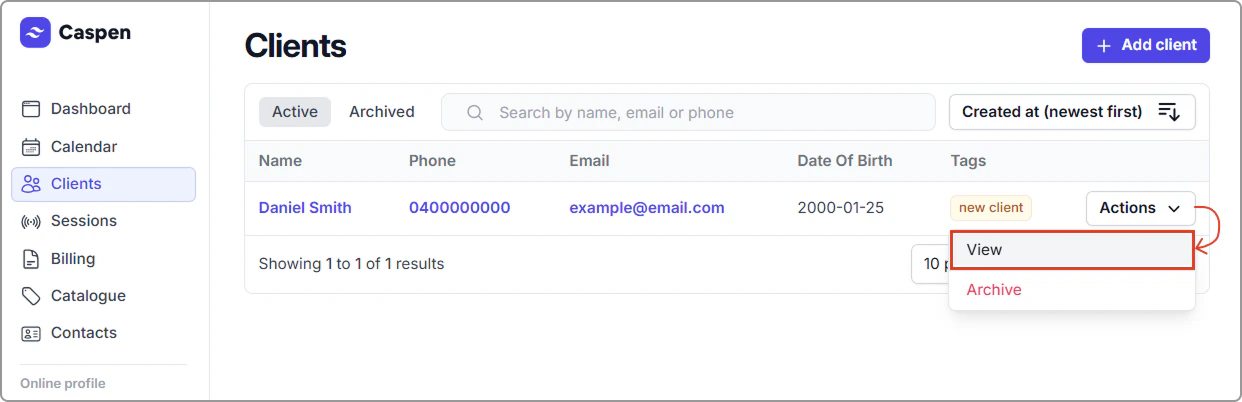
1. Open **Clients**, locate the client and click **Actions** → **View** (you can also achieve the same result by clicking the client’s name).
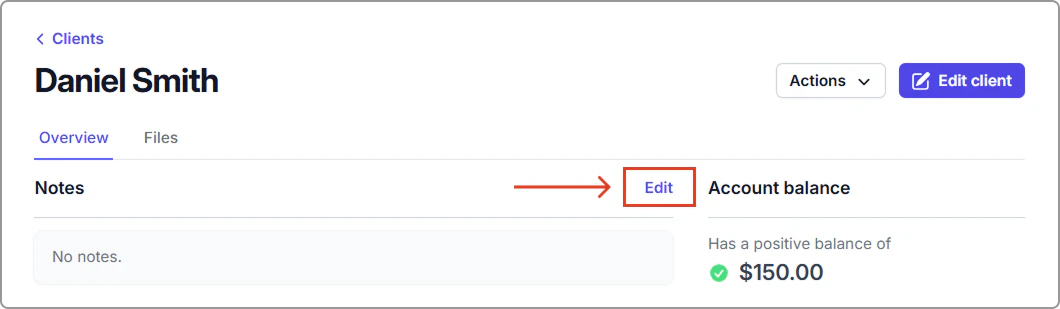
2. In the Notes panel, click **Edit**.
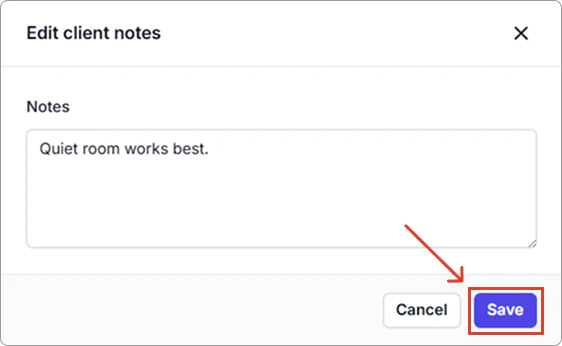
3. Add your note and click **Save**.
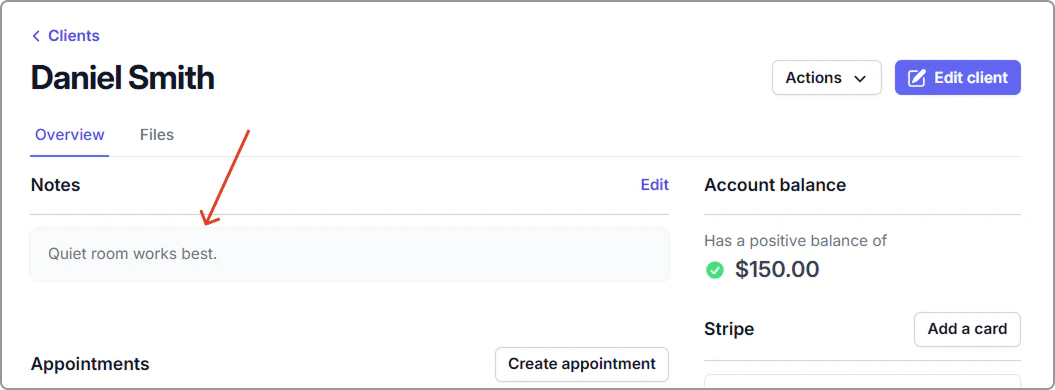
The note now appears in the client’s Notes section and will only be visible in the client’s profile. To update or delete it, click Edit.
> **Tip:**
>
> You can also add a note from **Edit client**. On the client profile, click **Edit client** (top right), open **Notes**, enter your text, then **Save**.