# View a client
> How to view a client’s profile and take action from one place.
Source: https://support.caspen.com/clients/manage-clients/view-a-client
Documentation index: https://support.caspen.com/llms.txt
## Overview
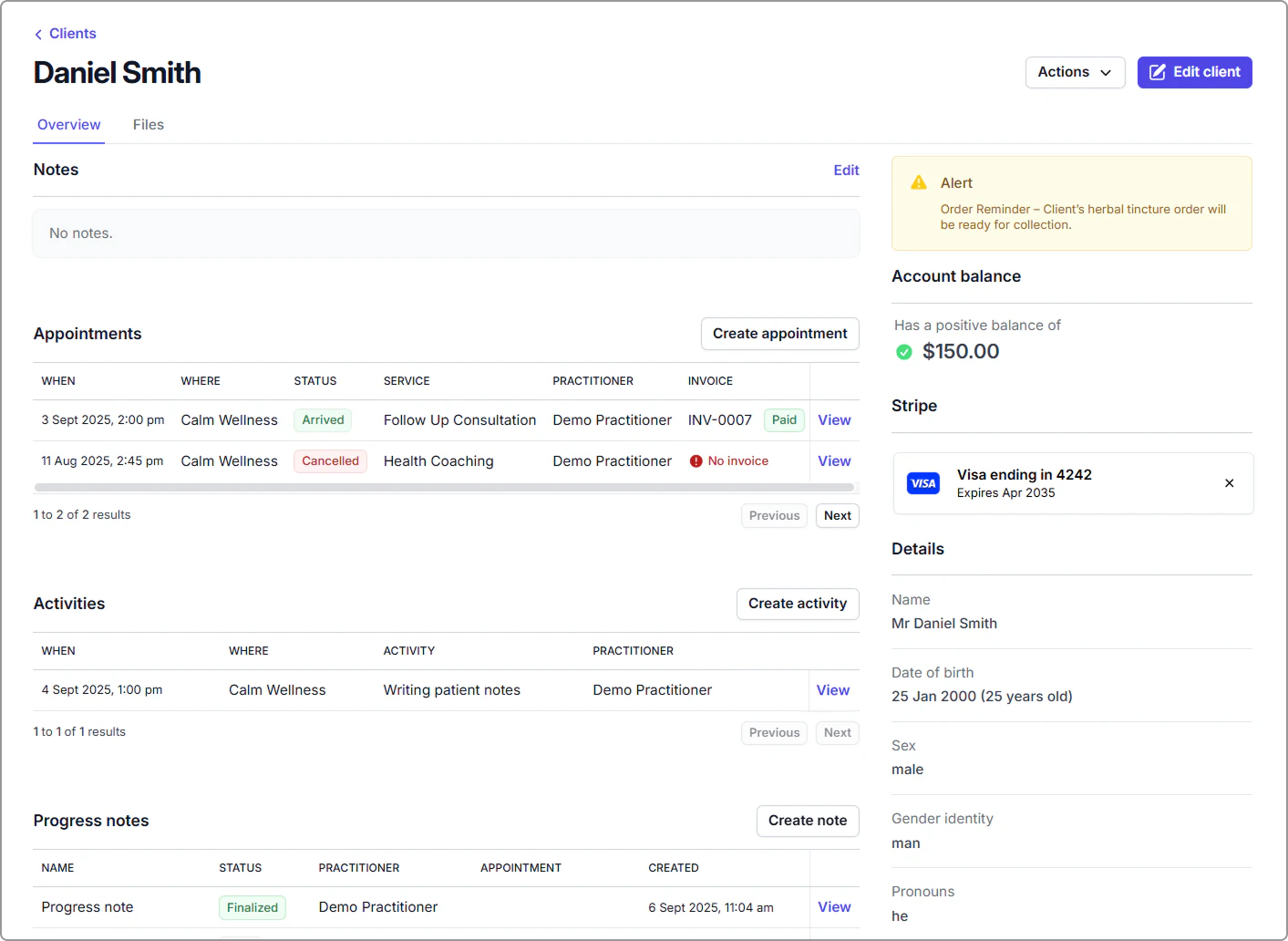
Get a clear, organized view of everything for one client. See all key details, update records, and create new items.
- Review: notes, appointments, activities, progress notes, alerts, account balance, saved payment method, client details, and more.
- Create items: appointment, activity, note, invoice, payment, form, letter, case, package, communication.
- Edit client details: update name, contact details, and other fields.
- Files: open the **Files** tab to upload and manage documents.
---
## View a client profile
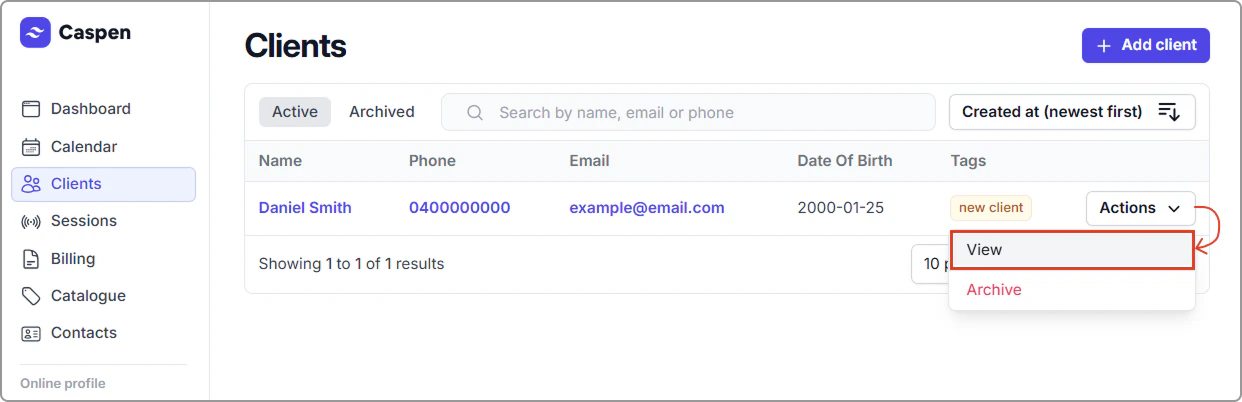
- Open **Clients**, locate the client and click **Actions** → **View** (You can also click the client’s name).
You will be taken to the client’s profile. The image below gives a quick glimpse of the client profile (top section).