# View a contact
> Learn how to view contacts in Caspen.
Source: https://support.caspen.com/contacts/view-a-contact
Documentation index: https://support.caspen.com/llms.txt
## View a contact
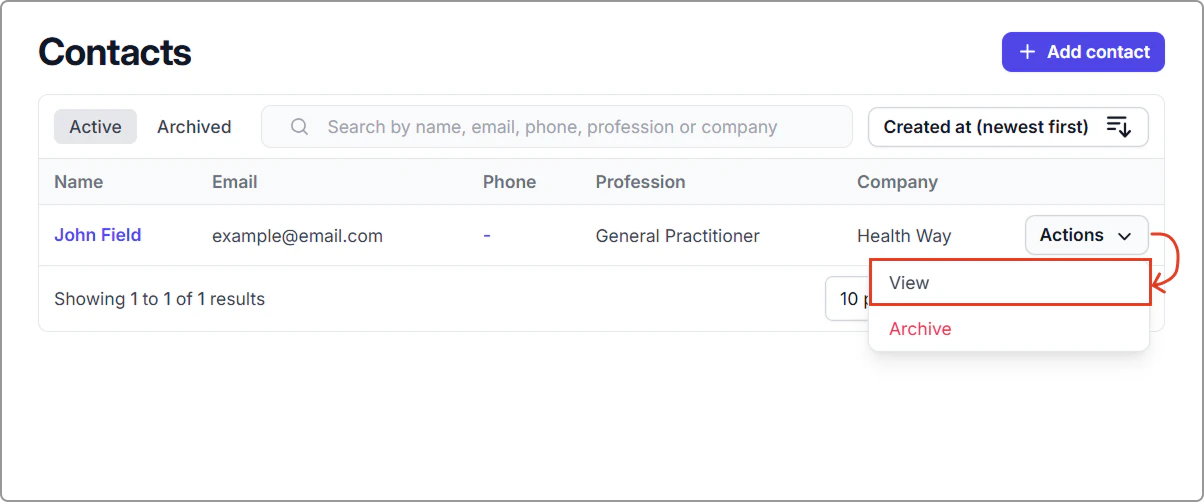
1. Go to **Contacts**.
2. Find the contact (search or scroll), then click the name or **Actions** → **View**.
---
## Contact profile overview
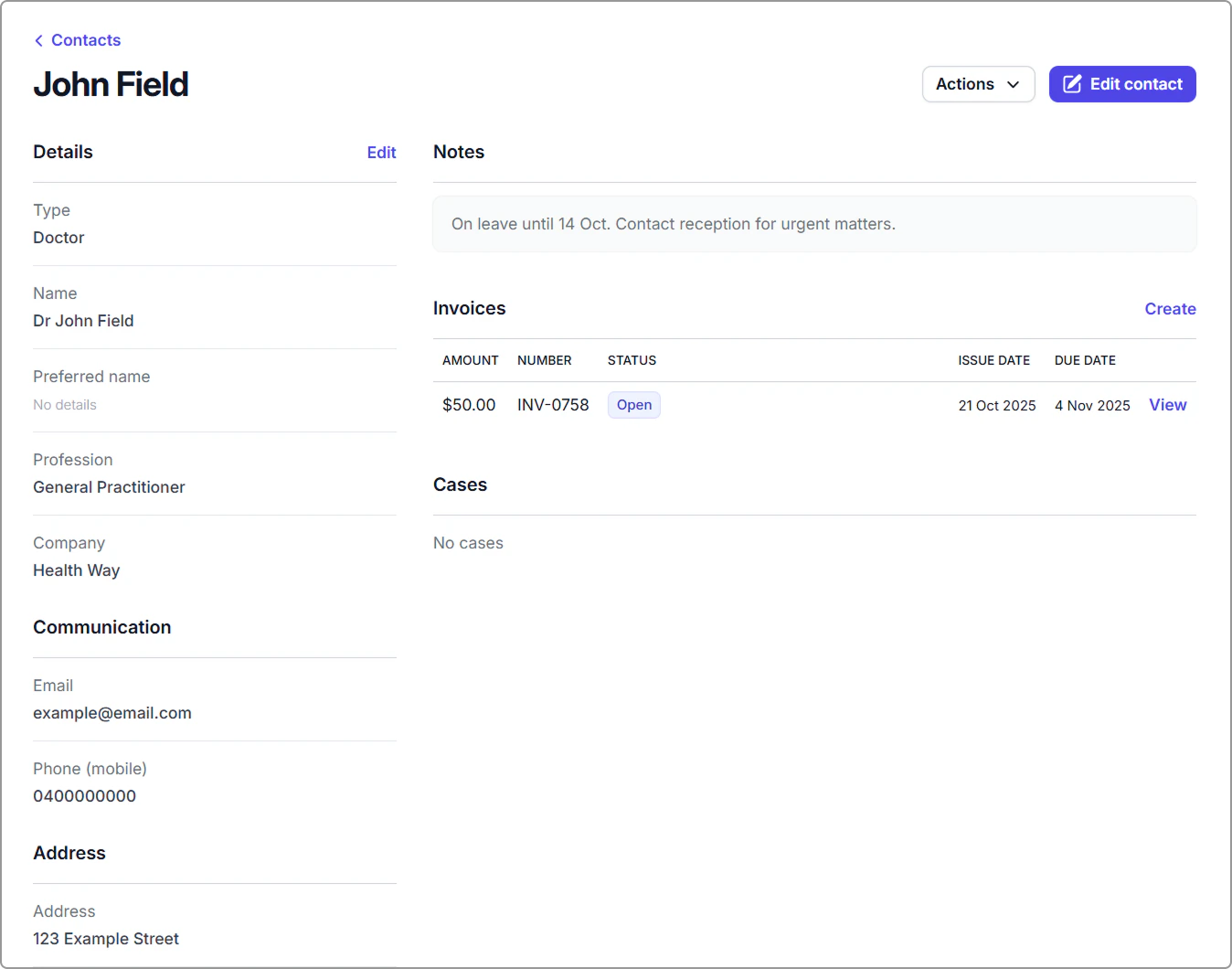
When you open a contact, you will see their full profile. This page brings together everything linked to that contact, including details, notes, invoices, and associated cases.
**Details panel**
Shows the contact’s key information on the left side, including type, name, preferred name, profession, company, email, phone and address. Click **Edit contact** to update any field.
**Notes**
Add or review notes about this contact (e.g., communication preferences, admin details or context from previous interactions). Notes appear on the contact profile only.\
**To add a note:** Click **Edit contact**, enter your note in **Notes**, then click **Save**.
**Invoices**
View all invoices linked to this contact, including their status, issue and due dates. Click **View** to open an invoice or **Create** to add a new one.
**Cases**
Lists any cases linked to this contact, showing usage, status, practitioner, and expiry dates. Click **View** to open a case. If no cases are linked, this section shows **No cases**.