# Income overview
> See a snapshot of your practice’s recent financial activity including invoices issued and payments received, displayed by month.
Source: https://support.caspen.com/dashboard/income-overview
Documentation index: https://support.caspen.com/llms.txt
## Overview
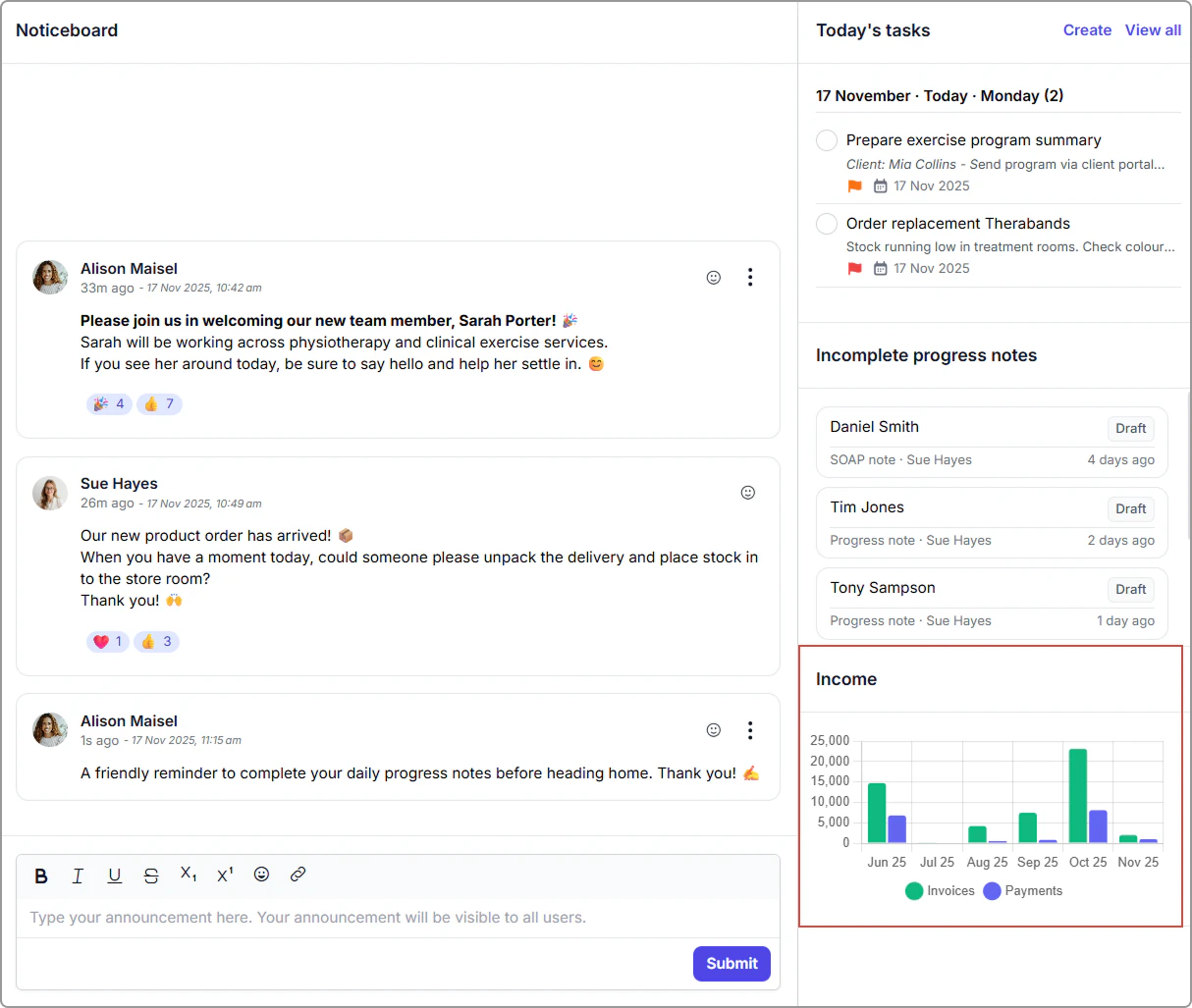
Located on the Dashboard, the income chart helps you track trends and compare invoicing versus received payments at a glance.
This makes it easier to understand how your practice is performing, identify quieter or busier periods, and stay informed about cash flow.
---
## Income chart
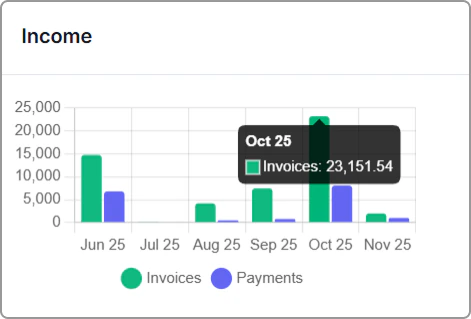
The chart displays monthly totals for:
- **Invoices** (amount billed)
- **Payments** (amount received)
Green bars represent invoices, and blue bars represent payments.
> **Info:**
>
> The chart updates automatically as you issue invoices and record payments.
#### Dashboard example
Income chart on the Dashboard showing monthly invoices and payments.
Income chart on the Dashboard showing monthly invoices and payments.
### Permissions
The data shown is based on your user permissions:
- **Practitioners** can view **only their own** invoices and payments.
- **All other roles** (e.g., Admin, Manager, Owner) can view the **practice-wide** overview.
This ensures financial visibility is appropriate to each role.