# Manage incomplete progress notes
> Easily find and complete unfinished client notes from your Dashboard.
Source: https://support.caspen.com/dashboard/manage-incomplete-progress-notes
Documentation index: https://support.caspen.com/llms.txt
## Overview
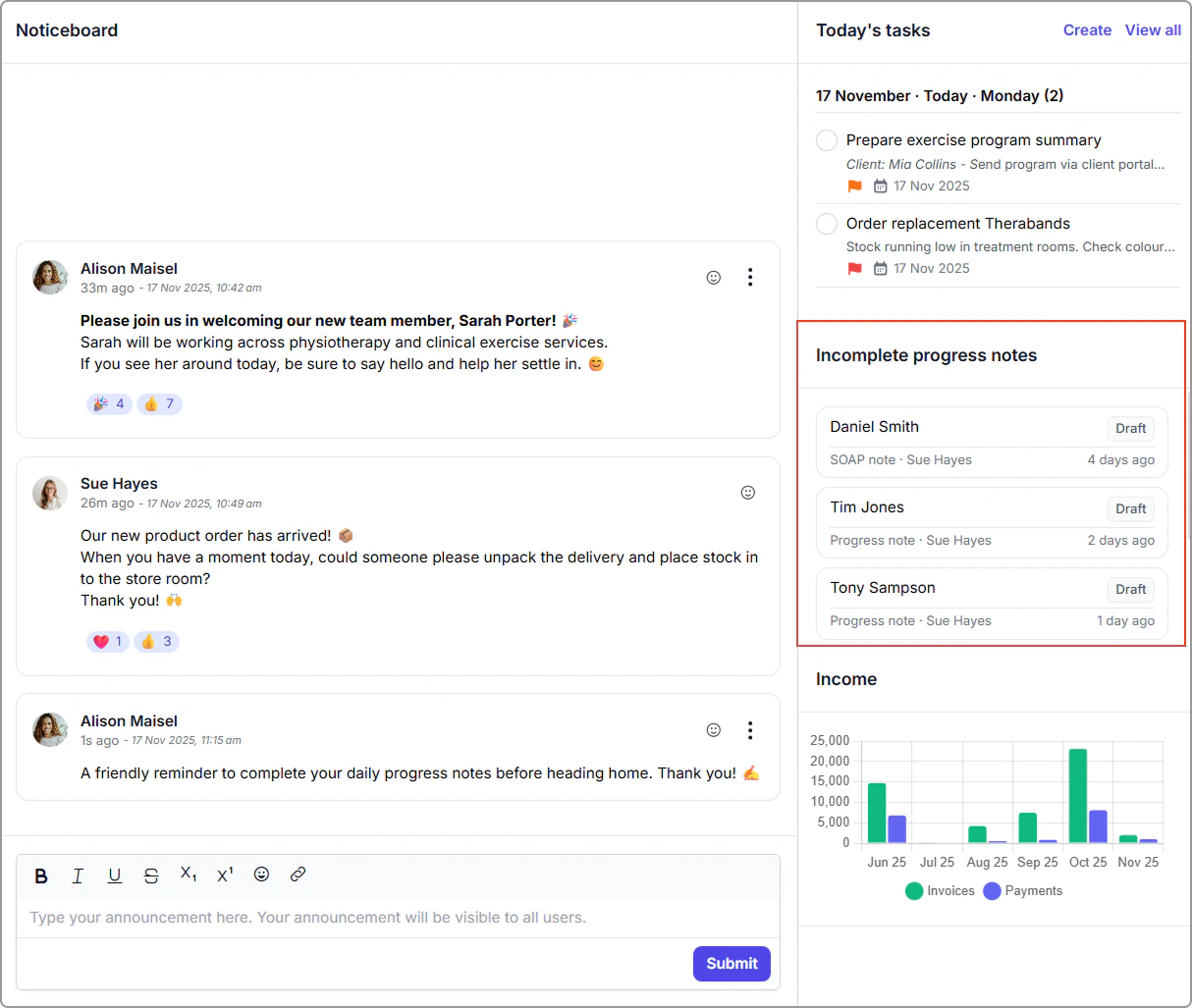
The **Incomplete progress notes** panel on your Dashboard helps you stay on top of any client notes that have **not** been finalized. It shows all draft progress notes that were started but not yet completed, ensuring no documentation is missed.
> **Info:**
>
> **Only progress notes saved as Draft appear here.**
>
> If a note has not been started for an appointment, it will not show in this list.
## How it works
- Notes remain in this list until they are finalized.
- Once a note is finalized, it automatically disappears from the incomplete progress note list.
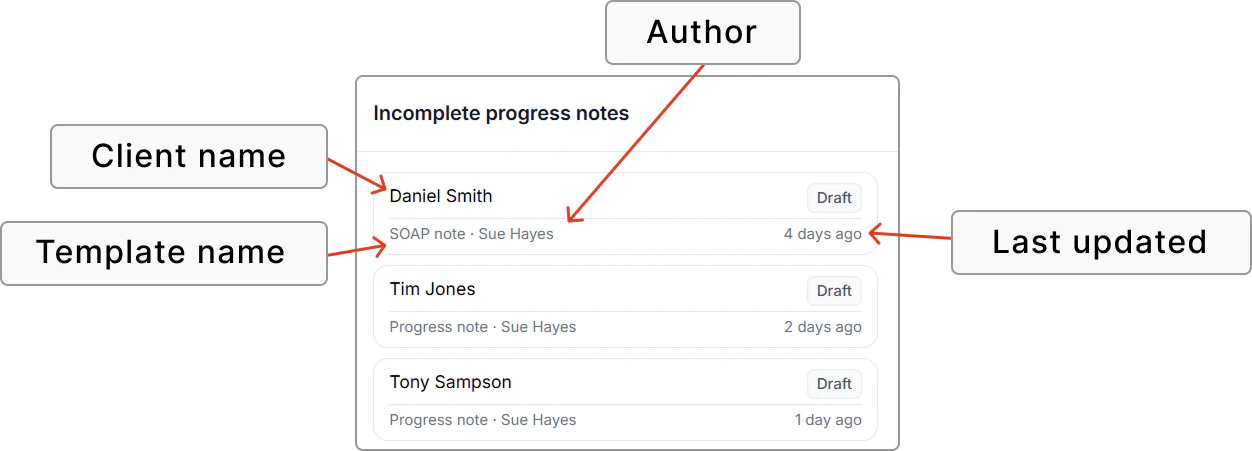
- Each entry shows the **client name**, **progress** **note template name**, **status (Draft)**, **author**, and **last updated date**.
## Completing a progress note
1. Go to your Dashboard.
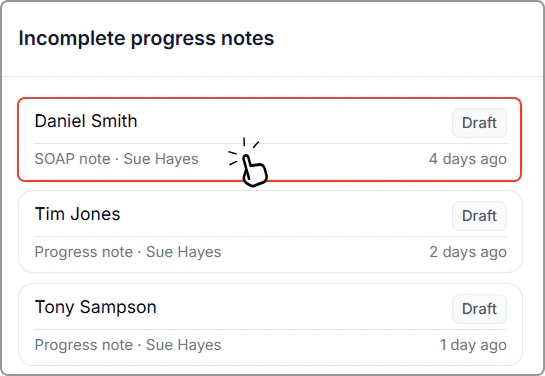
2. Under **Incomplete progress notes**, click any Draft note you authored.
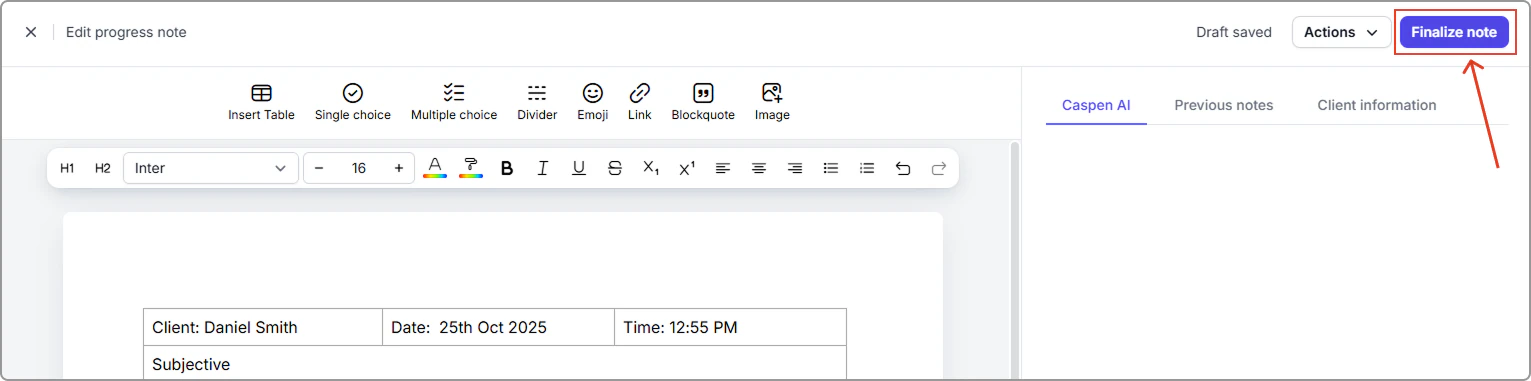
3. The note opens in the **Progress notes editor**.
4. Review, complete, and Finalize the note.
Once finalized, it will be removed from your **Incomplete progress notes** panel.