# Tasks overview
> See today’s tasks, overdue items, and quick actions from your Dashboard.
Source: https://support.caspen.com/dashboard/tasks-overview
Documentation index: https://support.caspen.com/llms.txt
### Overview
The Tasks panel on your Dashboard gives you a quick snapshot of what needs your attention today. Tasks shown here are **private to you** and are not visible to other users.
From the Dashboard, you can:
- View **Today’s tasks** and overdue tasks.
- Mark tasks as completed.
- Open the full **Tasks** page to manage all tasks.
This helps you keep track of important work without anything slipping through the cracks.
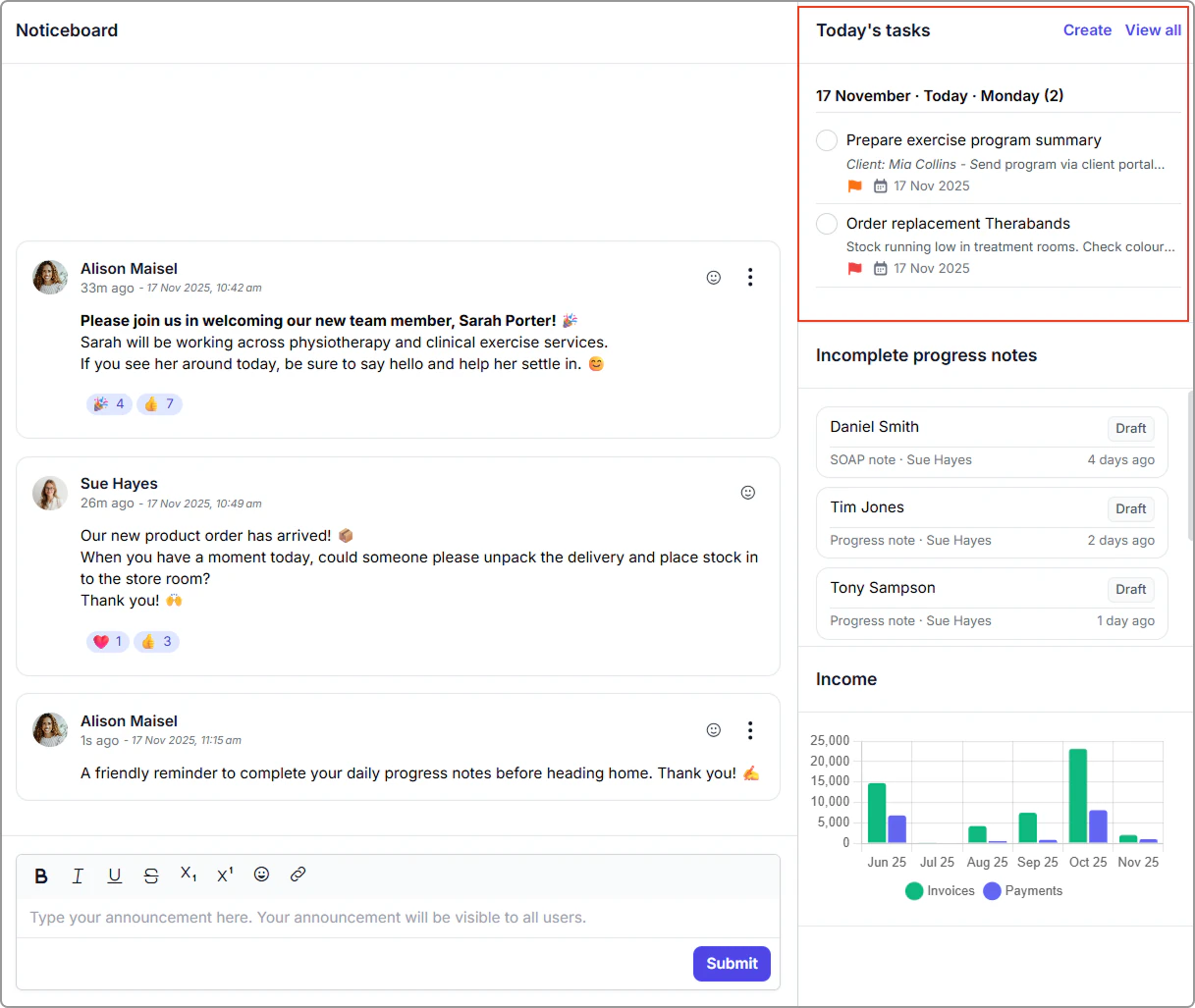
The **Today’s tasks** panel is located on the top-right side of your Dashboard.
### Dashboard snapshot
The **Today’s tasks** panel on the top-right side of your Dashboard shows:
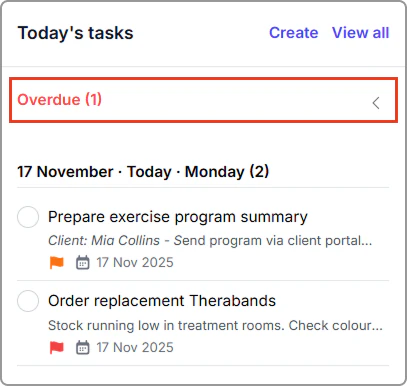
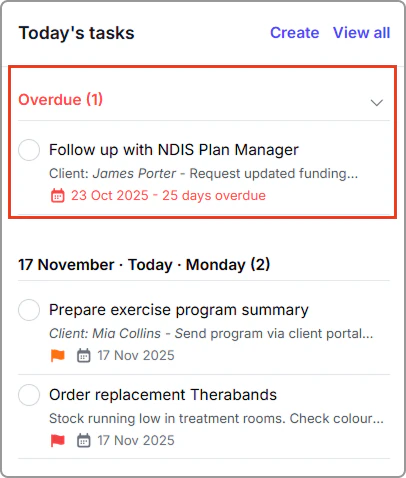
#### 🔴 Overdue tasks
- Displayed at the top of your list.
- Shown in **red** with the number of days overdue.
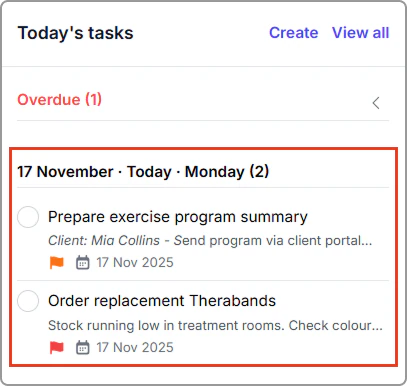
#### 📅 Today’s tasks
- Tasks due today appear in your overview.
- Click **View all** to open the full Tasks page.
### Mark a task as complete
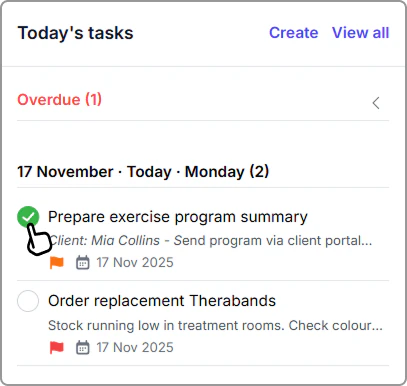
To mark a task as completed from the Dashboard:
1. Open your Dashboard.
2. In the **Today’s tasks** panel, click the circle next to a task.
The task is removed from your Dashboard and moved into your **Completed** tab, which you can access from the **Tasks** page.
### Open the full Tasks page
To manage all of your tasks, including future and unscheduled tasks:
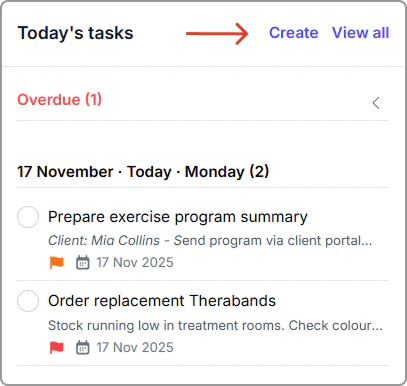
1. In the **Today’s tasks** panel, click **Create** or **View all**.
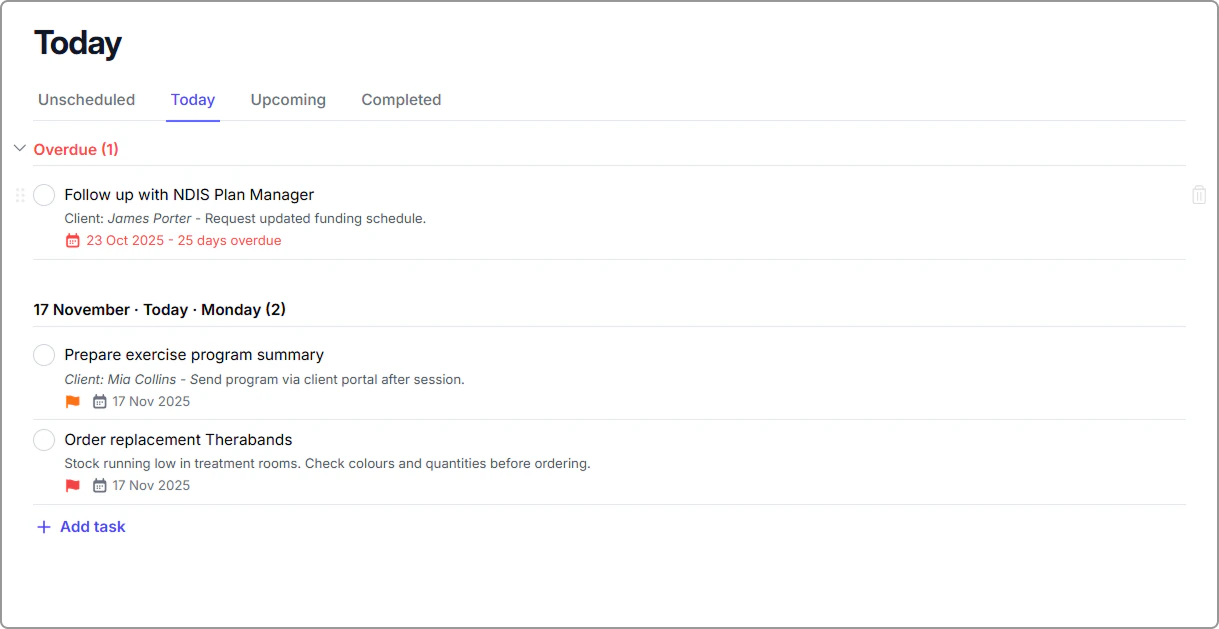
The full **Tasks** page will open.
From the **Tasks** page, you can add new tasks, schedule work, prioritize, and view upcoming or completed tasks. To learn more, see [Tasks](https://support.caspen.com/tasks).
> **Tip:**
>
> Use Dashboard tasks for fast daily planning, and the full Tasks page when you need to organize or reschedule tasks in more detail.