# Send a client form
> Send forms via email for clients and contacts to complete online.
Source: https://support.caspen.com/forms/send-a-client-form
Documentation index: https://support.caspen.com/llms.txt
## Overview
Client forms are used for clients who already exist in your practice. These forms are sent directly from the client profile through a secure link and can be completed before or after an appointment.
Submitted forms appear in the client record, helping your team collect accurate information, reduce admin work, and stay organized.
> **Info:**
>
> If you need to share a form with someone who is not yet a client, see [Share an intake form](https://support.caspen.com/forms/share-an-intake-form).
---
## Before you begin
Before you begin, make sure you have a **Client form template**.\
If not, see [Set up form templates](https://support.caspen.com/settings/templates/set-up-form-templates)**.**
---
## How to send a form to a client
1. Go to **Clients** and open the client you want to send a form to.
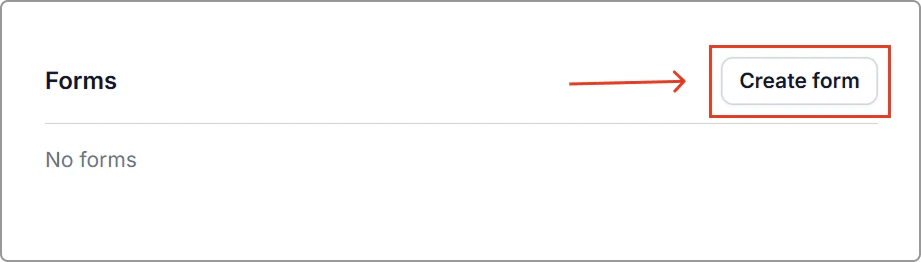
2. Scroll to the **Forms** section and click **Create form**.
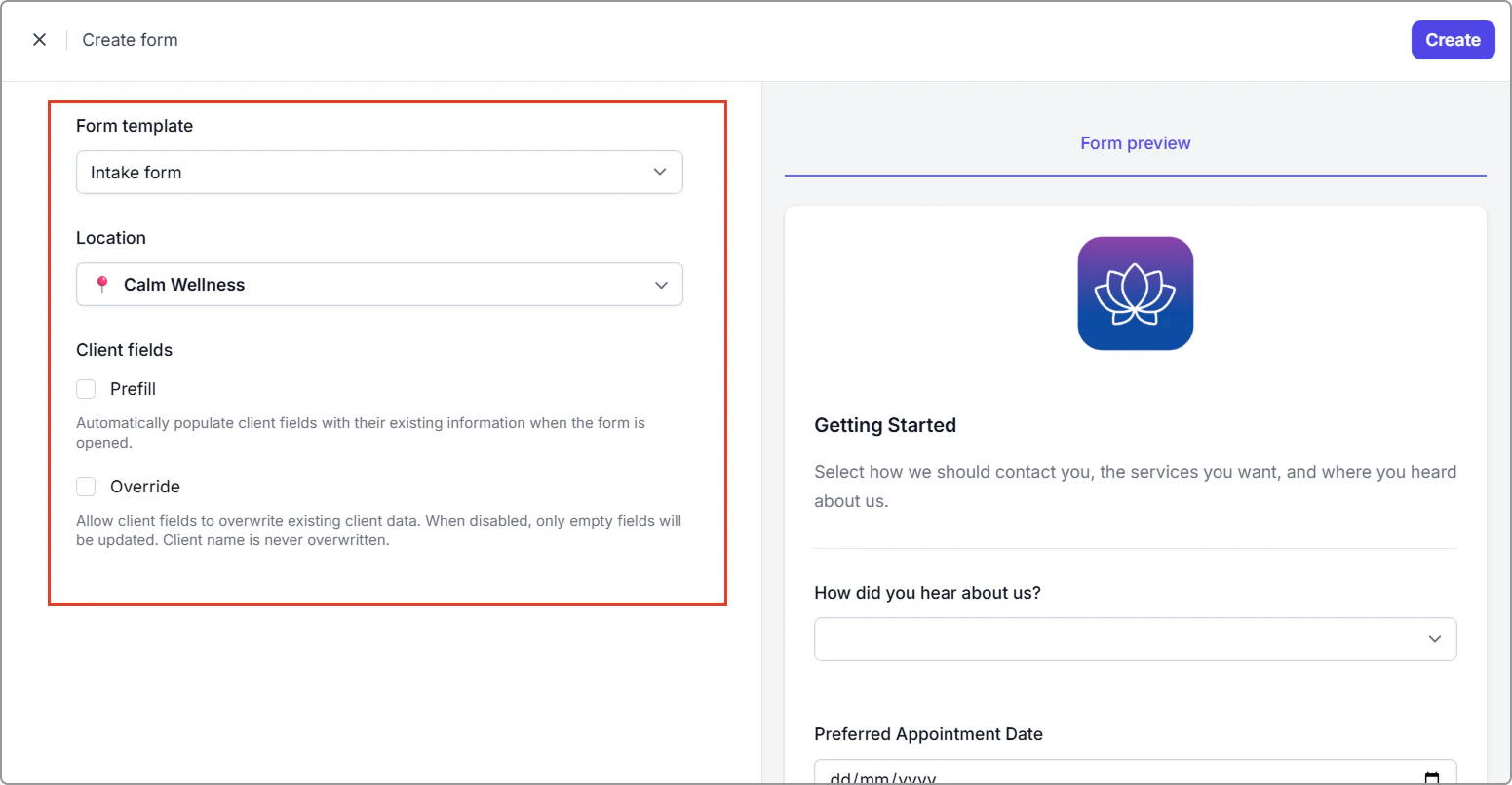
3. Select the Form template you want to use.
- Select the Location (optional).
- **Client fields**
- **Prefill**: Automatically fill client details already stored in Caspen.
- **Override**: Replaces existing data with any updated details submitted in the form (the client’s name is never replaced).
If Override is **off**, clients can enter new details, but their profile will not update automatically. This allows practitioners to review any differences and update the client profile manually if needed.
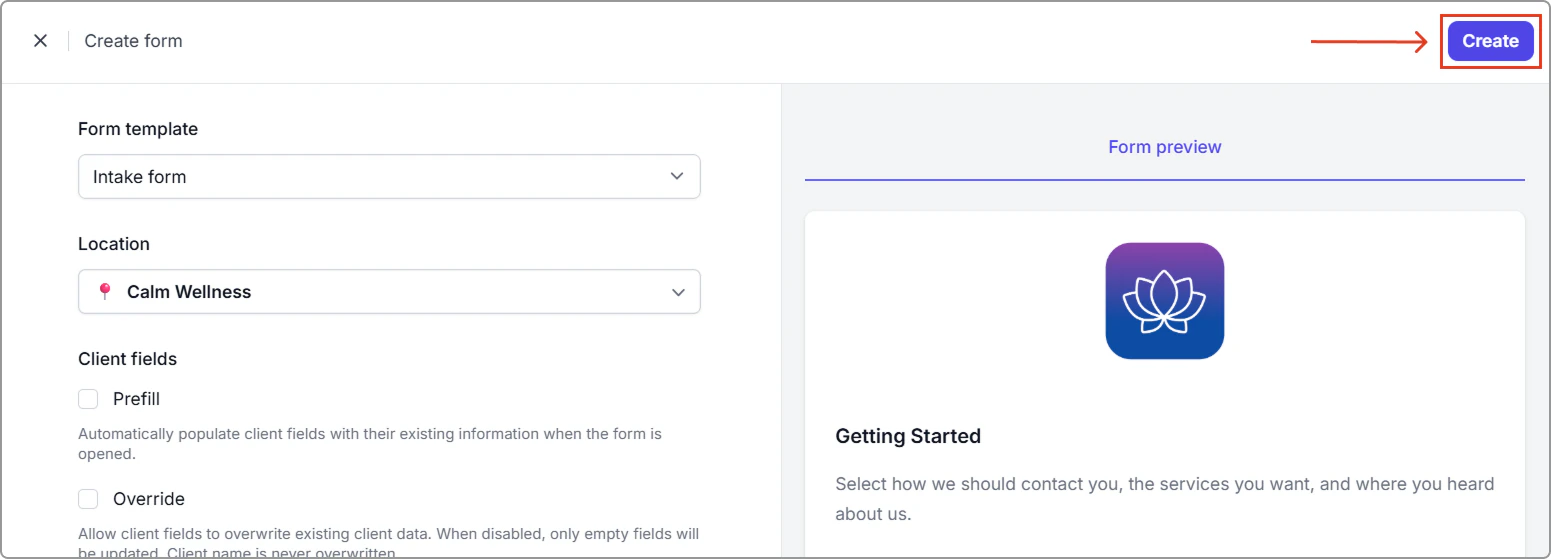
4. Click **Create**.
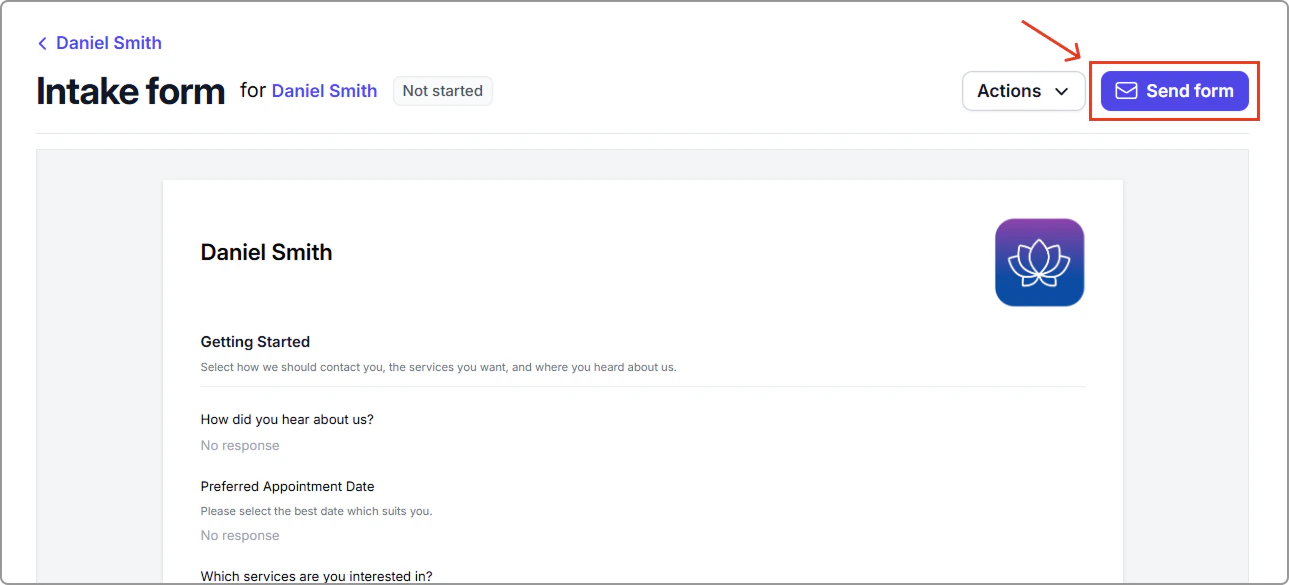
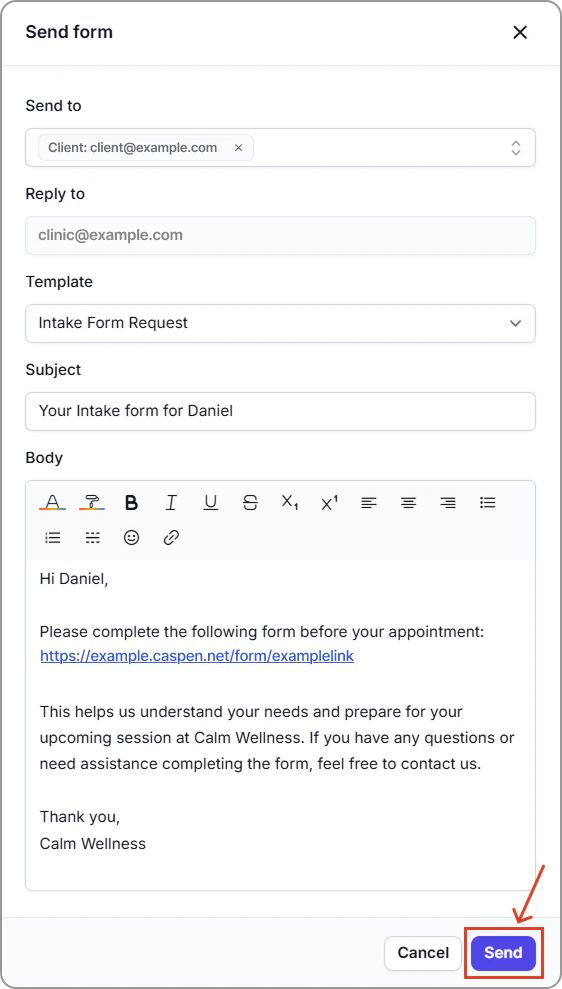
5. Click **Send form.**
6. Enter the client’s name or email in the **Send to** field, then click **Send**.\
The subject and body text are prefilled from your email template and can be edited before sending.
Caspen will email the form link to the recipient, and the form will be marked as **Sent** once the email is delivered.
---
## Other ways to send or complete a form
### Send a form to a contact
You can also send the form to a contact linked to the client, such as a caregiver or parent.\
Follow the same steps as sending a form to a client, but in the **Send to** field, select the contact instead of the client.
---
### Share the form link manually
If you prefer to send the form through your own email, SMS, or messaging channel:
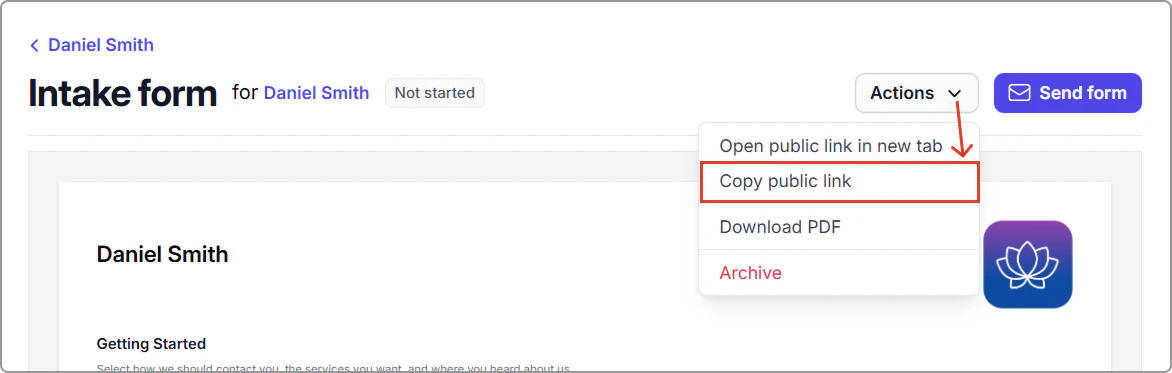
1. Open the form’s **Actions** menu.
2. Click **Copy public link**.
3. Paste the link into your preferred communication method.
---
### Complete the form on behalf of the client
If you need to complete the form on **behalf of the client** while you are with them:
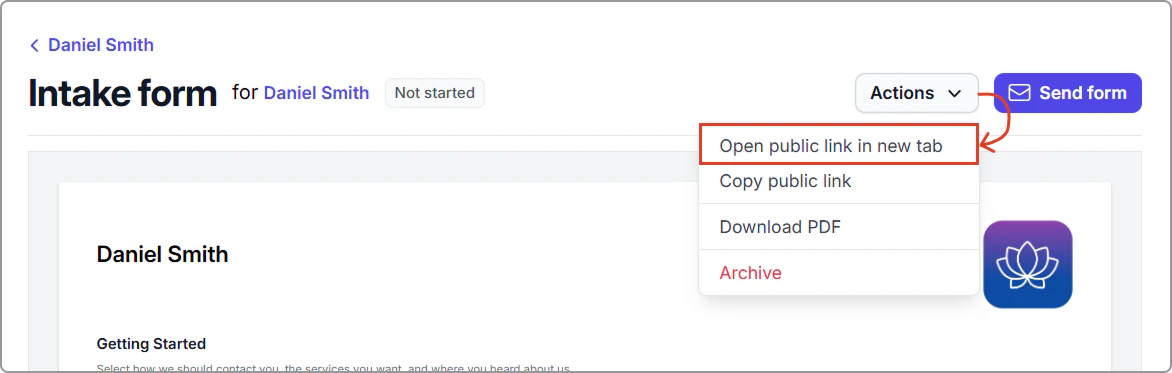
1. Open the form.
2. Click **Actions** → **Open public link in a new tab.**
3. Complete the form directly with the client.
This opens the live form in a new browser tab for in-session completion.
---
## Form statuses
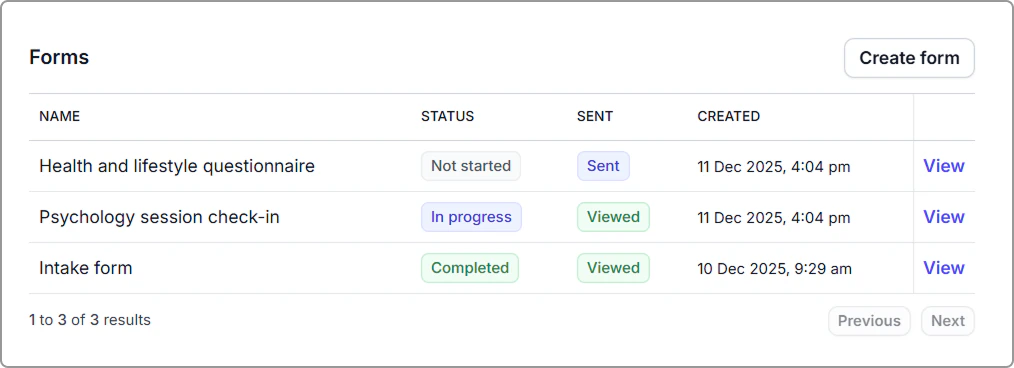
Example of form statuses on a client profile:
Form statuses help you track progress and follow up when needed.
#### Primary statuses
- **Not started** – The client has not opened the form.
- **In progress** – The client has started answering questions and saved their progress, but the form is not yet submitted.
- **Completed** – The client has submitted the form.
#### Secondary statuses
These indicate the form’s sending or viewing activity:
- **Sent** – The form was sent.
- **Viewed** – The client has opened the form link.
Status updates appear in the **Forms** table on the client's profile.