# Share an intake form
> Collect new referrals and client details using a public form that can be shared via link, QR code, or embedded on your website.
Source: https://support.caspen.com/forms/share-an-intake-form
Documentation index: https://support.caspen.com/llms.txt
## Overview
Intake forms are designed for people who are not yet clients of your practice. When an intake form is submitted, Caspen automatically creates a new client record using the information provided.
Because intake forms create new client records, a **First name** and **Last name** field is always required and cannot be removed.
Intake forms are public-facing and can be shared externally using a public link or embedded directly on your website, making them suitable for:
- Referral and enquiry forms
- Pre-screening questionnaires
- New client registration and onboarding
- Expression of interest forms
> **Info:**
>
> If you need to send a form to someone who is already a client in your system, see **📄** [Send a client form](https://support.caspen.com/forms/send-a-client-form)
---
## Before you begin
Before you begin, make sure you have an intake form template created.\
\
If not, see [Set up form templates](https://support.caspen.com/settings/templates/set-up-form-templates).
---
## How to access the Share button
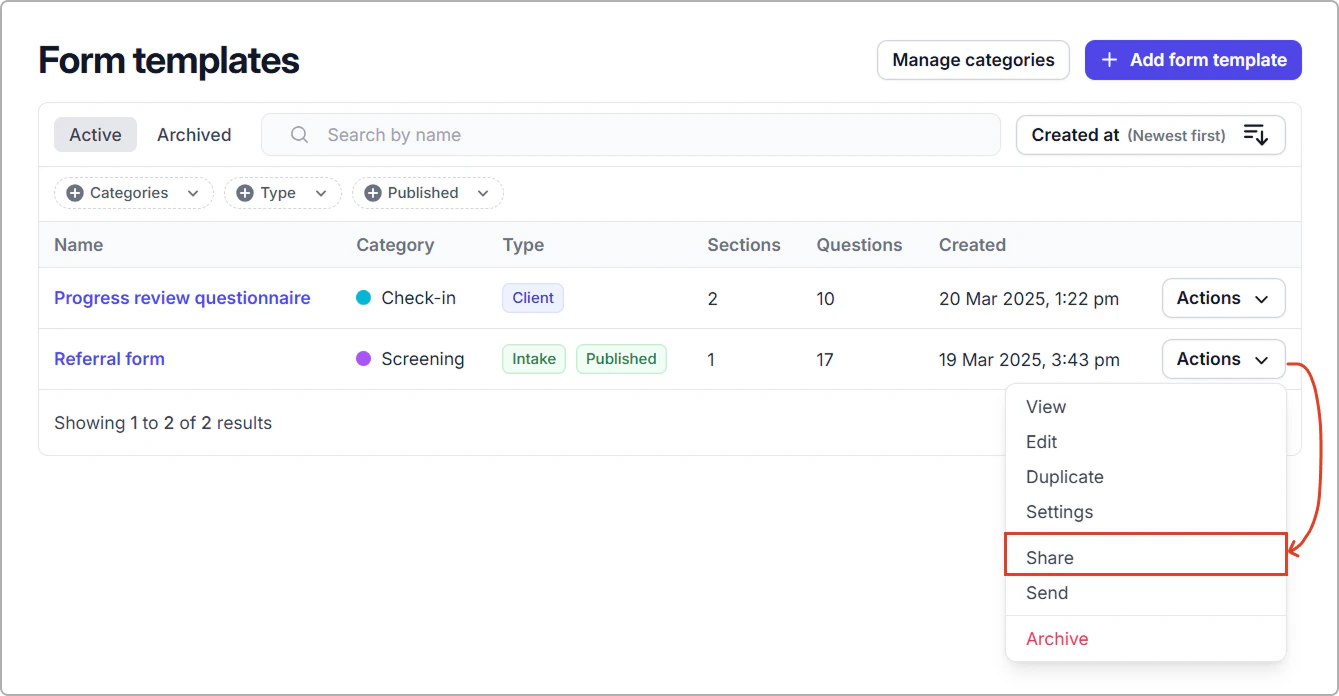
1. Go to **Settings** → **Form templates.**
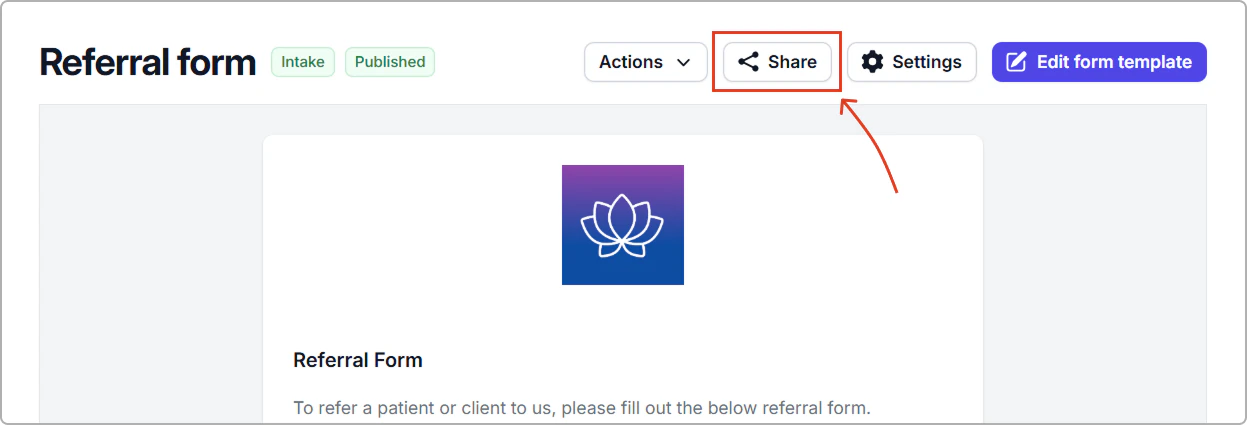
2. On the Intake form row, click **Actions** → **Share**.
_Already viewing the form? Click **Share** in the top right._
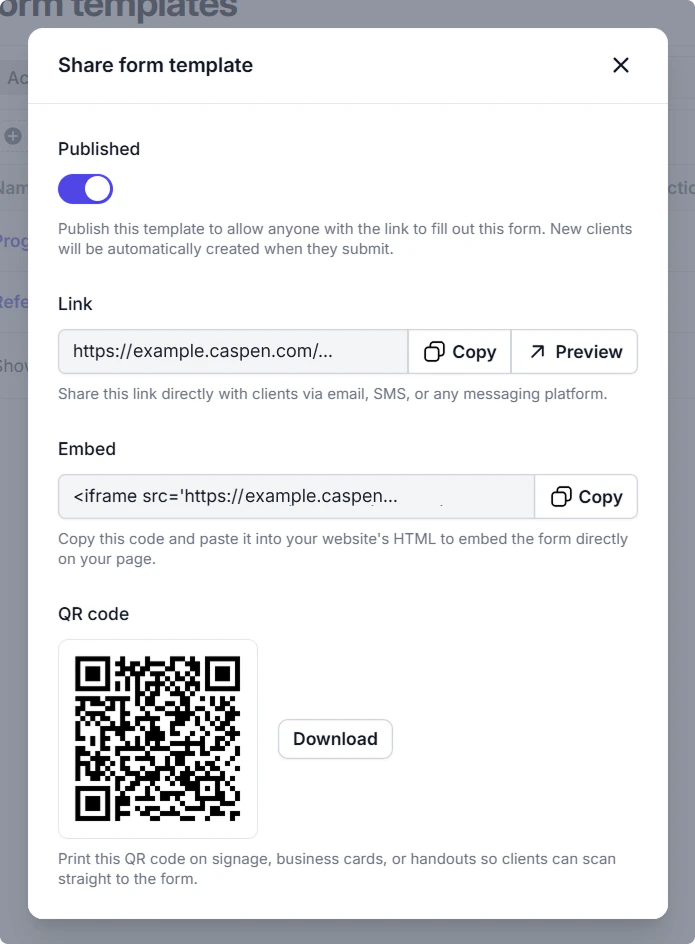
This opens the **Share form** settings.
---
## Public access
Enabling **Published** allows anyone with the link to open and submit the form.
This must be turned ON if you plan to:
- Share the form link externally
- Embed the form on your website
- Allow access via a QR code
If Published is turned OFF, the form cannot be accessed or submitted.
> **Warning:**
>
> Important: Intake forms must be published before they can be used externally or embedded on your website.
---
## Sharing options
Once the form is Published, you can:
- Copy a direct link to share via email, SMS, or social media
- Preview the public form before sharing it
- Copy embed code to place the form directly on your website
- Download a QR code for printed materials, signage, or handouts
When an intake form is submitted, **a new client is automatically created** from the information provided.
---
## Additional settings
You can further customize your intake form from the form template settings, including notifications, tags, branding, campaigns, or onboarding pathways.
**🏷️ Assign client tags**\
Automatically apply tags to clients created from your intake form. This is useful for identifying referral sources, intake types, or onboarding pathways.
**📧 Send notification emails**\
Choose which Caspen users should receive an email notification when someone submits the form. This helps your team respond quickly to new enquiries or referrals.\
Staff notifications can also include a PDF copy of the completed submission.
**📄 Send the client a PDF copy**\
Enable this option to automatically email the person a PDF copy of their completed form submission.\
_Important: Ensure your form includes a required email field so the PDF can be delivered successfully._
**💬 Show a completion message**\
Display a customized on-screen message when the form is submitted. This provides a professional, client-friendly confirmation and can include next steps, expected response times, or additional information.
#### How to access these form settings
To configure these options:
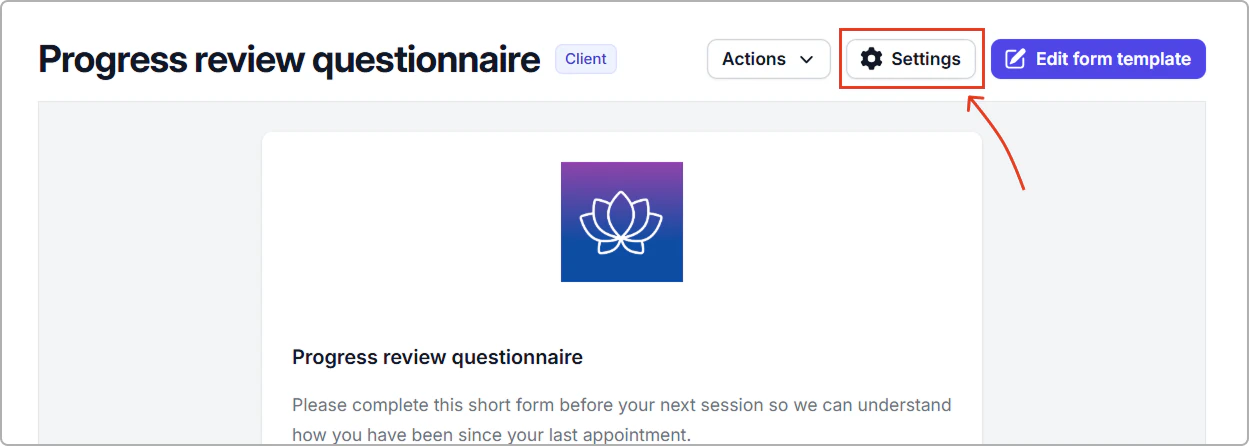
1. Open the intake form template (via **Settings** → **Form templates**).
2. Click **Settings** from the top-right of the template page.
You can also access template settings directly from the Form templates list by clicking **Actions → Settings** next to the form template.