> For the complete documentation index, see [llms.txt](https://support.caspen.com/llms.txt). Markdown versions of documentation pages are available by appending `.md` to page URLs; this page is available as [Markdown](https://support.caspen.com/integrations/xero/set-up-the-xero-integration.md).
# Set up the Xero integration
Learn how to connect Xero to Caspen to sync invoices and payments, automate reconciliation, and keep your financial data up-to-date.
## Before you begin
* You will need an active Xero account. If you do not have one, create a Xero account first.
* Only one Xero organization can be linked per Caspen workspace.
***
## What syncs
### From Caspen to Xero
**Invoices**
An invoice syncs to Xero when you finalize it or apply a payment to it in Caspen. Draft invoices do not sync.
**Clients (Xero Contacts)**
When an invoice syncs, Caspen checks Xero for a matching customer contact. If a match is found, the invoice is linked to that contact. If no match is found, Caspen creates a new customer contact in Xero.\
\
**How we avoid duplicates with the same name**
Caspen creates unique customer names in Xero using this format:
* Full name (Caspen #####)
Where ##### is the last 5 digits of the Caspen client ID.\
This reduces the risk of two different people with the same name being merged unintentionally.
**Payments**
Payments applied to invoices in Caspen are synced to Xero.
**Discounts**
Fixed-amount and percentage discounts on invoice line items are synced to Xero.
**Tax rates**
The tax rate on each line (for example, GST or GST free) is synced to Xero automatically. You may need to link your Caspen tax rates to Xero tax rates (see **Check and sync your tax rates** below).
**Credit notes**
Credit notes applied to invoice line items in Caspen sync to Xero.
**Totals**
Invoice subtotal and tax amount sync to Xero, whether tax is inclusive, exclusive, or no tax.
***
### From Xero to Caspen
Caspen only syncs the Xero actions listed below. Changes made in Xero outside of these actions will not sync back to Caspen (for example, deleting a payment in Xero).
**Invoice updates (payment status)**
When a payment is added or allocated to an invoice in Xero (including during reconciliation), Caspen updates the invoice payment status to match.
**Payments and reconciliation**
* Payments added to an invoice in Xero are synced to the matching invoice in Caspen.
* Payments reconciled against an invoice in Xero are synced to Caspen.
* Bulk payments reconciled across multiple invoices in Xero are synced to the relevant invoices in Caspen.
***
## How to connect Xero with Caspen
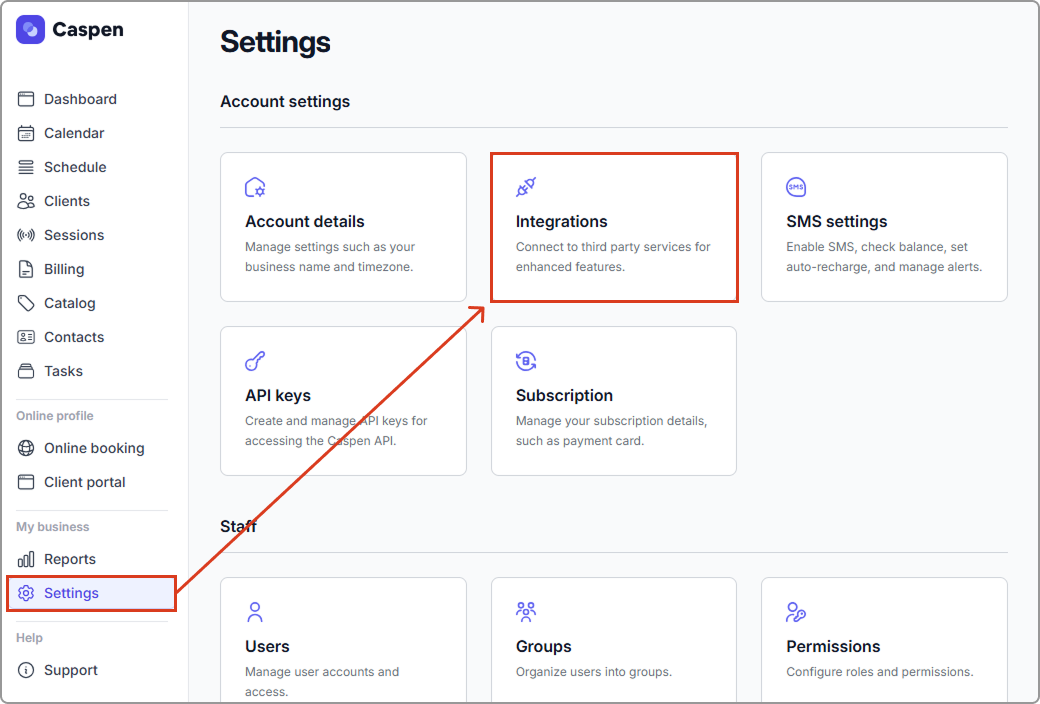
1. In Caspen, go to **Settings** → **Integrations**.
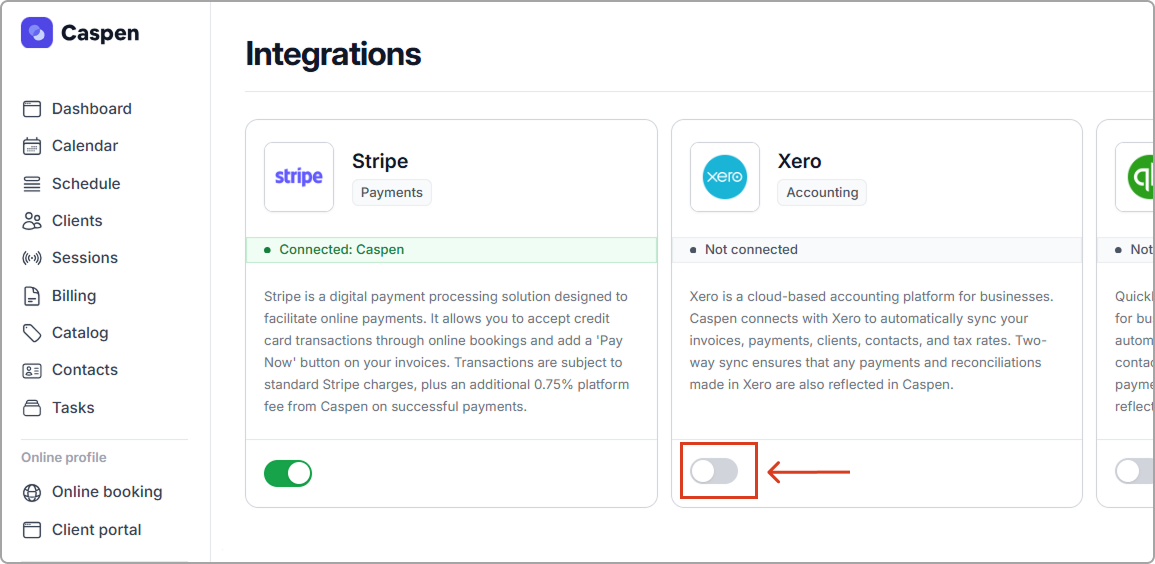
2. Find **Xero** and toggle it On.
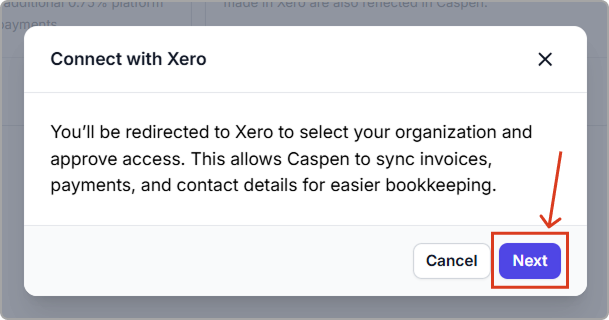
3. In the "Connect with Xero" pop up, click **Next**.
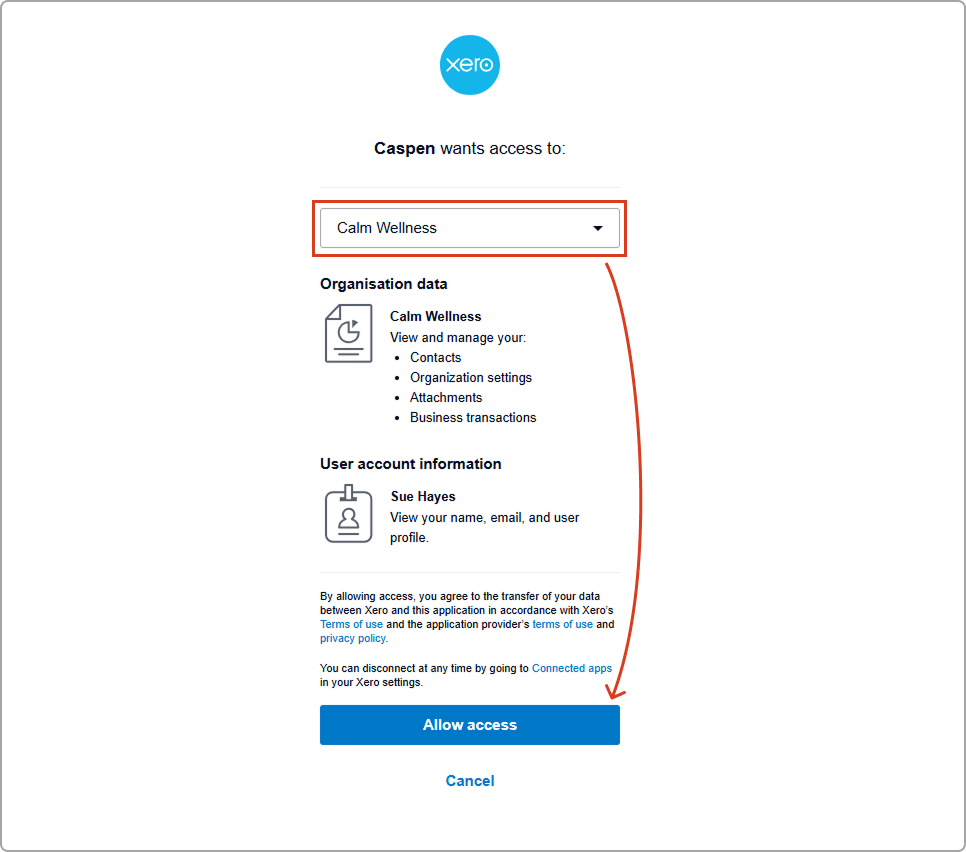
4. You will be redirected to Xero. Sign in to your Xero account.
5. When prompted, select the Xero organization you want to connect, then click **Allow access** to approve the connection.
6. You will return to Caspen on the **Xero settings** page.
***
## Configure Xero integration settings
Use Xero settings to select default accounts for invoice items and payments, and review unsynced invoices.
To access these settings:
1. Go to **Settings** → **Integrations**.
2. In the **Xero** tile, select **Settings**.
3. After making any changes, click **Save settings**.
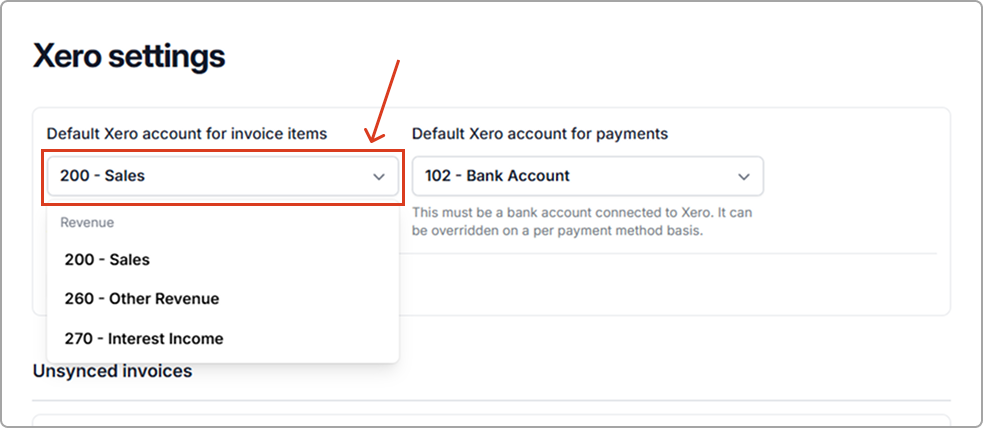
#### Select a default Xero account for invoice items
Choose the default Xero account used for invoice line items. This is commonly an income account such as **Sales** or **Revenue**.
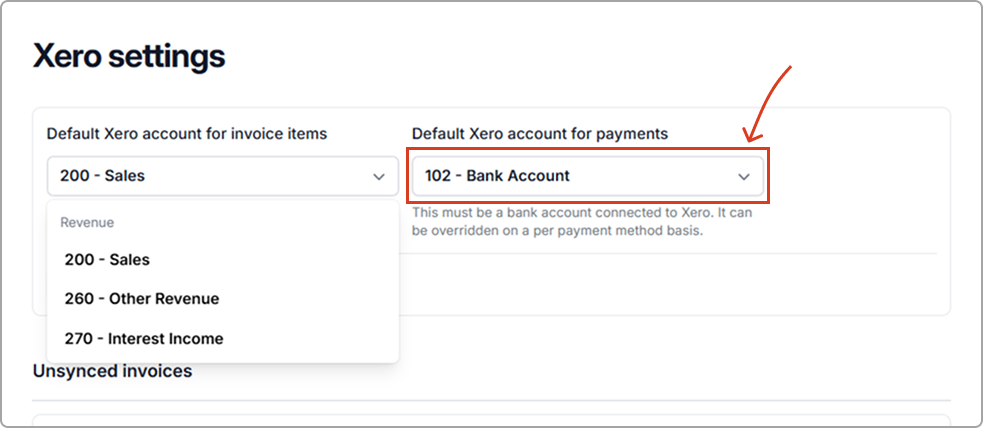
#### Select a default Xero account for payments
Choose the default Xero account Caspen should apply to payments when syncing to Xero. Unless you override it in payment settings, Caspen uses this account for payments, which is usually where funds are received or settled. Commonly, this is a **Bank account** or **Clearing account**.
***
## Check and sync your tax rates
After connecting Xero, make sure your Caspen tax rates are linked to the correct Xero tax rates.
1. Go to **Settings** → **Taxes**.
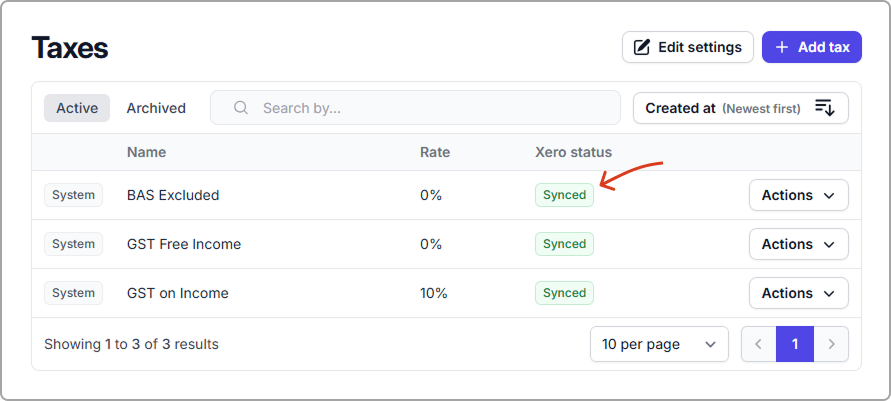
2. Check the **Xero status** column:
* **Synced** means it is already linked to Xero.
* **Not synced** means it still needs linking.
3. For any **Not synced** tax rate, click **Actions** → **Sync with Xero**, choose the matching **Xero Tax Rate**, then click **Sync**. Note: If the tax rate is missing from the list, add it in Xero first.
***
## What a successful invoice sync looks like
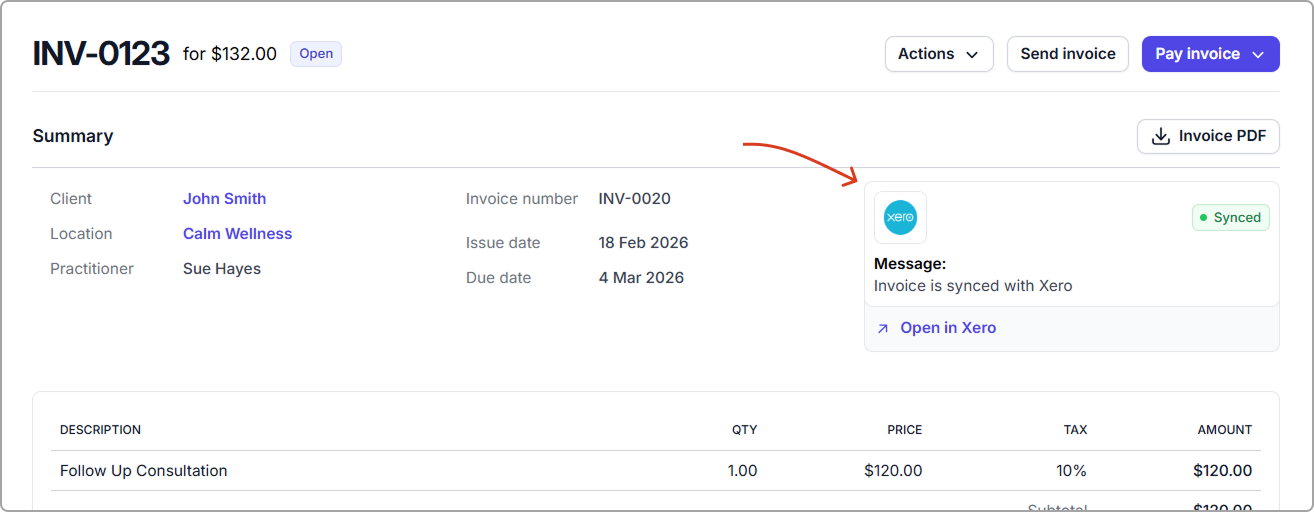
A synced invoice shows **Synced** status and a Xero panel message. Click **Open in Xero** link to view the invoice in Xero.
***
## Unsynced invoices
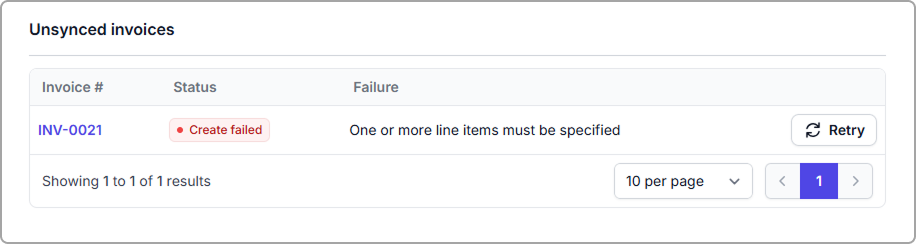
If any invoices fail to sync, they will appear in **Unsynced invoices** in the **Xero settings** page.
***
**Need help?** Feel free to contact support and we will help you connect Xero and get invoices and payments syncing.