# Add a product
> Streamline product sales and keep your inventory organized by creating a product list. Learn how to add products so you always have the right items available for your clients.
Source: https://support.caspen.com/inventory-and-products/add-a-product
Documentation index: https://support.caspen.com/llms.txt
## Getting started
Manually adding products helps keep your inventory accurate and up-to-date.
> **Warning:**
>
> **Before you begin:**
>
> Ensure you have permission to manage products (access to the Catalog tab). If you’re a team member, request access from your your account owner.
---
## How to add a product to your inventory
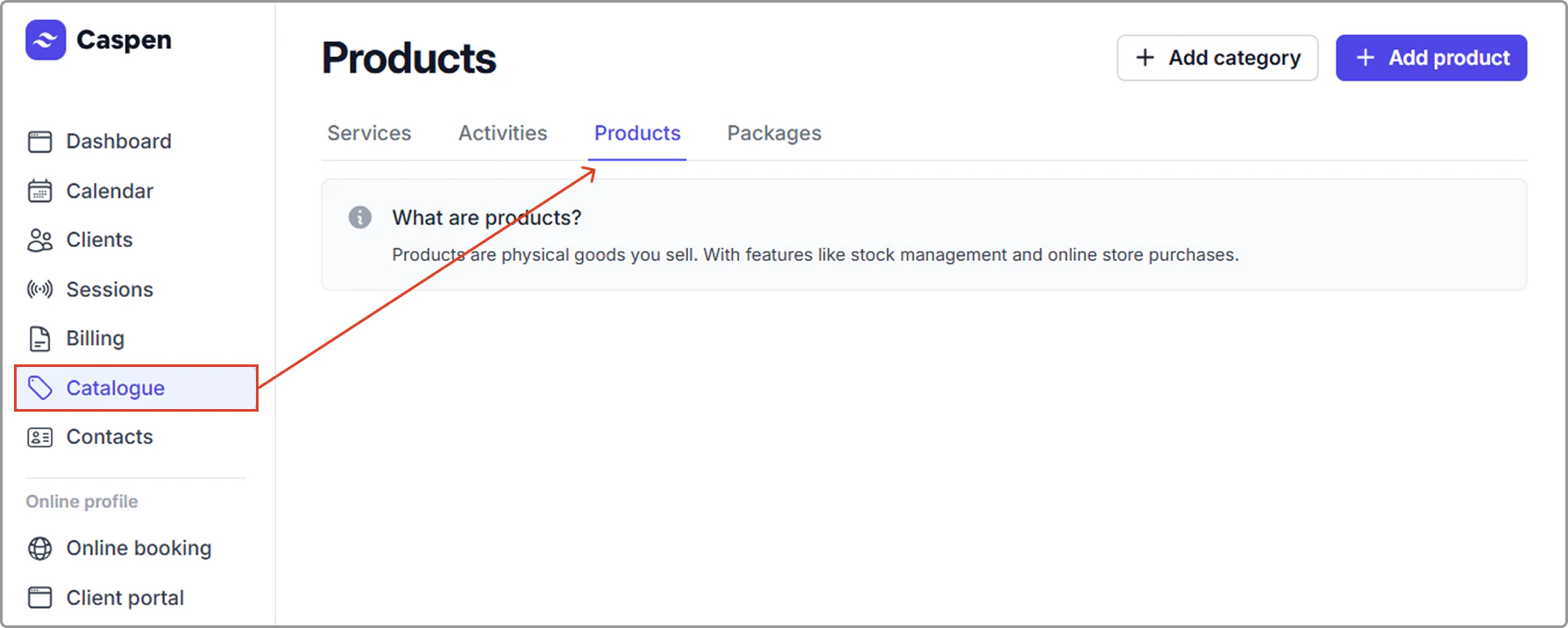
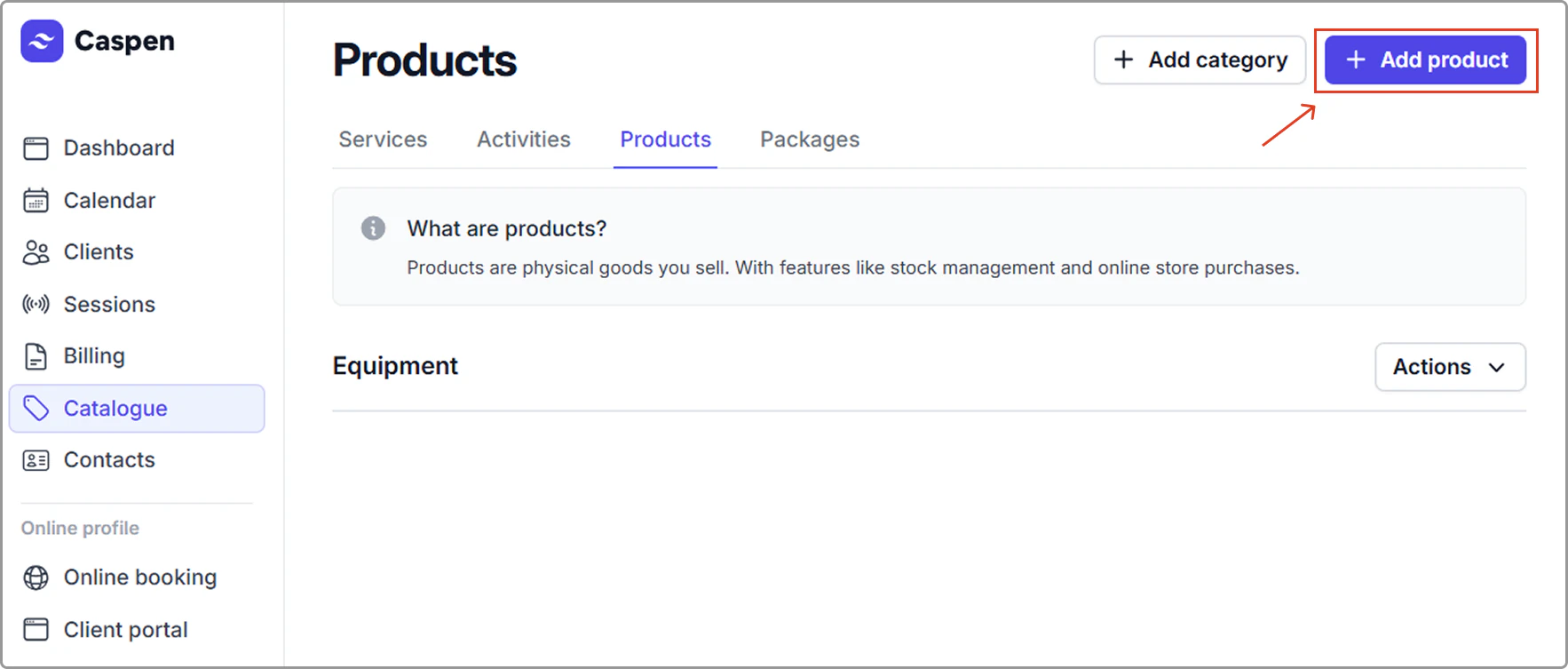
1. Open the **Catalog** and select the **Products** tab.
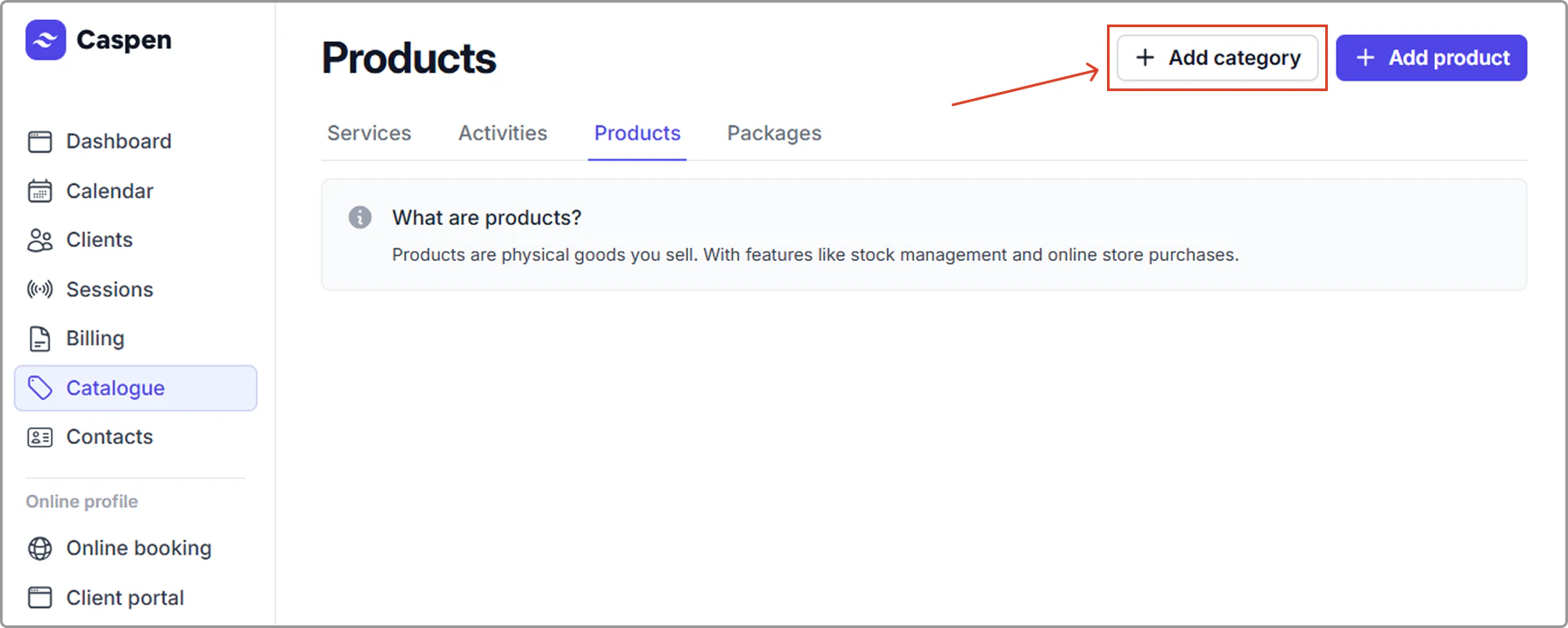
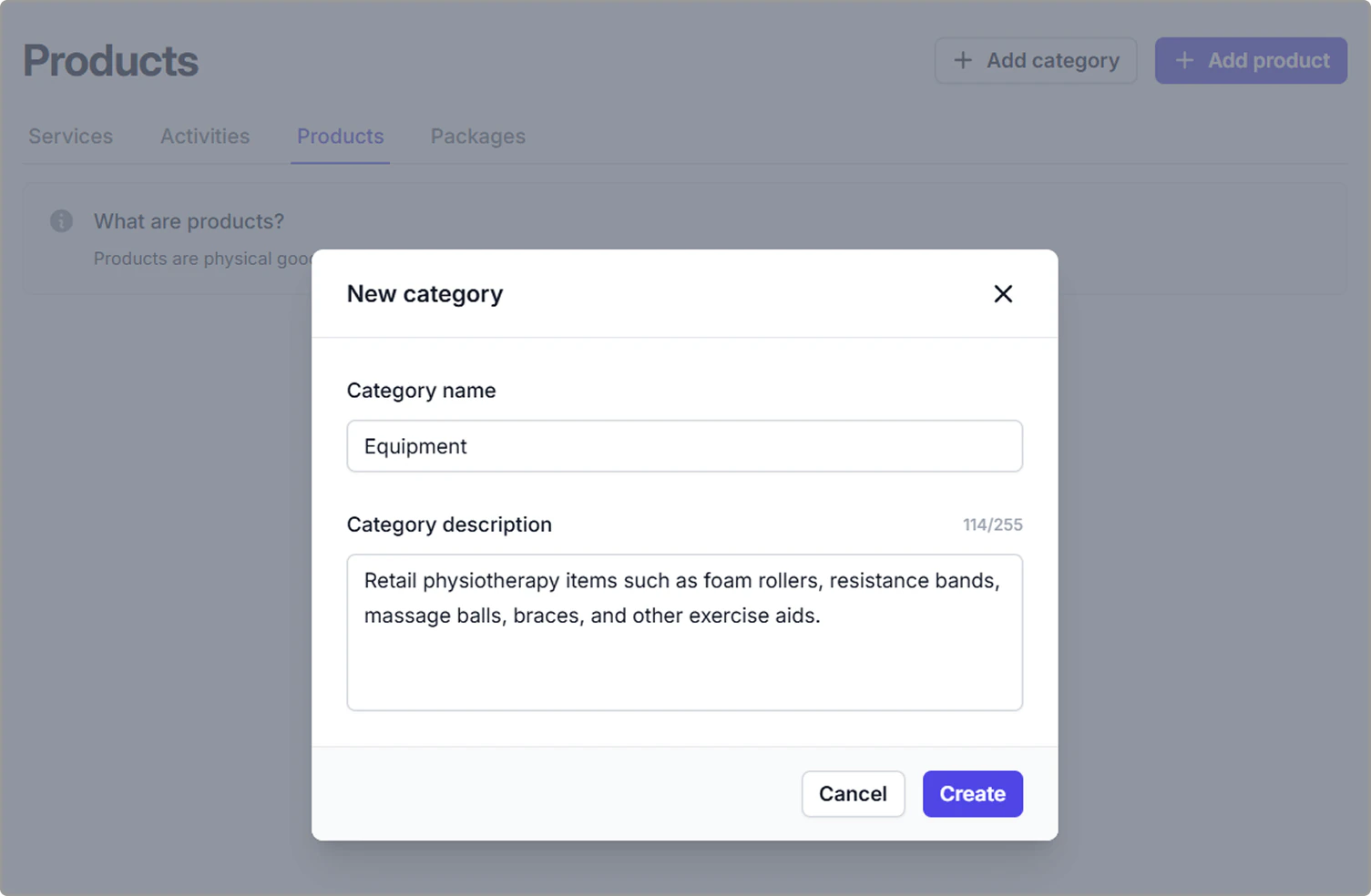
2. Click **Add category** and enter a **name** and (optional) **description,** then click **Create**.
A category is a way to group similar products, for example: “Supplements,” “Equipment,” or “Skincare.”
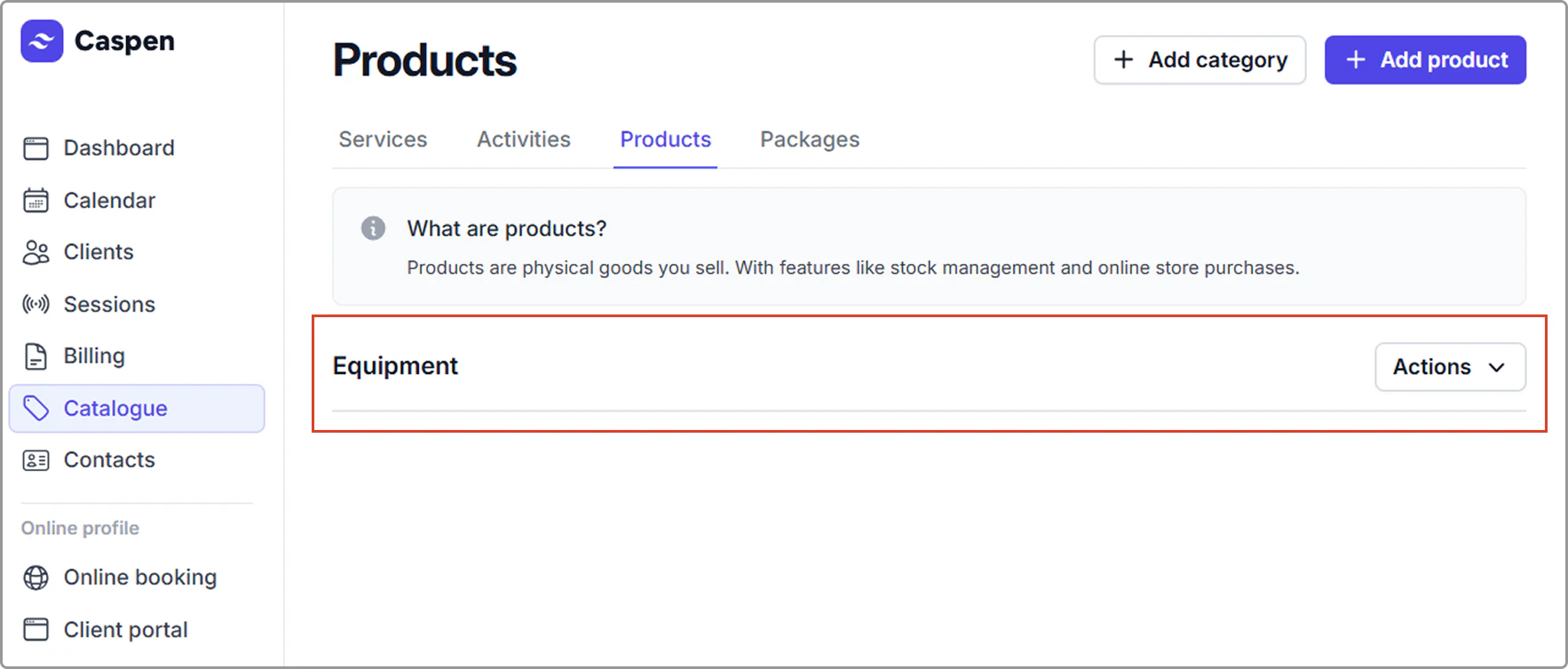
The new category now appears under the Products tab.
3. Click **Add product**.
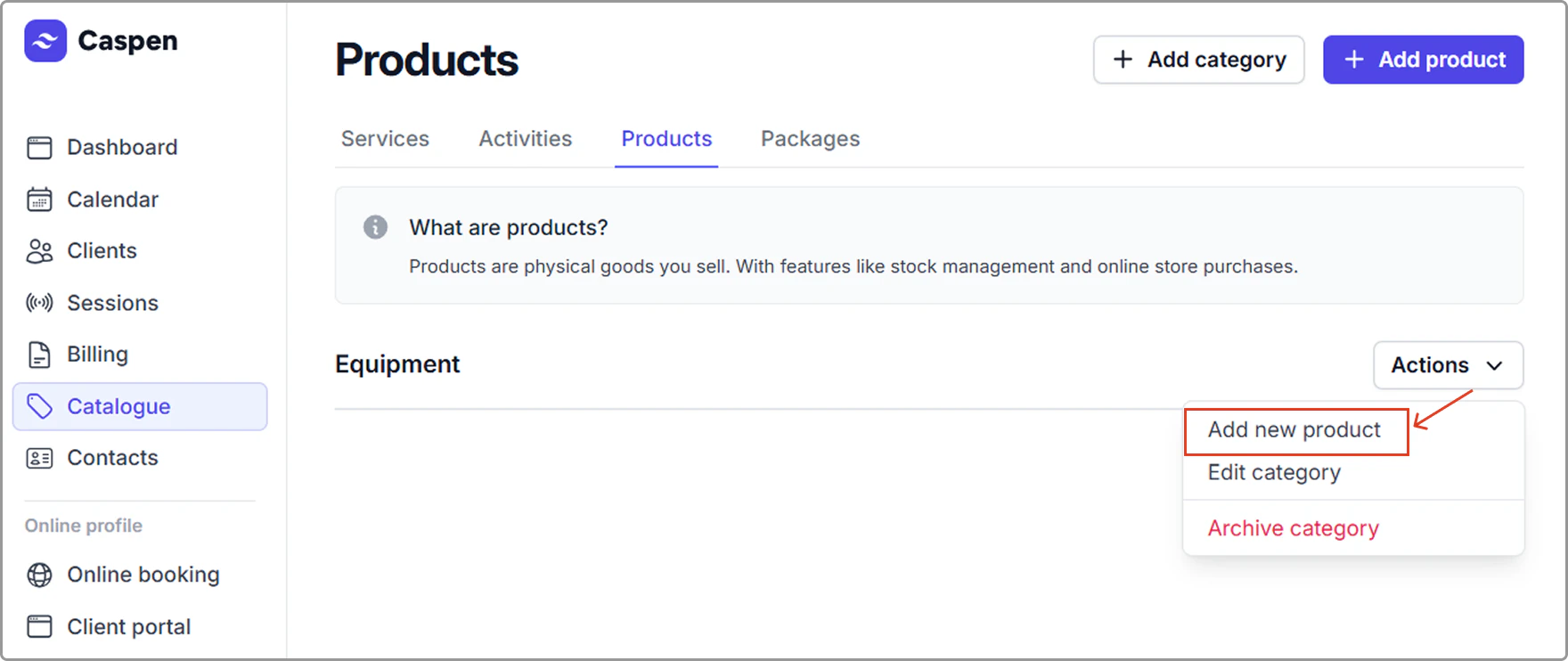
> **Tip:**
>
> You can also add a product from a category via Actions, then Add new product. This opens the same form with the Category prefilled.
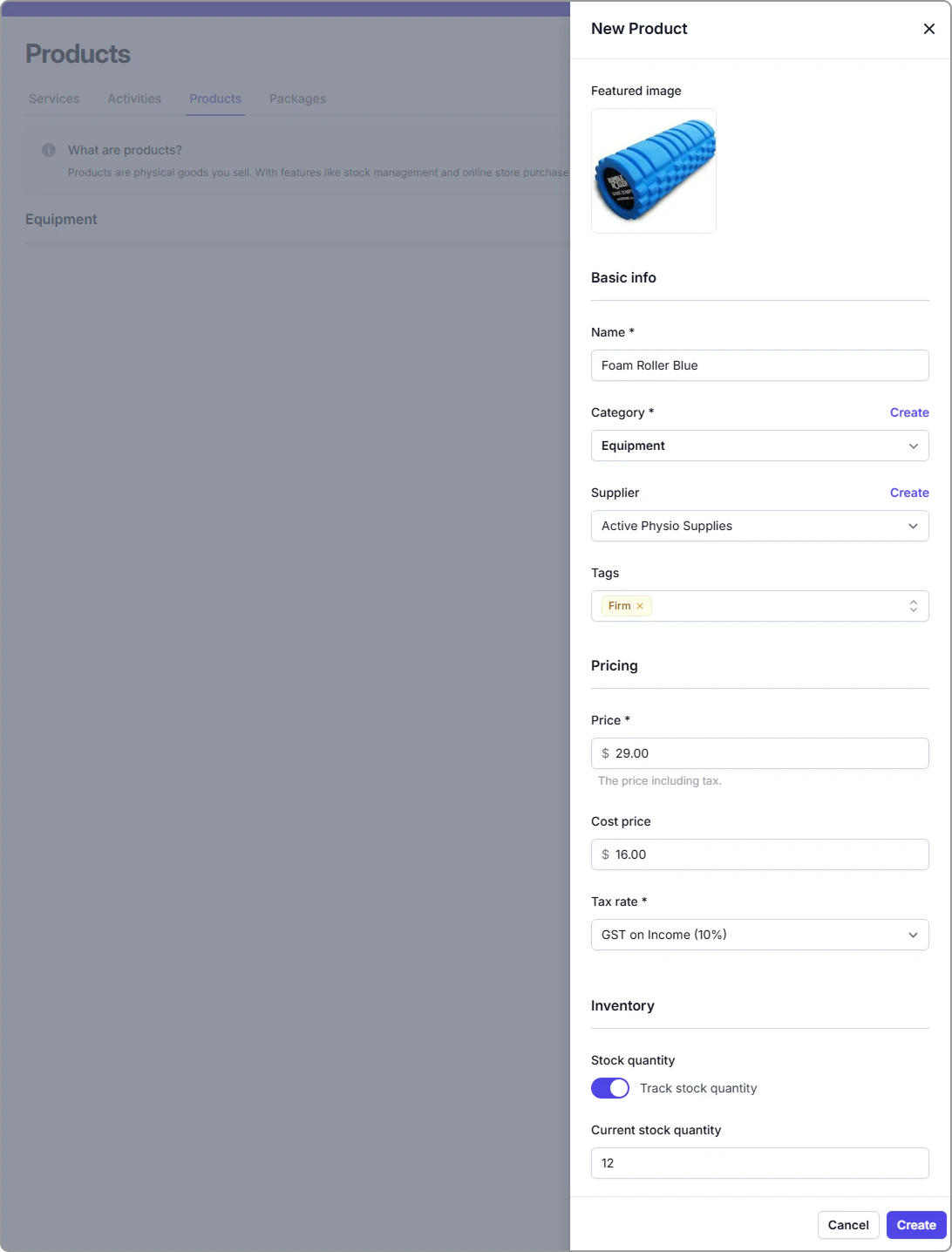
4. **Fill in the product details:**
- **Featured image** (optional): Upload one or more images of the product.
- **Name** (required): Enter the product name.
- **Category** (required): Choose an existing category or create a new one.
- **Supplier** (optional): Select or Create a supplier.
- **Tags** (optional): Add tags to help organize or search for your products.
- **Price** (required): Enter the selling price.
- **Cost price** (optional): Enter the cost price if you want to track margins.
- **Tax rate** (required): Select the tax rate that applies.
- **Inventory** (optional):
- **Track stock quantity**: Enable the toggle if you wish to monitor stock levels.
- **Current stock quantity**: Enter the quantity currently on hand.
5. After entering the product’s details, click **Create** (bottom right) to save the product.
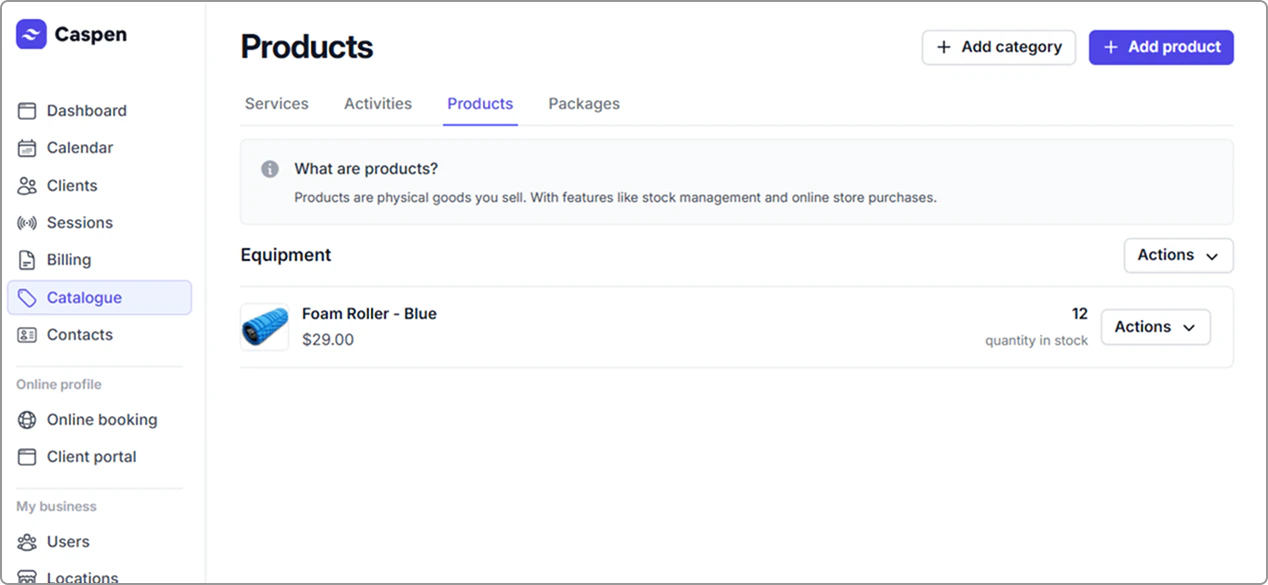
You’ll return to the Products tab, where the new product appears.
---
**Tip:**
- When tracking is on, stock totals update automatically. When tracking is off, history is kept but totals do not update. Learn more - [Stock Management](https://support.caspen.com/inventory-and-products/stock-management).
---
## Frequently asked questions
Where does the product image show?
The image appears in your product catalog and in the Add product picker when building an invoice. Note: It does not appear on the invoice itself (PDF or client view).
If a product is not tracked, do I still see actions related to invoices?
Yes. Even if stock isn’t tracked, actions like adding the product to an invoice are still recorded in the product’s stock adjustment history. The difference is that stock totals aren’t updated.
What happens if I turn stock tracking on later?
Turning tracking back on resets the product’s quantity to 0. Use Actions → Add stock to set the current on-hand amount. The add-stock action is recorded in the product’s adjustment history.