# Add a message to the time selection page in online bookings
> Show a notice about the date/time picker during online booking.
Source: https://support.caspen.com/online-booking/add-a-message-to-the-time-selection-page-in-online-bookings
Documentation index: https://support.caspen.com/llms.txt
## Overview
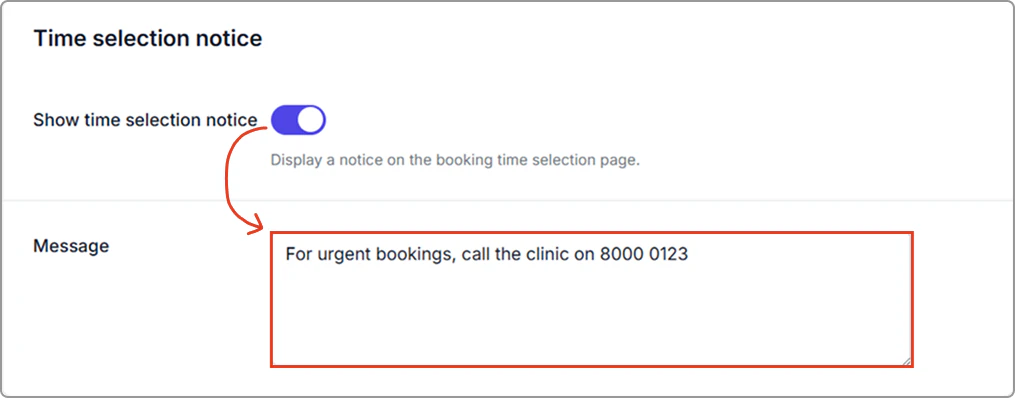
Use the **Time selection notice** to display a short message or alert on the date/time step of your online booking flow.\
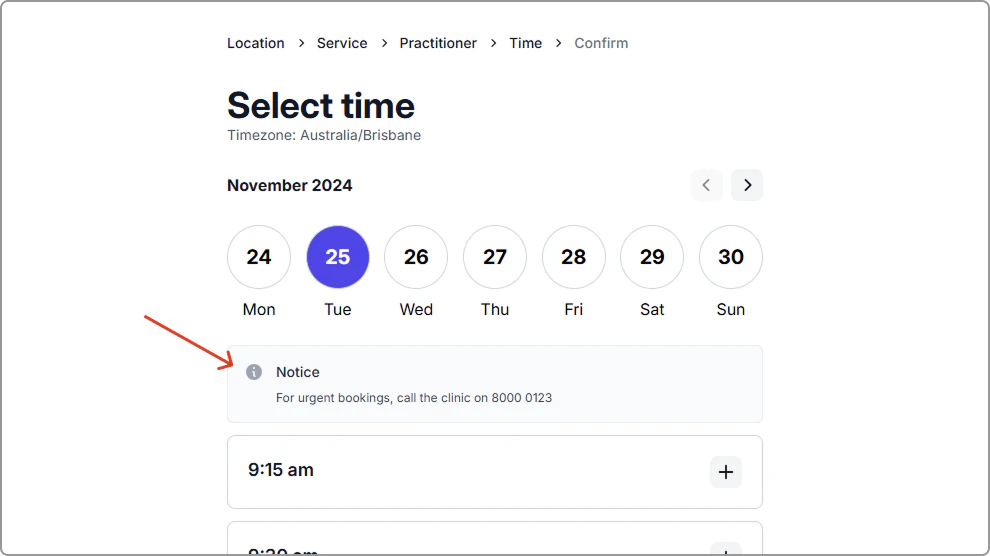
It appears **above the time picker** and highlights important information while clients choose an appointment slot (e.g., _“For urgent bookings, call 8000 0123.”_).
---
## Add a message to the time selection page in online bookings
1. Go to **Settings** → **Online booking**.
2. In **Notices**, turn on **Show time selection** notice and in **Message**, enter your text.
3. Click **Save** (top-right of the page).
---
## Where it appears
Your message displays on the **date/time selection page**, above the time picker.
---
#### Related
Important notice: A separate banner shown at the top of all booking pages. See [Show an important notice on every online booking page](https://support.caspen.com/online-booking/show-an-important-notice-on-every-online-booking-page).