# Set appointment lead time for online bookings
> Control how much notice you need before an appointment and how far in advance clients can book online.
Source: https://support.caspen.com/online-booking/set-appointment-lead-time-for-online-bookings
Documentation index: https://support.caspen.com/llms.txt
## Overview
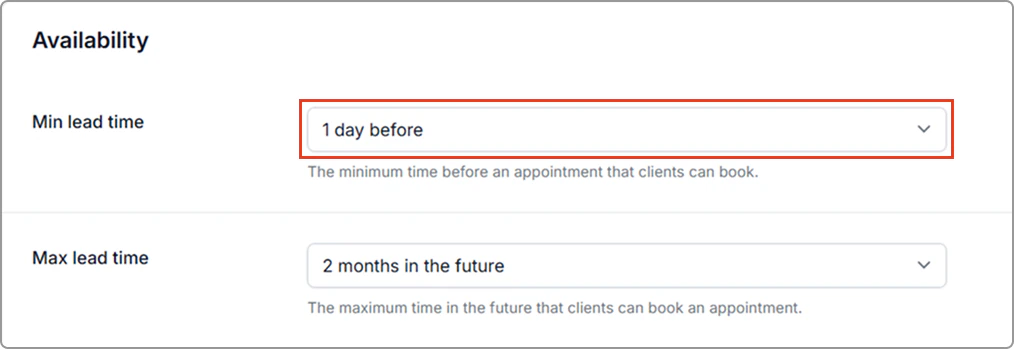
**Minimum lead time**
Choose the minimum amount of notice your business requires before a client can book online. You can allow no notice if you prefer.
Example: If it’s 12 pm and your min lead time is 3 hours, the earliest bookable time is 3 pm.
\
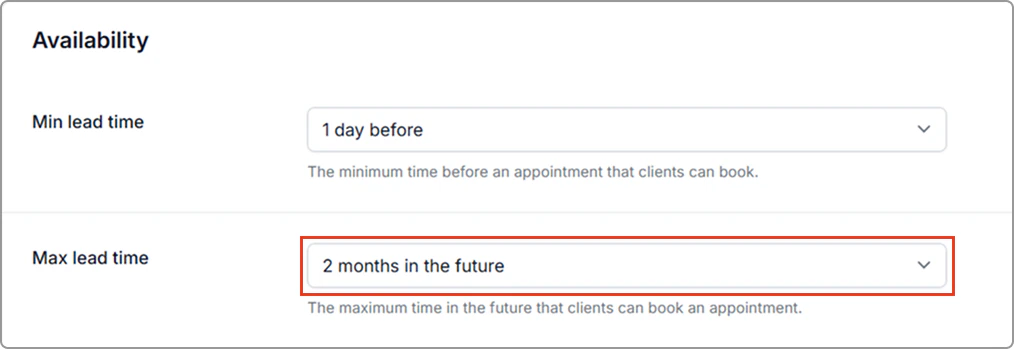
**Maximum lead time**
Choose how far in advance clients are allowed to book from.
Example: If your max lead time is 3 months, clients can book any available time up to 3 months from today, but not beyond.
---
## Set the minimum lead time
1. Go to **Settings** → **Online booking**.
2. Find **Min lead time** and choose the minimum notice period.
3. Click **Save** (top-right of the page).
---
## Set the maximum lead time (how far in advance clients can book)
1. Go to **Settings** → **Online booking**.
2. Find **Max lead time** and choose how far in advance clients can book.
3. Click **Save** (top-right of the page).
> **Info:**
>
> Note: You can adjust these settings at any time and the updates take effect immediately.