# Take a deposit or full payment for online bookings
> Collect full payment or a deposits when clients book an appointment online.
Source: https://support.caspen.com/online-booking/take-a-deposit-or-full-payment-for-online-bookings
Documentation index: https://support.caspen.com/llms.txt
## Before you begin
Caspen uses the Stripe integration to process online card payments.
You can collect payments at the time of booking. Either a deposit or the full appointment amount.
> **Warning:**
>
> To enable this, Stripe must be connected.\
> Go to **Settings** → **Integrations** → **Stripe** → **Connect**.
---
## How to set up online booking payments
1. Go to **Settings** → **Online booking**.
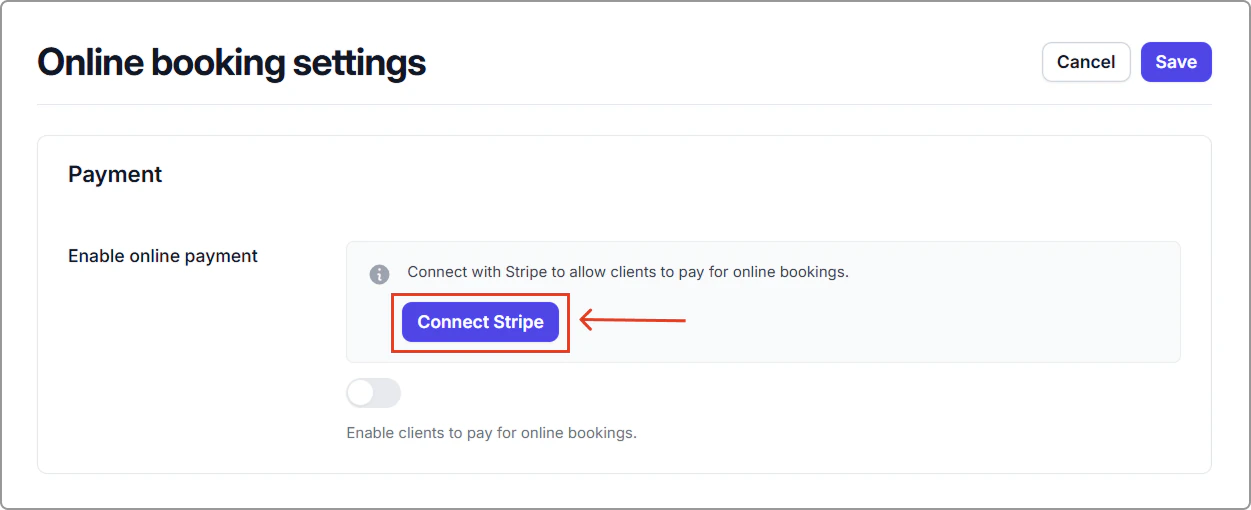
2. Under Payment, click **Connect Stripe** (if not already connected). Caspen uses Stripe to process card payments securely.
_If Stripe is already connected, skip to Step 5._
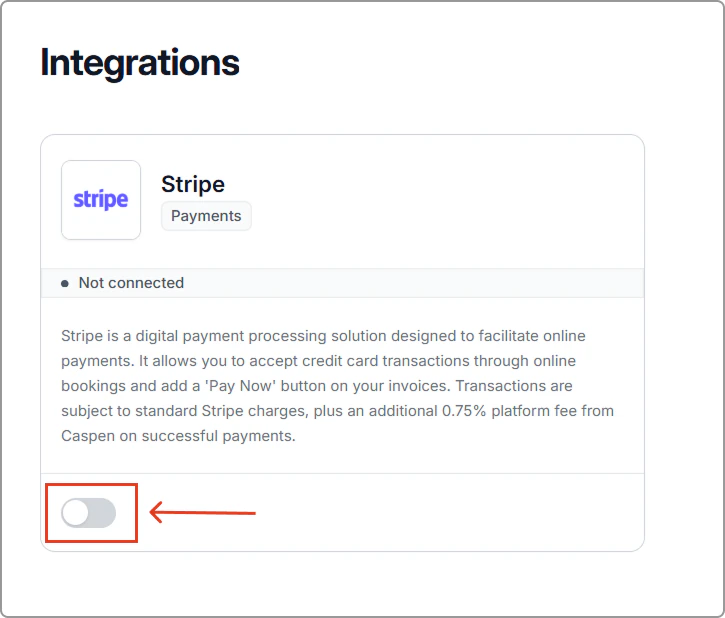
3. This opens the **Integrations** page.\
Find **Stripe**, toggle it on, and follow the prompts to connect your account.
4. Once Stripe is connected, return to **Settings** → **Online booking**.
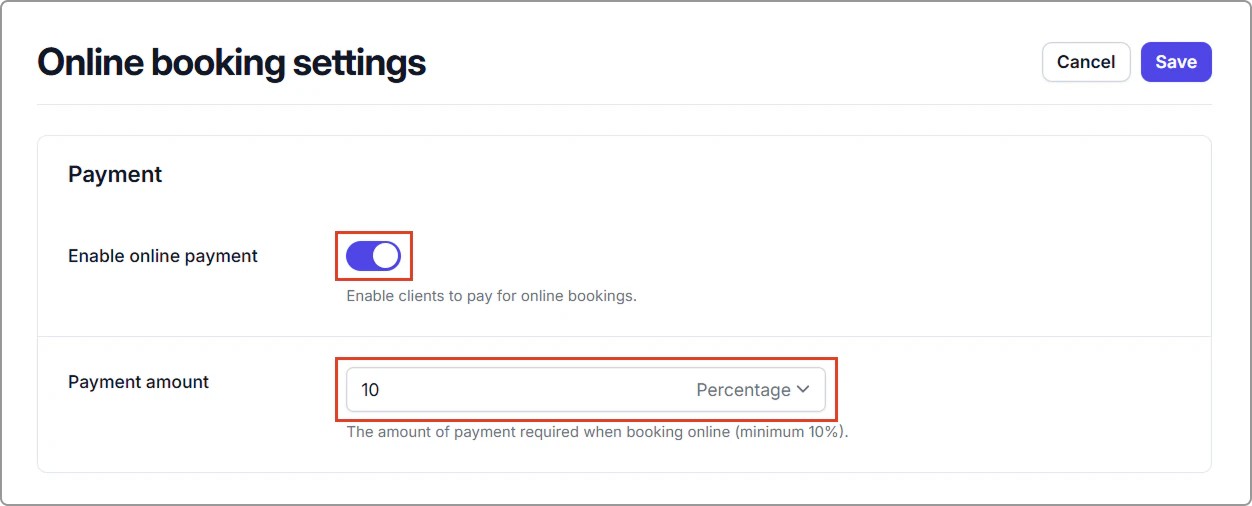
5. Under **Payment**, turn on **Enable online payment** and set **Payment amount** as a percentage (Minimum 10%).
> **Info:**
>
> To take full payment: choose Percentage and set it to 100%.
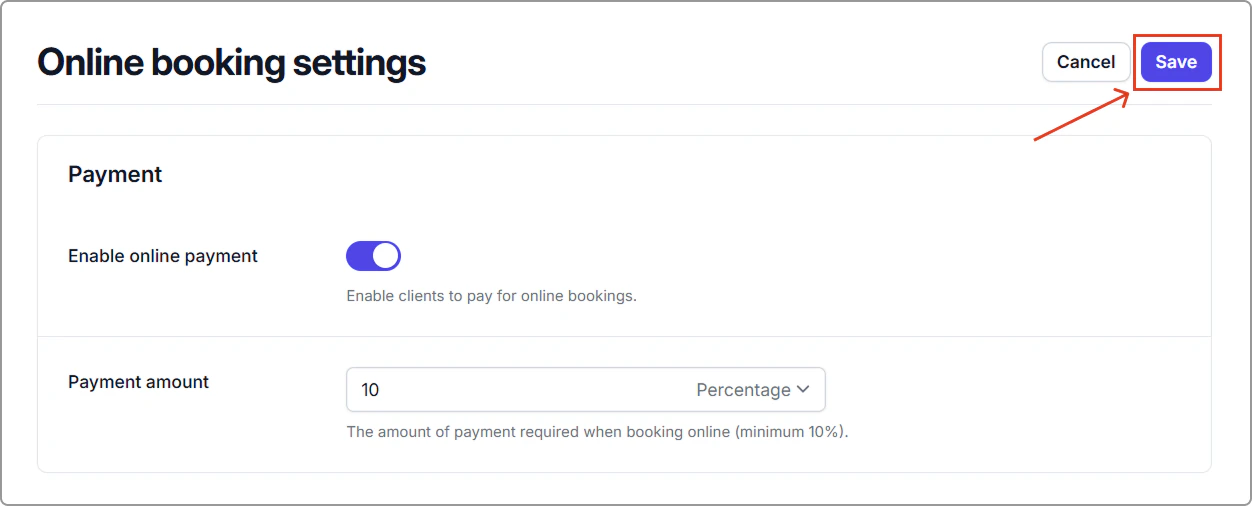
6. Click **Save** in the top-right corner.
---
## Tips
- Clarify refunds or forfeits in your **Cancellation policy** and **Terms**.
- Test a booking to confirm the payment section appears on the **Confirm appointment** page before clients complete their booking.