> For the complete documentation index, see [llms.txt](https://support.caspen.com/llms.txt). Markdown versions of documentation pages are available by appending `.md` to page URLs; this page is available as [Markdown](https://support.caspen.com/practice-setup/set-your-availability.md).
# Set your availability
Control when practitioners can be booked by setting their available days and times.
> **Who can have availability set?**
> \
> Only **Practitioner** and **Practitioner Admin** roles can have availability, because these are the only roles that appear in the calendar for bookings and appointments.
## Overview
Availability lets you control when practitioners can be booked by setting the days and times they work. You can customize availability for individual dates, multiple selected dates, or set ongoing weekly or fortnightly schedules.
Each location has its own availability settings, and you can create multiple time slots per day to allow for split shifts, or different working periods.
***
## How to set availability
To set or update availability:
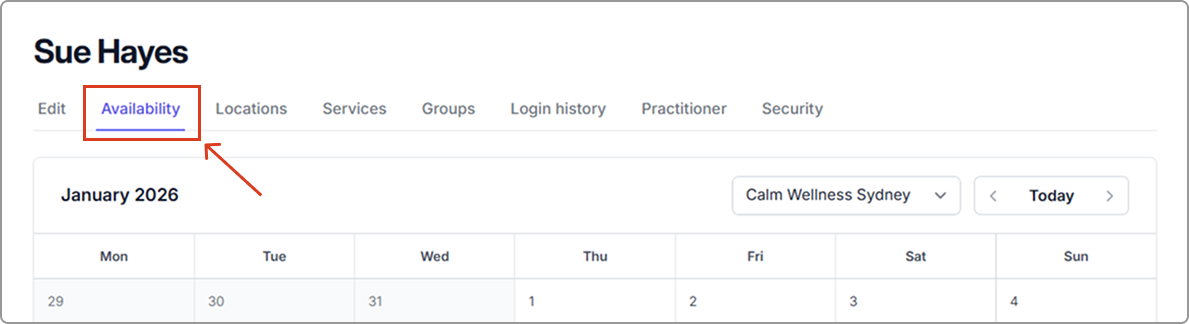
1. Go to **Settings** → **Users**.
2. Open the user profile (Practitioner or Practitioner Admin) you want to update\
(click their name or **Actions** → **View**).
3. Navigate to the **Availability** tab.
4. Select the **Location** you want to set availability for.
5. Click on a date in the calendar to open the **Edit availability** window.
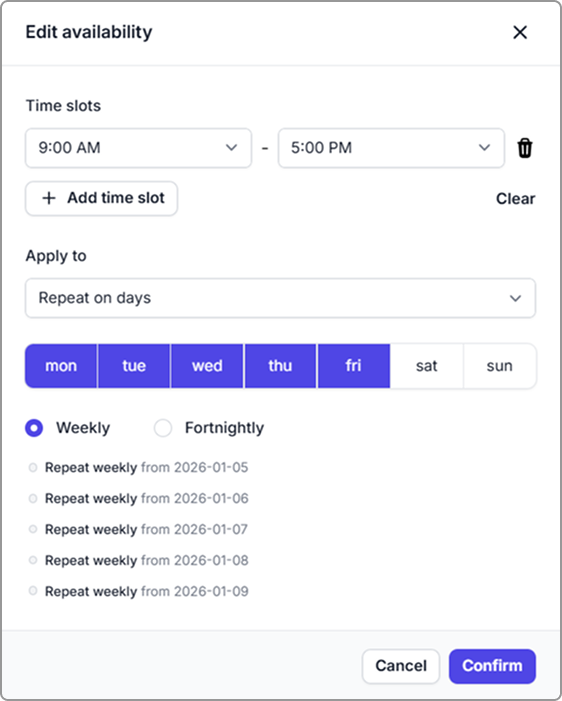
6. Adjust the availability as needed, then click **Confirm** to apply.
*See **Editing availability** below for more details on how to configure time slots and one-off or repeating schedules.*
***
## Editing availability
Inside the availability editor, you can:
### Add time slots
* Choose a start and end time.
* Click **Add time** slot to add multiple blocks in one day\
(e.g., 9 AM–12 PM, then 1 PM–5 PM).
* Click the **bin icon** next to a time slot to remove it.
***
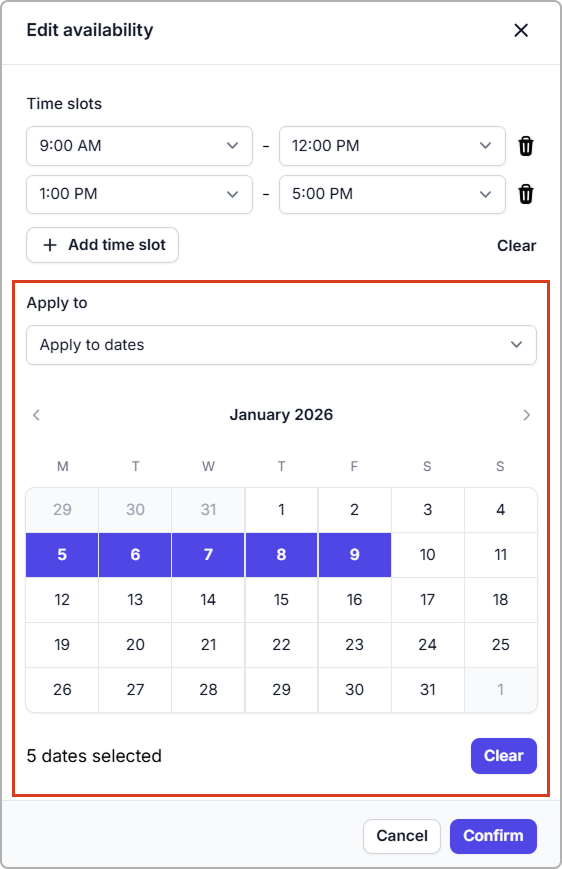
### Set availability for custom dates
Use this option when the practitioner’s hours vary on particular days.
* Select one or multiple dates on the calendar.
* Add or adjust time slots.
* Your changes apply only to the dates selected.
> **Clear selected dates**\
> Click **Clear** (beneath the calendar) to remove your current date selection. You can then choose new dates.
***
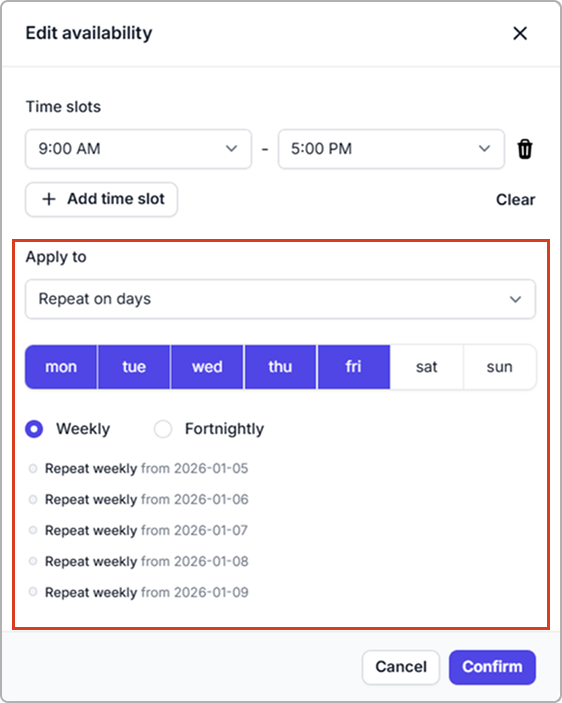
### Set availability for recurring days
Use this option to create ongoing weekly or fortnightly schedules.
* Click a date first. The recurring pattern begins from the next matching day after that date.
* Select the days of the week (e.g., Mon, Tue, Fri).
* Choose the repetition pattern: **Weekly** or **Fortnightly.**
* Caspen shows the start date of the recurring pattern so you can confirm before saving.
***
### Mark a practitioner as unavailable
To block out a date where a practitioner is not available:
1. Click one or more dates on the calendar.
2. In the **Time slots** section, click **Clear** — the area will switch to **Mark as unavailable.**
3. Click **Confirm** to save.
**Screenshot example:** Marking selected dates as unavailable.
***
## Availability and online bookings
If you plan on offering online bookings, then you will need to know that the availability you set here will determine the times when clients can book appointments with you.
***
## Tips
* Each location has its own availability. Remember to set availability per location if your practitioners work across sites.
* You can add multiple availability blocks per day if required.