# Add a progress note
> Learn how to create a progress note for a client.
Source: https://support.caspen.com/progress-notes/add-a-progress-note
Documentation index: https://support.caspen.com/llms.txt
## Overview
Progress notes can be added directly from the **Calendar**, **Client profile**, or **Sessions**.\
Only practitioner-based roles can create progress notes. You can start with a blank note or use a reusable template to save time.
---
## Add a progress note from the calendar
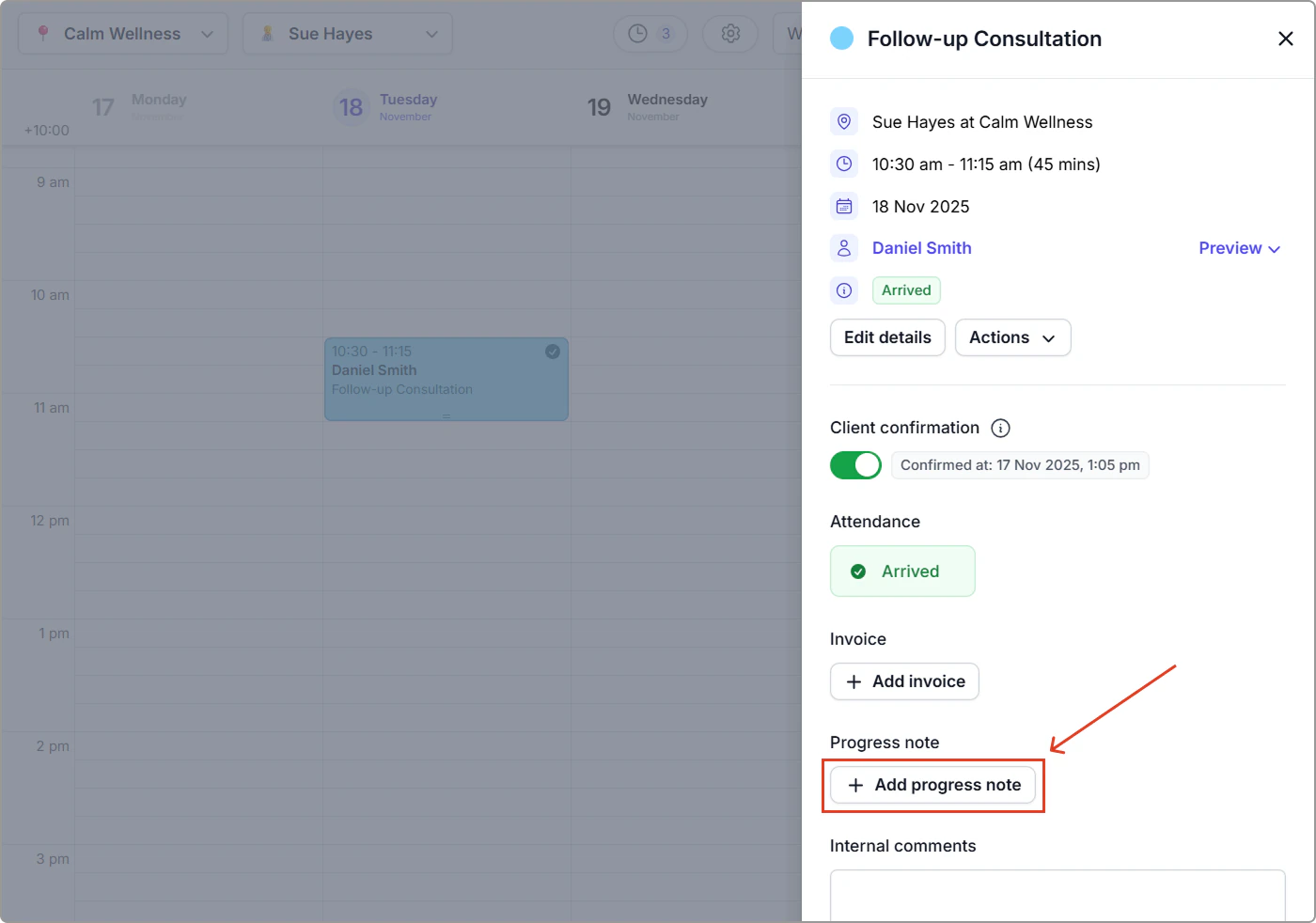
1. Go to your **Calendar** and click on an appointment or activity to open its panel.
2. Under **Progress note**, click **Add progress note**.
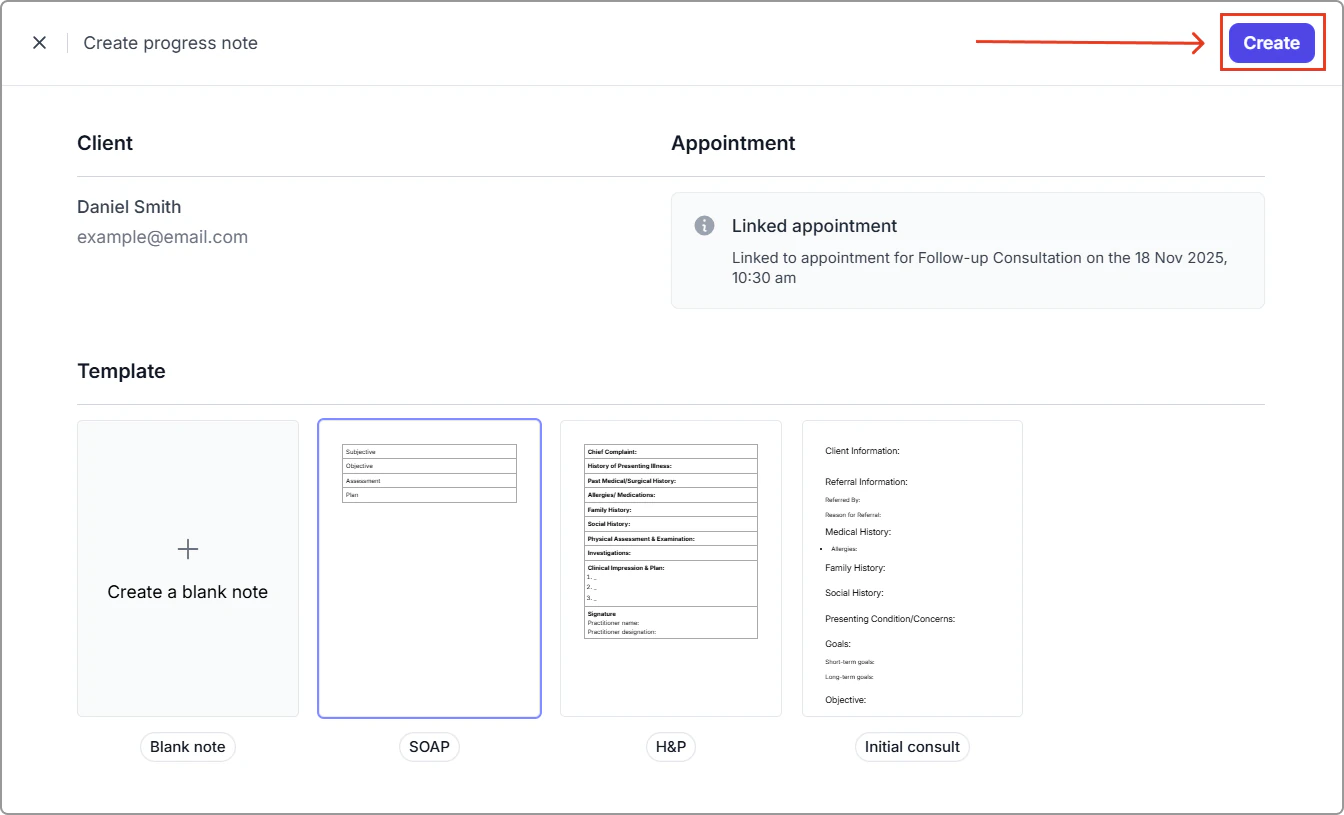
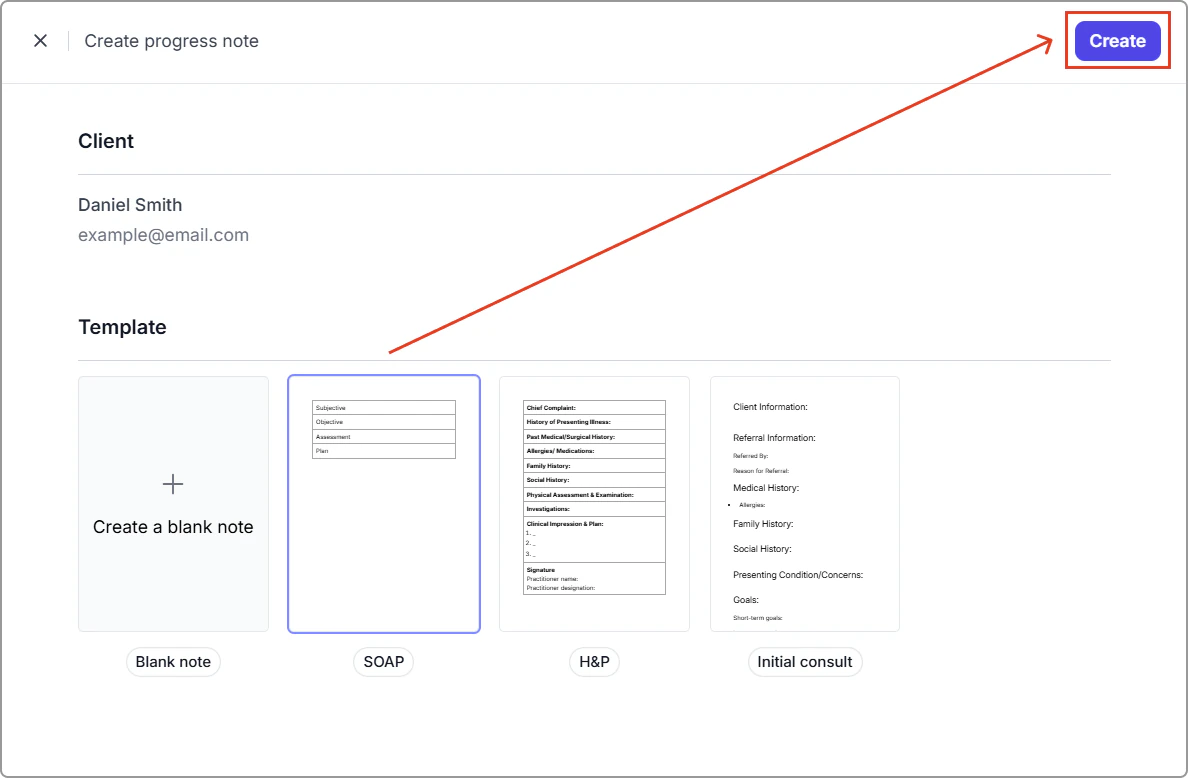
3. Select a template (or choose **Create a blank note**): The selected option highlights with a blue border.
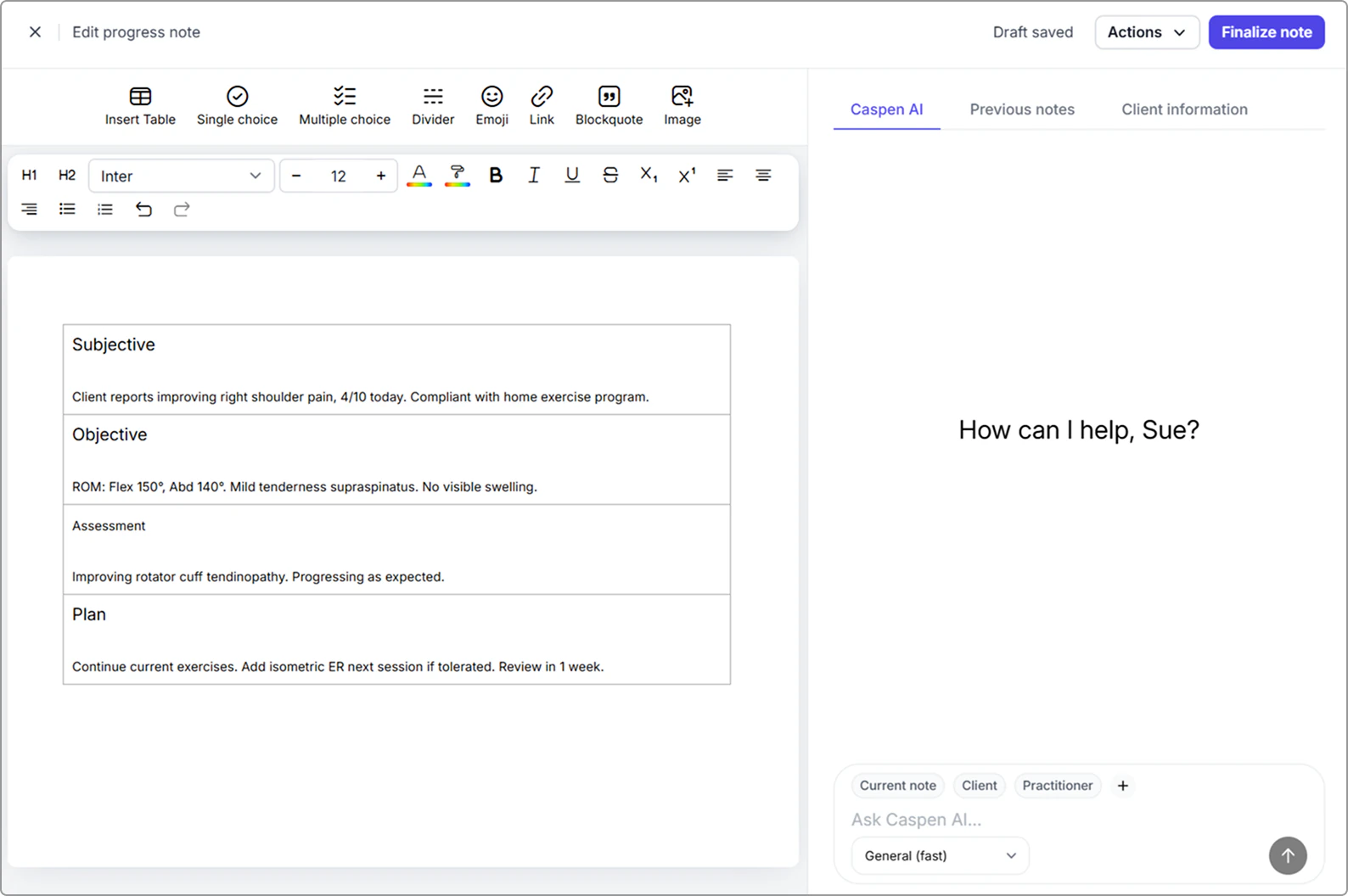
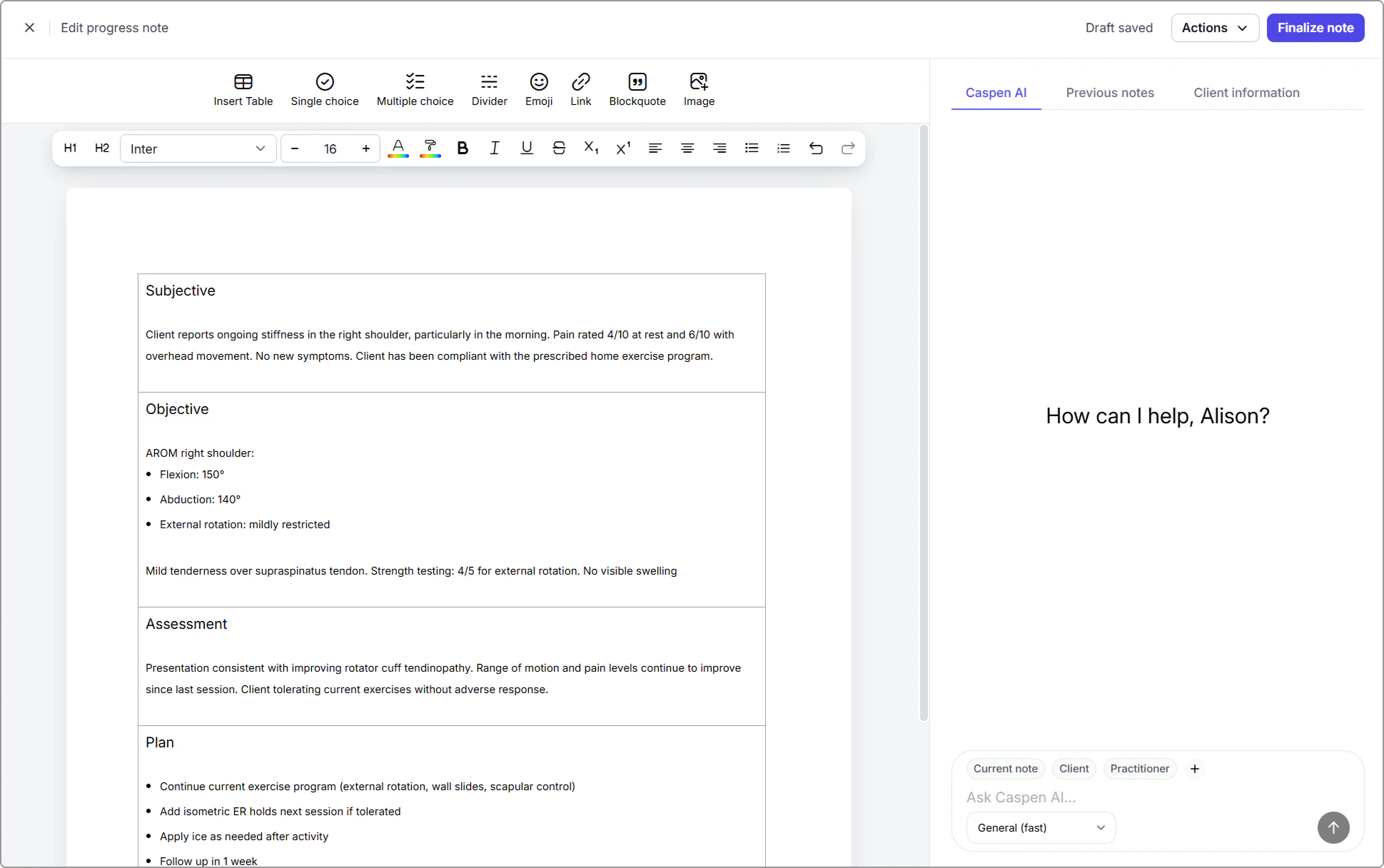
4. Click **Create** (top-right) to open the editor. The **selected template** loads into the note editor.
5. Add your note content.
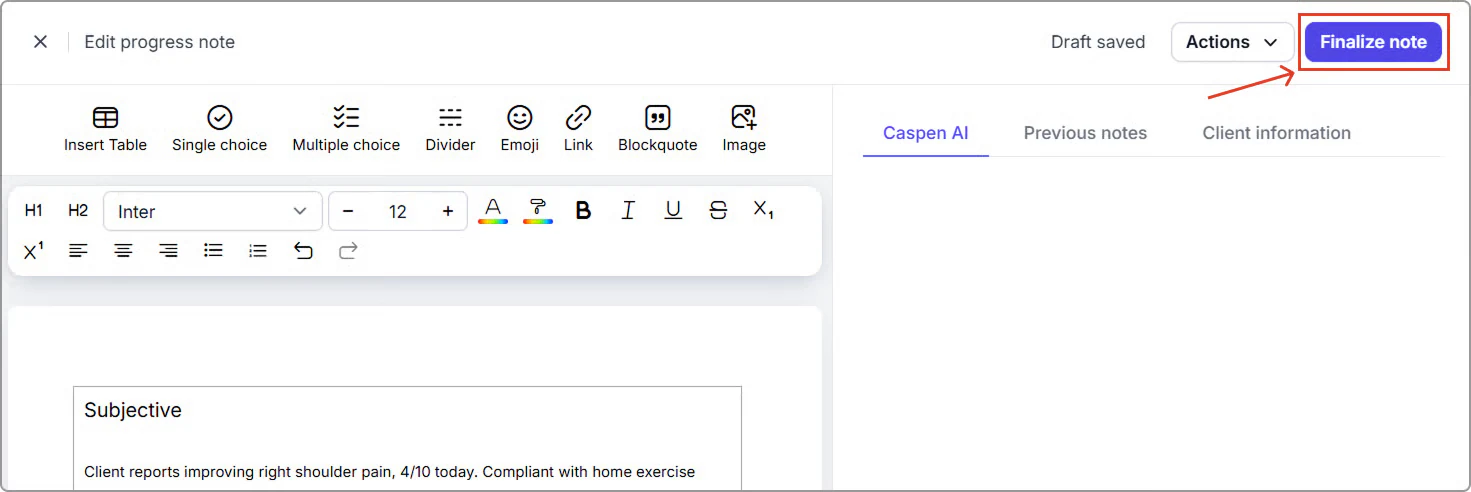
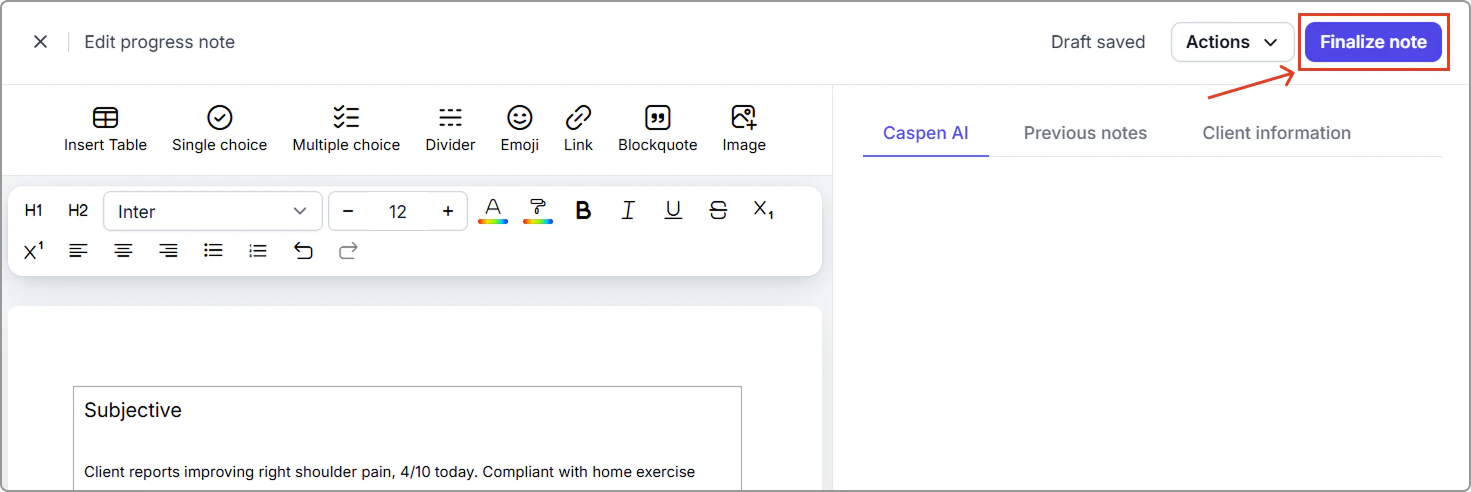
6. Click **Finalize note** (top-right) when you're ready to complete and save the note.
> **Tip:**
>
> If you’re not ready to finalize, click **Exit (X)** to save a **draft**. Draft notes remain editable until finalized.
#### Ways to access a progress note created from the calendar
Progress notes created from the calendar are easy to find. You can open them from **two places**:
**1. From the calendar event**
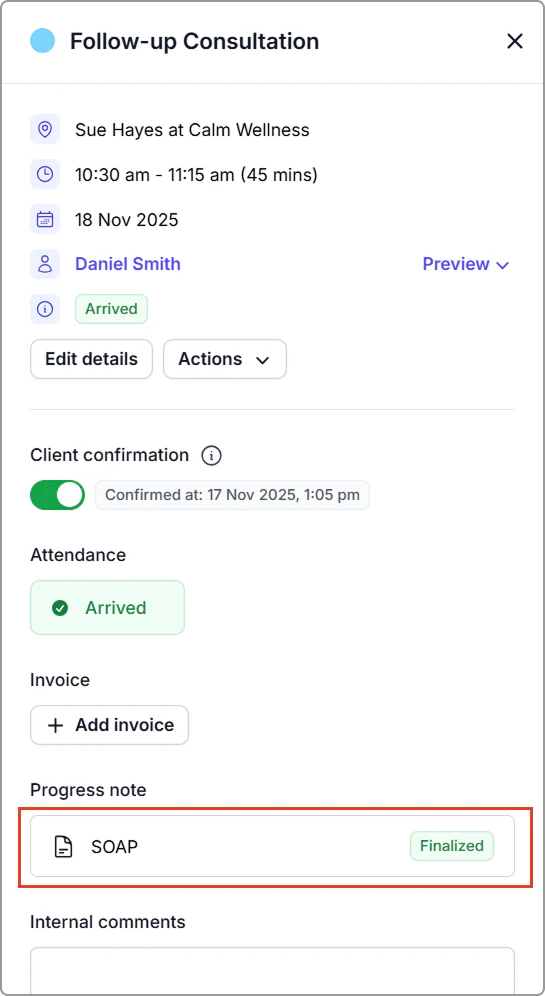
Click the appointment or activity in your calendar to open the event panel. Any attached progress note will appear in the **Progress note** section (draft or finalized). Click the progress note tile to open it.
A progress note attached to an event will appear in the event details panel.
**2. From the client profile**
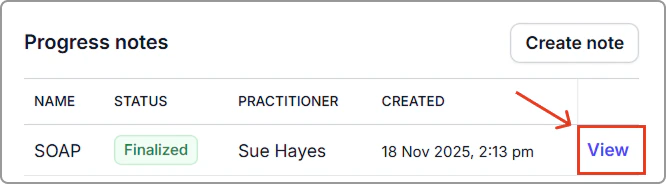
Go to the client’s profile, scroll to **Progress notes**, and click **View** next to the note to open it.
#### How to quickly tell if an appointment already has a note
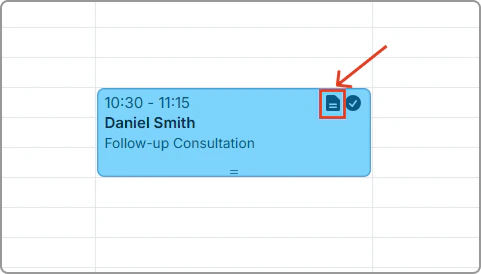
After a progress note is attached, individual appointments show a progress note icon on the calendar, so you can quickly see which ones have a progress note.
The progress note icon means a progress note is attached to the appointment.
---
## Add a progress note from the client profile
1. **Open the client’s profile:** Go to **Clients**, locate the client, and click **Actions → View** (or simply click the client’s name).
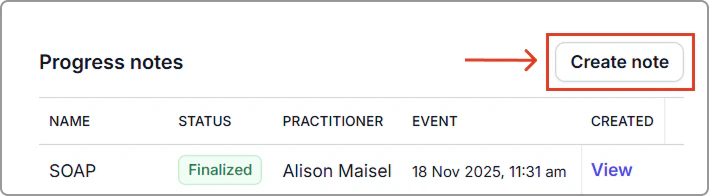
2. In the **Progress notes** section, click **Create note**.
3. Select a template (or choose **Create a blank note**): The selected option highlights with a blue border.
4. **Click Create** (top-right) to open the editor. The **selected template** loads into the note editor.
5. Add your progress note content.
6. Click **Finalize note** when you're ready to complete and save the note.
> **Info:**
>
> If you’re not ready to finalize, click **Exit (X)** to save a **draft**. Draft notes remain editable until finalized.
Once finalized, the note appears in the **client’s profile** under Progress notes.
---
**Related article**
- [Set up progress note templates](https://support.caspen.com/settings/templates/set-up-progress-note-templates) – Standardize your notes and reduce repetitive typing.
- [Using the text editor for notes and templates](https://support.caspen.com/progress-notes/using-the-text-editor-for-notes-and-templates) – Learn how to format text, tables, images, and interactive fields.