# Using body chart templates in progress notes
> Learn how to use body chart templates in your progress notes.
Source: https://support.caspen.com/progress-notes/using-body-chart-templates-in-progress-notes
Documentation index: https://support.caspen.com/llms.txt
## Overview
If you need to include diagrams or charts in your clinical notes, you can select a body chart template and draw directly on it. This is useful for documenting pain locations, injuries, areas treated, and clinical findings.
> **Info:**
>
> **Before you start**
>
> - You can only add a body chart while creating or editing a progress note.
> - Caspen includes default body chart templates. To upload or manage templates, see [Set up body chart templates](https://support.caspen.com/settings/templates/set-up-body-chart-templates).
---
## Add a body chart to a progress note
1. Open the client and create or edit a progress note.
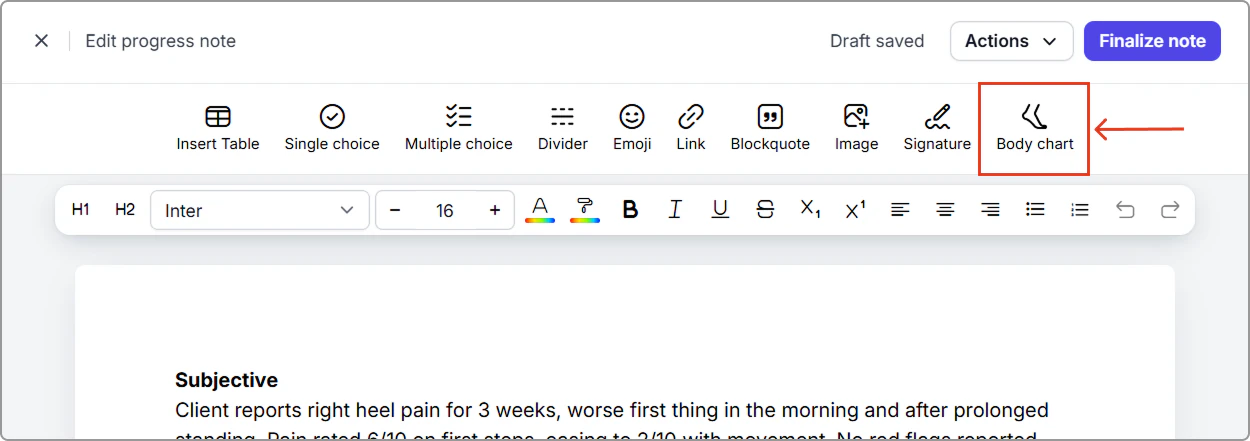
2. In the note editor toolbar, click **Body chart**.
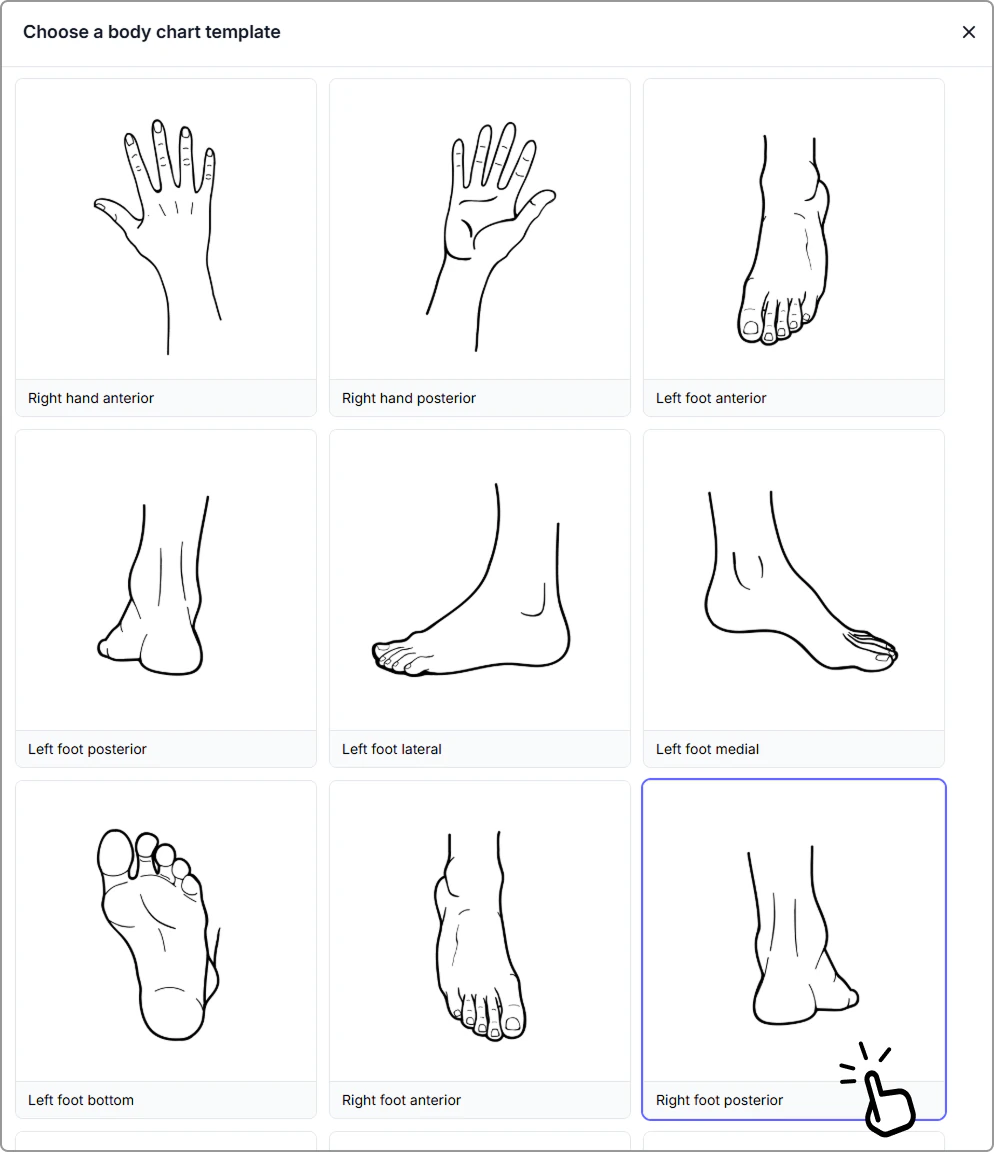
3. Select the body chart template you want to use.
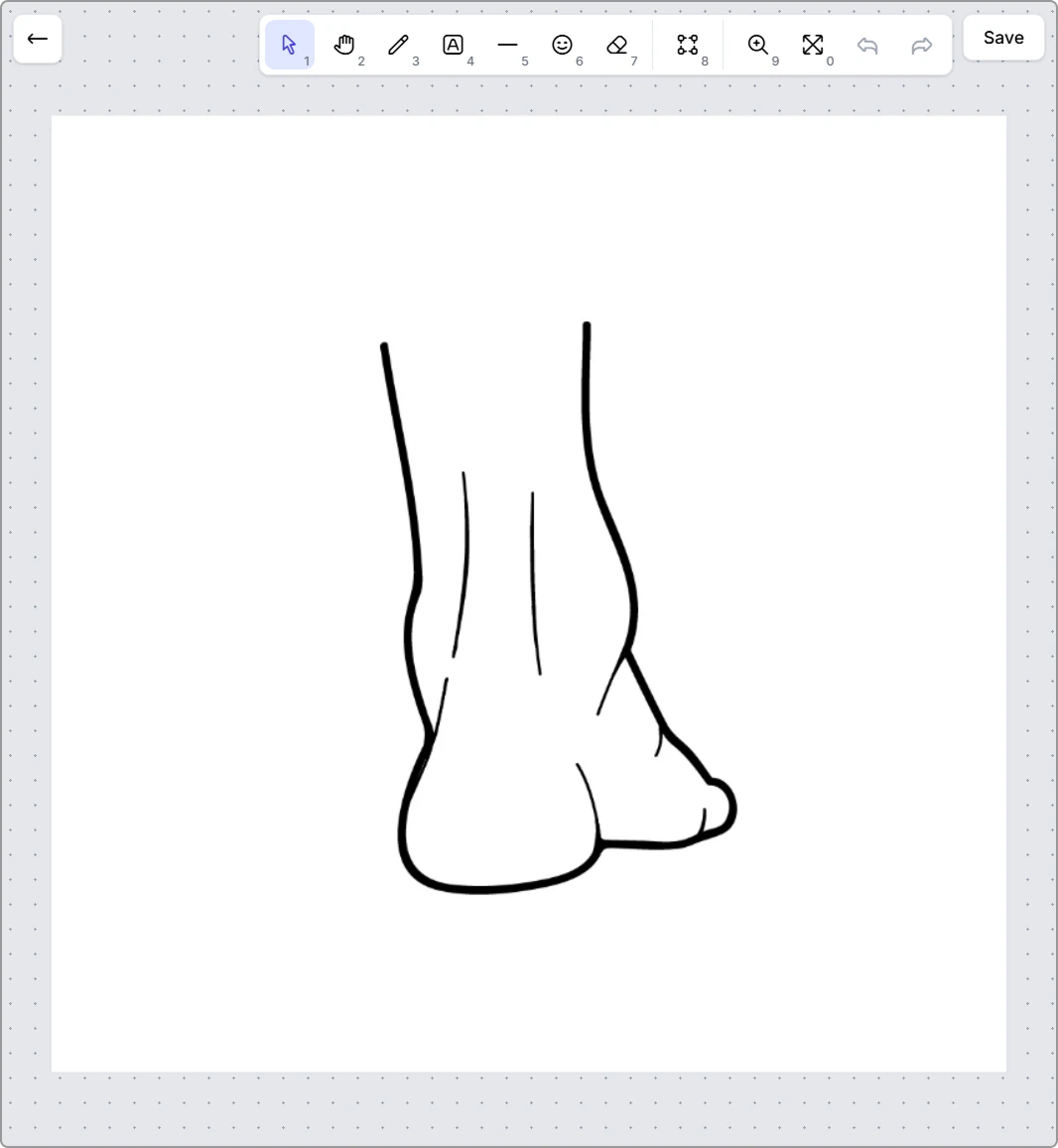
4. The body chart editor opens with the template loaded. Mark up the body chart as needed. For a list of available tools, see [Mark up the body chart](#mark-up-the-body-chart).
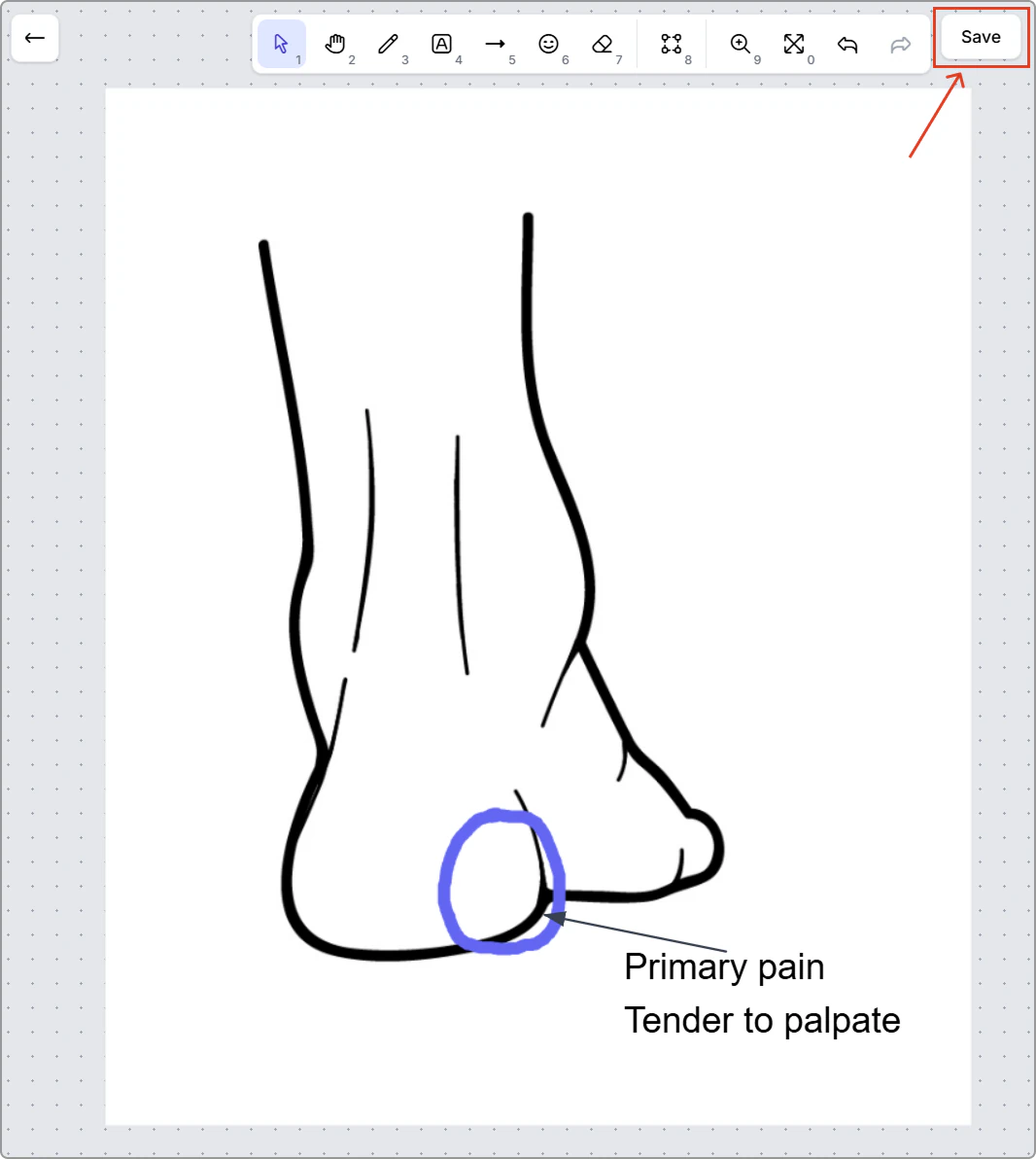
5. Once finished, click **Save** (top-right) to insert the body chart into the note.
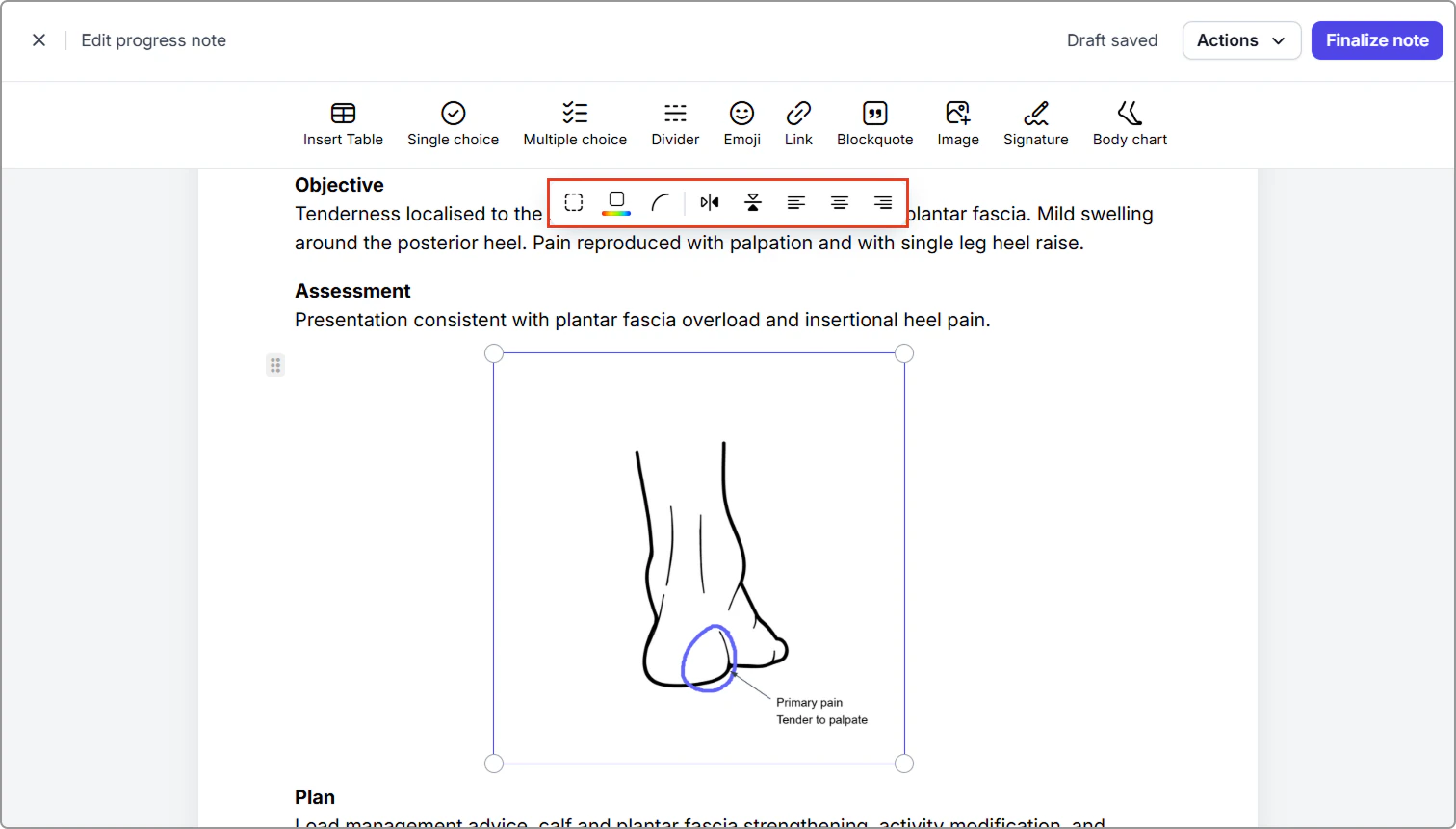
Your body chart appears in the note as an image.
---
### Mark up the body chart
Use the toolbar in the body chart editor to add your clinical markings.
List of tools (from left to right):
- Select: Click an item on the canvas to move or adjust it.
- Pan: Click and drag to move around the canvas.
- Draw: Draw freehand. Adjust pen style such as weight, opacity, and color.
- Text: Add labels directly onto the chart.
- Shapes: Add arrows, lines, or shapes to highlight areas.
- Emoji: Insert an icon if your workflow uses symbols for findings.
- Eraser: Click and drag to erase markings.
- Frame: Adjust the canvas size. Only what sits inside the frame is saved back to the note.
- Zoom: Zoom in and out for detail work.
- Fit to screen: Resizes the view so the canvas fits your screen.
- Undo and redo: Step backward or forward through your recent changes.
> **Info:**
>
> Tip: You can also zoom in and out using your mouse scroll wheel.
---
### Format the body chart image in the note
After the body chart is inserted, select the image to show formatting options.
Available options include:
- Add a border and choose a border color
- Round the image corners
- Flip the image horizontally or vertically
- Change image alignment
> **Tip:**
>
> You can resize the image by selecting it, then dragging a corner handle in or out.
---
### Finish the progress note
Keep writing your note, then choose one of the following:
- Click **Finalize note** when you are ready to complete it. The note appears in the client profile under **Progress notes**.
- Leave it as a draft if you are not ready to finalize. You can come back and continue editing later.