# Schedule overview
> See all your appointments and activities in a clean, organized list.
Source: https://support.caspen.com/schedule/schedule-overview
Documentation index: https://support.caspen.com/llms.txt
## Overview
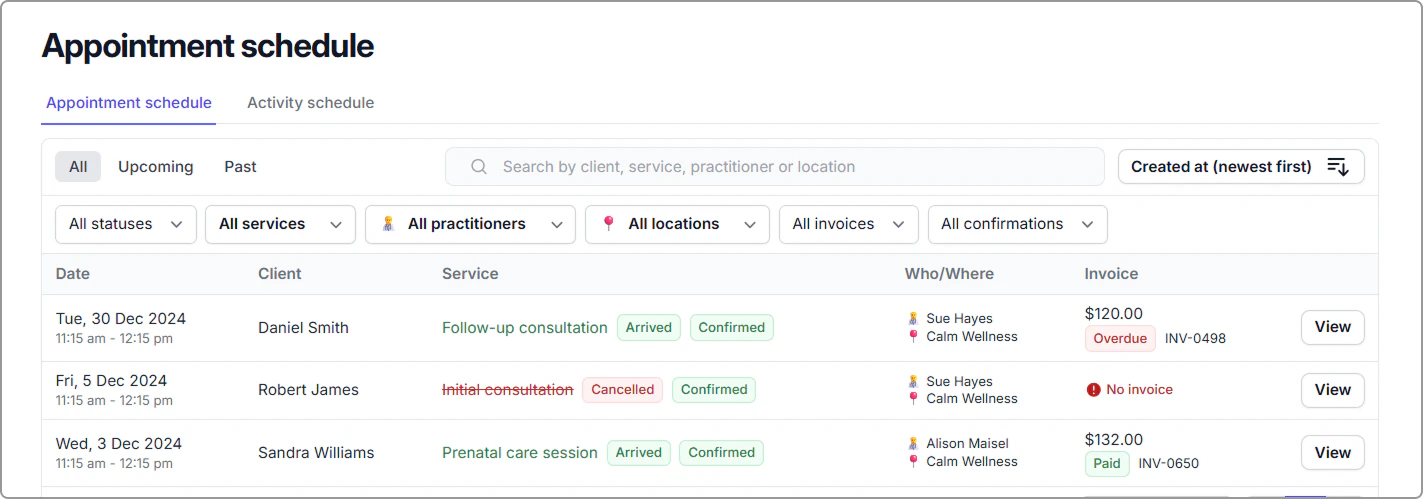
The **Schedule** is an alternative to the calendar view.\
Instead of seeing appointments in a grid, the Schedule displays everything in a simple, scrollable list so you can quickly scan:
- Appointment status (Pending, arrived, missed, canceled)
- Invoice state (No invoice, draft, open, paid, void)
- Confirmation status (Confirmed / unconfirmed)
- Practitioner and location
- Services and activities
You can **filter, search, sort, and open any row** to view or edit its details.
Access the Schedule from the left main menu.
---
## Appointments schedule
This is the main list view for all appointments.
#### Tabs
- **All** – Shows every appointment (past, present, and future).
- **Upcoming** – Shows future appointments that haven’t occurred yet.
- **Past** – Shows appointments that have already occurred.
#### Filters
Filter by status, practitioner, service, location, confirmation, or invoice status.\
Use the search bar to find clients, services, or practitioners.
---
### Open an appointment
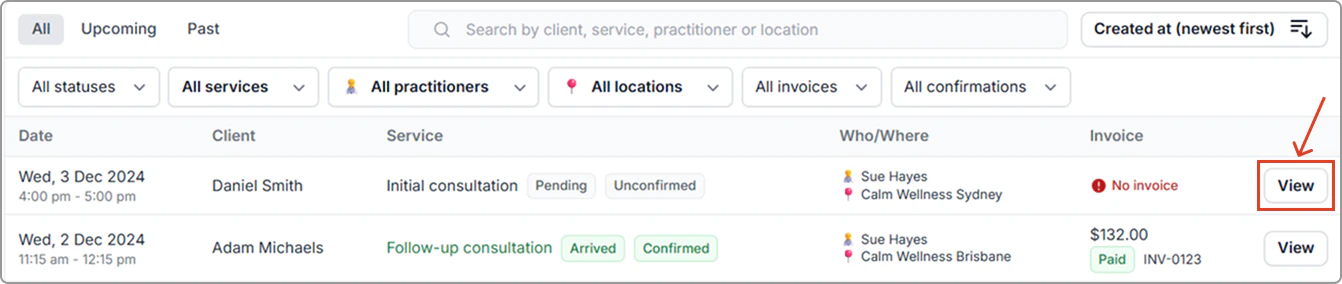
Click **View** on any appointment row to open the **appointment information panel** on the right.
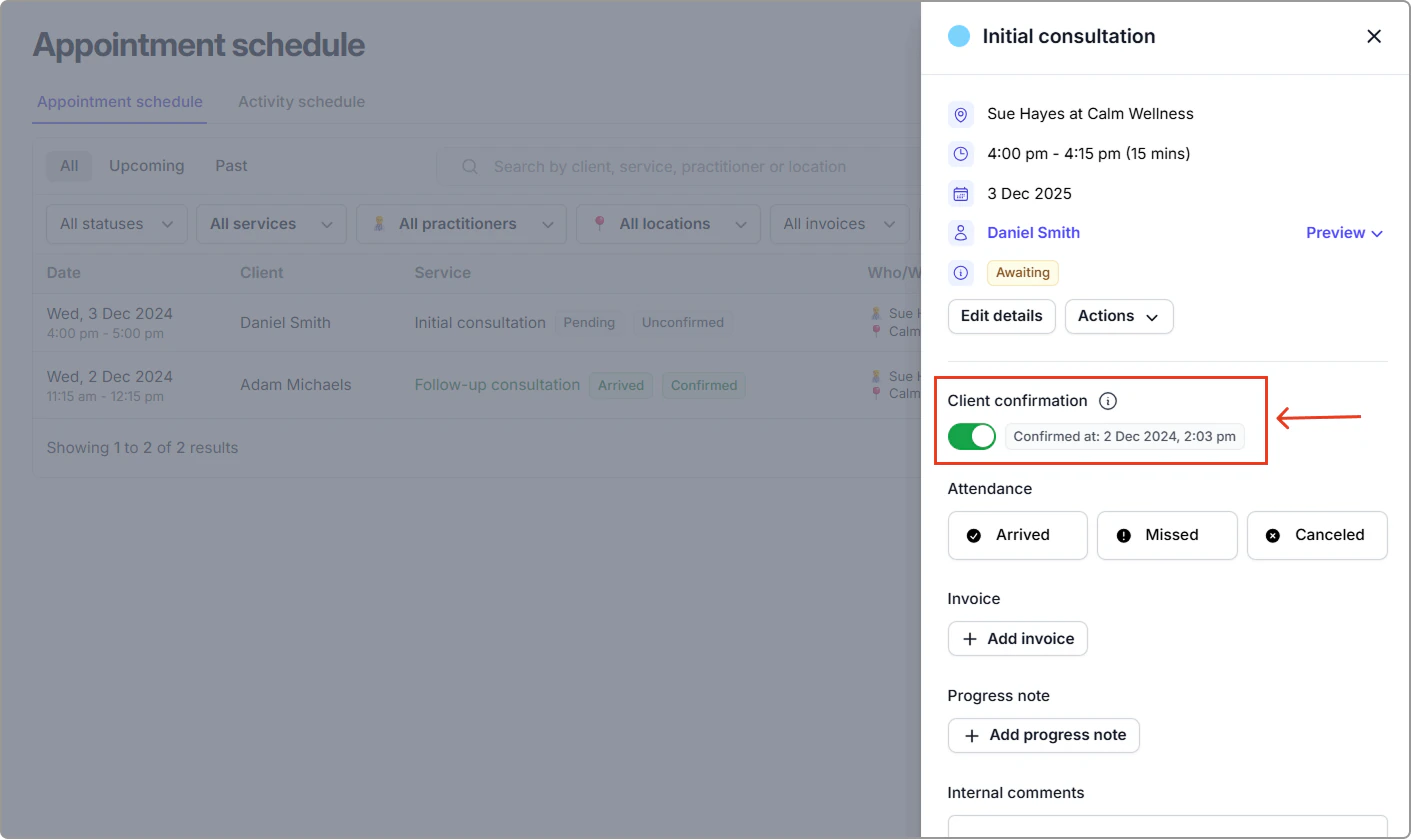
From this panel, you can:
- Update attendance (Arrived, Missed, Canceled)
- Confirm the appointment
- View or edit appointment details
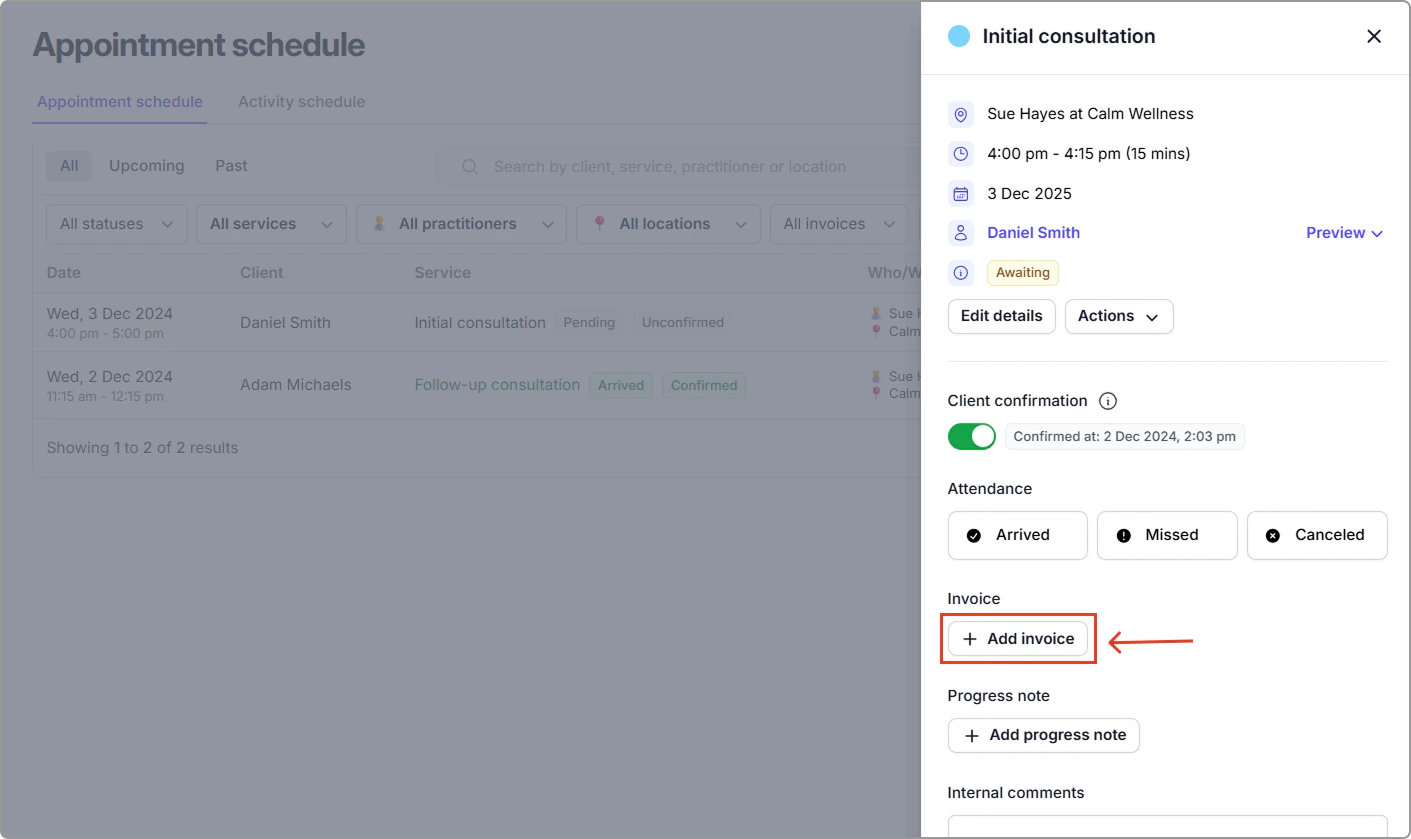
- Add or review the invoice
- Add or review progress notes
- Manage recurring appointments
- Add internal comments
---
### Common actions
#### Confirm an appointment
1. Click **View** on the appointment row.
2. In the information panel, toggle **Confirmed** on.
This is commonly used to mark that a client has confirmed directly with your practice by phone, SMS, or email.
#### Add an invoice to an appointment
1. Click **View** on the appointment row.
2. Click **Add invoice**.
Caspen will create a **draft invoice** prefilled with the appointment’s service and link it to the appointment.
---
## Activity schedule
Activities are not appointments, they represent other work such as admin time, writing notes, travel, or any custom activity created by your clinic.
Switch to the **Activity schedule** tab to view all activities in a list.
#### Tabs
All, Upcoming, Past.
#### Filters
Filter by activity type, practitioner, or location.
#### Open an activity
Click **View** next to an activity to open the information panel, where you can review or edit all activity details.
---
## Tips
- Use **Upcoming** to prepare for your day and confirm clients ahead of time.
- The Schedule view is ideal for **quick bulk checks** (e.g., unpaid invoices, unconfirmed appointments, missed sessions).
- Use filters to instantly narrow down large appointment lists without navigating day-by-day in the calendar.
- For admin-heavy days, switch to the **Activity schedule** to track non-client tasks.