# Set up and manage tax settings
> Learn how to set up and edit Tax rates in Caspen, including how to configure your system-wide tax settings and apply specific tax rates to services, activities, classes and products.
Source: https://support.caspen.com/settings/billing/set-up-and-manage-tax-settings
Documentation index: https://support.caspen.com/llms.txt
## Overview
Caspen allows you to define and manage tax rates that are applied to invoices, services, activities, classes, and products.
You can:
- Create your own tax rates list.
- Choose how tax is calculated (prices include or exclude tax).
- Apply specific tax rates to items in your catalog.
System tax rates may already exist depending on your region. These system-created rates cannot be edited or deleted, but you can create additional custom tax rates as needed.
---
## Create and manage your tax rates list
### Add a tax rate
Depending on your location, Caspen automatically provides a pre-set list of tax rates (e.g., GST, VAT, etc.).\
If you need to add another tax rate, follow these steps:
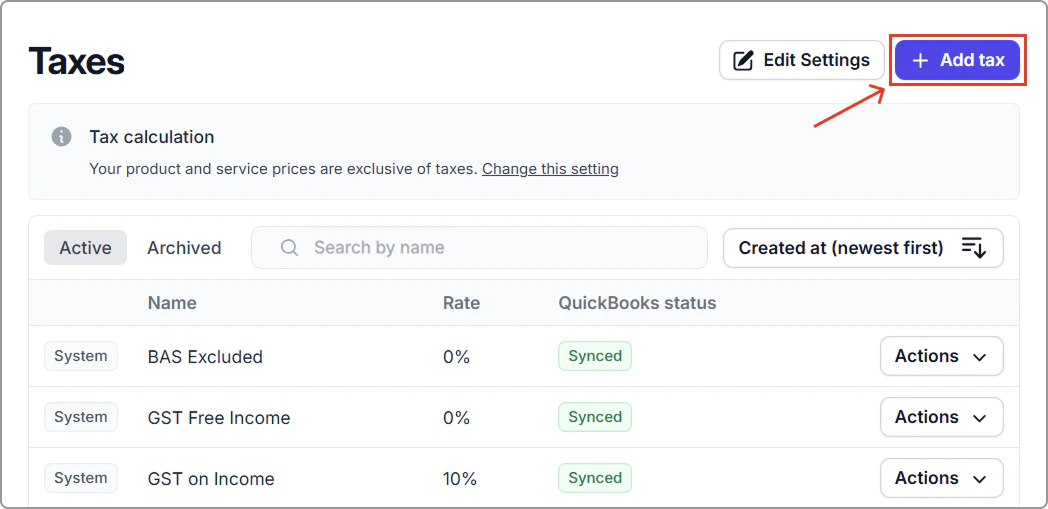
1. Go to **Settings** → **Taxes**.
2. Click **Add tax**.
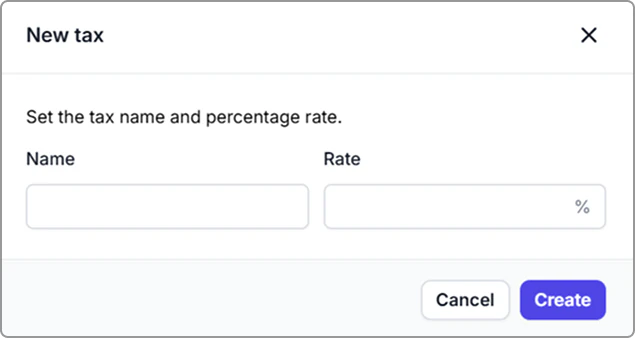
3. Enter the name, rate (e.g., 15%), and description (optional).
4. Click **Create**.
Your new tax rate will appear in the **Tax Rates** list and can be selected when creating or editing invoices or catalog items.
### Edit a tax rate
You can edit only the tax rates that you have created in Caspen.
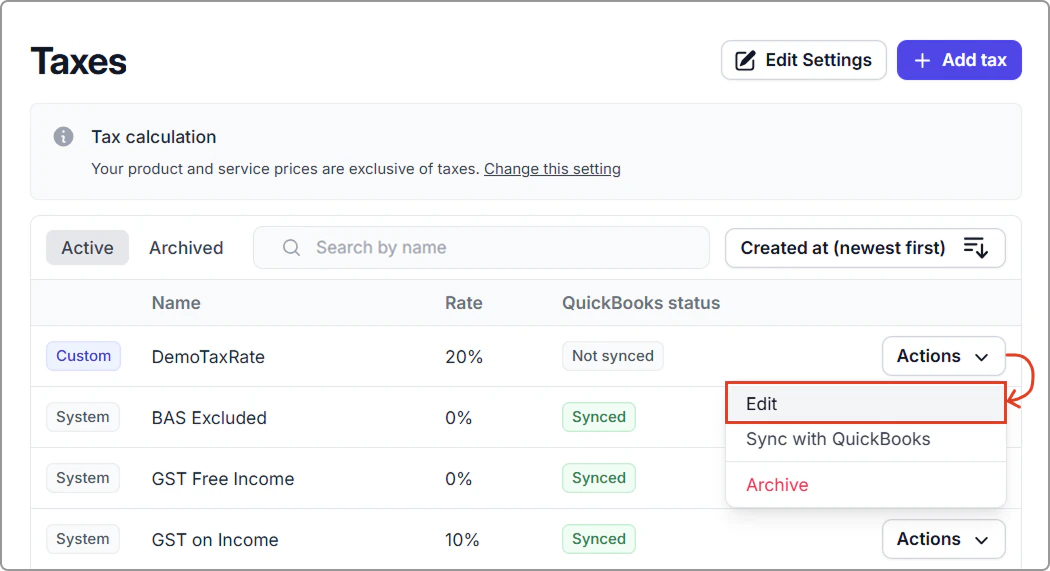
1. Go to **Settings** → **Taxes**.
2. Find your custom tax rate.
3. Click **Actions** → **Edit**.
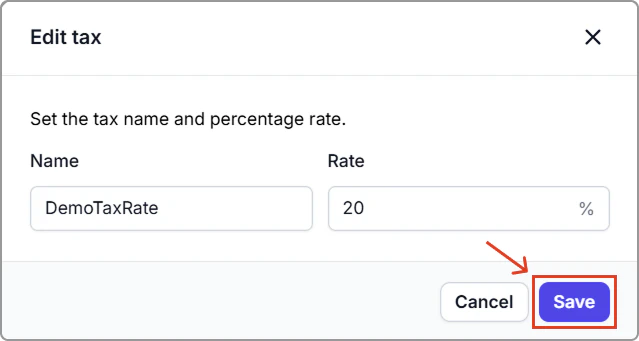
4. Make your changes and click **Save**.
> **Info:**
>
> System-created tax rates cannot be edited.
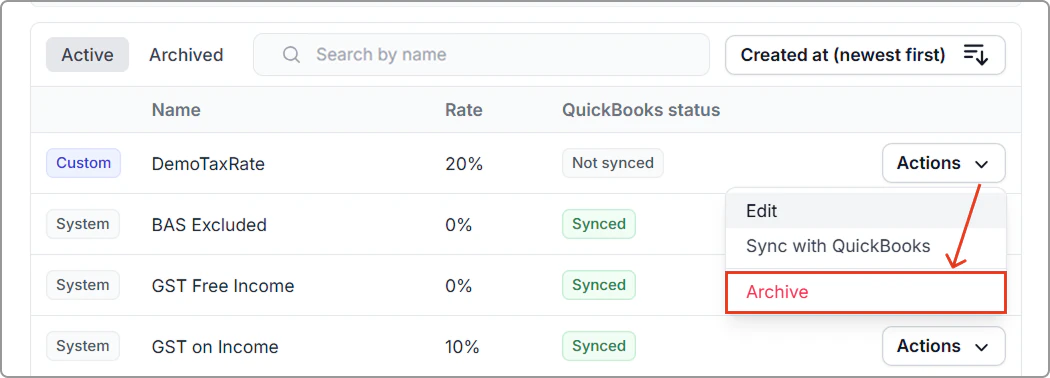
### Archive a tax rate
1. Go to **Settings** → **Taxes**.
2. Find the tax rate you want to archive.
3. Click **Actions** → **Archive**.
4. The tax rate will move to the **Archived** tab and will no longer be available for selection.
To restore an archived tax rate, open the **Archived** tab, find the rate, and click **Actions** → **Restore**.
---
## Set the tax usage on invoices
A system-wide setting determines how taxes are applied to all invoices in Caspen.
**To set your tax calculation preference:**
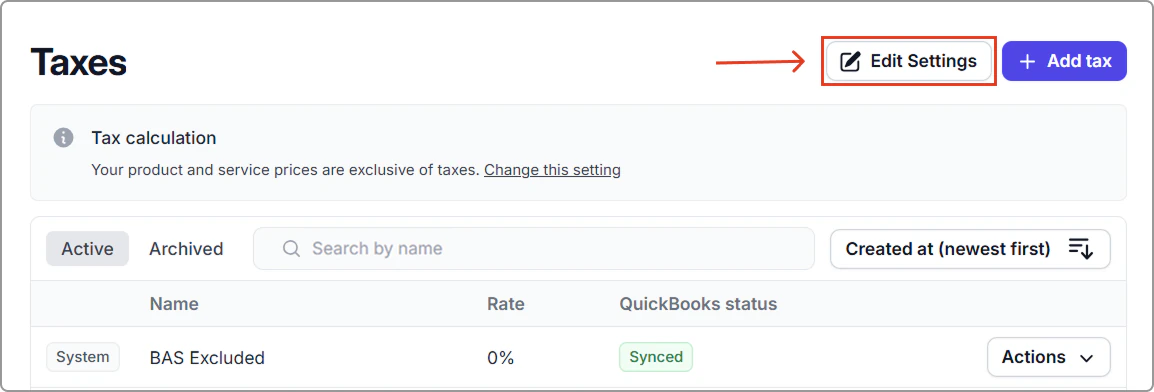
1. Go to **Settings** → **Taxes**.
2. Click **Edit settings**.
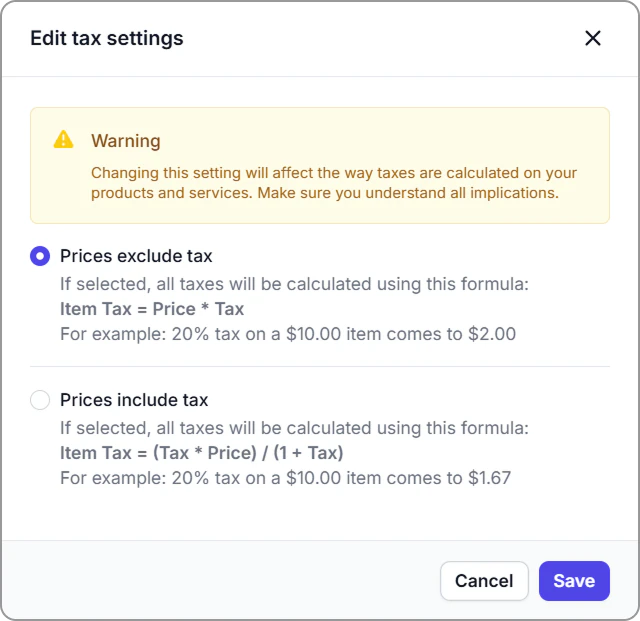
3. Choose one of the following options:
**Prices exclude tax**
If selected, tax is added **on top** of your prices.
**Formula:**\
`Item Tax = Price * Tax`
**Example:**
- 20% tax on a $10.00 item comes to **$2.00**.
- The total becomes **$12.00**.
**Prices include tax**
If selected, tax is already **included** in your prices.
**Formula:**\
`Item Tax = (Tax * Price) / (1 + Tax)`
**Example:**
- 20% tax on a $10.00 item comes to **$1.67**.
- The total remains **$10.00** (including tax).
4. Once you’ve chosen your preferred setting, click **Save**.
> **Tip:**
>
> This setting applies to all invoices you create for clients. If you change it later, future invoices will use the new method automatically.
---
## Apply tax rates to catalog items
You can assign specific tax rates to individual **services**, **activities**, **classes**, or **products** in your catalog.
**Steps:**
1. Go to **Catalog →** select **Services**, **Activities**, **Classes**, or **Products**.
2. Add a new item, or find an existing one and click **Actions** → **Edit**.
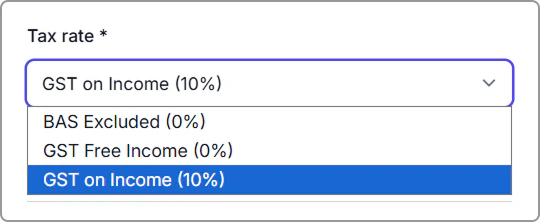
3. In the **Tax rate** dropdown, select the tax rate that applies to this item.
4. Click **Save**.
> **Tip:**
>
> Repeat this for every item your business offers in your catalog to ensure accurate tax calculations across all invoices.