# Customize your online branding
> Customize the look of your online booking, profile, and client portal pages.
Source: https://support.caspen.com/settings/general/customize-your-online-branding
Documentation index: https://support.caspen.com/llms.txt
## Overview
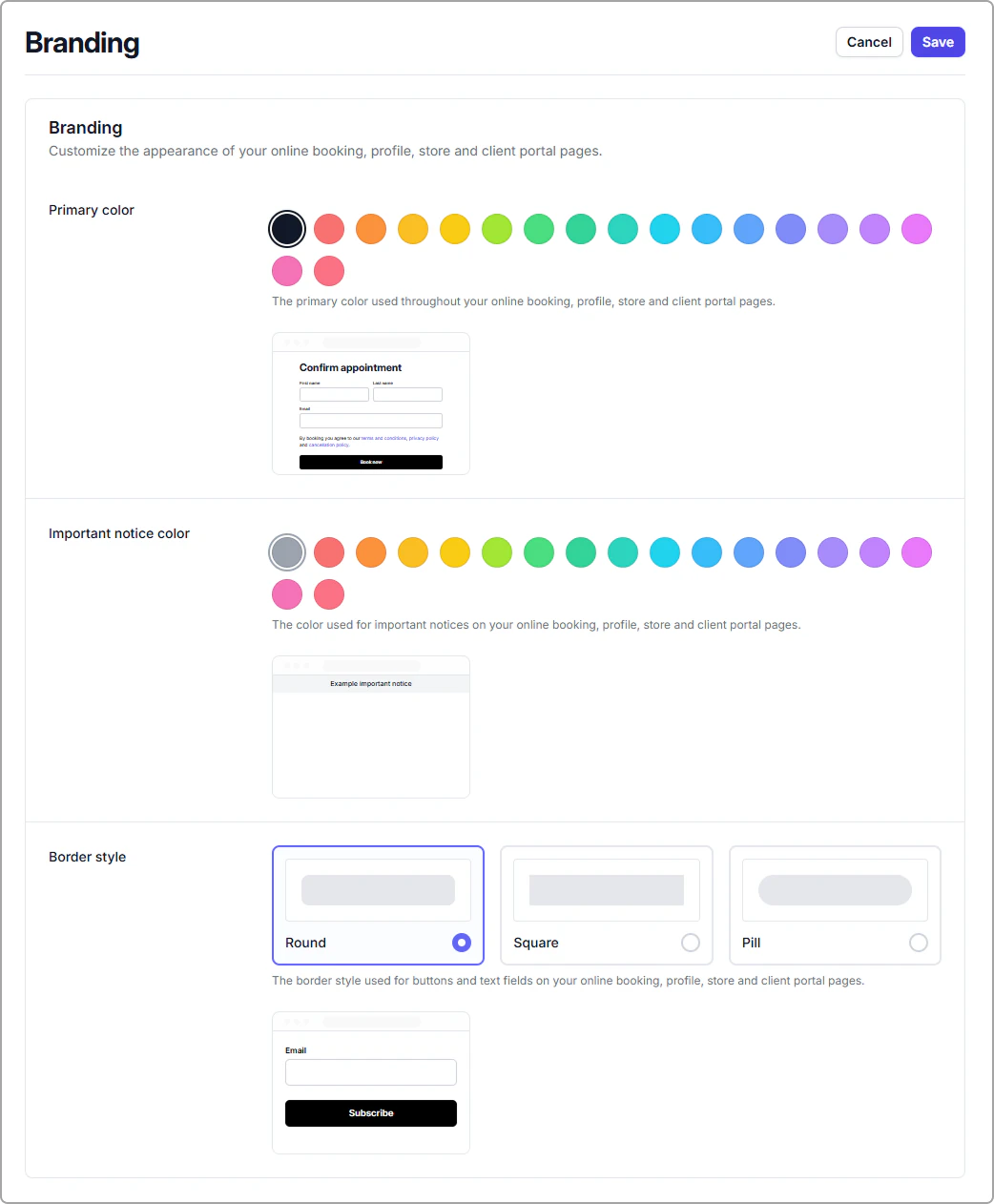
Branding settings let you choose your colors and styling so your client facing pages match your brand. You can set:
- **Primary color** for buttons, links, and highlights
- **Important notice color** for banners and key messages
- **Border style** for buttons and text fields
These changes apply to your online pages (booking, profile, client portal). You can update them anytime.
---
## Open branding settings
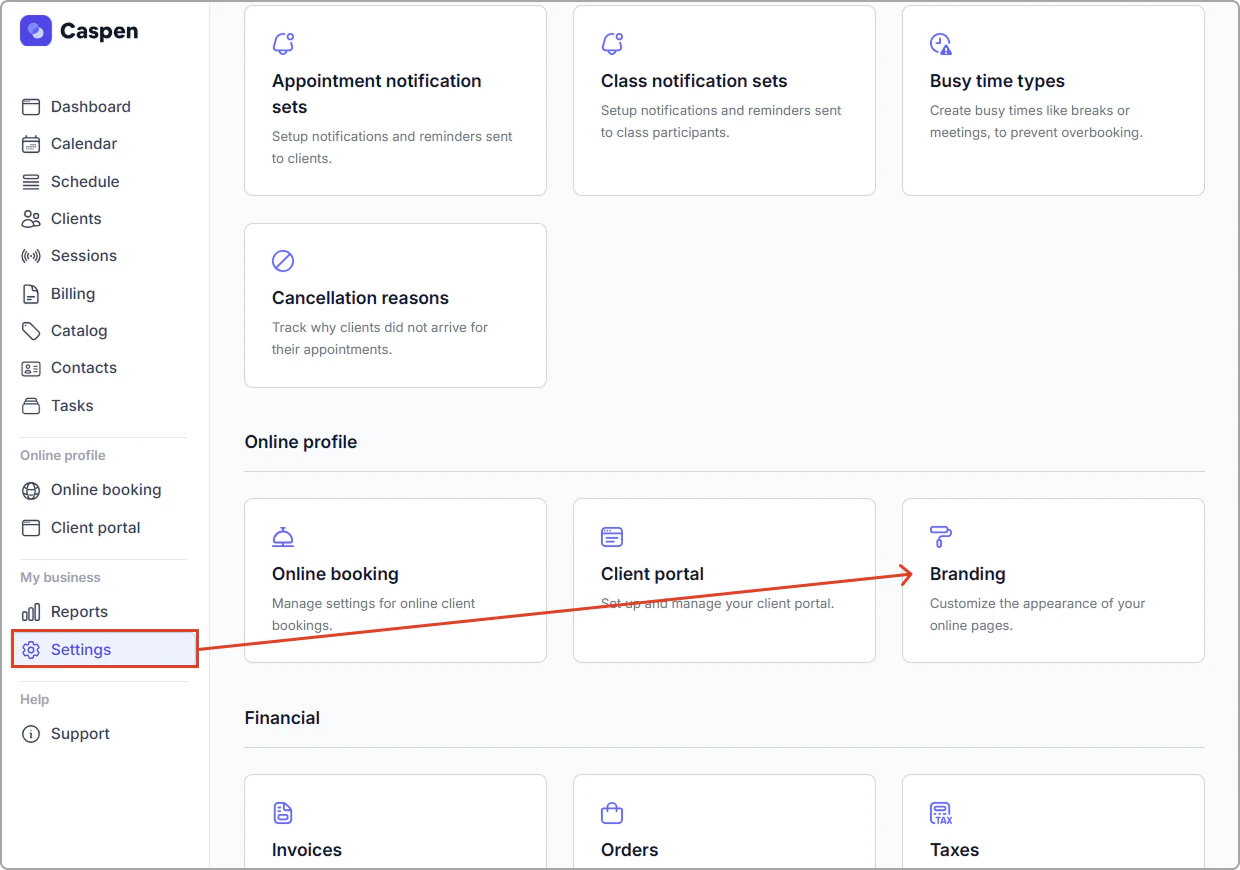
1. Go to **Settings** → **Branding**.
2. Update any of the branding options.
3. Click **Save** (top-right) to apply changes.
Tip: If you want to exit without applying changes, click Cancel.
**After you save:**
- Preview your booking page or client portal to see the latest styling.
- If you do not see the update straight away, try refreshing your page.
---
## Branding options:
### Primary color
**What it controls**\
Your primary color is used throughout your online pages for key UI elements like buttons and highlights.
**Example**\
Your logo is teal, so you choose a teal primary color to match your brand across booking buttons and headings.
**Good to know**\
If you pick a very light color, make sure text and buttons still have strong contrast for readability.
---
### Important notice color
**What it controls**\
This color is used for important notices shown on your online pages, like alert banners or callouts.
Examples
- Choose amber for general attention messages (like “Please arrive 10 minutes early”).
- Choose red for urgent messages (like “Bookings close in 2 hours”).
**Tip**
- Pick a notice color that stands out from your primary color so notices are clearly visible.
---
### Border style
**What it controls**\
Border style changes the shape of buttons and text fields on your online pages.
Options include:
- **Round** (soft corners)
- **Square** (sharp corners)
- **Pill** (fully rounded)