# Add your team members
> Once your workspace is set up, you can invite your staff.
Source: https://support.caspen.com/settings/staff/add-your-team-members
Documentation index: https://support.caspen.com/llms.txt
This guide covers:
- [How to invite users](#how-to-invite-users)
- [Join an existing workspace](#join-an-existing-workspace)
---
## How to invite users
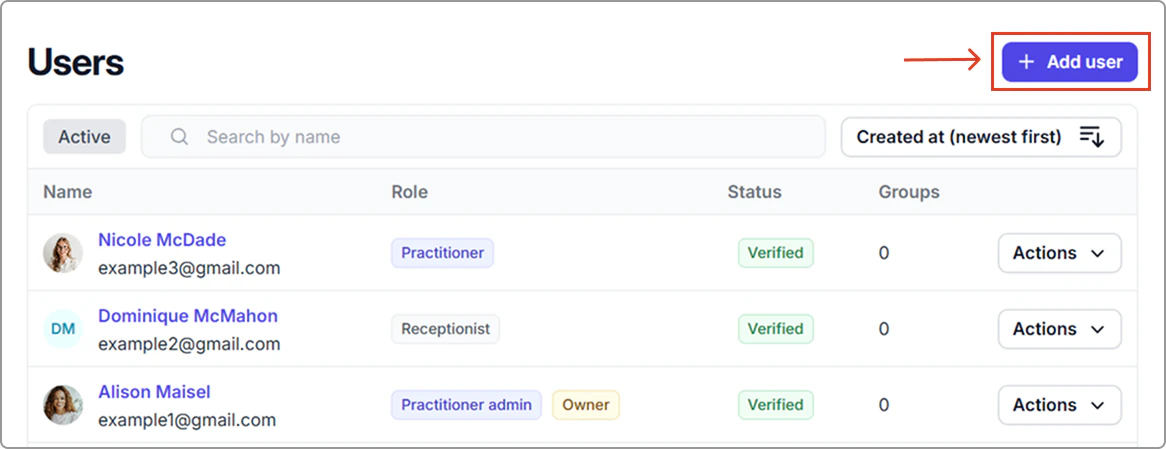
1. Go to **Settings** → **Users**.
2. Click **Add user**.
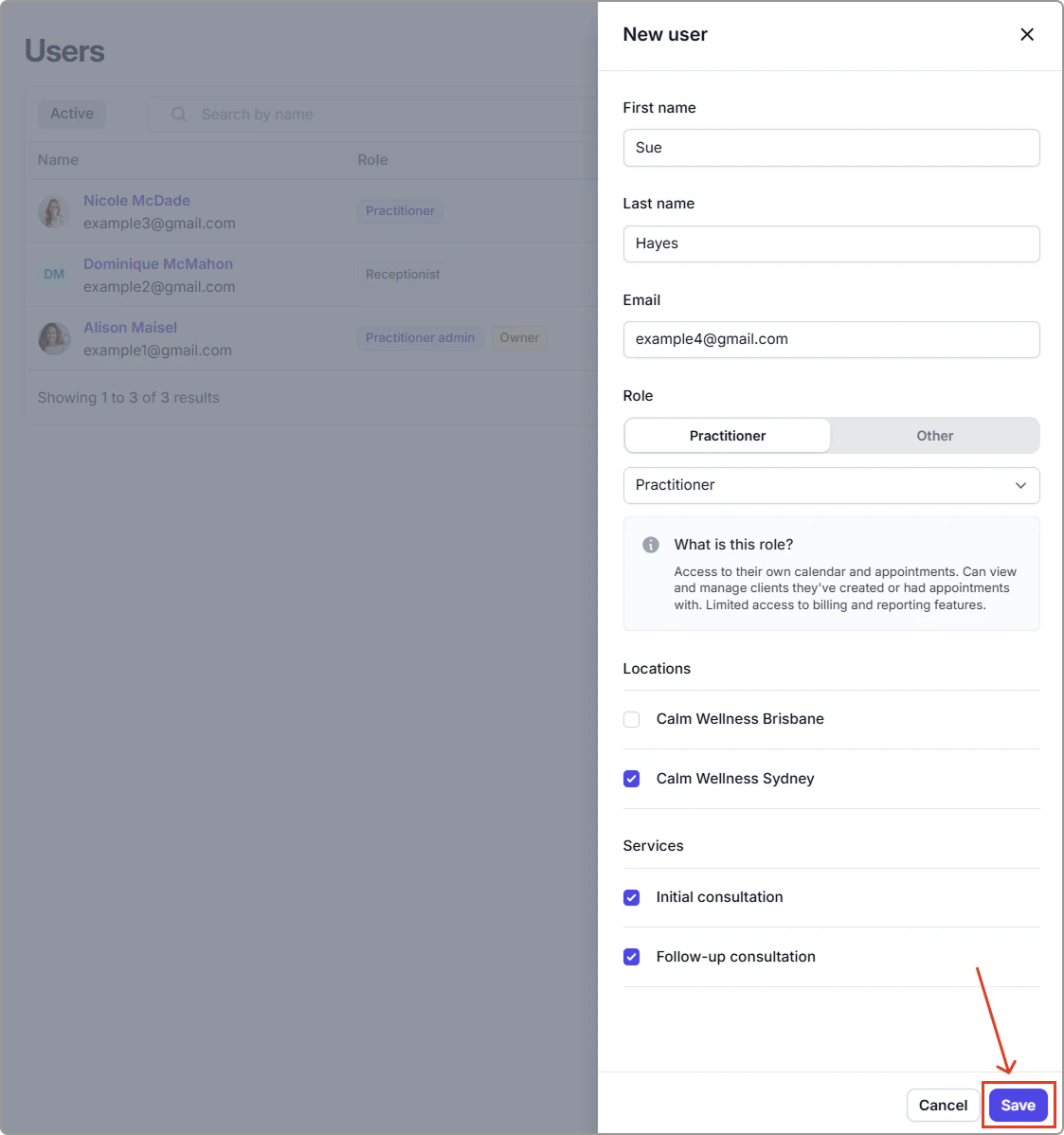
3. Enter their details (**First name**, **Last name**, **Email**).
4. Assign a role: Choose a practitioner role or another role using the role dropdown.
5. Select the **Locations** they work at and the **Services** they provide.
6. Click **Save** to send the invitation.
The user will receive an email to create their login. Once completed, their status will update from **Unverified** to **Verified** in the Users table.
**Note:** Only **Practitioner** and **Practitioner Admin** roles count toward billing.
---
## Join an existing workspace
If your organization already uses Caspen, you’ll just need an invitation from your Account Owner or an admin.
#### 1. Accept your invitation
Check your inbox for the invitation link.\
If you can’t find it:
- Check spam/junk
- Ask your IT team to allow emails from @caspen.com
#### 2. Create your login
Click **Accept invitation** and set your password to finish creating your account.
#### 3. Check your assigned role
Once you’re logged in, you can check your role (for example, Practitioner or Receptionist) in **My account**.
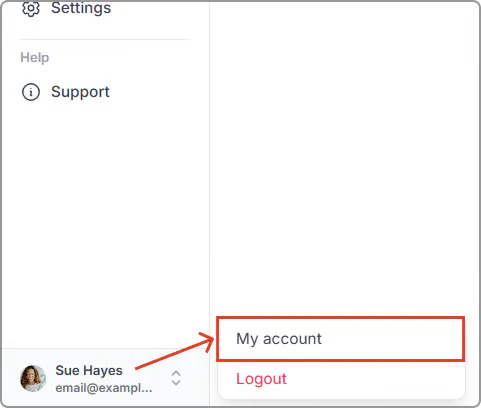
1. In Caspen, click your name in the bottom-left corner.
2. Click **My account**.
\
3\. You can then view your role in your profile.
Your role determines what you can access.\
Need more detail? See the [Roles and Permissions](https://support.caspen.com/settings/staff/manage-user-roles-and-permissions) guide.