# Manage form template categories
> Organize your form templates with categories so you can find and manage them faster.
Source: https://support.caspen.com/settings/templates/manage-form-template-categories
Documentation index: https://support.caspen.com/llms.txt
## Overview
Categories are labels that group your form templates (for example, Pre-screening, Consent, Admin). They keep things organized so you can find the right template faster. You can assign a category to a template in the form template settings.
---
## Add a form category
1. Go to **Settings** → **Form templates**.
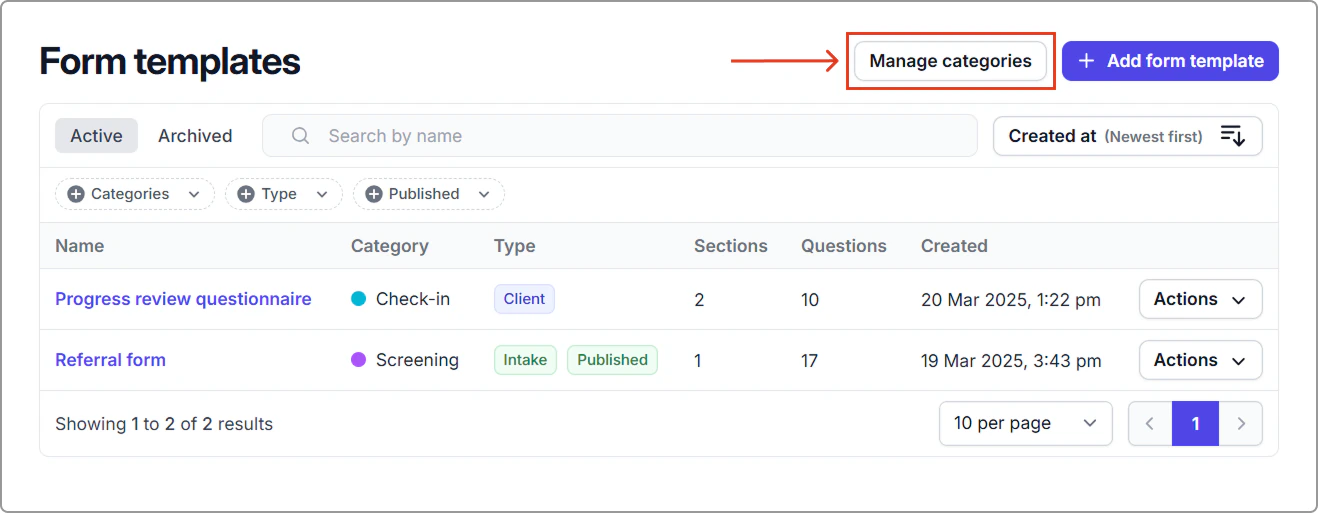
2. Click **Manage categories.**
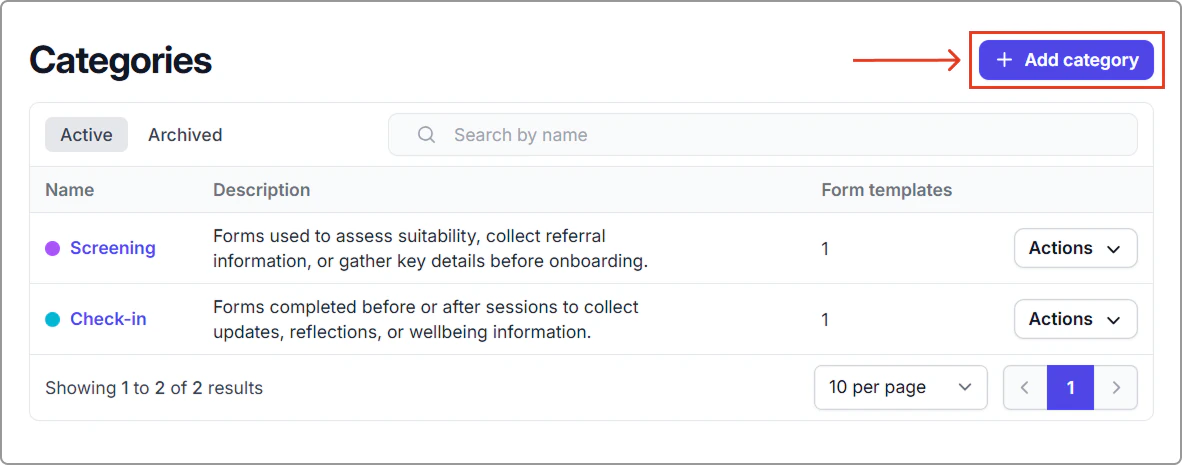
3\. Click **Add category**.
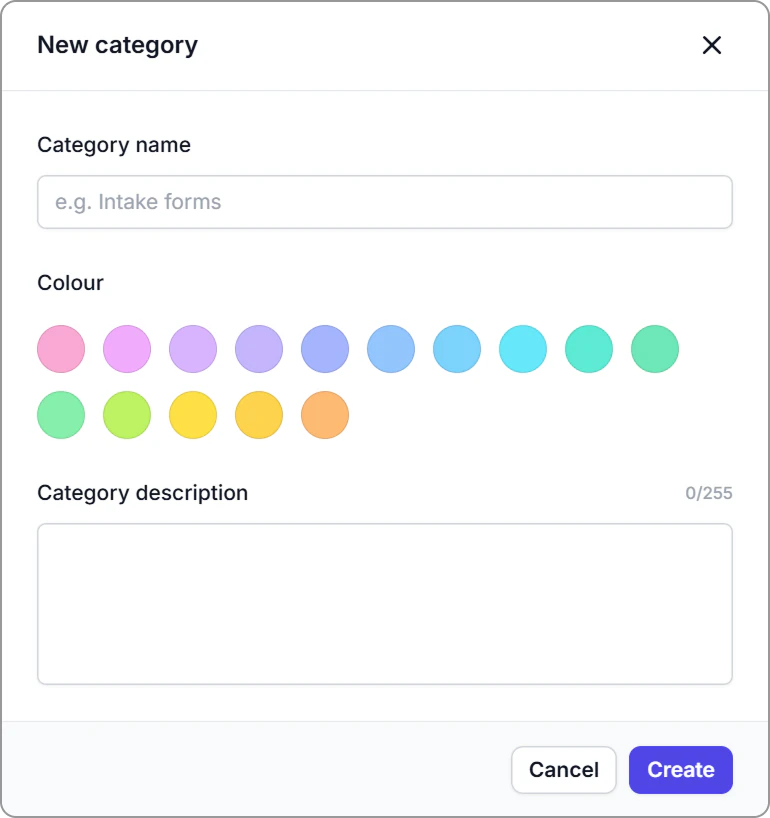
4. Enter the category details (name, **color**, optional description), then click **Save**.
**Next step:** Once the category is created, you can assign templates to it.
---
## Assign a form template to a category
1. Go to **Settings → Form templates**.
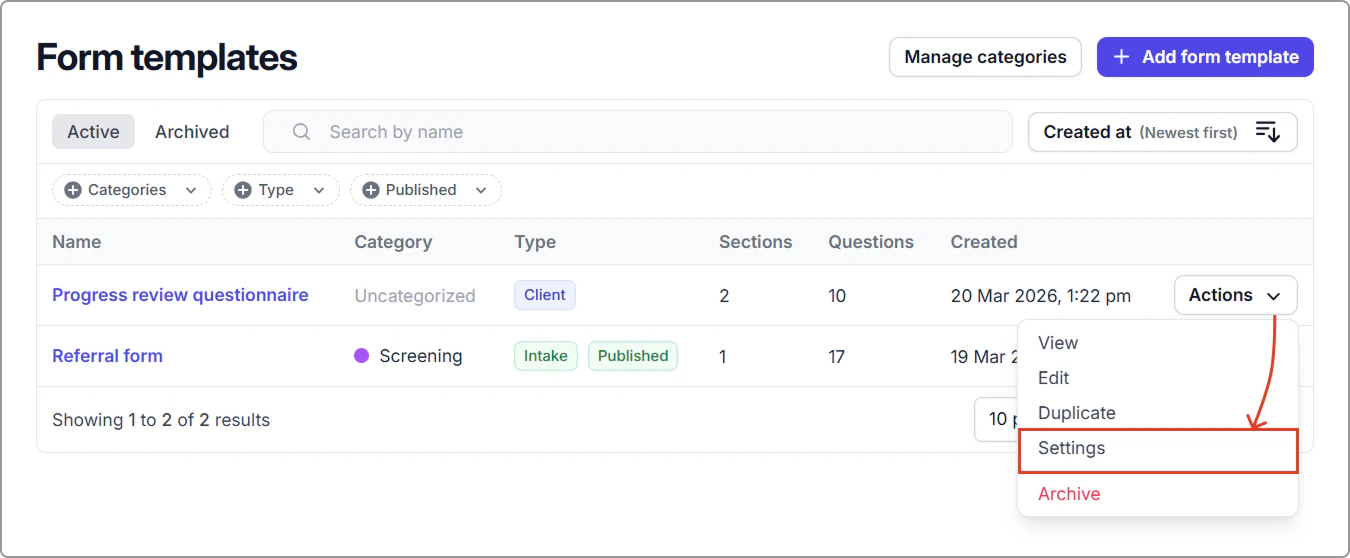
2. Find the template and click **Actions → Settings**.
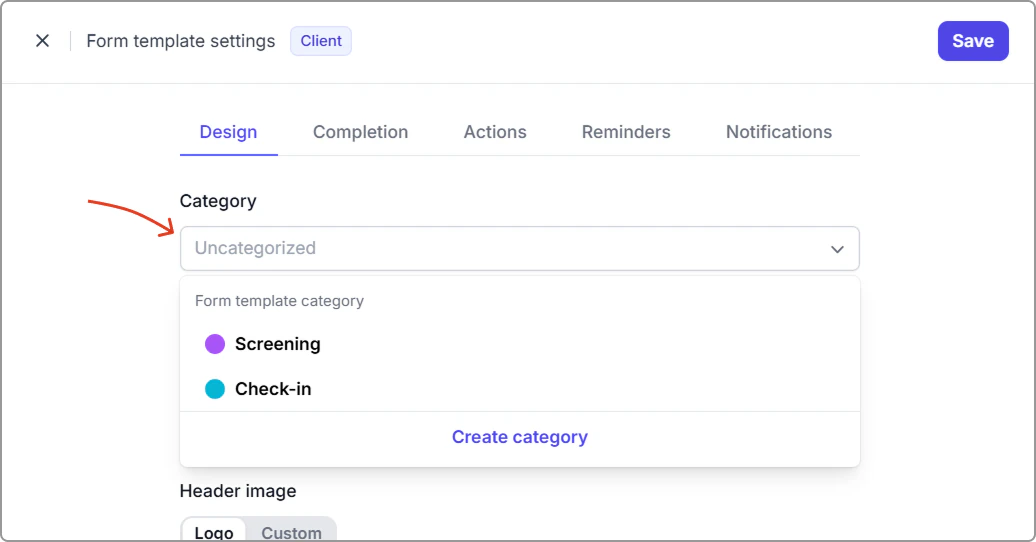
3. Select an existing category, or click **Create category** to add a new one.
4. Click **Save** (top-right).
---
## Manage form template categories
1. Go to **Settings → Form templates**.
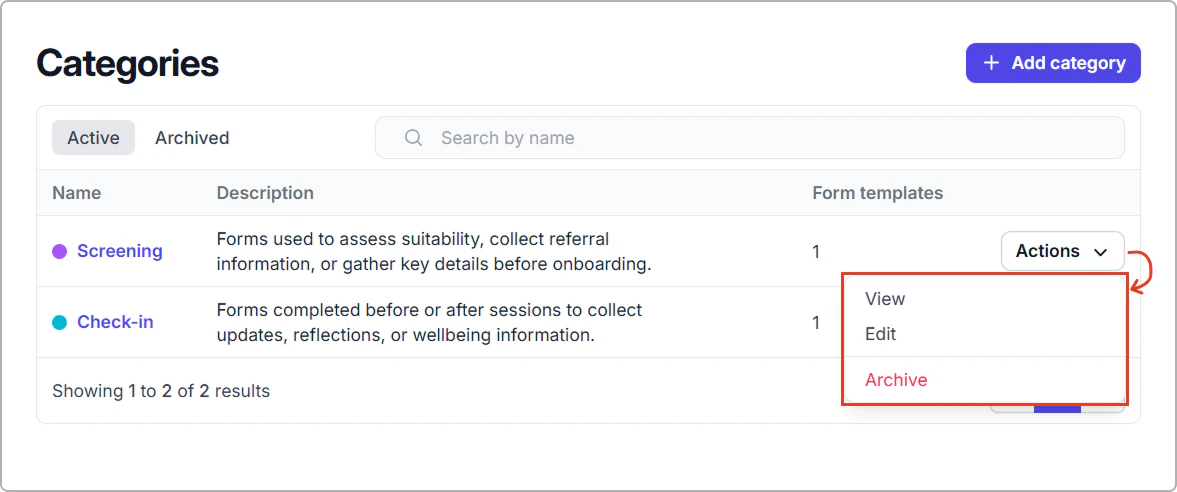
2. Click **Manage categories**.
3. Use **Actions** next to a category to:
- **View:** See the category details and any templates assigned to it.
- **Edit:** Update the category name, **color**, or description.
- **Archive:** Retire a category you no longer want to use. Templates assigned to this category will become **Uncategorized**.
---
**Related article:**
- [Set up form templates](https://support.caspen.com/settings/templates/set-up-form-templates)
## Frequently asked questions
Do I have to use categories?
No. If you do not assign a category, the template stays **Uncategorized**.
How do I assign or change a template category?
Go to **Settings** → **Form templates**, find the template, then click **Actions** → **Settings**. In **Design**, choose a **Category**, then click **Save**.
What happens if I archive a category?
Form templates using that category will show as Uncategorized.