# Set up letter templates
> Design letter templates to create reusable, formatted letters for referrals, reports, recommendations, and other professional communication.
Source: https://support.caspen.com/settings/templates/set-up-letter-templates
Documentation index: https://support.caspen.com/llms.txt
## Overview
Letter templates help you create consistent documents across your practice. Templates can include placeholders that automatically fill in client, practitioner, and location details, saving time and reducing manual editing.
---
## Create a letter template
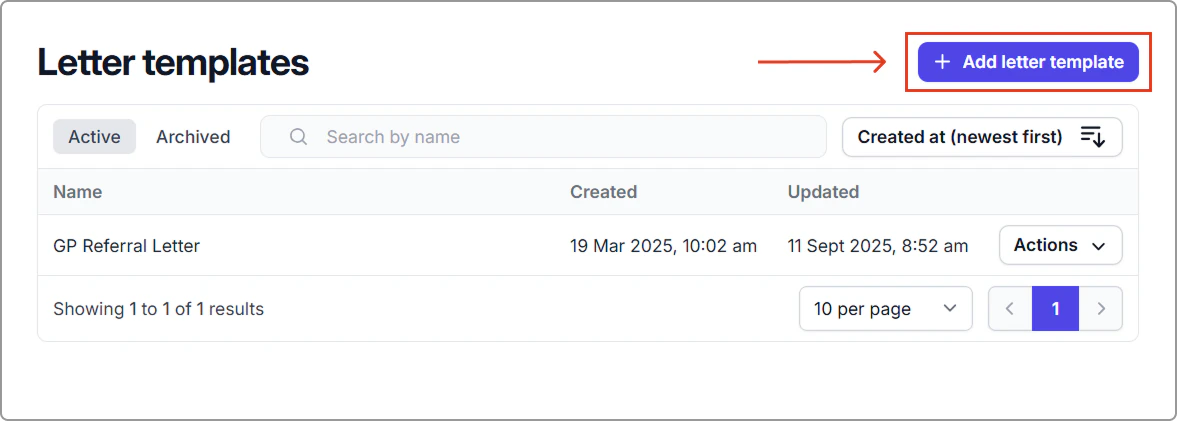
1. Go to **Settings** → **Letter templates**.
2. Click **Add letter template** (top-right).
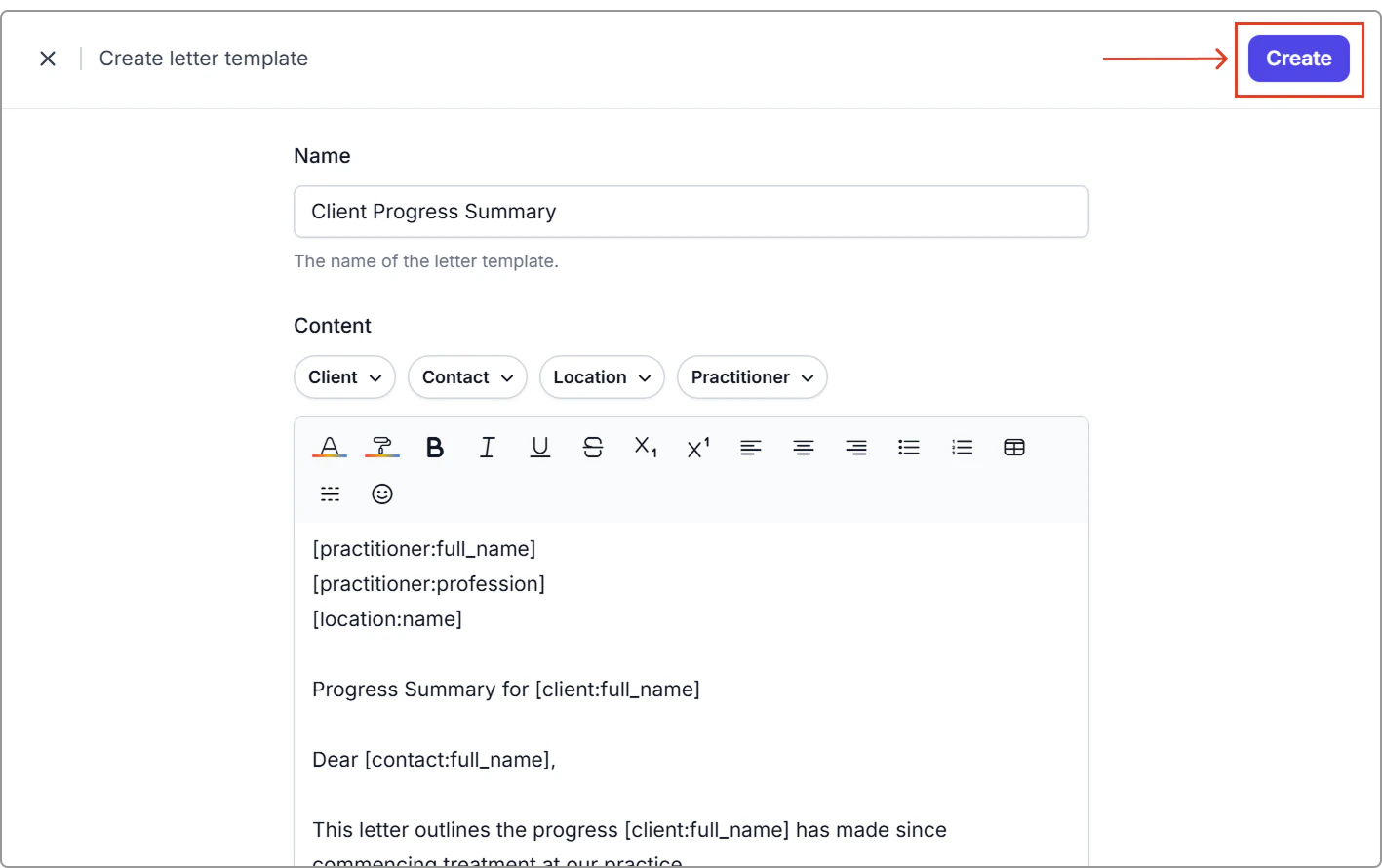
3. Enter a **Name** for the template.
This is the name that appears in the list when staff choose which template to use.
4. Add your content in the editor.
- Use formatting options (bold, headings, bullet points, alignment) as needed.
- Insert placeholders using the dropdowns (as required). These placeholders will be replaced automatically when the letter is generated.
5. Click **Create**.
Your new template will now appear in the Active tab and will be available to select when creating a letter from a client profile.
---
## Manage letter templates
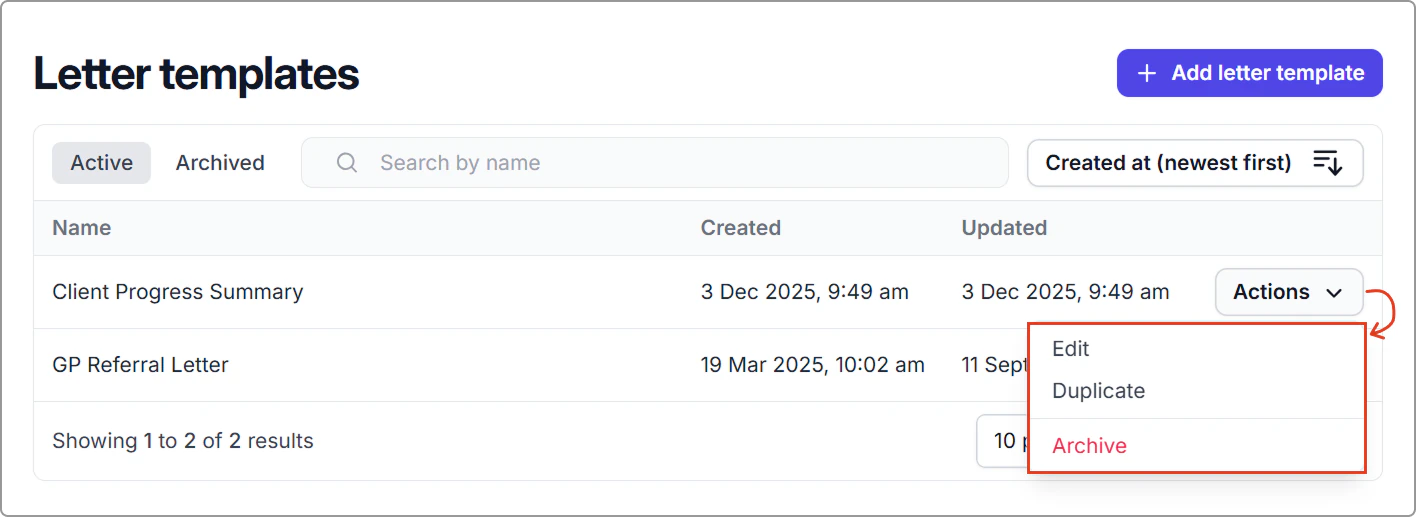
You can manage templates from the Actions menu next to each item.
#### Edit
Update the template name or content at any time.\
Changes apply immediately and replace the existing version.
#### Duplicate
Create a copy of an existing template to modify without changing the original.
#### Archive
Remove a letter template from active use without permanently deleting it.\
Archived templates cannot be selected when creating letters.
#### Restore
Go to the **Archived** tab → **Actions** → **Restore**\
Restoring returns the template to the Active list and makes it available again for use.
---
Now that your templates are set up you can create a letter for a client.