> For the complete documentation index, see [llms.txt](https://support.caspen.com/llms.txt). Markdown versions of documentation pages are available by appending `.md` to page URLs; this page is available as [Markdown](https://support.caspen.com/using-caspen/catalog/services/add-a-service.md).
# Add a service
Learn how to add your services in Caspen.
## **Before you begin**
{% hint style="warning" %}
**Services vs Activities**
* **Appointments (Services):** For client-facing services, including telehealth appointments.
* **Activities:** For non-face-to-face service work done away from clients like report writing or billable communications.
**Note:**
* Appointments send client notifications. Activities do not.
* Appointments appear in online bookings. Activities do not.
{% endhint %}
## How to add a service
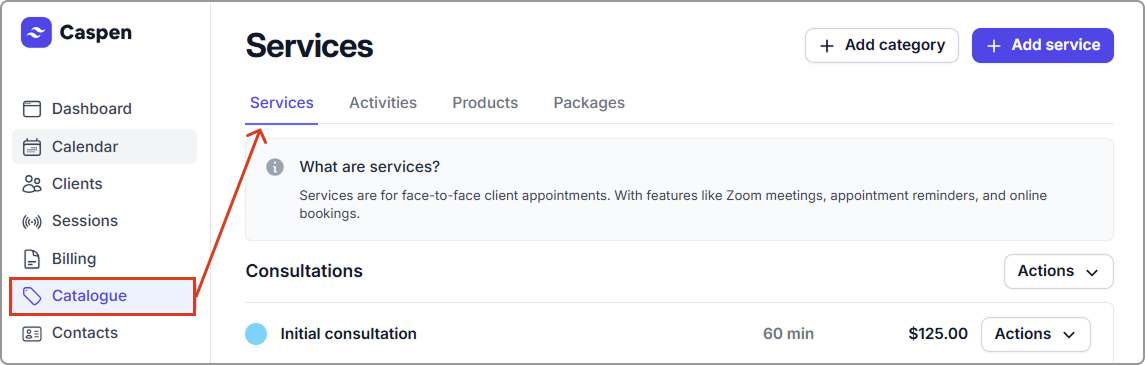
1. Go to **Catalog** → **Services**
2\. Click **Add service**.
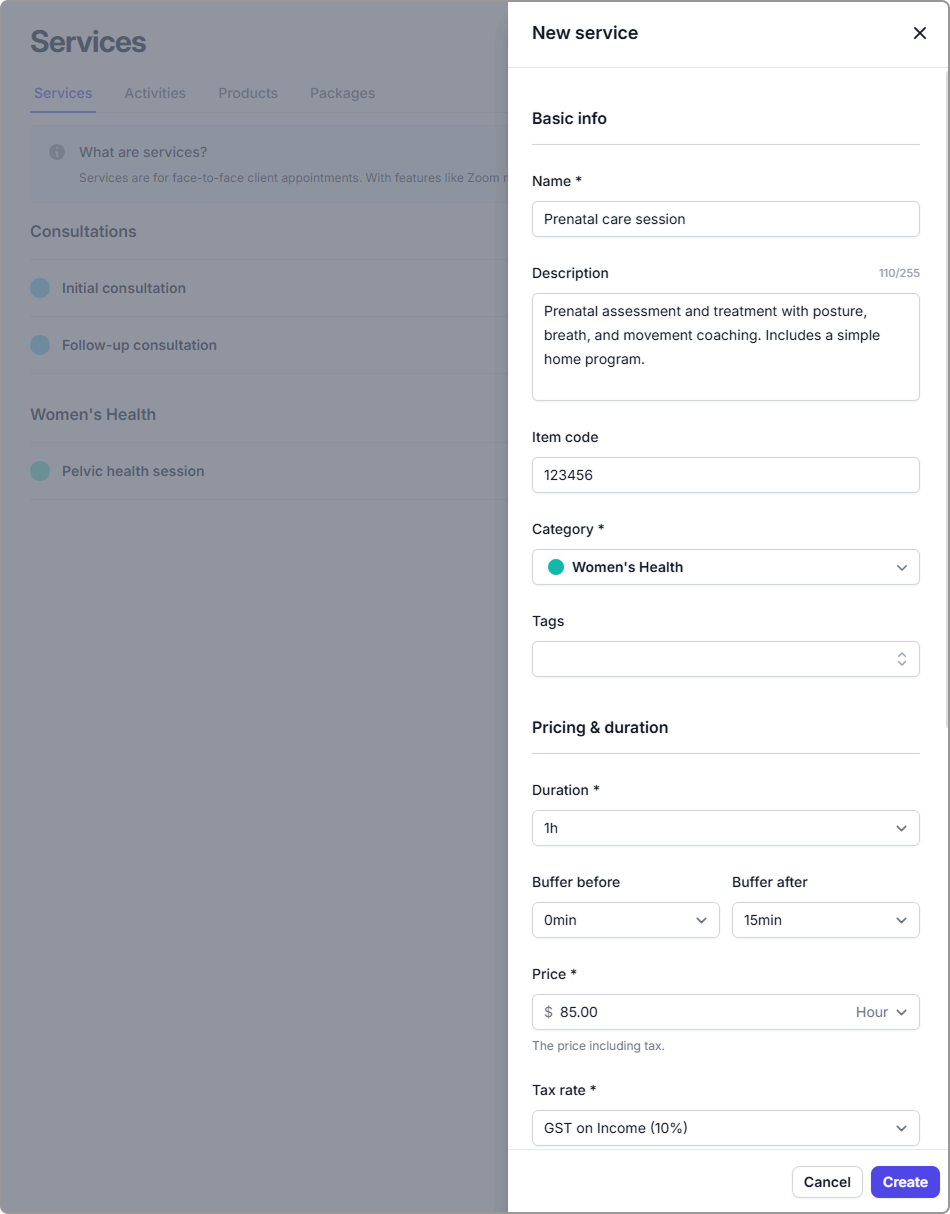
3. **Enter the service details** (see **Service field reference** below).
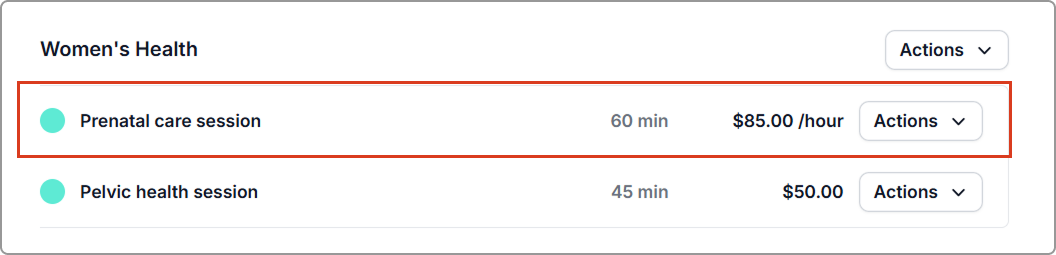
4. Click **Create.** The new service appears in the services list.
{% hint style="info" %}
**Tip:** Assign the service to at least one **location** and **practitioner** so it can be scheduled in your calendar.
{% endhint %}
***
### Service field reference
| Field | Description |
| ---------------------------- | ------------------------------------------------------------------------------------------------------------------------------------------------------------------------------------------------------------------------------------------------------------------------------------ |
| Name | The service name shown in the calendar (for appointments), online bookings, invoices, and reports. Visible to staff and clients. |
| Item code | Internal or funding reference. |
| Category | Select the category this service belongs to; used for grouping services. Examples: Consultations, Physiotherapy, Naturopathy. |
| Duration | Appointment length in minutes. |
| Buffers |
Use a buffer when you need extra time before or after the appointment.
Buffer before: Time (minutes) reserved before the start time (e.g. setup/prep).
Buffer after: Time (minutes) reserved after the end time (e.g. notes/clean-up/admin).
|
| Price |
The amount you charge. Choose Fixed or Hour.
Fixed: A set price. You can still change it on the invoice.
Hour: An hourly rate. The invoice total is based on the hours you enter.
|
| Tax rate | The tax that applies to this service. |
| Appointment notification set |
Choose the notification set for this service; leave blank to use the account default.
A set can include confirmations, reschedules, cancellations, and reminders.
|
| Practitioners | Select who can provide this service. |
| Locations | Select where this service is offered. |
{% hint style="info" %}
#### **Price**
Enter prices according to your **account tax setting**:
* **Prices exclude tax:** enter the price without tax. Tax is added on the invoice.
* **Prices include tax:** enter the price with tax. The tax portion is shown on the invoice.
See **Settings** → **Taxes** to change the account tax setting.
\
**Note:** This is separate from the **Tax rate** on the service, which sets which rate (for example **10 percent** or **tax free**) to apply on the invoice.
{% endhint %}
***
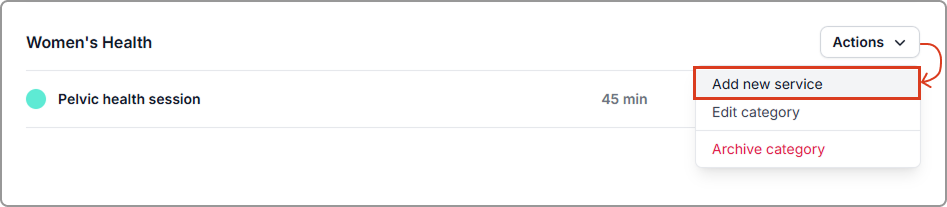
#### Quick add from a category
You can also add a service from a category: **Actions → Add new service**. This opens the same form with **Category** prefilled.
## Frequently asked questions
How do I change the color of my service in the calendar?
Services use their category color. To change it, go to Services → Categories, open Actions → Edit category, choose a color, and save.
How do I show item codes on invoices?
Enable the Item code column in your invoice template.
What if I do not enable item codes on invoices?
Item codes remain internal and will not appear on invoices.