> For the complete documentation index, see [llms.txt](https://support.caspen.com/llms.txt). Markdown versions of documentation pages are available by appending `.md` to page URLs; this page is available as [Markdown](https://support.caspen.com/using-caspen/catalog/services/service-categories.md).
# Service categories
Learn how to add categories for services in Caspen.
## Overview
Categories help you organize services and assign colors so they are easier to scan in lists and in the calendar. Categories also help structure your online bookings by grouping services for clients when they book.
***
## How to add a category
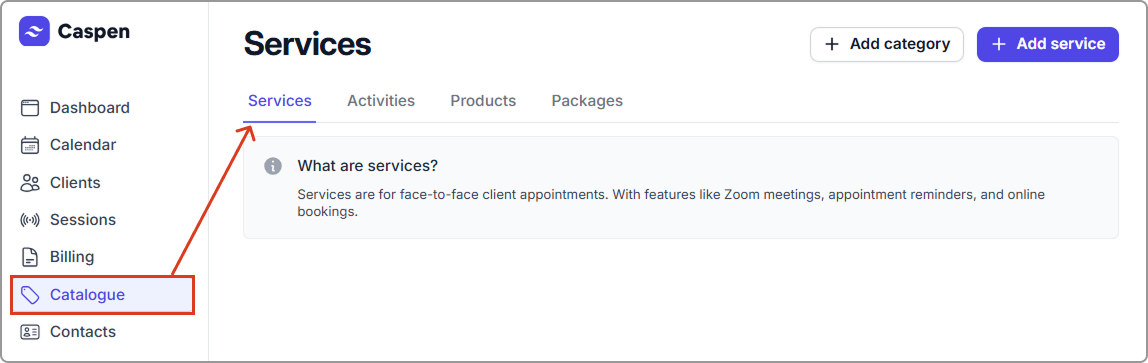
1. Go to **Catalog** → **Services**.
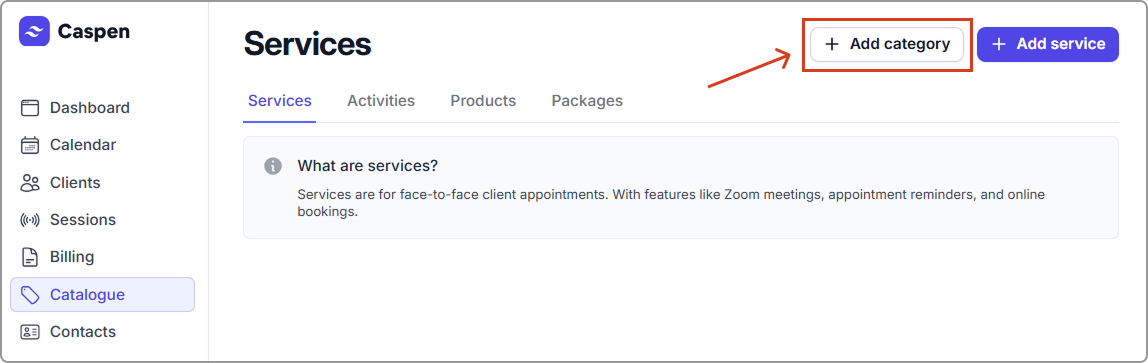
2. Click **Add category**.
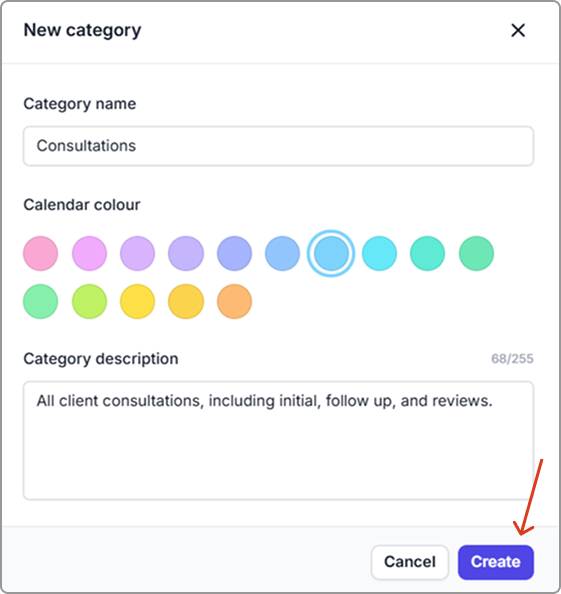
3. **Enter the details**, then choose a **Calendar color** (See category field reference below).
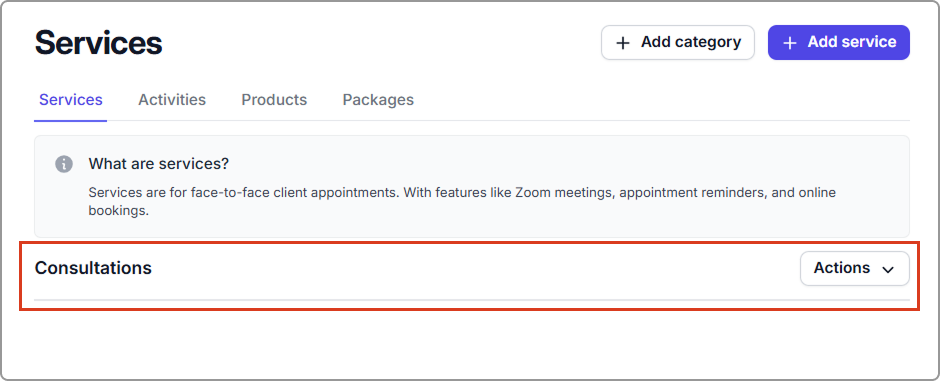
4. **Click Create**. Your new category appears in the list and is ready to use for services.
***
### Category field reference
| Field | Description |
| ---------------------- | ----------------------------------------------------------------------------------------------------------------------------------- |
| Name |
|
| Calendar color | The color services in this category use on the calendar. |
| Description (optional) | Internal note about how this category is used. |
***
### How category calendar colours work
**How it works**
* Services inherit their category color in the calendar.
* If you change a category’s color later, all services in that category update to the new color.
**Why it helps**\
Colors make it easy to scan your calendar and lists. Use distinct colours for each service category (for example: Consultations = blue, Women’s Health = green).
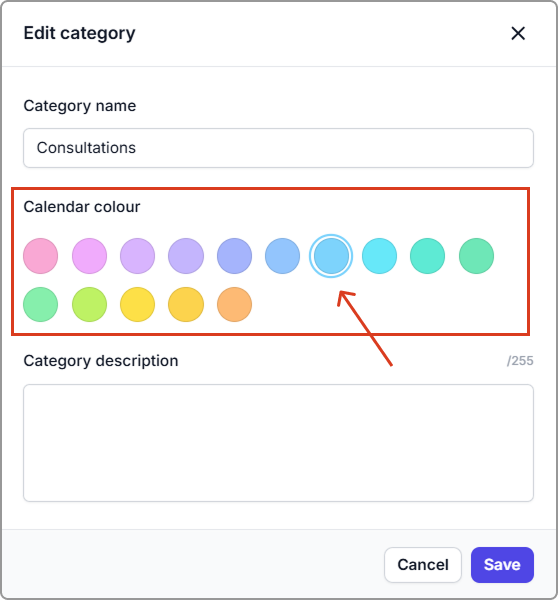
**Example (set a category colour):**\
**Actions** → **Edit category** → **Calendar color** → select **Blue** → **Save**.
Edit category with the colour picker (blue selected).
**Where you’ll see it**
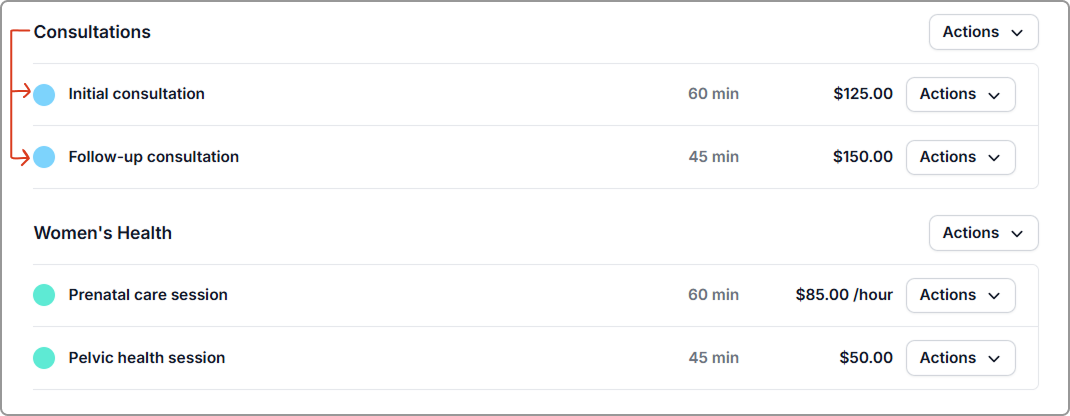
* **Services list:** *Initial consultation* and *Follow-up consultation* show in blue because they belong to the **Consultations** category.
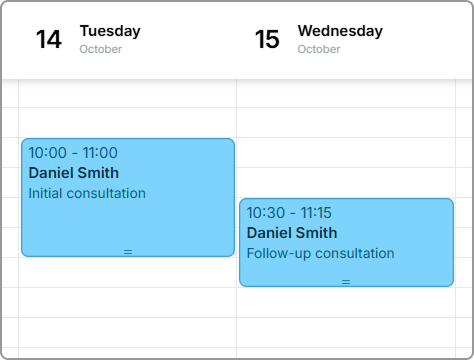
* **Calendar:** Those services appear in blue on the calendar.
Services list using the Consultations category color (blue).
Calendar events using the Consultations category color (blue).
***
## Edit a service category
1. Go to **Catalog** → **Services**.
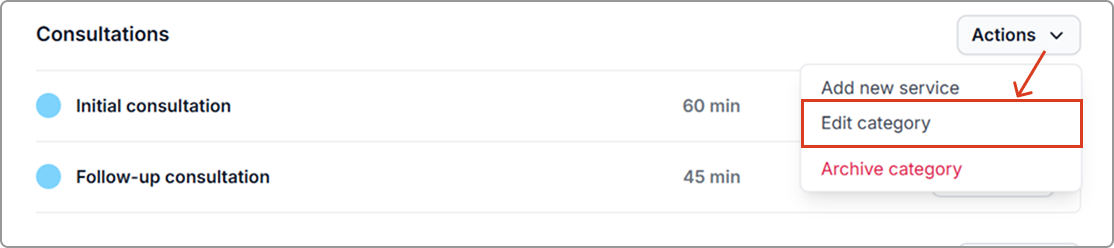
2. Find the category, click **Actions** → **Edit category**.
Example: Selecting Edit category for Consultations.
3. Update the **Name**, **Calendar colour**, or **Description**, then click **Save**.
***
## Archive a service category
{% hint style="info" %}
**Note:** You can only archive an empty category. Reassign or archive its services first.
{% endhint %}
1. Go to **Catalog** → **Services**.
2. Find the category, click **Actions** → **Archive category**.
The category is then removed from the Services list.
***
## Frequently asked questions
Can I archive a category with services grouped under it?
Yes, but you must move or archive those services first. Reassign the services to another category (or archive them), then archive the category.
Do activities follow the same category colour rule as services?
Yes, activities inherit their category colour, just like services.