> For the complete documentation index, see [llms.txt](https://support.caspen.com/llms.txt). Markdown versions of documentation pages are available by appending `.md` to page URLs; this page is available as [Markdown](https://support.caspen.com/using-caspen/online-booking/set-up-google-tag-manager-tracking-for-online-bookings.md).
# Set up Google Tag Manager tracking for online bookings
This guide shows how to install Google Tag Manager on your Caspen booking flow.
## Overview
Google Tag Manager helps you track online bookings so you can see which campaigns and channels are driving results.
Caspen lets you add your GTM container to your online booking experience, so your tracking can run as part of the booking process and send conversion data to tools like GA4, Google Ads, and Meta.
If your booking form is embedded on your website, your usual website tracking may not capture everything reliably. Adding GTM in Caspen helps ensure your tracking is recorded correctly.
{% hint style="warning" %}
**Important note**
To use Google Tag Manager with Caspen Online Bookings, you must contact Caspen Support. We will guide you through the activation process to enable it for your account.
{% endhint %}
***
## Step 1: Create or open your GTM container
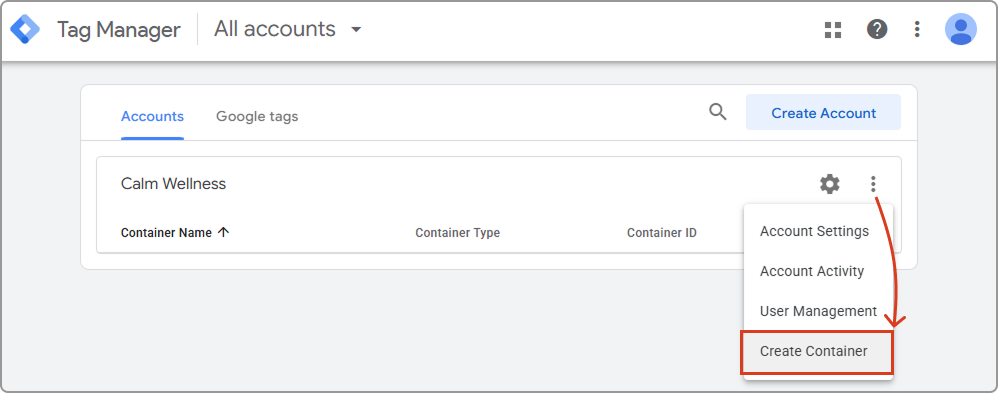
1. Open Google Tag Manager.
2. Create a new Container (or use an existing one).
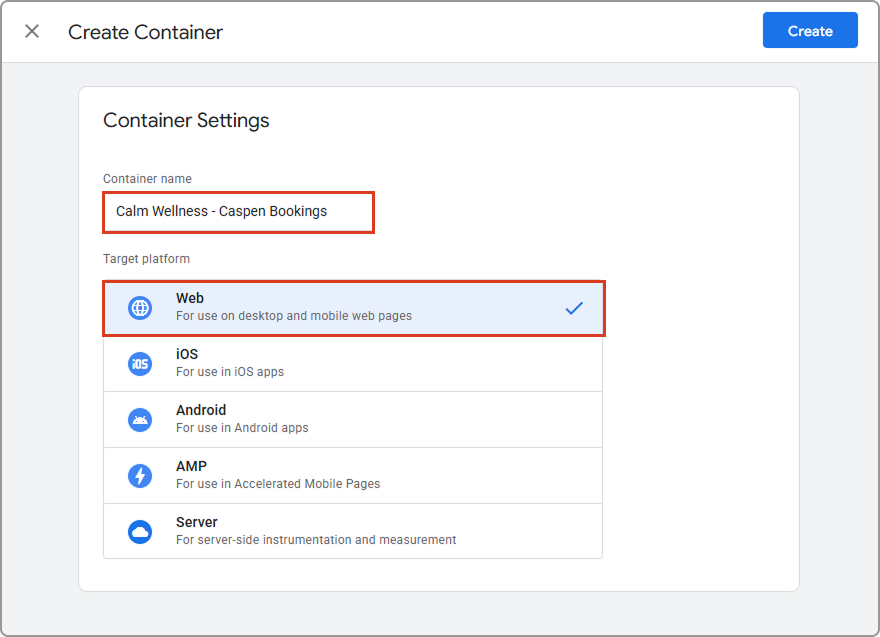
3. Enter a container name of your choice, then select **Web** as the target platform.
4. Click **Create** (top-right).
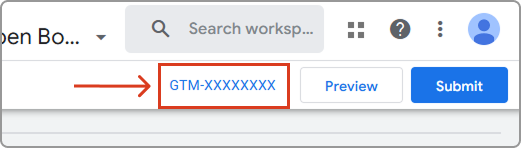
5. Your Google Tag Manager tracking ID can be found in the top right-hand corner of your Google Tag Manager account. Copy your Google Tag Manager ID (looks like `GTM-123ABCX`).
***
## Step 2: Add the Google Tag Manager ID to Caspen bookings
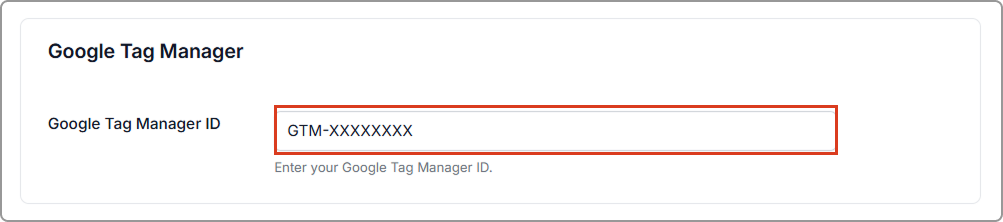
1. In Caspen, open **Settings** → **Online Booking**.
2. Paste your **GTM Container ID** (it looks like `GTM-XXXXXXX`) into the Google Tag Manager ID field.
3. Click **Save** (top-right of the page).
***
## Step 3: Create the booking trigger in GTM
This trigger listens for a custom event sent by Caspen.
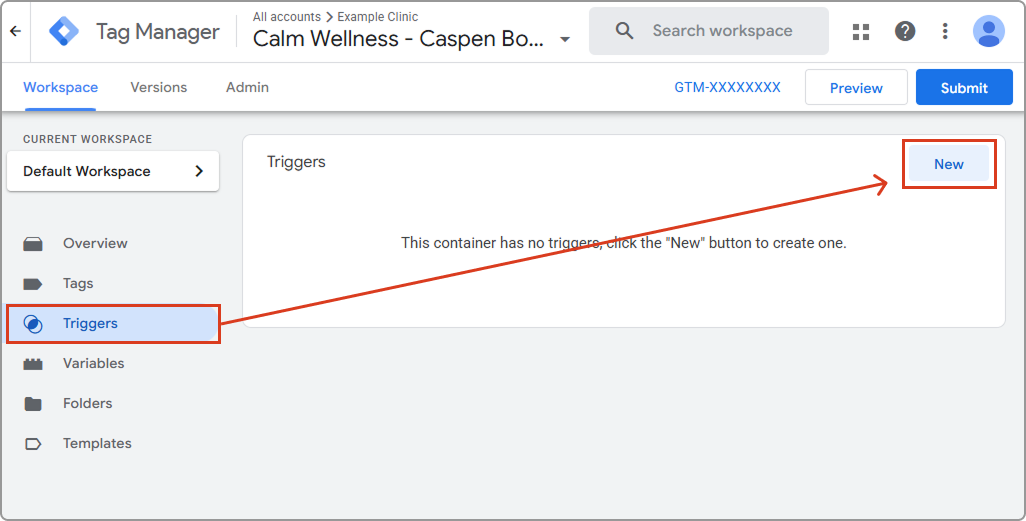
1. In Google Tag Manager, go to **Triggers** → click **New**.
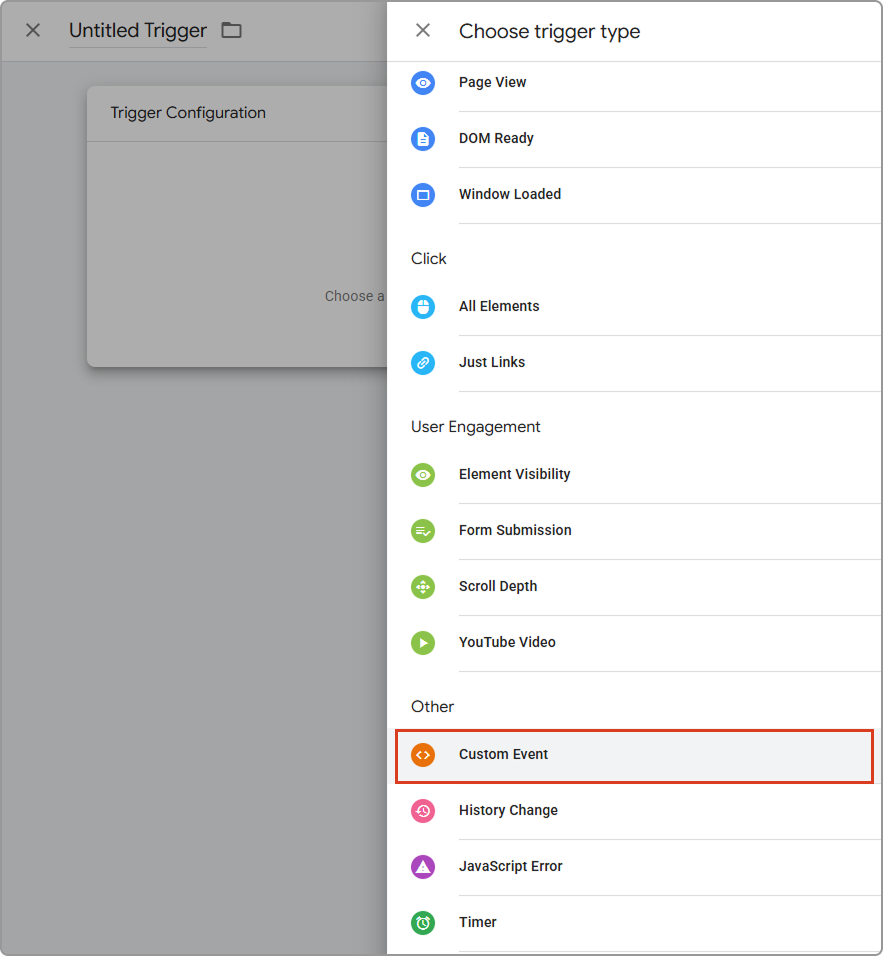
2. Choose **Custom Event** as the trigger type.
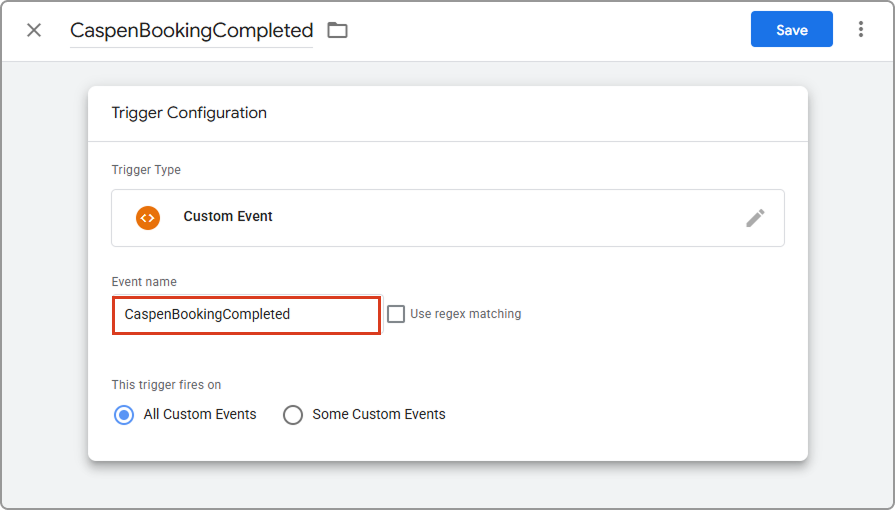
3. Enter event name: `CaspenBookingCompleted`\
*Note: Event names are case sensitive.*
4. Choose when it should fire: All Custom Events.
5. Name the trigger (top-left, for example **CaspenBookingCompleted**).
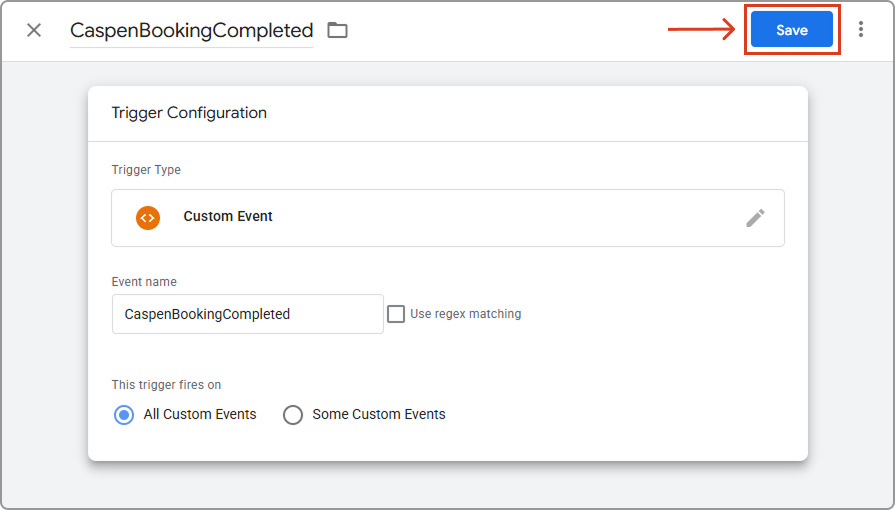
6. **Save** (top-right).
***
## Step 4: Create your tracking tag and attach the trigger
You can either create one tag per platform, or combine multiple tracking scripts in one **Custom HTML** tag (simple for a first setup). In this guide, we will use one Custom HTML tag so the setup stays simple.
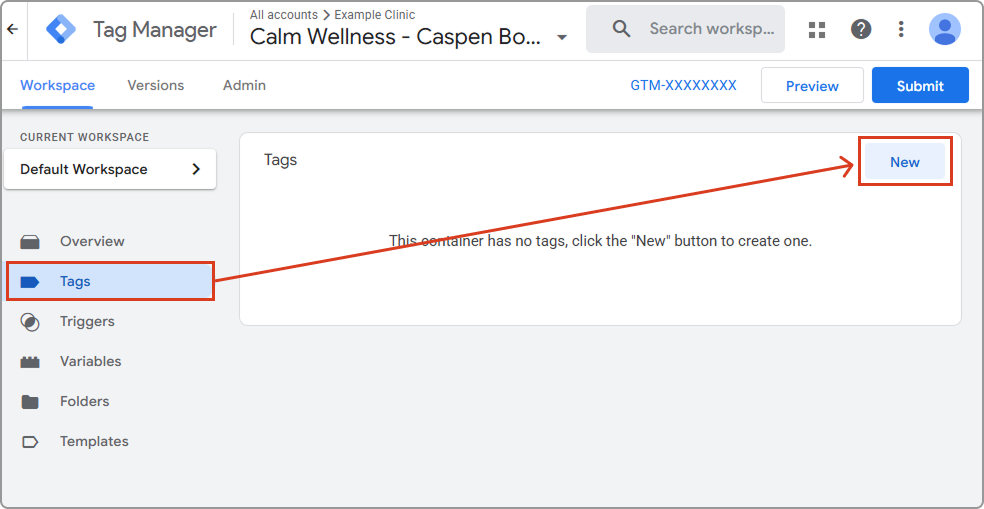
1. In Google Tag Manager, go to **Tags** → click **New**.
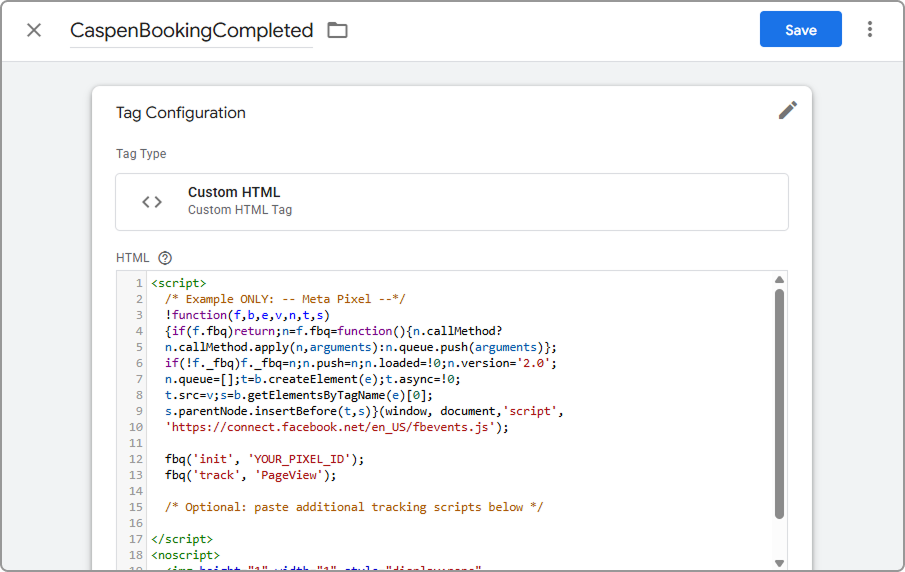
2. Enter a Tag name of your choice (top-left).
3. In Tag configuration select the tag type: Custom HTML.
4. Paste the tracking code you want to run. You can add more than one script if needed.
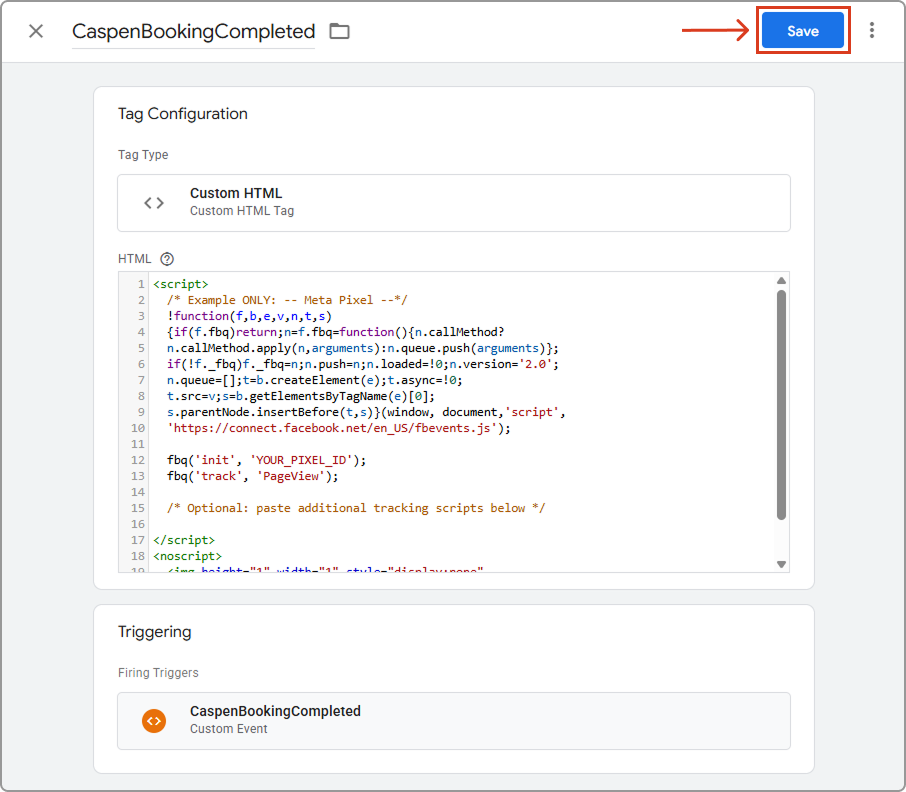
5. In Triggering, select the trigger: `CaspenBookingCompleted`
6. Click **Save**.
{% hint style="info" %}
**Tip**
If you are not sure what code to paste for a specific platform, contact that provider (for example Google or Meta) and ask what you should add to the Custom HTML tag for tracking.
{% endhint %}
***
## Step 5: Publish your GTM changes
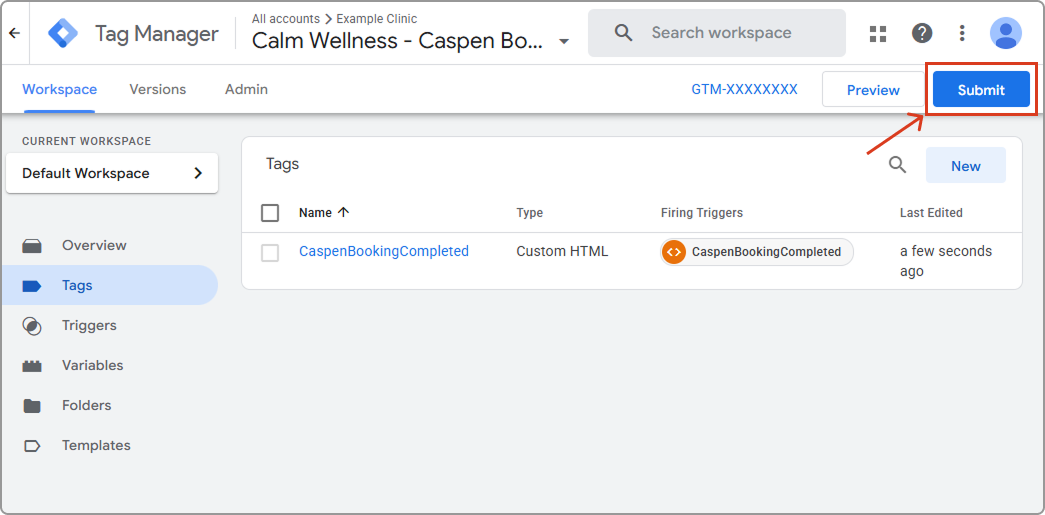
1. In Google Tag Manager, click **Submit**.
2. Add a version name, for example Caspen bookings tracking.
3. Click **Publish**. Once your changes are published, your tags are live and can start tracking bookings through Caspen.
***
## Frequently asked questions
How do I pass extra IDs or attribution details with the custom event?
This is configured in Google Tag Manager. If you need to pass additional IDs or attribution details through your tags, refer to Google Tag Manager guidance or contact Google Support for help setting up the right variables and tag configuration for your platform.
Do I need to set up Google Tag Manager on my website as well?
Setting up Google Tag Manager on your website is a separate task because your website code is managed outside Caspen. You would only set it up on your website if you also want to track website activity, such as which pages people view before they start a booking.
This guide does not cover installing Google Tag Manager on your website. If you need help with website setup, contact Google Tag Manager support or your website provider.