> For the complete documentation index, see [llms.txt](https://support.caspen.com/llms.txt). Markdown versions of documentation pages are available by appending `.md` to page URLs; this page is available as [Markdown](https://support.caspen.com/using-caspen/progress-notes/using-body-chart-templates-in-progress-notes.md).
# Using body chart templates in progress notes
Learn how to use body chart templates in your progress notes.
## Overview
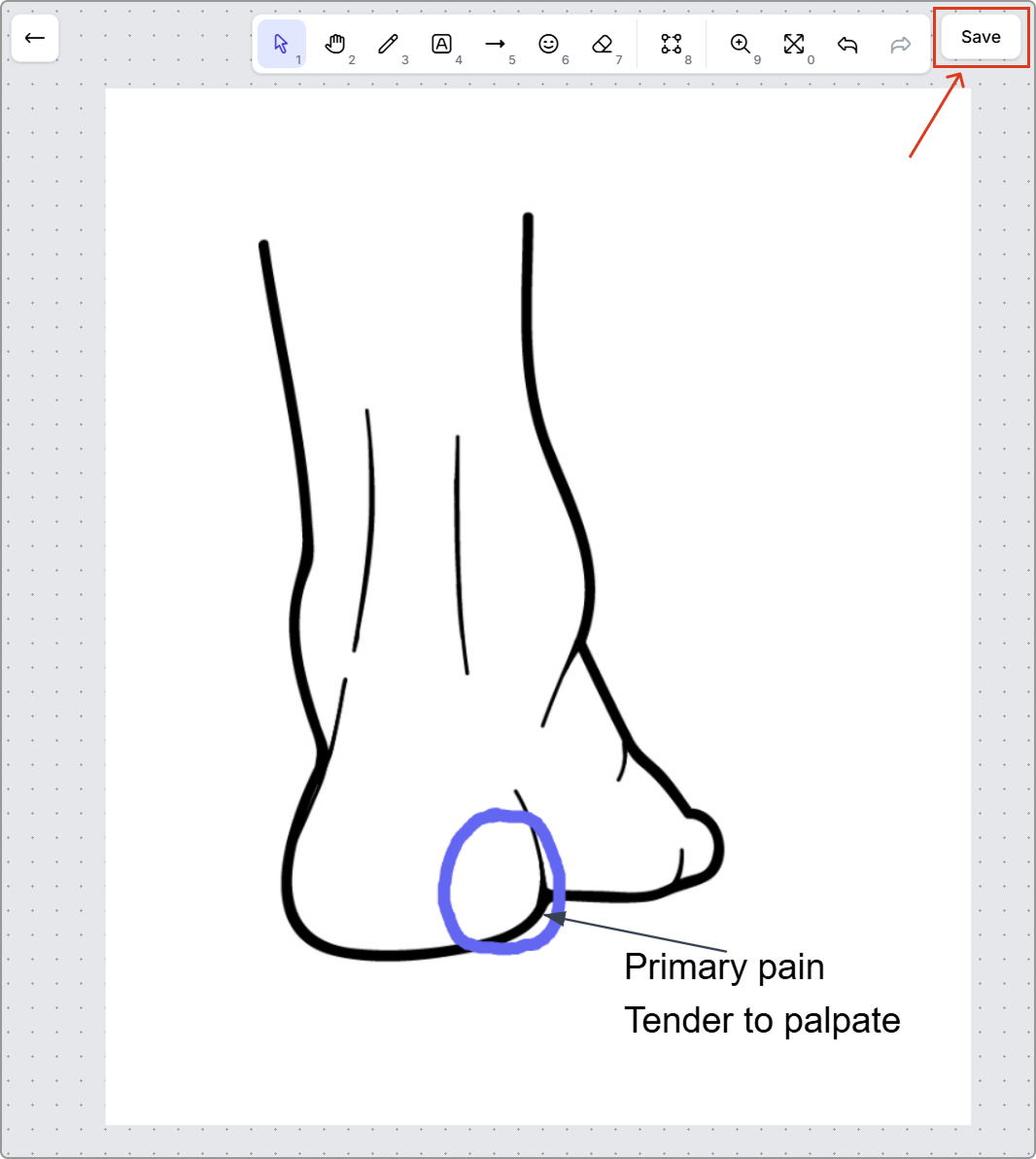
If you need to include diagrams or charts in your clinical notes, you can select a body chart template and draw directly on it. This is useful for documenting pain locations, injuries, areas treated, and clinical findings.
{% hint style="info" %}
**Before you start**
* You can only add a body chart while creating or editing a progress note.
* Caspen includes default body chart templates. To upload or manage templates, see [Set up body chart templates](/using-caspen/settings/templates/set-up-body-chart-templates.md).
{% endhint %}
***
## Add a body chart to a progress note
1. Open the client and create or edit a progress note.
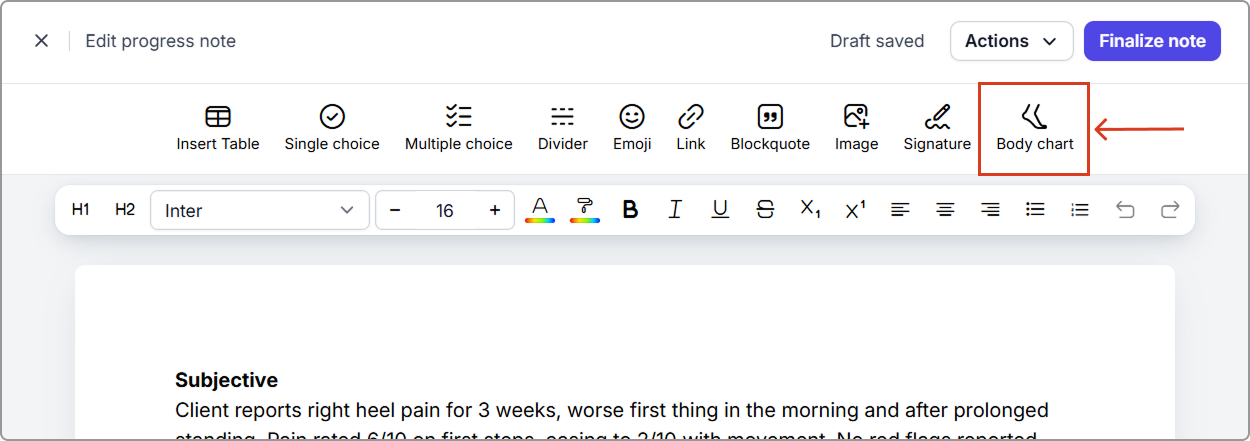
2. In the note editor toolbar, click **Body chart**.
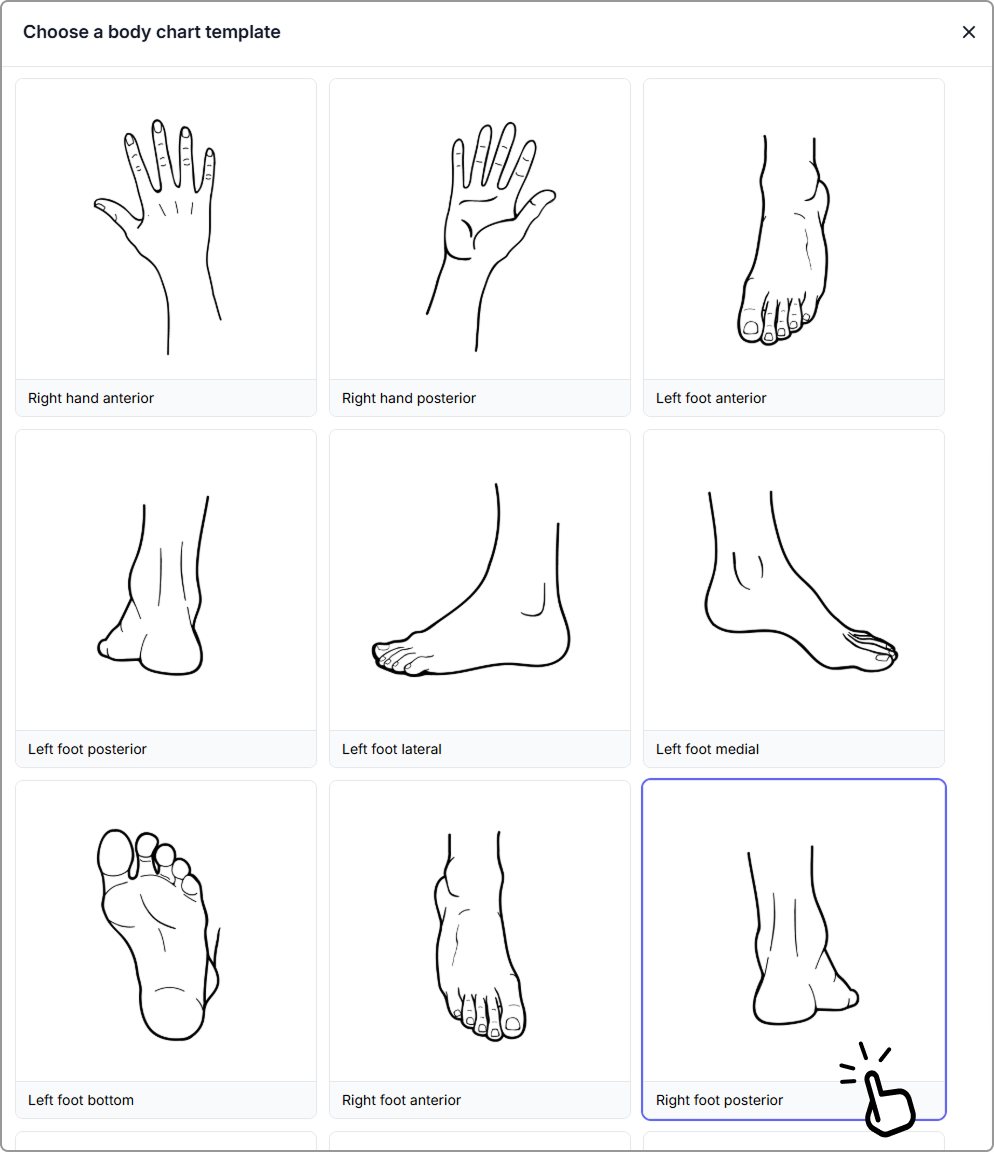
3. Select the body chart template you want to use.
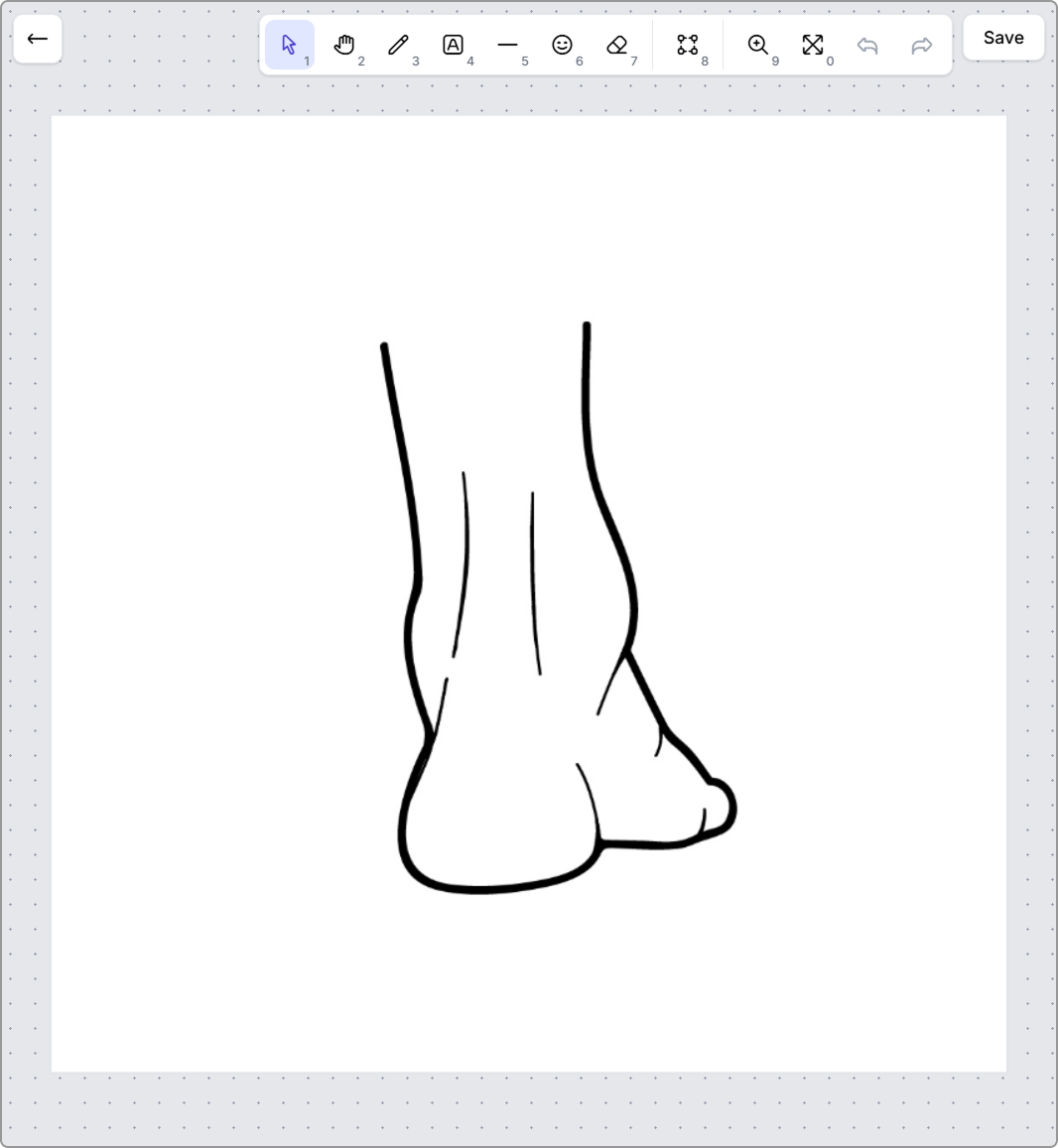
4. The body chart editor opens with the template loaded. Mark up the body chart as needed. For a list of available tools, see [Mark up the body chart](#mark-up-the-body-chart).
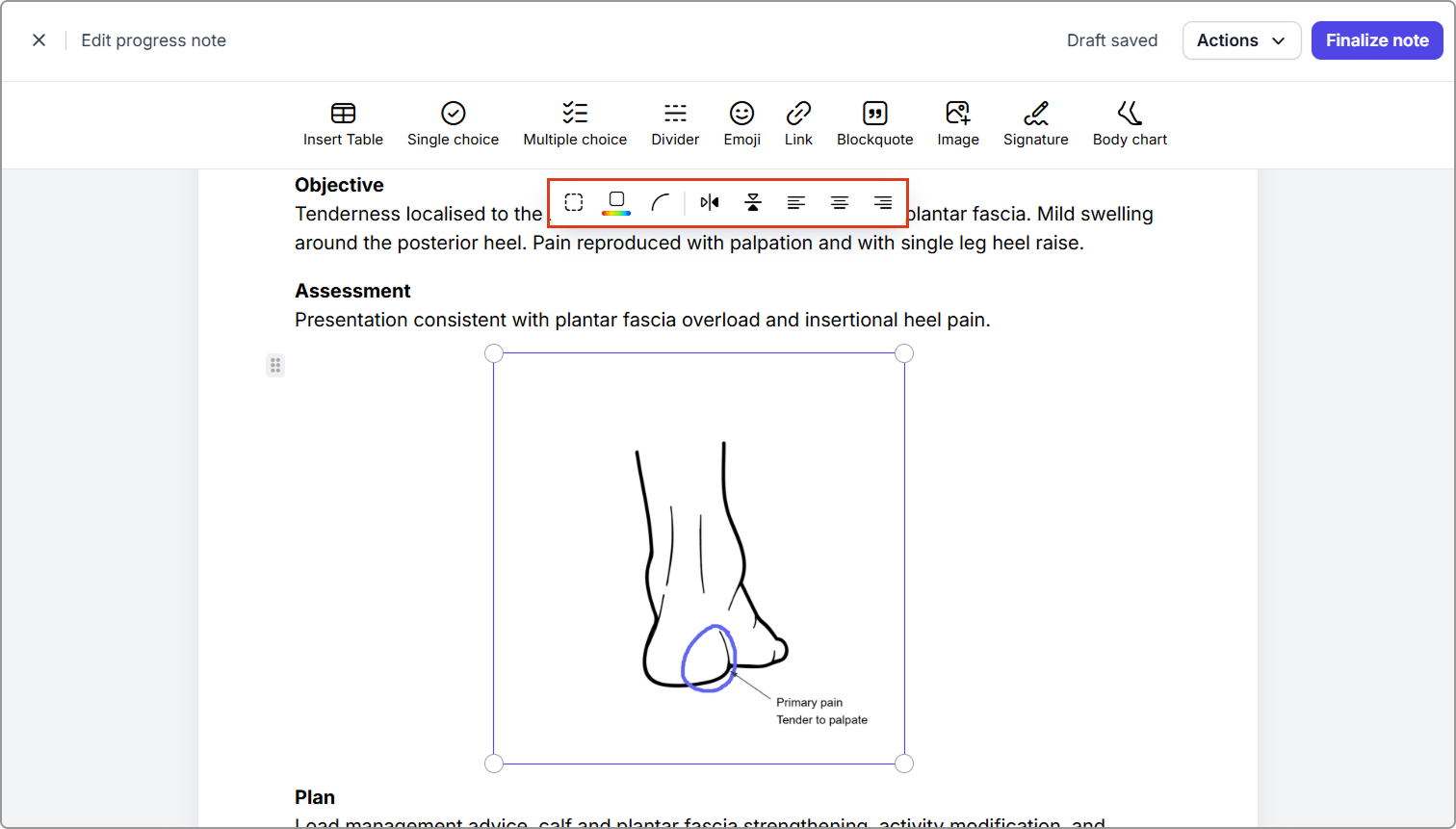
5. Once finished, click **Save** (top-right) to insert the body chart into the note.
Your body chart appears in the note as an image.
***
### Mark up the body chart
Use the toolbar in the body chart editor to add your clinical markings.
List of tools (from left to right):
* Select: Click an item on the canvas to move or adjust it.
* Pan: Click and drag to move around the canvas.
* Draw: Draw freehand. Adjust pen style such as weight, opacity, and color.
* Text: Add labels directly onto the chart.
* Shapes: Add arrows, lines, or shapes to highlight areas.
* Emoji: Insert an icon if your workflow uses symbols for findings.
* Eraser: Click and drag to erase markings.
* Frame: Adjust the canvas size. Only what sits inside the frame is saved back to the note.
* Zoom: Zoom in and out for detail work.
* Fit to screen: Resizes the view so the canvas fits your screen.
* Undo and redo: Step backward or forward through your recent changes.
> Tip: You can also zoom in and out using your mouse scroll wheel.
***
### Format the body chart image in the note
After the body chart is inserted, select the image to show formatting options.
Available options include:
* Add a border and choose a border color
* Round the image corners
* Flip the image horizontally or vertically
* Change image alignment
> **Tip:** You can resize the image by selecting it, then dragging a corner handle in or out.
***
### Finish the progress note
Keep writing your note, then choose one of the following:
* Click **Finalize note** when you are ready to complete it. The note appears in the client profile under **Progress notes**.
* Leave it as a draft if you are not ready to finalize. You can come back and continue editing later.
***
### Related articles
* [Set up body chart templates](/using-caspen/settings/templates/set-up-body-chart-templates.md) – Add, manage, and upload body chart templates for your workspace.
* [Using the text editor for notes and templates](/using-caspen/progress-notes/using-the-text-editor-for-notes-and-templates.md) – Formatting tools, inserting images, and working with content in the progress note editor.