Manage waitlist
Learn how to manage your waitlist from your calendar.
Waitlist overview
Your Waitlist helps you make the most of your availability. Add entries with location, practitioner, service, preferred days and times, notes, and tags. From the calendar, you can add and manage entries. When a slot fits, matching entries are shown so you can book the right client quickly.
How to open the waitlist
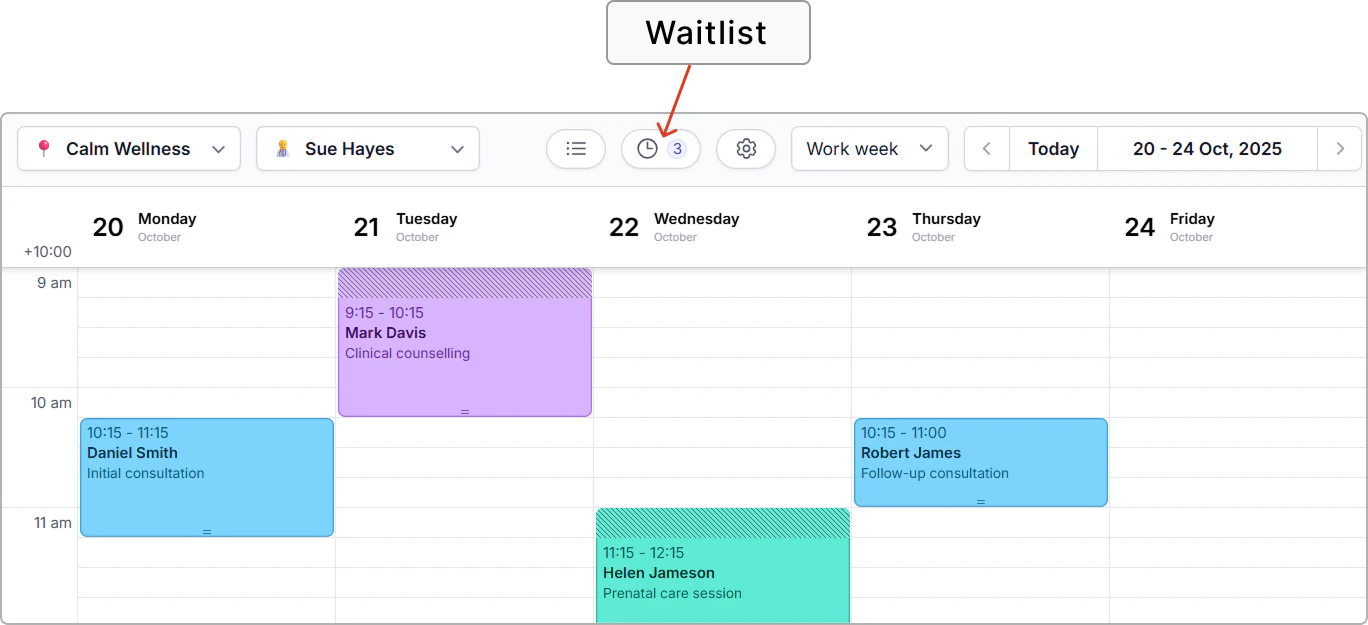
- Go to the Calendar.
- Click the clock icon in the top bar.
The number next to the clock icon shows how many entries are waiting (example, 3).
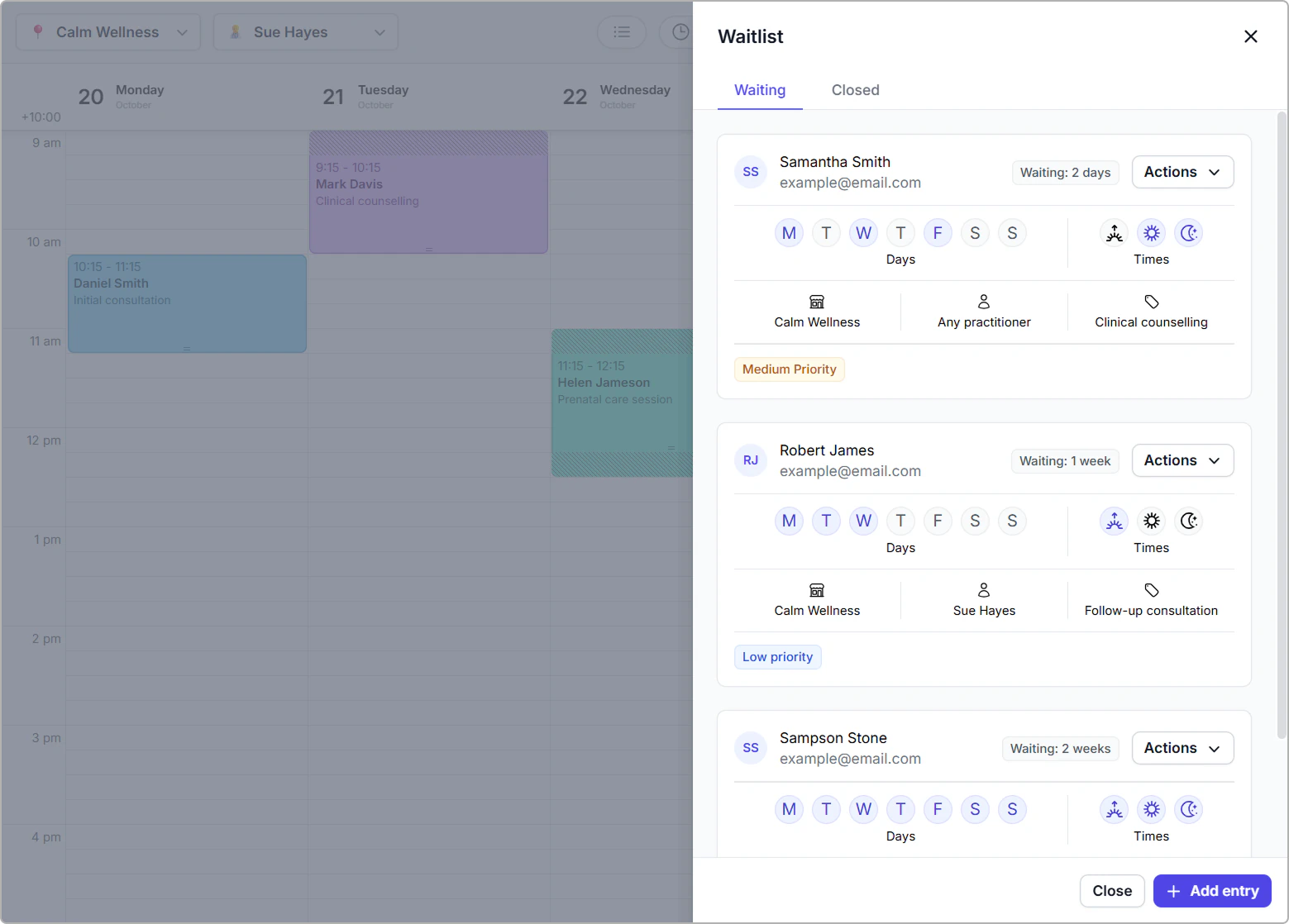
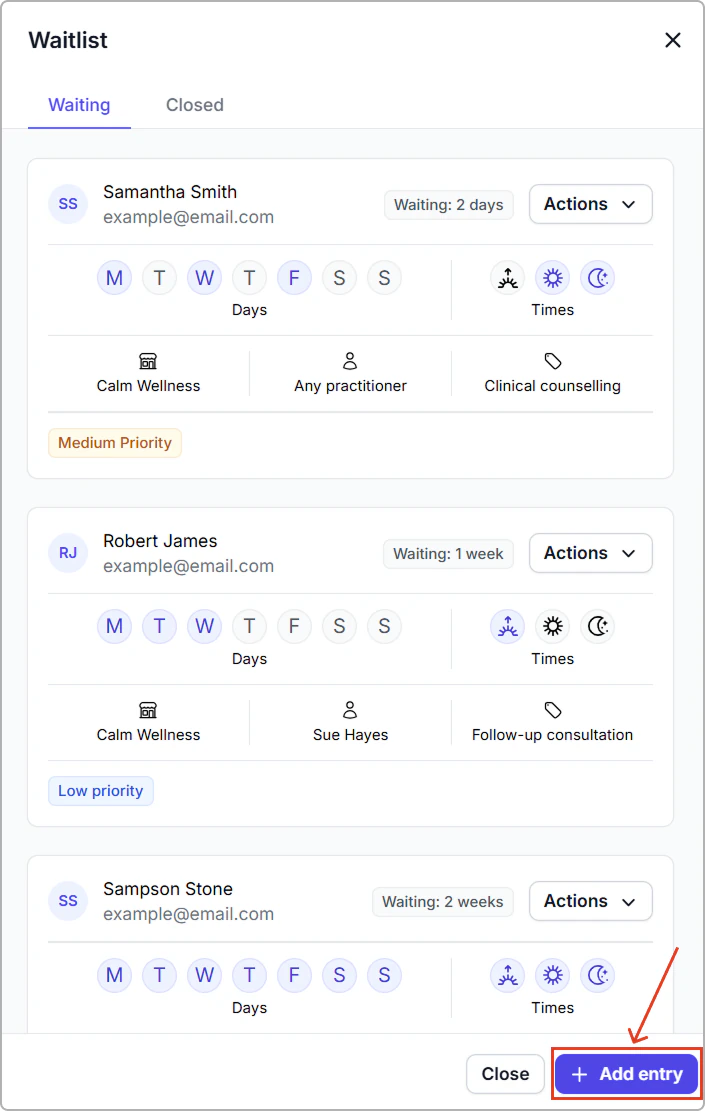
The Waitlist panel opens with two tabs at the top: Waiting and Closed.
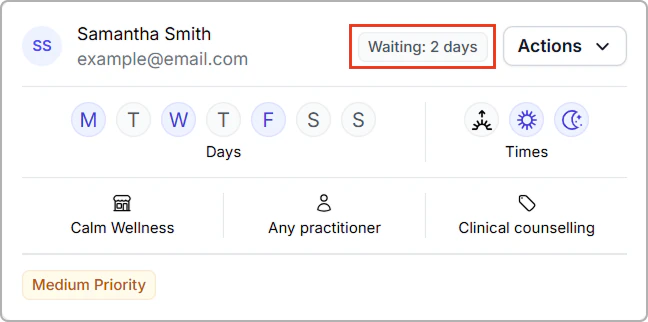
Each entry shows an aging indicator (for example, Waiting: 2 days) to help you prioritize clients who have waited longer.
How to add a waitlist entry
- In the Waitlist panel, select Add entry (bottom right).
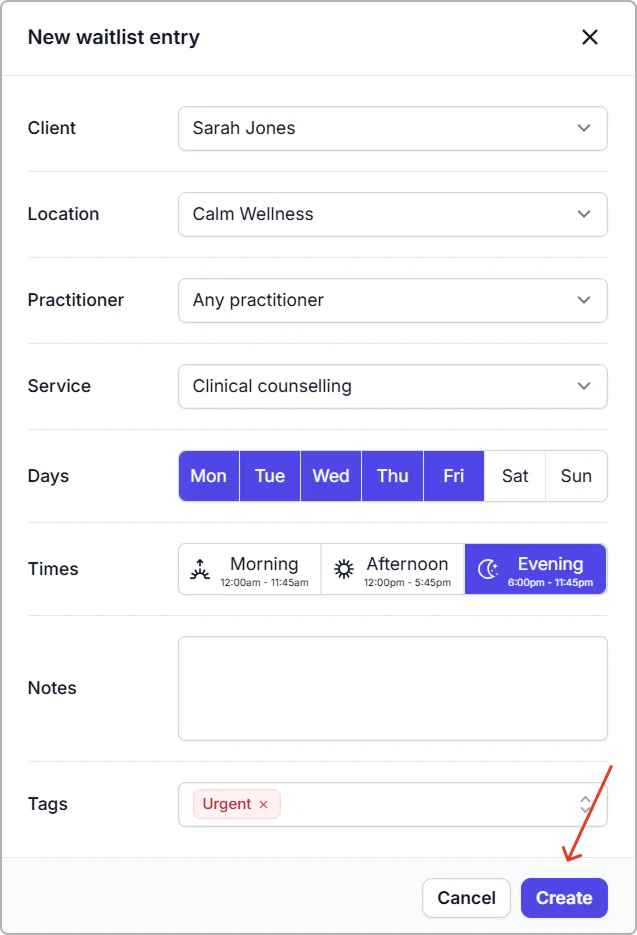
- Complete the fields (see Fields reference below), then click Create.
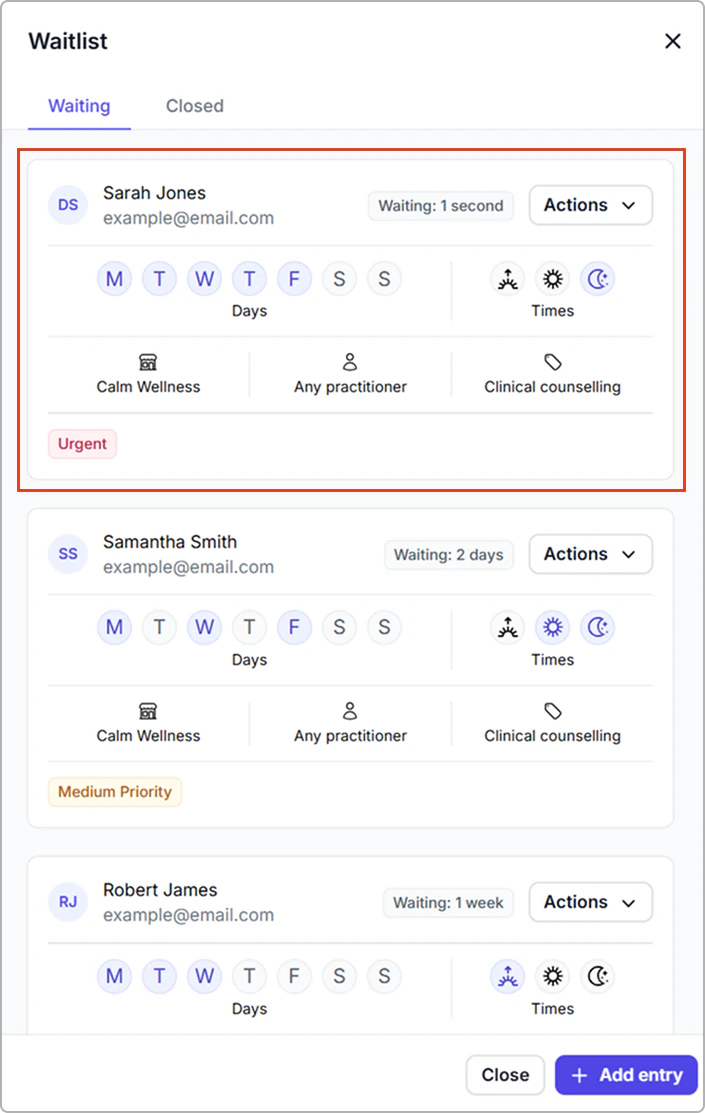
Result
- The new entry appears in the Waiting tab.
Fields reference
| Field | Description |
|---|---|
| Client | Who is waiting. Choose an existing client. |
| Location | Limit to a location, or leave Any location. |
| Practitioner | Limit to a practitioner, or leave Any practitioner. |
| Service | Select a service, or leave as Any service. |
| Days | Choose the days the client is available. |
| Times | Choose times the client is available. Morning, Afternoon, or Evening (you can select more than one). |
| Notes | Add context such as duration or flexibility. |
| Tags | Optional labels like Urgent, Medium Priority, Low Priority. |
How matching works
Tip
The more you specify (location, practitioner, service, days, times), the narrower the match.
Leaving a field as Any keeps the entry open to more options.
Book from a waitlist match
- Click a time slot in the Calendar to create an appointment.
- If there are matches, a yellow banner appears at the top of the Create appointment form (for example, 1 waitlist match). Click View.
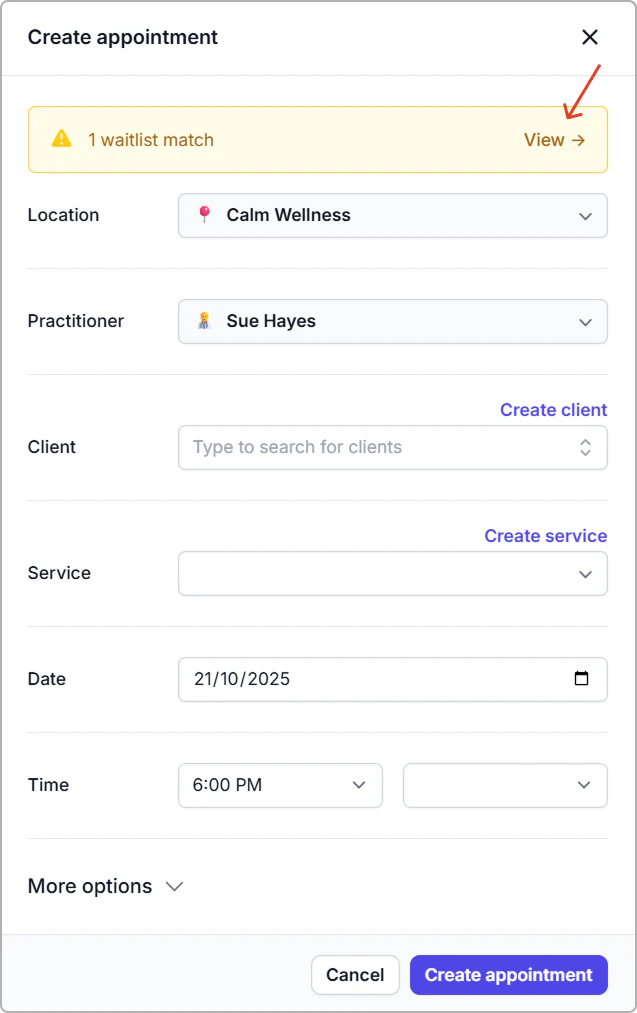
- Review the matching entry and/or entries and click on the entry you want to link.
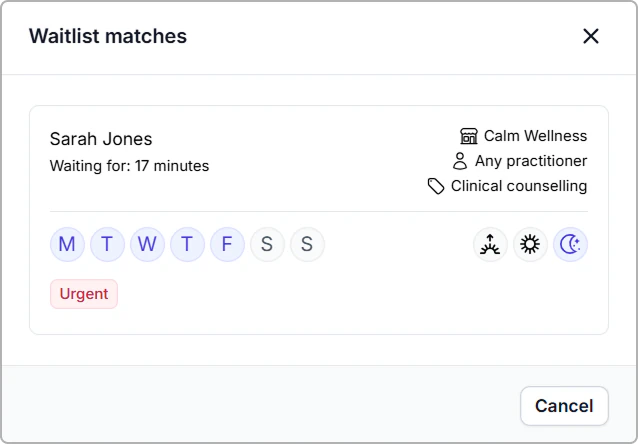
- You will see the linked waitlist entry at the top. Fill in the appointment details, then click Create appointment.
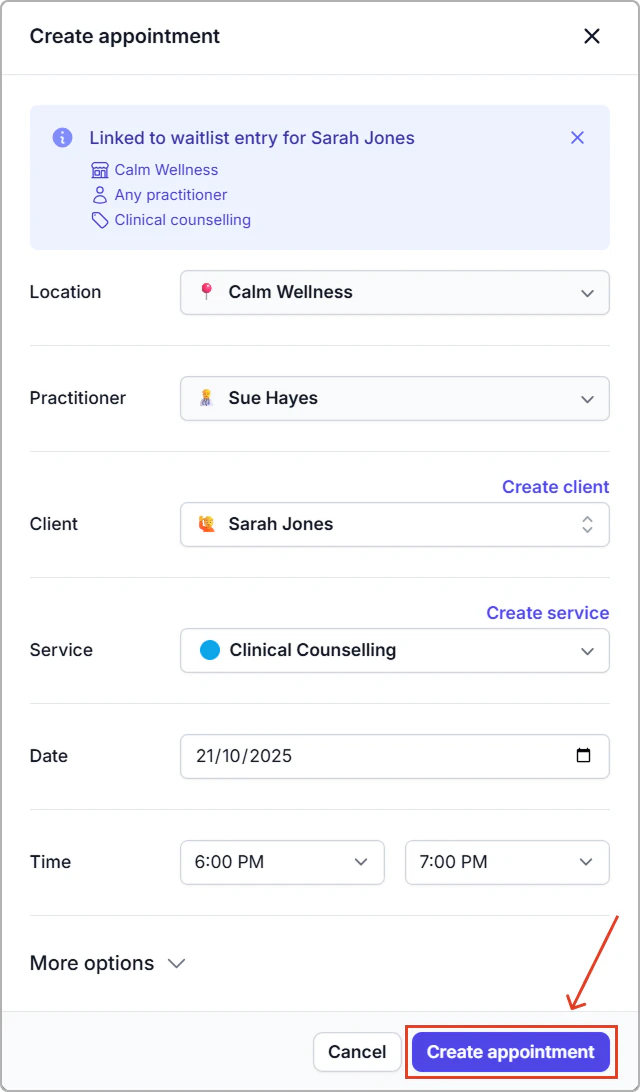
What happens next
- The appointment is linked to the waitlist entry.
- The entry moves from Waiting to Closed automatically.
Manage existing waitlist entries
Edit a waitlist entry
- In the Waiting tab, open Actions on an entry.
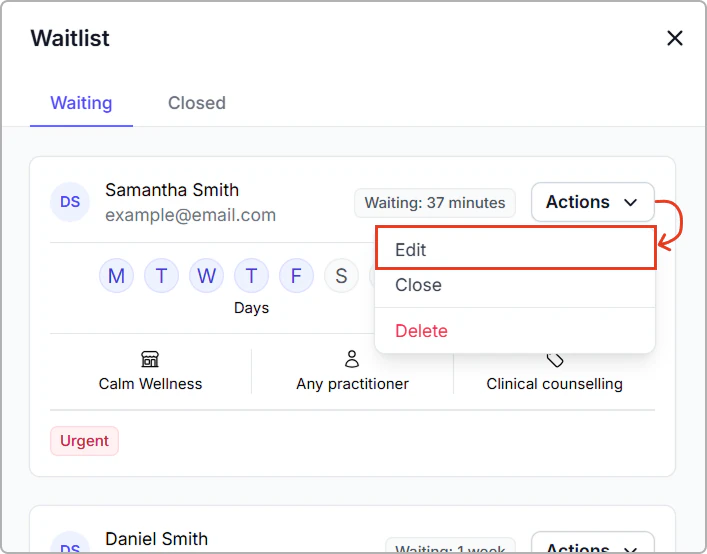
- Click Edit, update the fields, and save.
Close a waitlist entry
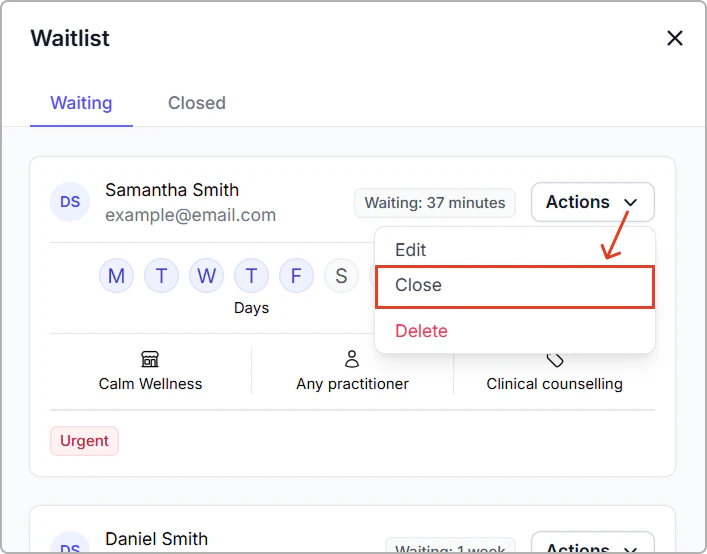
- If you have scheduled an appointment outside the match flow, open Actions and choose Close.
- The entry moves to the Closed tab.
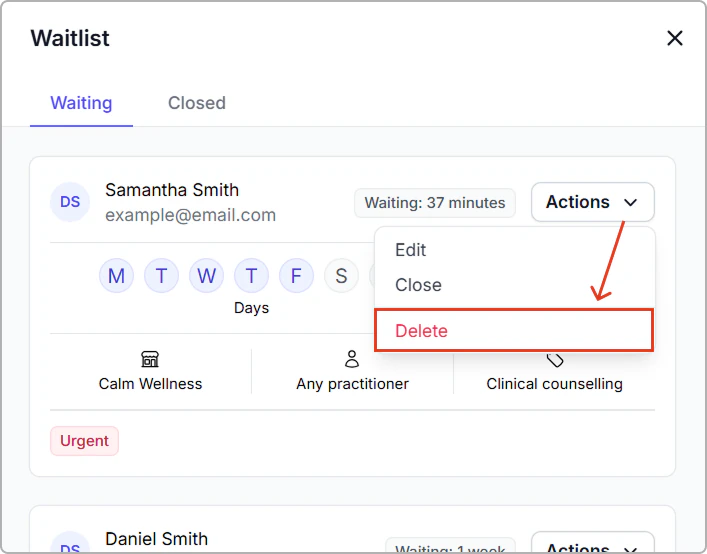
Delete a waitlist entry
- Open Actions and select Delete to remove the entry permanently.
- A deleted waitlist record cannot be undone or reactivated.
- Note: You can only delete entries in the Waiting tab. Entries in Closed cannot be deleted.
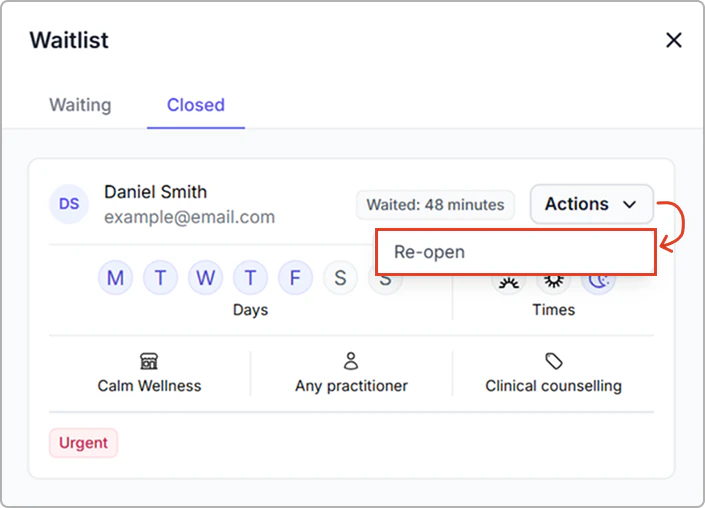
Reopen a waitlist entry
- In the Closed tab, open Actions and choose Re-open. The entry returns to Waiting.
- Note: Only entries in the Closed tab can be reopened.
Frequently asked questions
Can I have more than one entry for the same client?
Yes. Create separate entries for different practitioners, services, or availability.