Using the text editor for notes and templates
Learn how to use Caspen’s rich text editor to format text, add tables and images, and more.
Overview
The rich text editor lets you create structured, professional progress notes and templates with flexible formatting and interactive fields.
Use it to document client sessions, treatment plans, assessments, or any repeating clinical information.
Features include:
- Custom text formatting (headings, styles, colours)
- Tables for structured clinical layouts
- Single-choice and multiple-choice fields for clinical data
- Ordered and unordered lists
- Images, links, and dividers
- Keyboard shortcuts for faster documentation
Perfect for consistent note-taking across your practice.
Text editing and formatting
Use the toolbar at the top to style and format your content. You can:
- Adjust font size and headings (H1, H2).
- Bold, italicise, or underline text.
- Add blockquotes, dividers, or emojis.
- Insert hyperlinks to external resources.
Tables
Tables help you structure information clearly and consistently in templates and notes.
Insert a table
- Click Insert Table on the toolbar.
- Select the number of rows and columns.
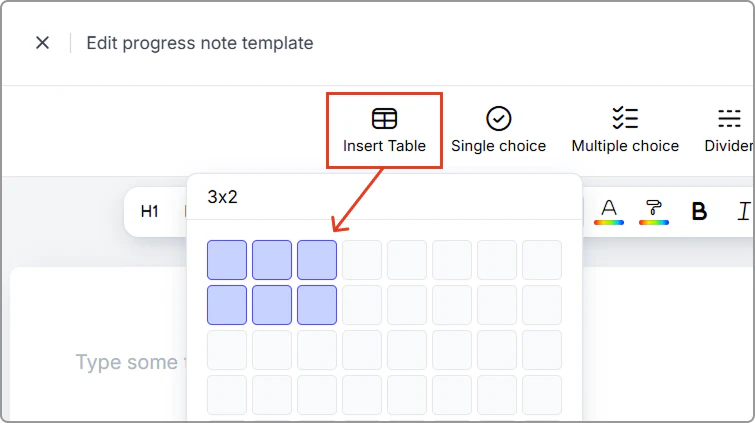
Example: Selecting rows and columns when inserting a table.
Table examples:
Past Medical History, Medication list, Progress measures, Treatment plan, Goals.
Edit table structure
Use the pop-up table toolbar (appears when a cell is selected) to modify your table.
| Action | What it does |
|---|---|
| Merge cells | Combines selected cells into one single cell. |
| Split cell | Separates a merged cell back into individual cells. |
| Add rows/columns | Inserts additional rows or columns. |
| Delete rows/columns | Removes unwanted cells, rows, or columns. |
| Apply color | Highlights cells, headers, or sections with a background color. |
Example – Table toolbar shown when selecting a cell:
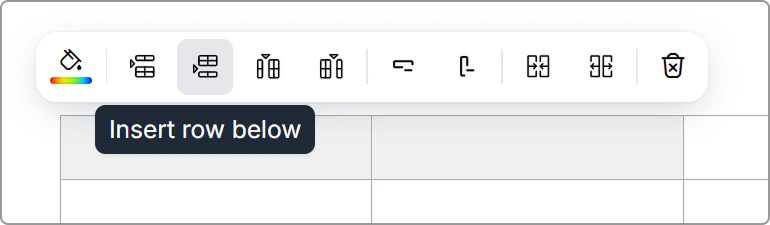
Table toolbar tips:
- The table toolbar appears when you highlight one or more cells.
- You can hover over each icon in the table toolbar to view its label (e.g., Insert row above, Split cell).
Lists and structure
Use list styles to structure clinical information:
| List type | Best for |
|---|---|
| Numbered lists (1, 2, 3) | Step-by-step instructions, home exercise programs, procedures. |
| Bullet lists (•) | General note-taking, subjective/objective findings. |
| Checklists (Multiple choice fields) | Follow-up actions, safety checks, exercise compliance. |
Info
To create a checklist, use Multiple choice fields (see below).
Choice fields (Single choice & Multiple choice)
Choice fields allow you to add structured, selectable options to templates. They’re ideal for symptoms, findings, treatment responses, risk levels, or any repeatable data.
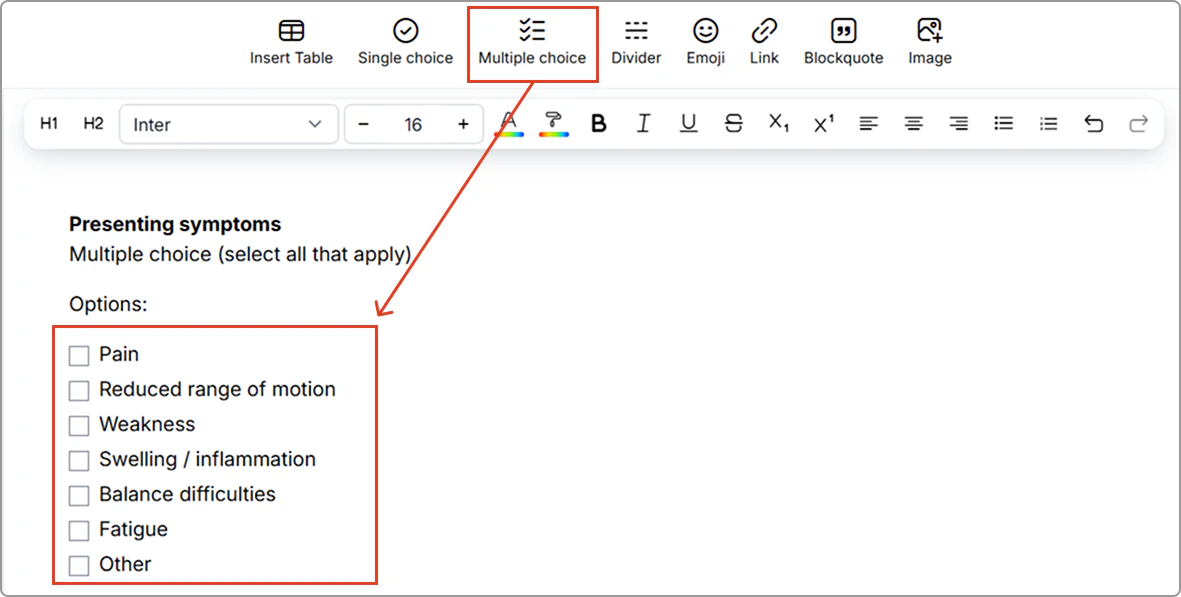
Multiple choice (select all that apply)
Use this when more than one item may apply. Clinicians can select any number of options.
Common clinical examples:
- Presenting symptoms
- Areas of pain
- Factors impacting function
- Contributing conditions
- Goals achieved this session
Example (blank):
Example (completed):
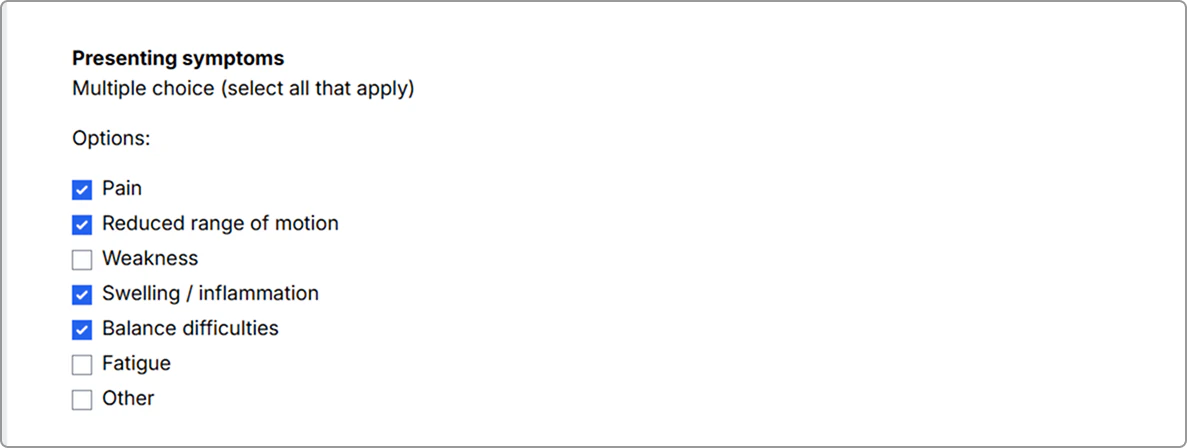
You can leave options blank or pre-select common defaults.
Single choice (choose one)
Use this when only one option should be selected (radio buttons).
Common clinical uses:
- Pain severity rating
- Session outcome
- Risk level
- Funding source
- Preferred contact method
Example (blank):
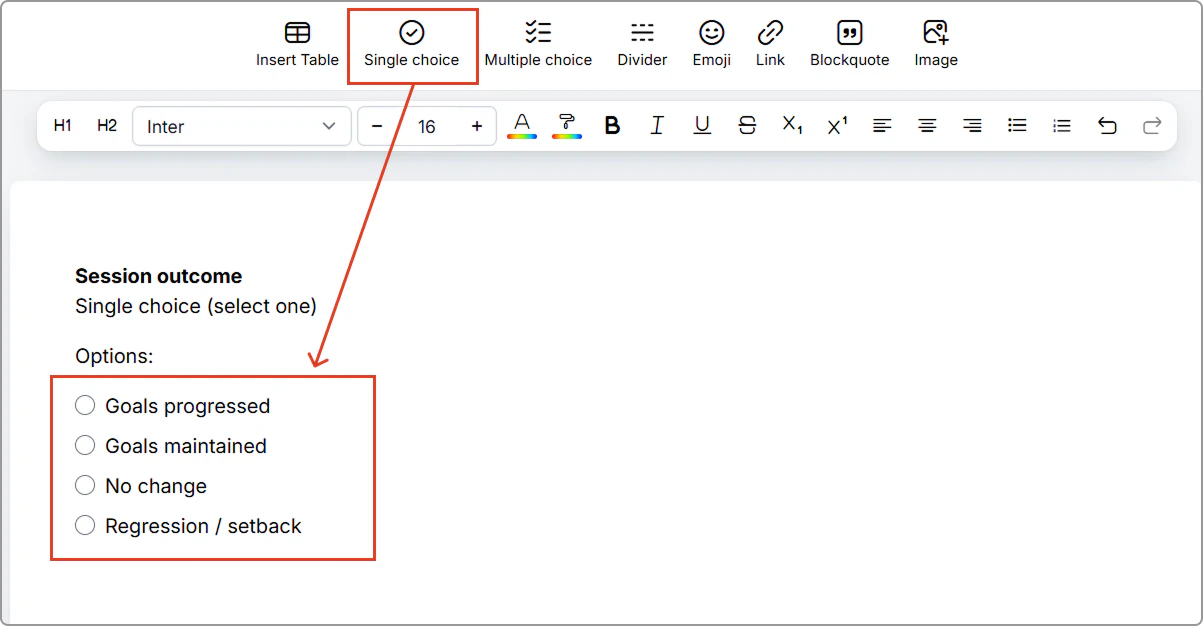
Example (completed):
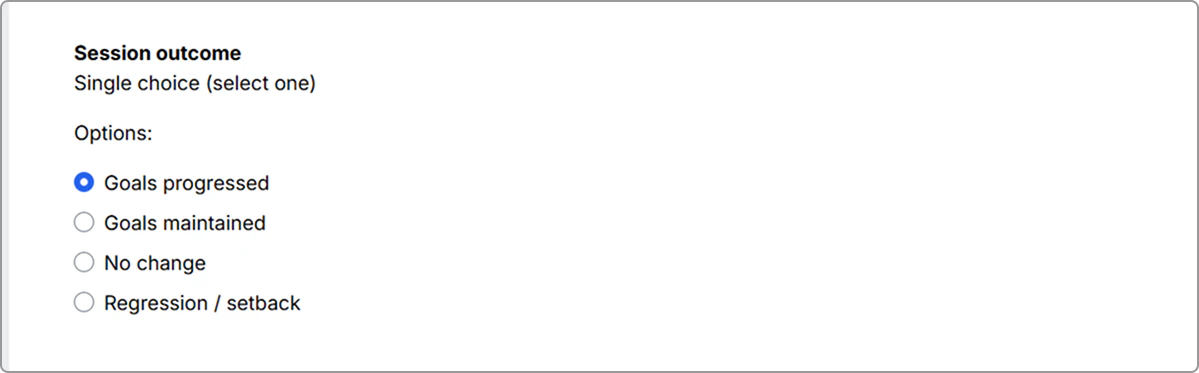
Single choice example with one radio button selected.
Body charts
Body charts let you insert a template into a progress note and draw directly on it. This is useful for documenting pain locations, injuries, areas treated, and clinical findings.
Related article: Using body chart templates in progress notes.
Links and media
- Insert links: Add clickable links for external resources, references or documents.
- Insert images: Include diagrams, clinical visuals, or relevant media.
Signatures
Signatures let you add an electronic signature to a progress note. You can draw, type, or upload your signature.
Keyboard shortcuts
Work faster with keyboard shortcuts for Mac and Windows.
Mac shortcuts
| Action | Keyboard shortcut |
|---|---|
| Copy | Cmd C |
| Cut | Cmd X |
| Paste | Cmd V |
| Undo | Cmd Z |
| Redo | Cmd Shift Z |
| Add a line break | Shift Enter |
| Bold | Cmd B |
| Italicise | Cmd I |
| Underline | Cmd U |
Windows shortcuts
Use Ctrl instead of Cmd for the same actions listed above.