Manage tasks
Learn how to create, schedule, prioritize, and complete tasks to stay organized.
Overview
The Tasks page gives you a complete view of your to-do list. You can:
- Add and edit tasks.
- Set due dates and priorities.
- Reorder tasks by dragging.
- Mark tasks as complete.
- Review overdue, upcoming, and unscheduled work.
Tasks are private to you and are not visible to other users.
To open the Tasks page:
- Go to Tasks in the left navigation, or
- From the Dashboard, select View all in the Today’s tasks panel.
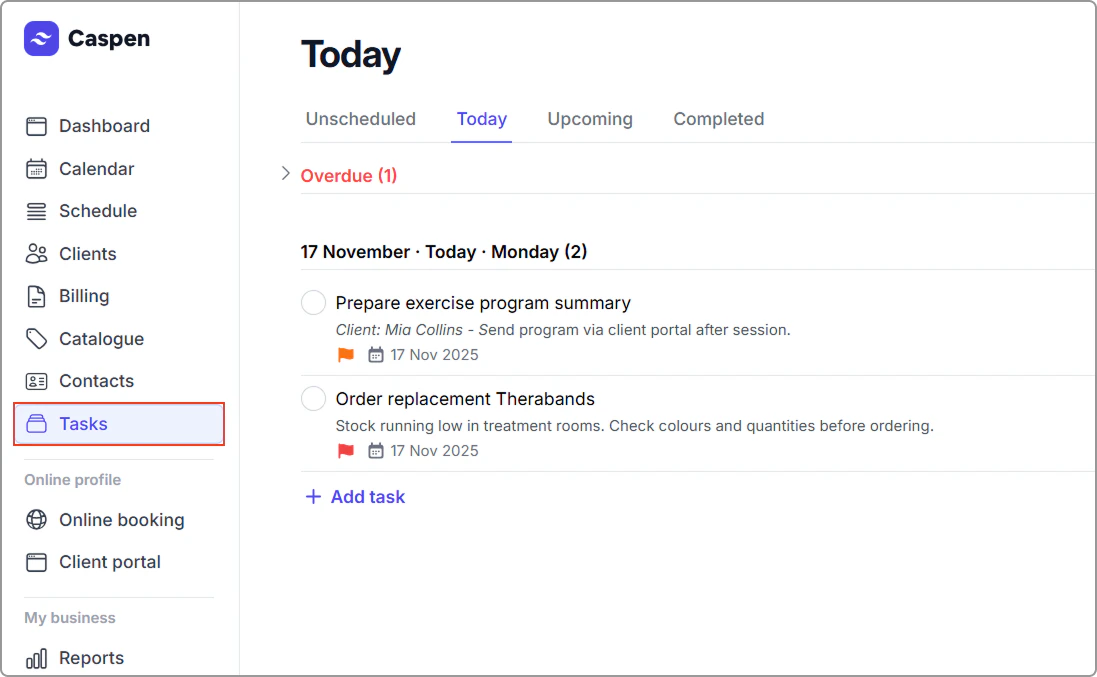
Tabs explained
The table below explains what each Tasks tab shows, working from left to right.
| Tab | What it shows |
|---|---|
| Unscheduled | Shows tasks without a due date. Good for general reminders or work that isn’t tied to a specific day or due date. |
| Today | Lists all tasks due today, plus any overdue ones grouped above today’s list. |
| Upcoming | Shows tasks due within the next six months, organized by date. |
| Completed | Displays tasks you have marked as complete. Visible for the current day and the past 14 days. |
Add a new task
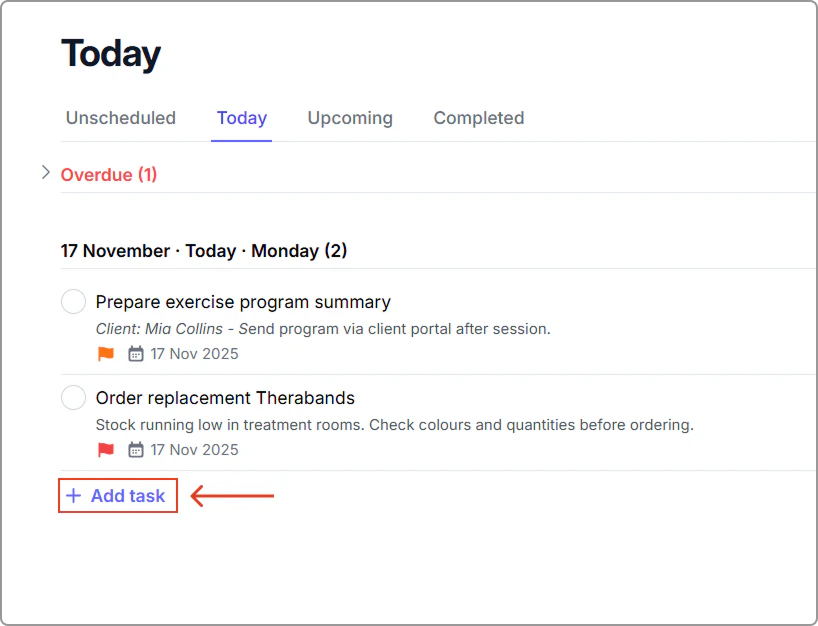
To add tasks for specific dates:
- Go to Tasks.
- Select the tab where you want the task to appear:
- Unscheduled → for no due date.
- Upcoming → choose a date section.
- Today → if due today.
- Click + Add task.
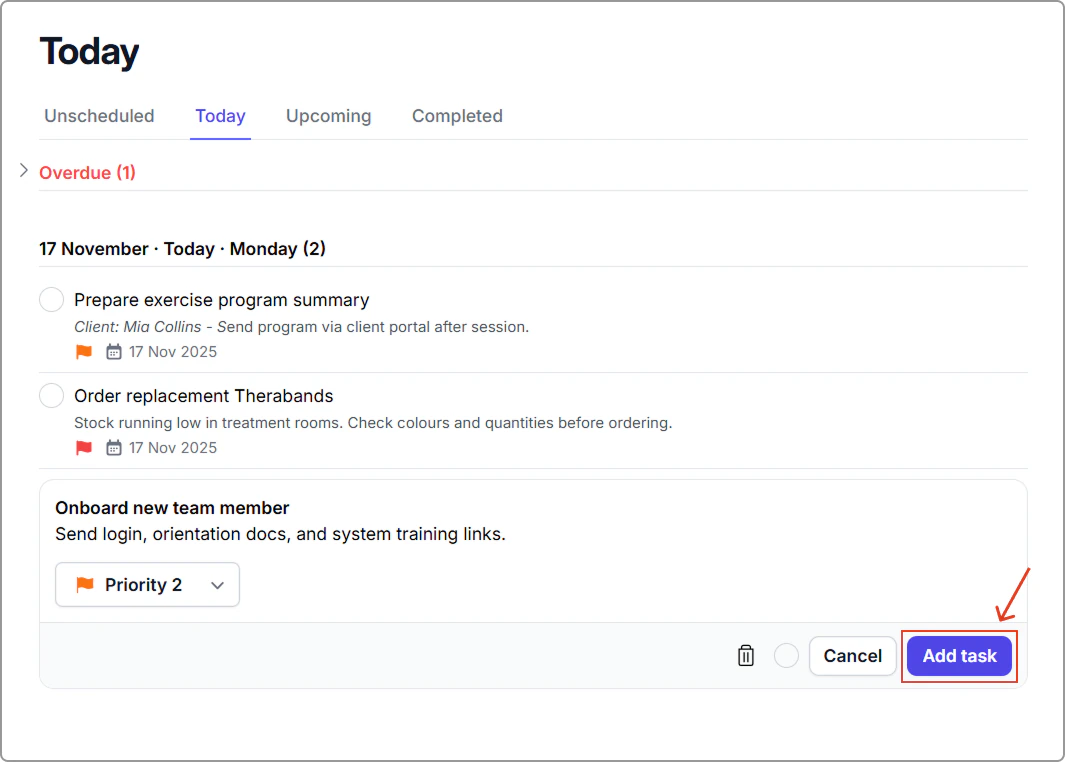
- Complete the task details.
- Enter a title and description.
- Choose a priority if needed (Priority 1–3 or No Priority).
- Click Add task to create your new task.
Edit a task
To update any task:
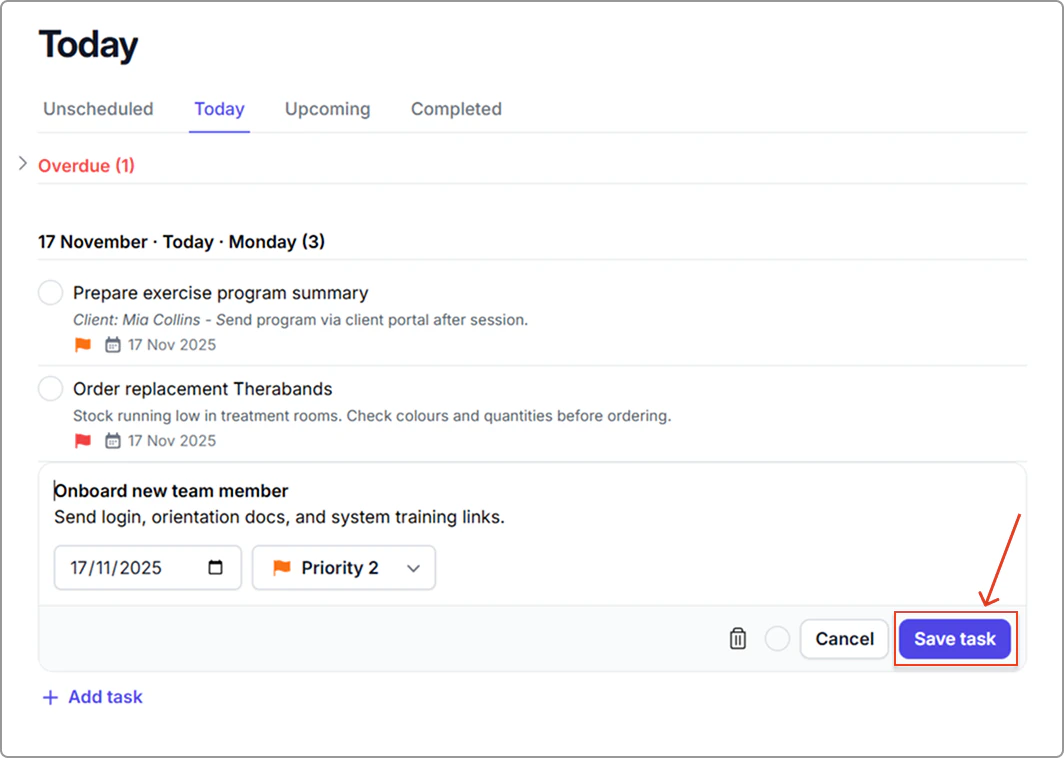
- Click anywhere on the task (except the circle checkbox).
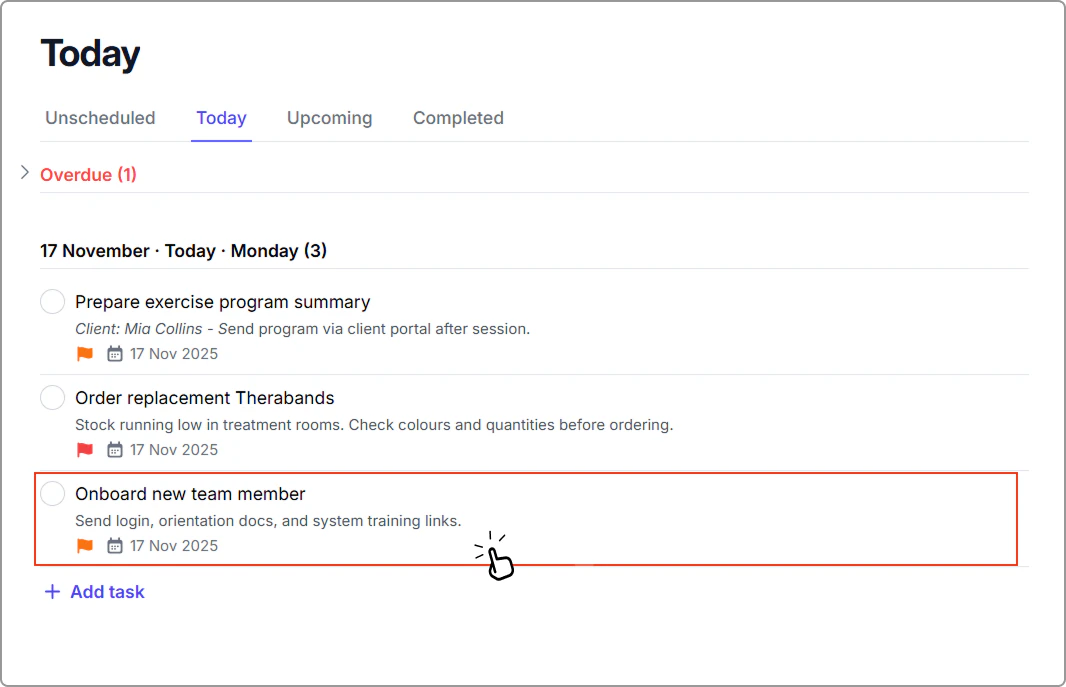
- Update the title, description, due date, or priority.
- Click Save task to apply your changes.
Info
Note: If you change the due date, the task will automatically move to the date it is now due.
Prioritize tasks
You can assign priority levels to highlight urgency:
| Priority | Meaning | Color |
|---|---|---|
| 🔴 Priority 1 | Urgent or high-impact | Red |
| 🟠 Priority 2 | Important but less time-sensitive | Orange |
| 🔵 Priority 3 | Low-priority or routine | Blue |
| ⚪ No Priority | Default | White |
Mark a task as complete
- Click the circle checkbox next to the task.
- The task moves to the Completed tab automatically.
Delete a task
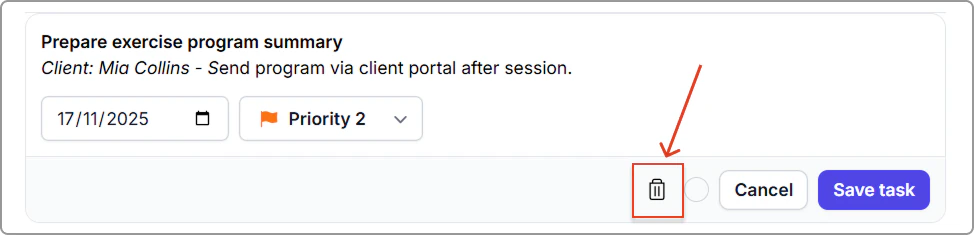
- Click anywhere on the task (except the circle checkbox).
- Select the bin icon to delete the task.
Info
Once deleted, a task cannot be recovered.
Reorder tasks (drag and drop)
To rearrange tasks:
- Click and hold a task (not the checkbox).
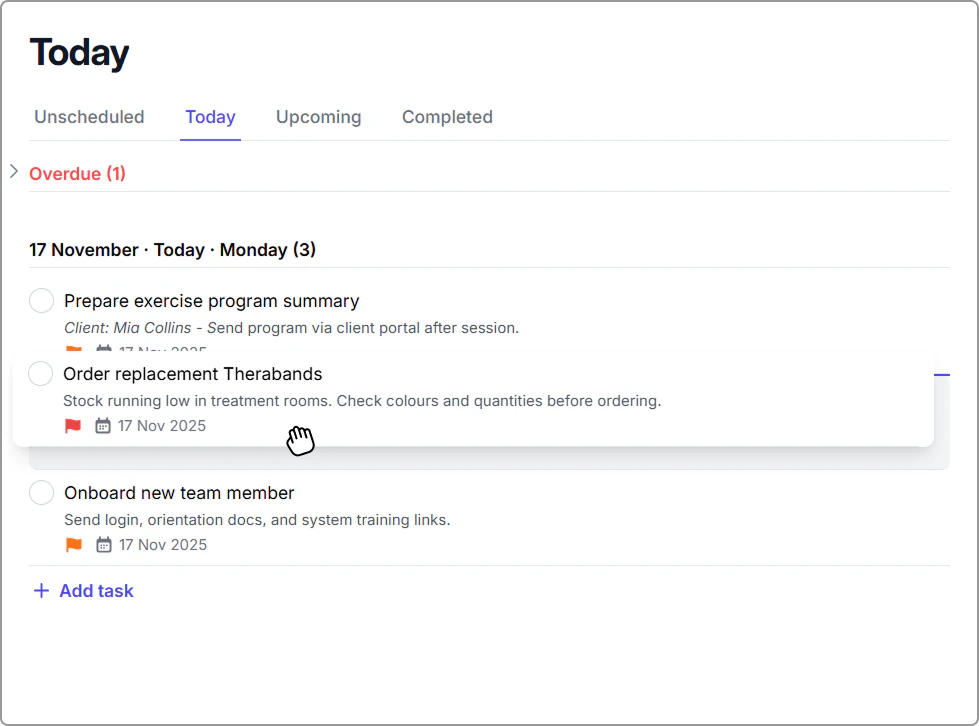
- Drag it into a new position.
- Release to save the new order.
Tips for staying organized
- Add due dates to avoid missed follow-ups.
- Use priorities to focus on what matters most.
- Review the Upcoming tab at the start of each week.