Add a client
This guide shows how to add clients by creating profiles that store their information in one place.
2 min readUpdated 8 months ago
This guide covers the different ways to add a client:
Before You Begin
Below are a few quick points to keep in mind when adding a client.
- Required fields: First name and last name.
- Recommended: Add date of birth, email, and primary phone number.
Info
Why the recommend fields matter:
- Online bookings and client portal: Together with the client’s name, these fields are used to automatically match returning clients to the correct profile.
- Avoiding duplicates: Add date of birth, email, and a primary phone number to help distinguish clients with similar names and reduce duplicate client records.
Add a client from the Clients tab
- Open Clients, then select Add client.
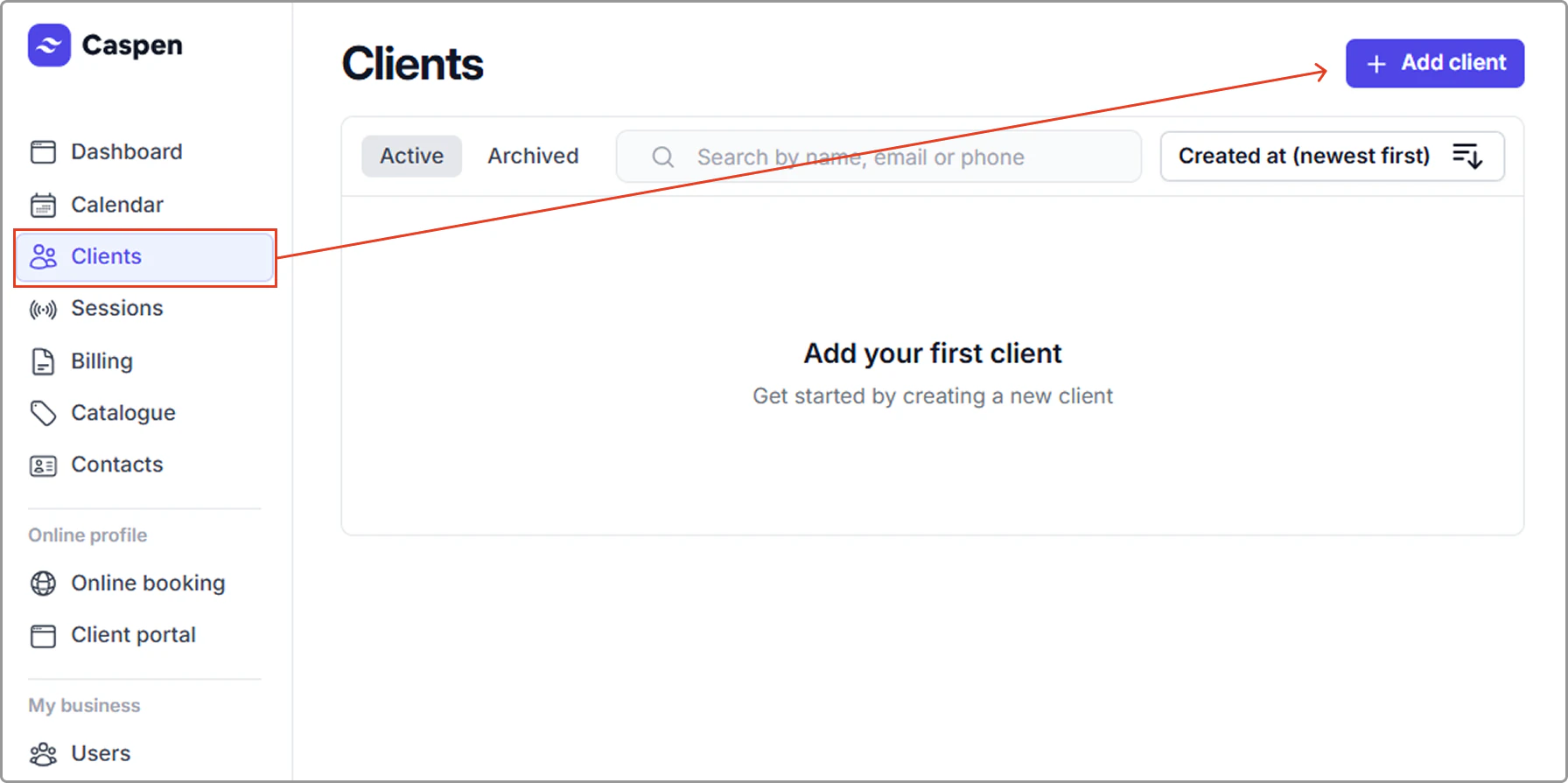
- Enter all necessary client details. The client’s first and last name are required when adding or editing a client. Optionally add date of birth, email, and primary phone (recommended).
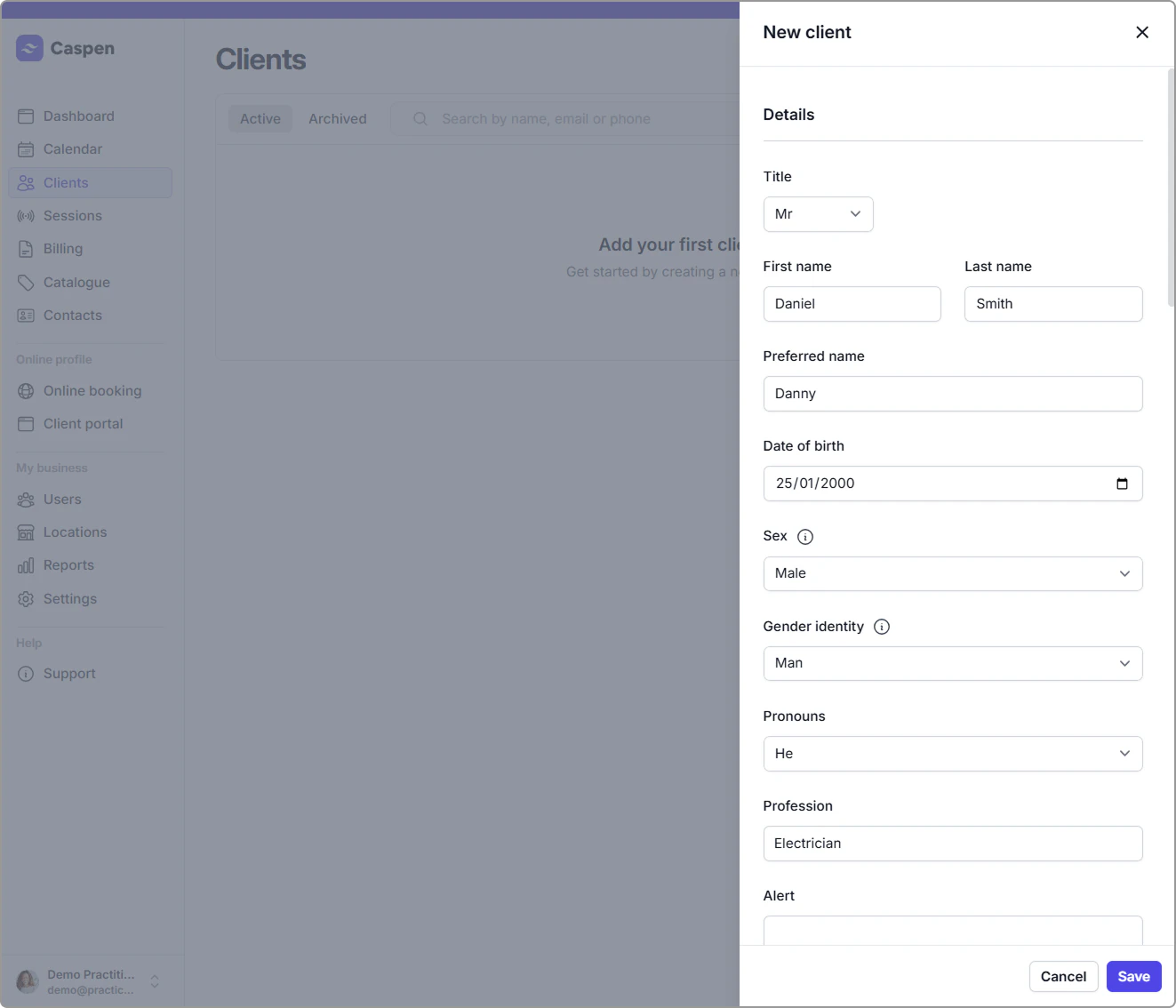
- Select Save to create the profile.
Add a client while scheduling an appointment
- From the Calendar → click on an empty time slot and select Appointment.
- Click Create Client.
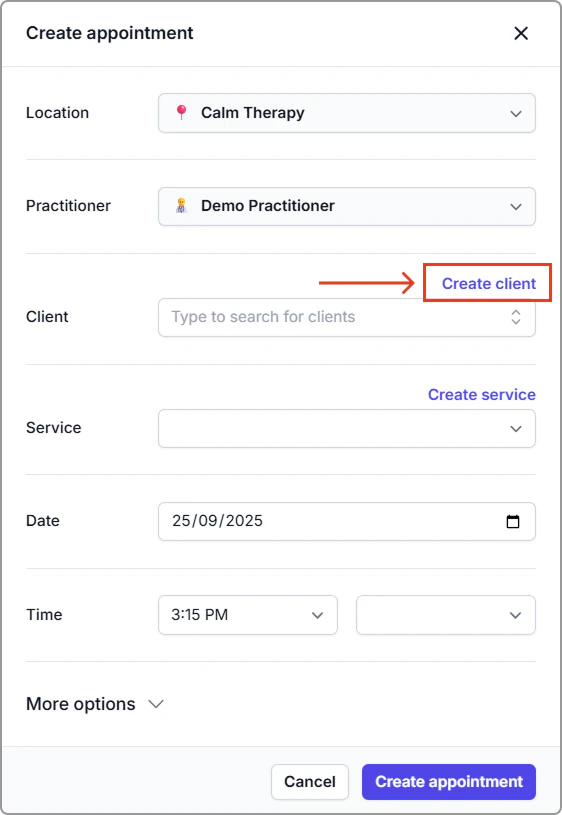
- Enter all necessary client details. The client’s first and last name are required when adding or editing a client. Optionally add date of birth, email, and primary phone (recommended).
- Select Save to create the profile and return to the appointment.
Tip
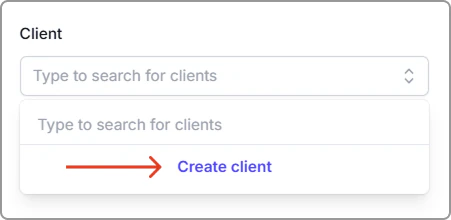
- Where available, you can also create a client directly from the Client picker by choosing Create client in the dropdown.
Need every client field explained? See All client fields in our Client field reference.
Related article:
- Add custom client fields – Create custom client fields that go beyond Caspen’s default fields.