Add a contact
Learn how to add new contacts to send invoices, letters and assign cases.
2 min readUpdated 4 months ago
Info
Who is a contact? A contact is a person or organization connected to your clinic or a client, but not a patient themselves. Examples include a referring GP or specialist, a plan manager or insurer, a funding body, an employer, or another provider you share information with.
Add a contact
- Go to Contacts and click Add contact.
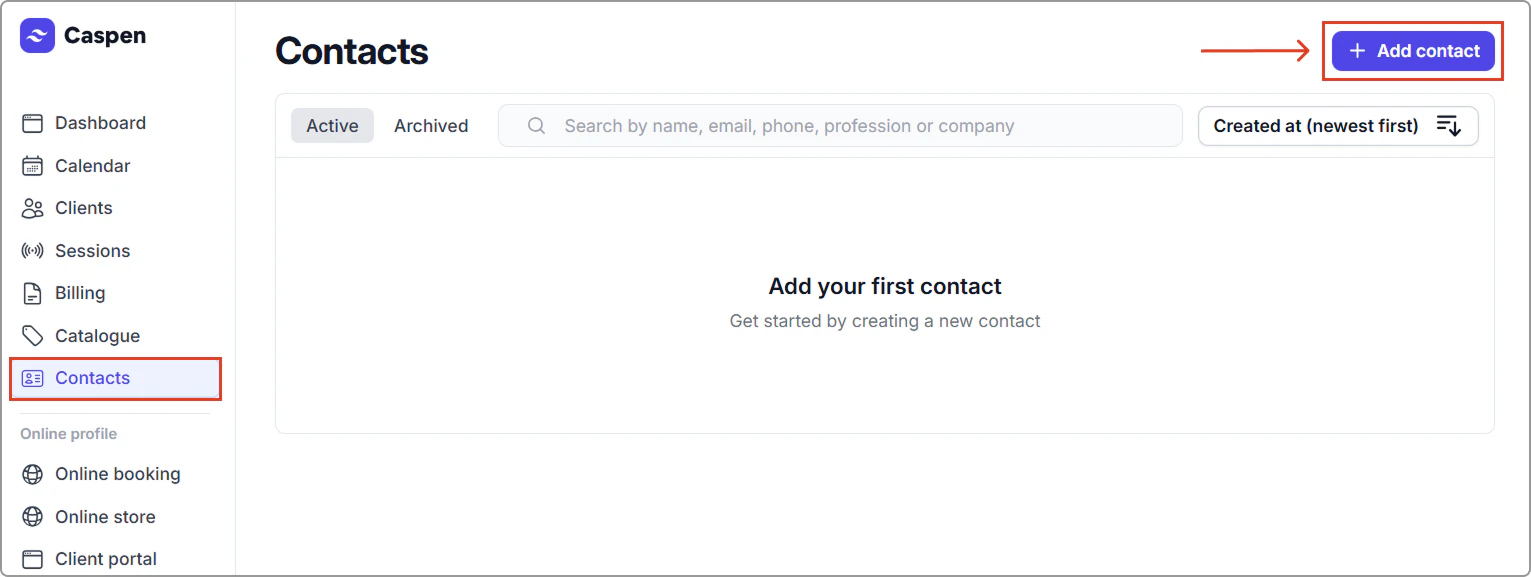
- Enter the contact details (see Contact field reference below).
- Click Save. The new contact will be added to your Contacts table.
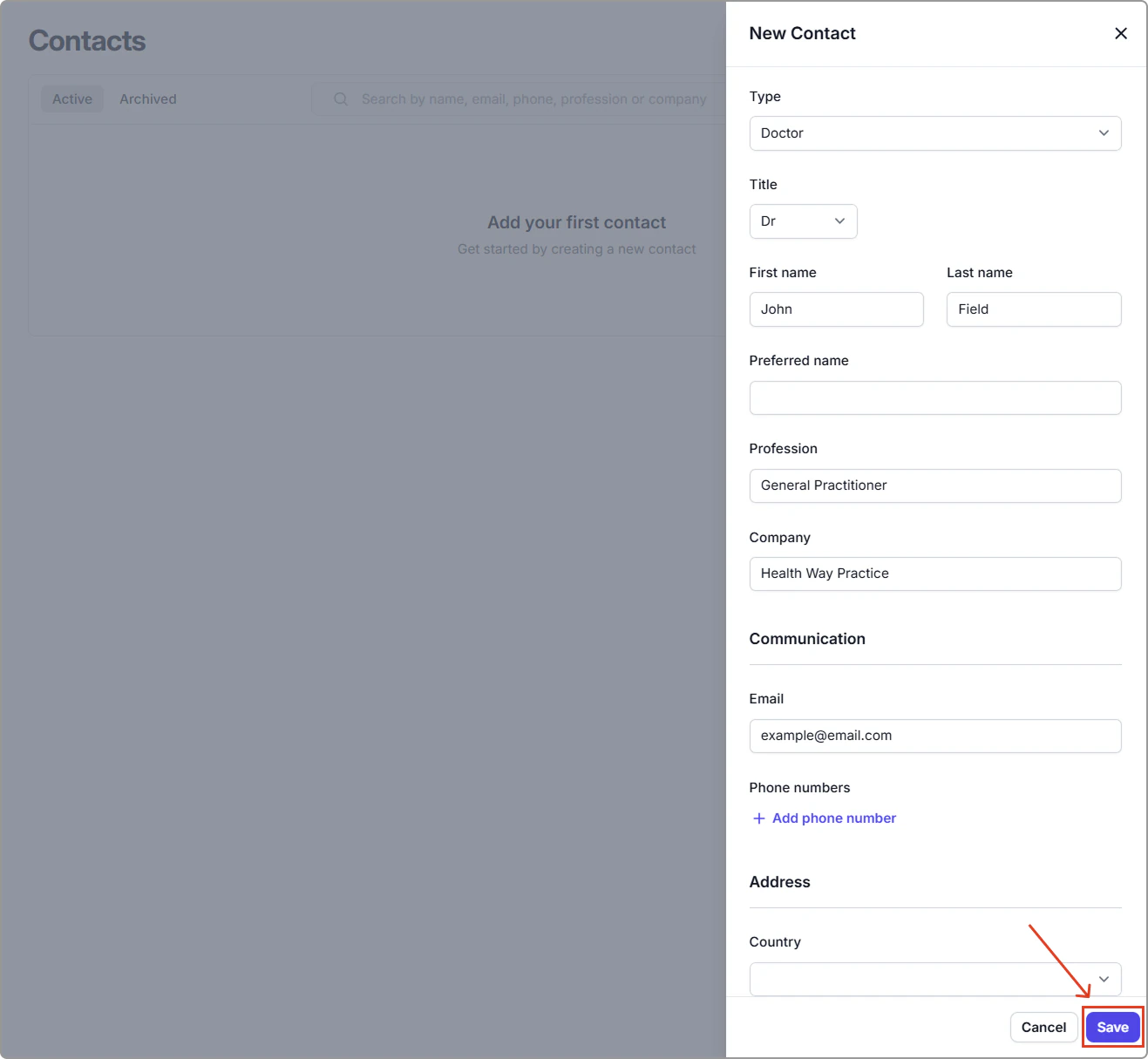
Contact field reference
| Field | Description |
|---|---|
| Type | Classifies the contact.
|
| Title | Title the contact prefers to be addressed by (e.g., Dr, Mr, Mrs, Ms, Miss, Mx). |
| Name | Contact’s full legal name (first and last name). |
| Preferred name | The name the contact prefers to be called. |
| Profession | The contact’s role or discipline (e.g. GP, physiotherapist). |
| Company | Employer or organisation the contact works for. |
| Address used for messages and documents (e.g. letters, invoices). Use a valid email to enable outbound communications. | |
| Phone numbers | Phone number(s) for the contact (you can add direct and office lines). |
| Address | Postal or street address for correspondence. |
| Notes | Any additional context relevant to this contact (e.g., best time to call, admin preferences). Displayed on the contact profile only. |