Set up cancellation reasons
Learn how to add or update cancellation reasons. Used across appointments, classes, and group appointments to record why a booking was canceled.
1 min readUpdated 8 months ago
Overview
Cancellation reasons let your team record why a booking was canceled. They are used across appointments, classes, and group appointments to improve reporting, audit trails, and business insights.
Add a cancellation reason
- Go to Settings → Cancellation reasons.
- Click Add cancellation reason.
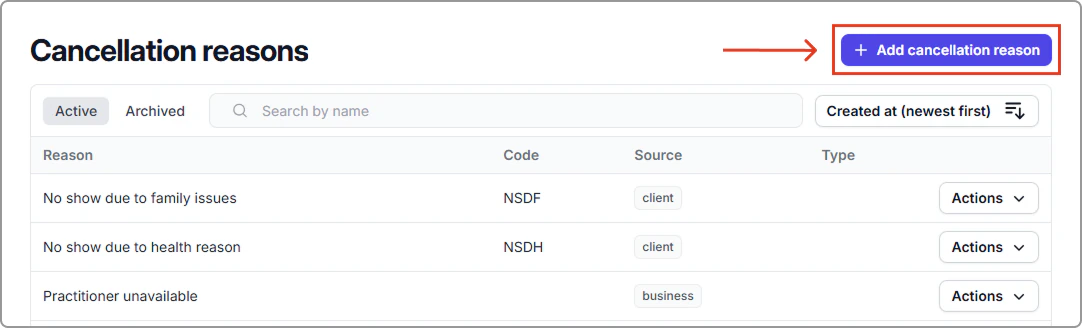
- Enter the following details:
- Reason - The name of the cancellation reason (e.g. No show due to illness).
- Code (Optional) - A short code used for reporting or billing needs.
- Source - Who initiated the cancellation: client, business, or any.
- Click Save to create the reason.
Manage existing reasons
Use the Actions menu next to any cancellation reason to:
- Edit - Update the name, code, or source.
- Archive - Remove the reason from active use.
Archived reasons remain available for reference and can be restored at any time.