Set up invoice templates
Create and manage invoice templates that fit your business needs. From simple branding updates to detailed layouts for specific clients or funding types.
Overview
Caspen includes a standard invoice template by default. This template is used for invoices unless you select a different one.
You can:
- Edit the standard invoice template.
- Create additional templates for different clients, funders, or services.
- Choose which template to use when you create an invoice.
Add an invoice template
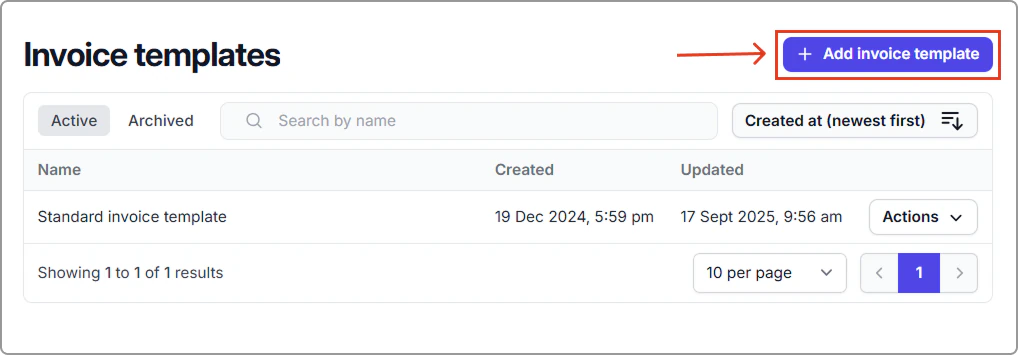
- Go to Settings → Invoice templates.
- Click Add invoice template.
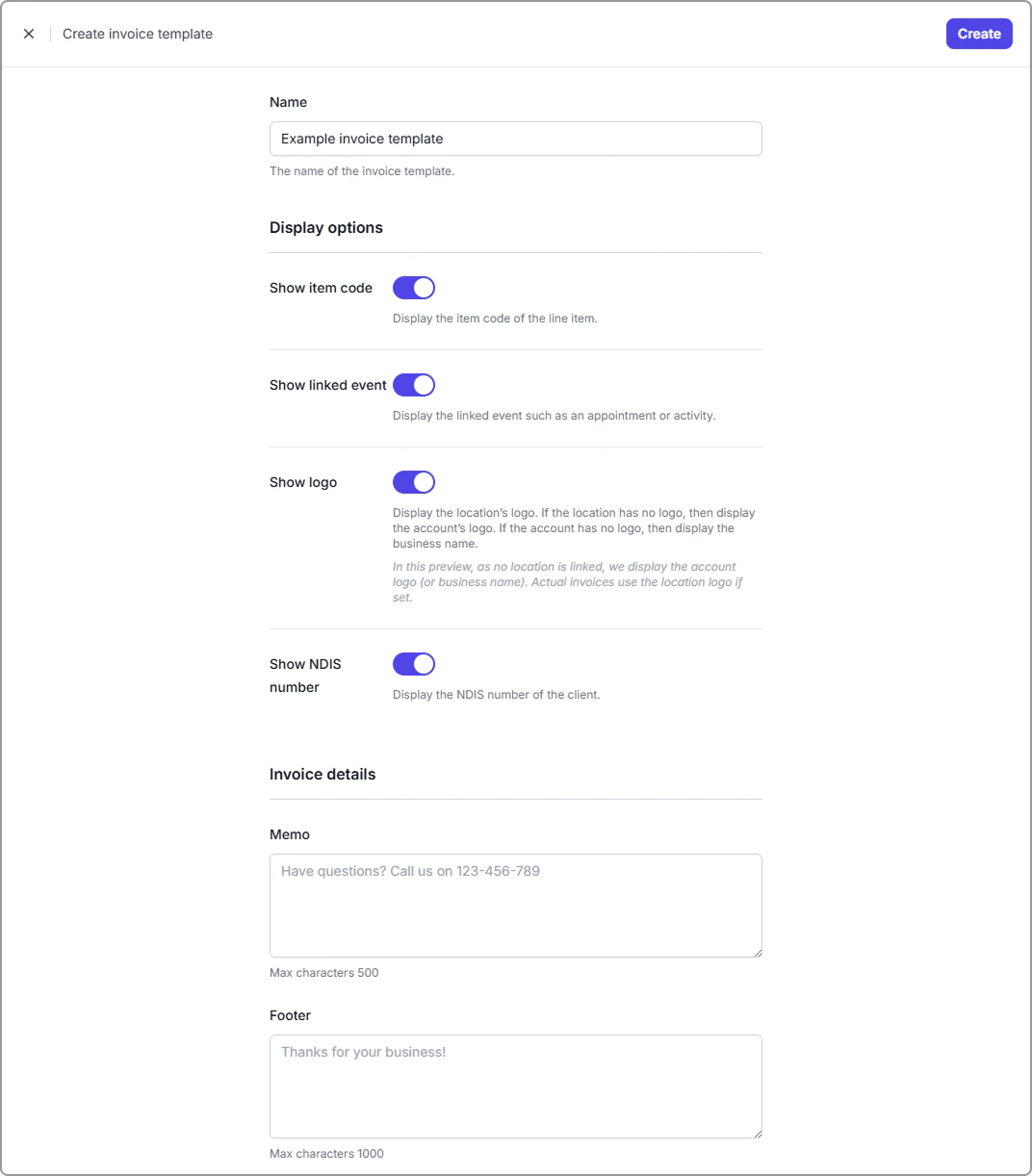
- Enter the details for your new invoice template.
Info
See the Invoice template field reference below for details about each field.
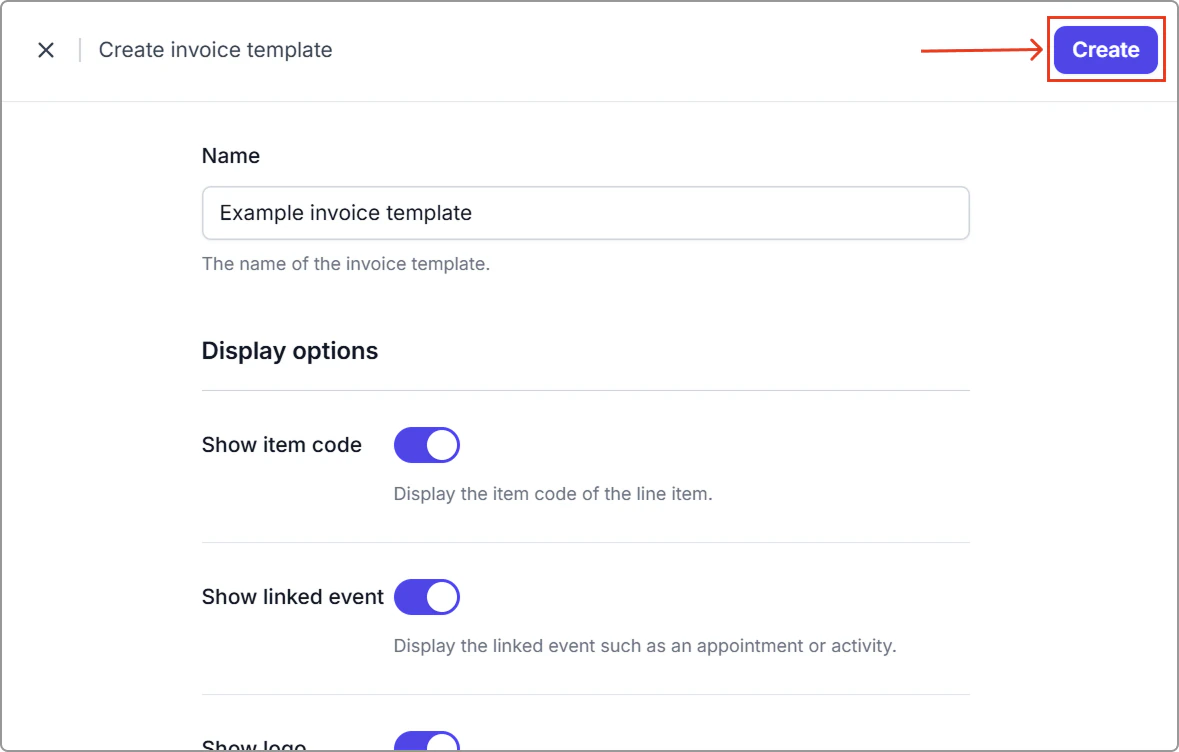
- Click Create (top-right corner).
Invoice template field reference
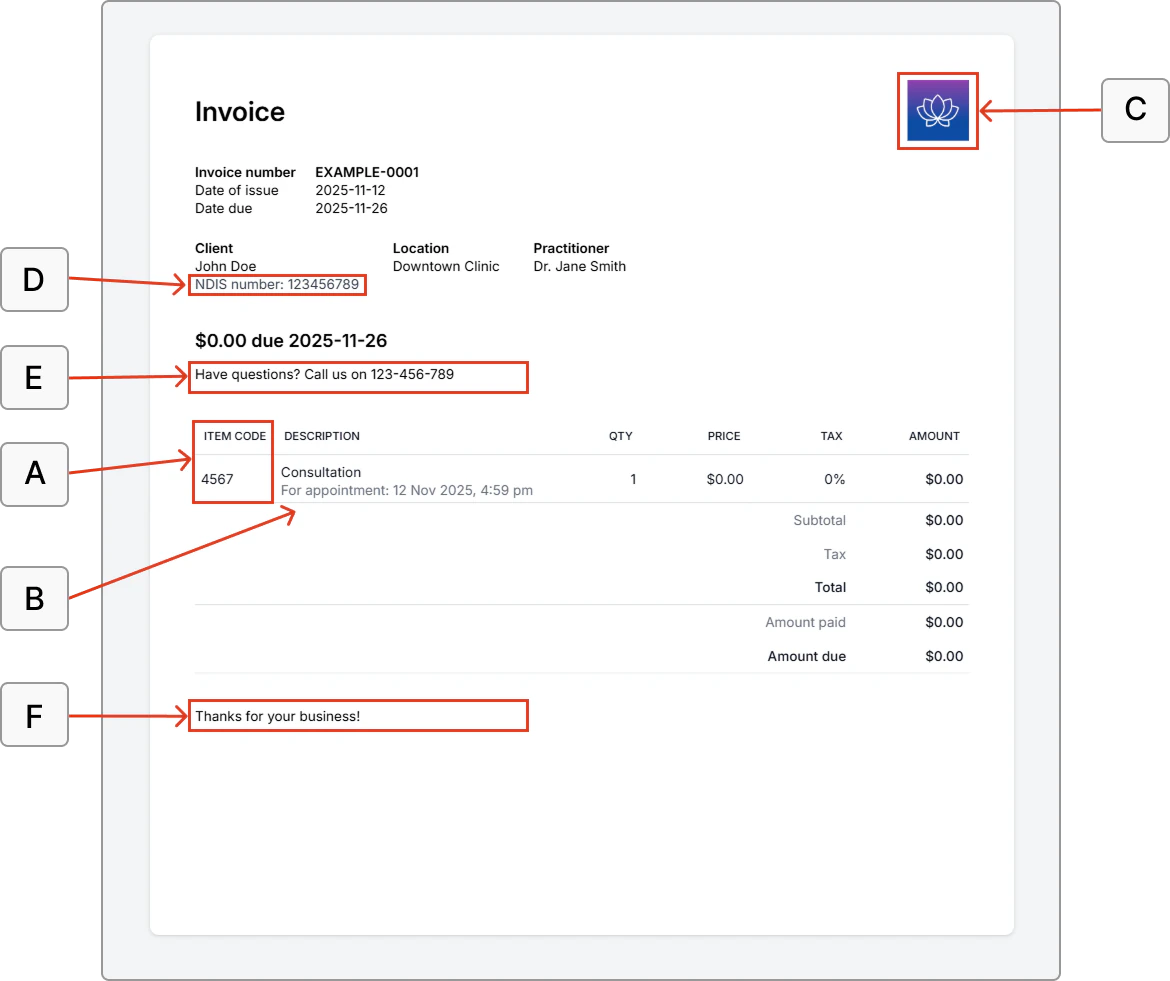
Use the fields below to customize what appears on your invoice templates. The letters (A–F) correspond to the sections marked in the example invoice.
| Field | Description |
|---|---|
| A. Show item code | Displays the line item code on the invoice. |
| B. Show linked event | Displays the event related to the invoice (for example: For appointment: Nov 8, 2025, 5:14 PM). |
| C. Show logo | Displays the location logo. If no location logo is set, Caspen will use the account logo. If neither is available, the business name will display instead. Note: In preview mode, the account logo (or business name) is displayed if no location is linked. Actual invoices use the location logo when available. |
| D. Show NDIS number | Displays the client’s NDIS number if it is saved (Australia-specific). |
| E. Memo | A short message or note that appears above the line items. |
| F. Footer | Text that appears below the line items (for example, payment details, refund policy, or thank-you note). |
Using your invoice templates
The template will appear in the invoice template dropdown when creating a new invoice.
When selected, your invoice will follow the same layout and settings defined in that template (for example, logo, memo, footer, etc.).
Edit an invoice template
- Go to Settings → Invoice templates.
- Find the template you want to edit.
- Click Actions → Edit.
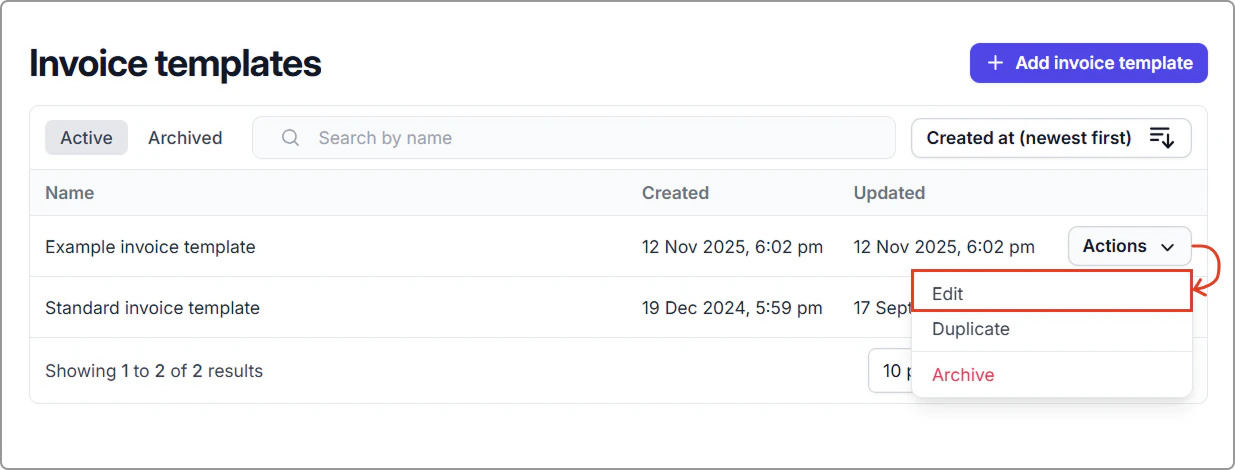
- Make your changes and click Save.
Archive an invoice template
- Go to Settings → Invoice templates.
- Find the template you want to archive.
- Click Actions → Archive.
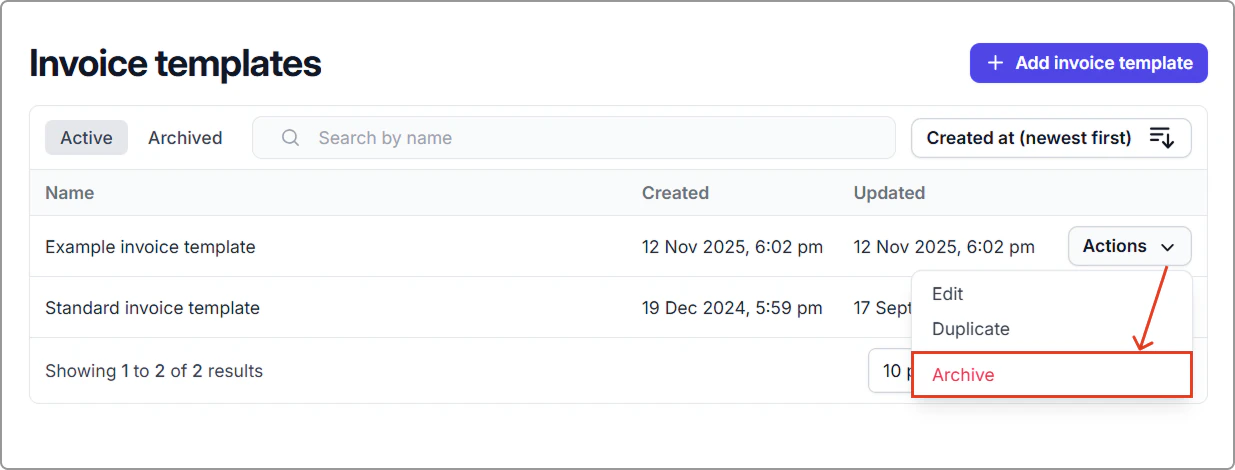
The template will be moved to the Archived tab and will no longer be available for selection.
Restore an archived template
- Go to Settings → Invoice templates.
- Click the Archived tab.
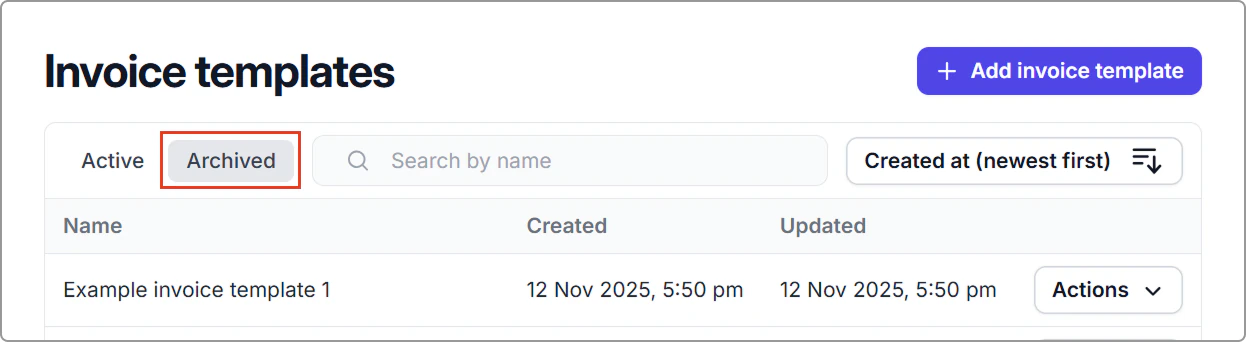
- Find the template you want to restore.
- Click Actions → Restore.
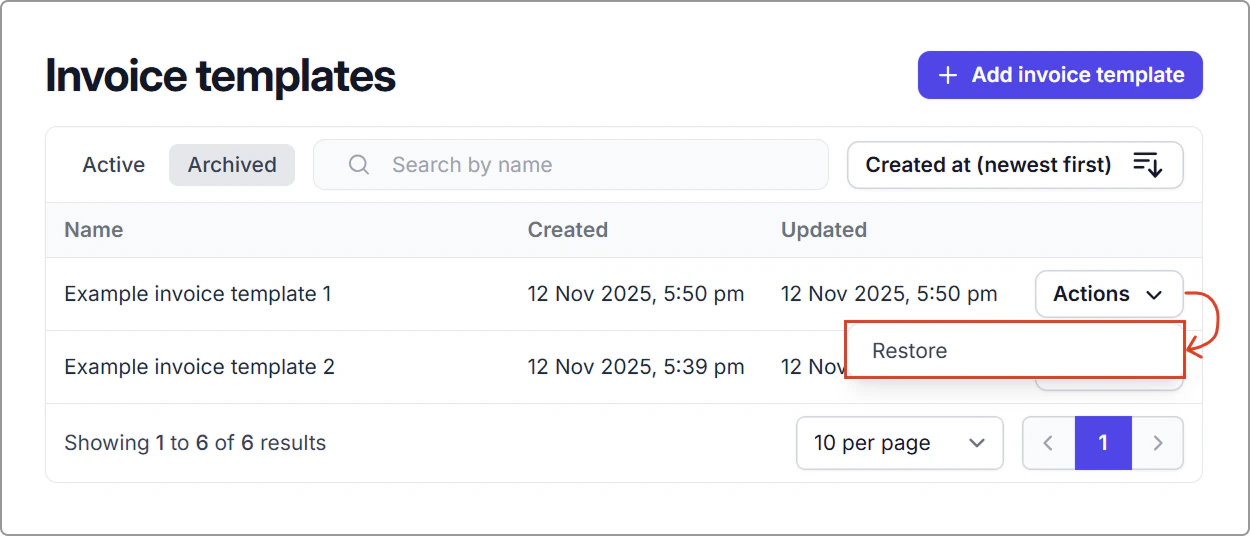
The template will move back to the Active tab and become available again in the invoice template dropdown when creating a new invoice.