Add products to an invoice
Boost revenue by offering clients products in person. Learn how to add products to an invoice.
2 min readUpdated 4 months ago
Getting started
Selling products in person allows you to complete transactions directly with clients by simply adding one or more products to an invoice.
Warning
Permissions Ensure you have permission to manage invoices and payments (access to the Billing tab in the left hand menu). If you’re a team member, request access from your account owner.
Add products to an invoice
- Open an invoice
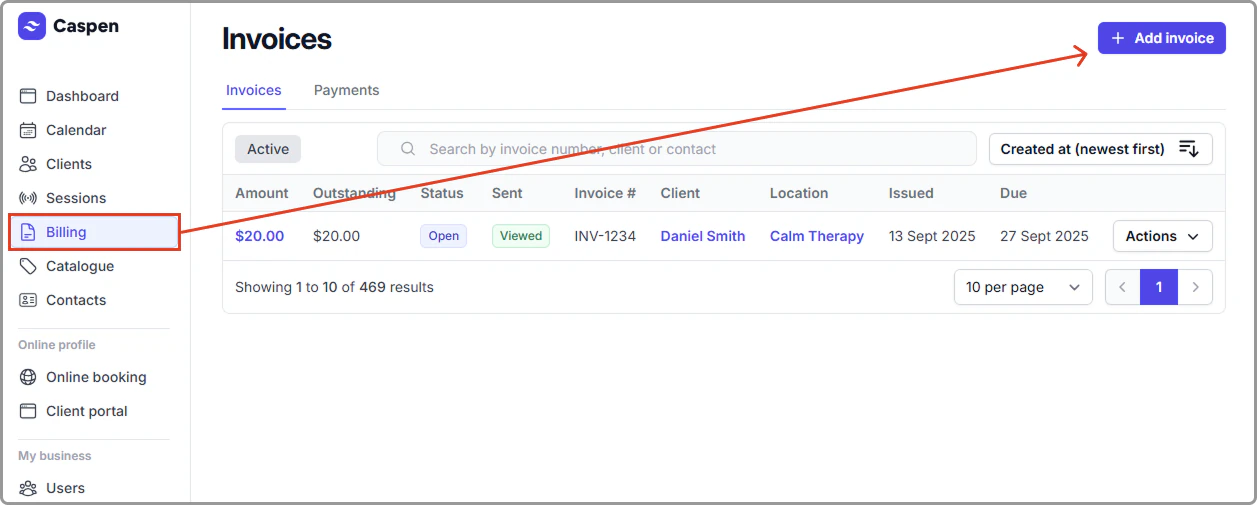
Go to Billing and select Add invoice, or open an existing invoice you want to add products to.
- Fill the invoice header
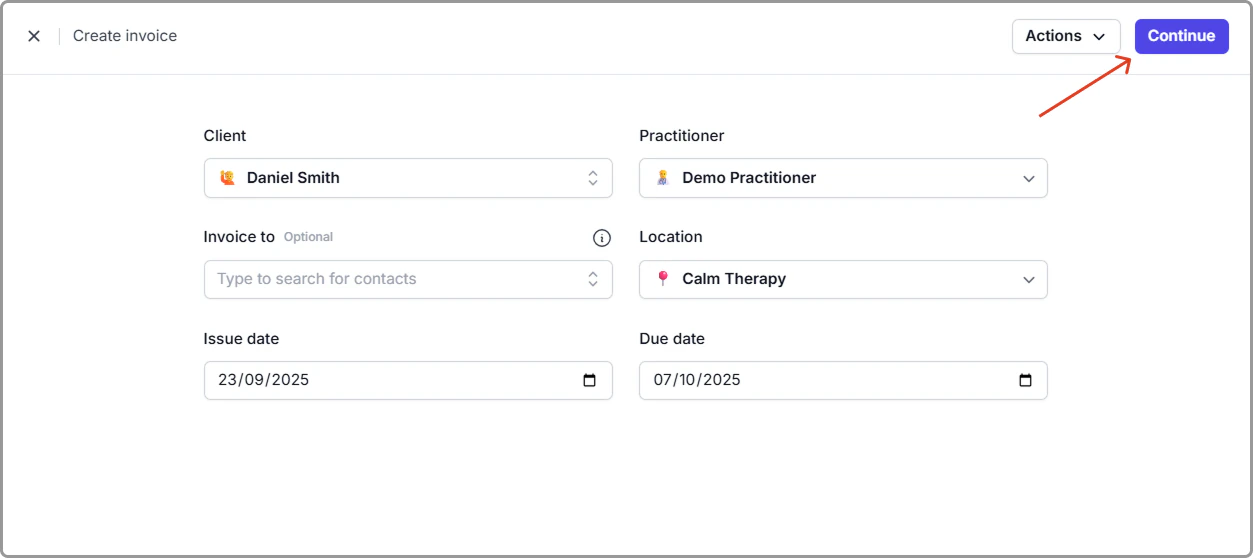
Select Client, (optional) Invoice to, Practitioner, Location, Issue date, and Due date. Click Continue.
- Add a product
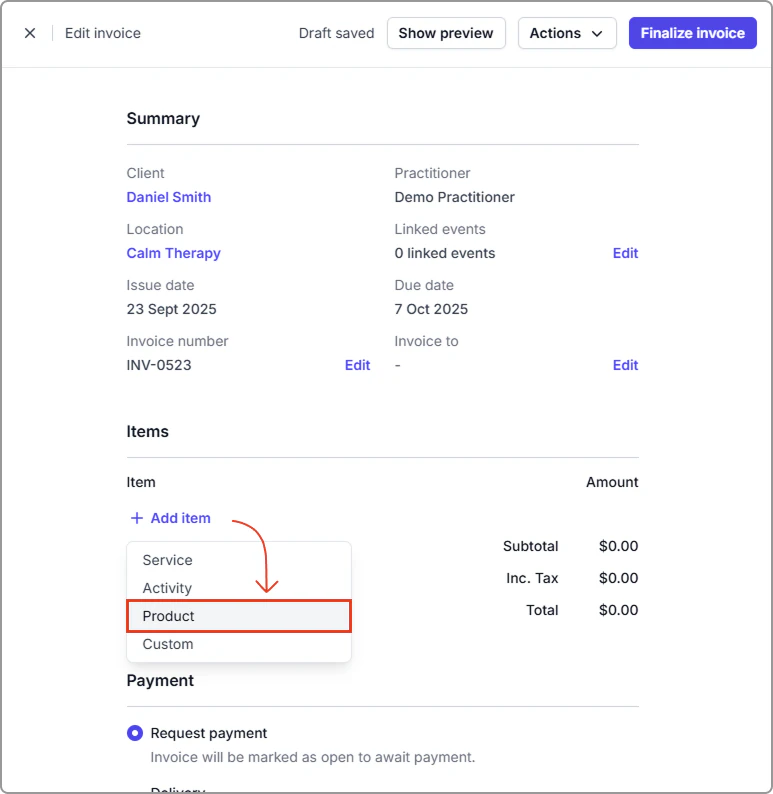
In Items, select Add item, then choose Product.
- Choose from your catalog
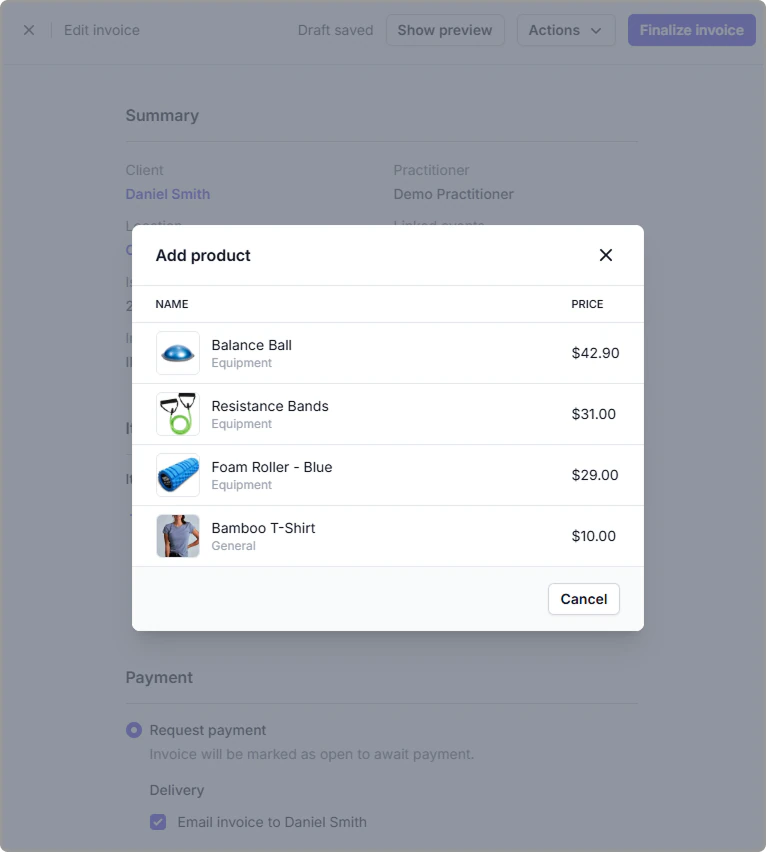
Pick the product from the list. If the product has an image, it appears next to the item.
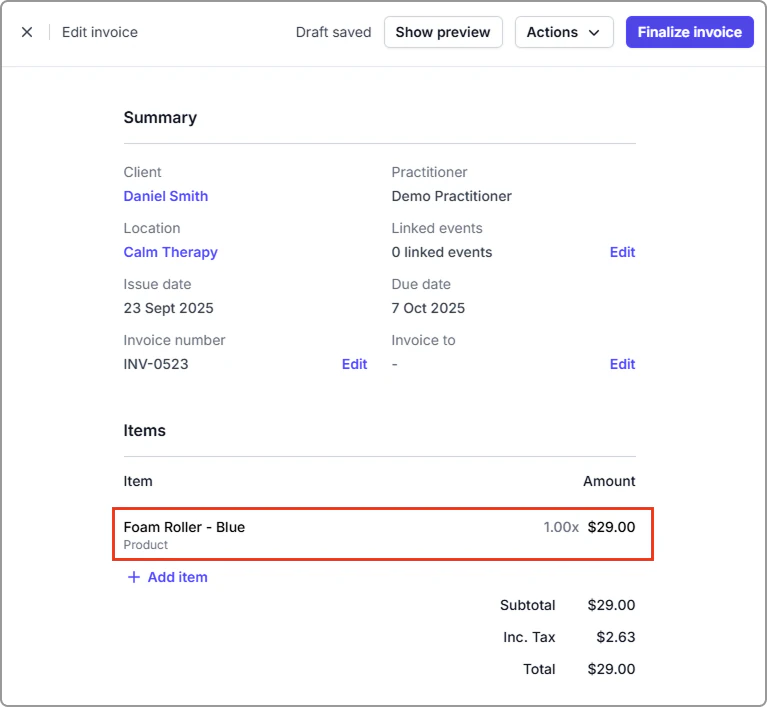
- Edit the line (optional)
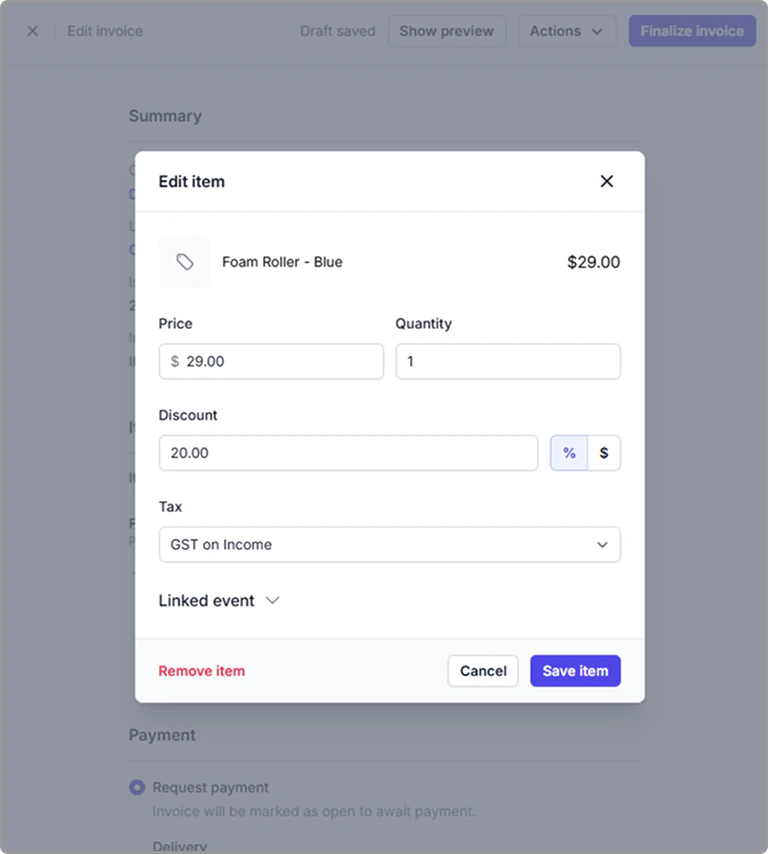
Select the added product to change price, quantity, discount (amount or percent), or tax rate. To remove it, select Remove item. Select Save. Edits here affect this invoice only and do not change the product itself.
- Finish the sale
Apply a payment to the invoice, leave as a draft, or finalize and send the invoice to your client.
Info
If Track stock quantity is on, adding a product to an invoice reduces stock automatically.
Frequently asked questions
Where does the product image show?
The image appears in your product catalog and in the Add product picker when building an invoice. Note: It does not appear on the invoice itself (PDF, print, or client view).