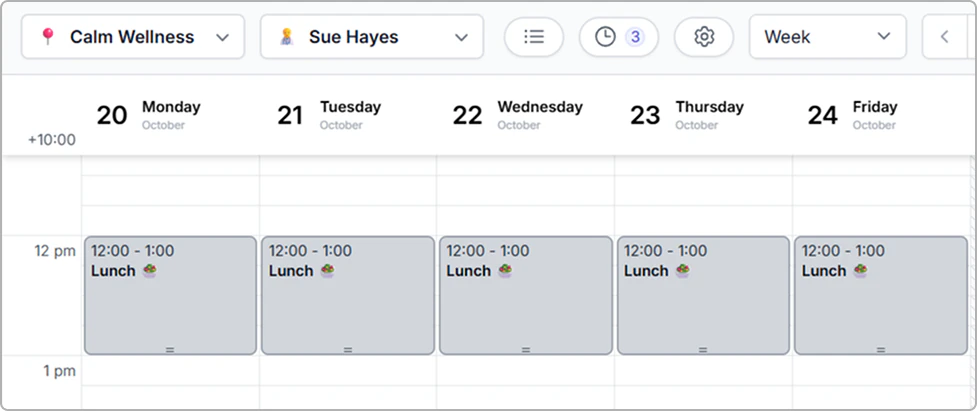
Add a busy time
Learn how to add a busy time in your calendar to block out time for lunch, meetings, and other unavailable time.
Overview
Block out time in your calendar for non-appointment work (for example, lunch, meetings, self-education). Busy time prevents new bookings during that period and helps your team see when you are unavailable.
Add a busy time in your calendar
- Open Calendar and set the location (clinic/practice) and practitioner.
- Click a time slot and select Busy time.
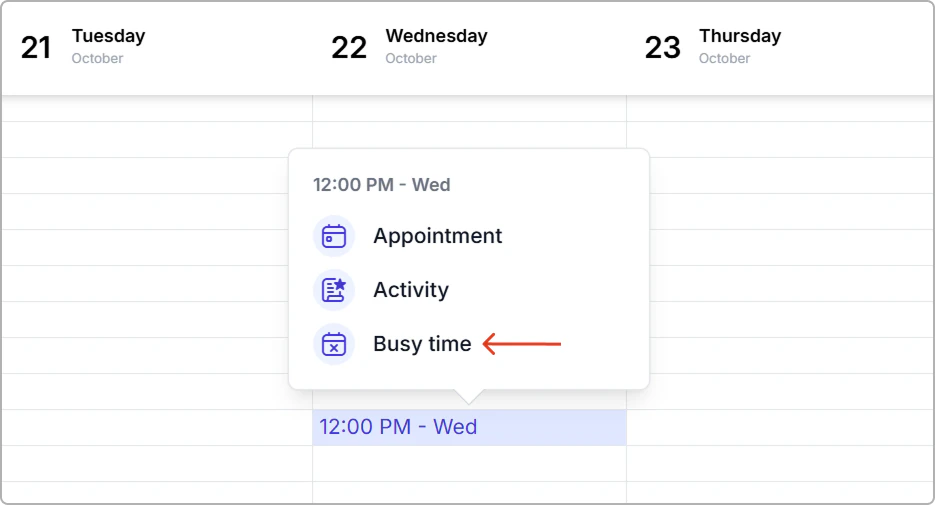
- Enter the busy time details:
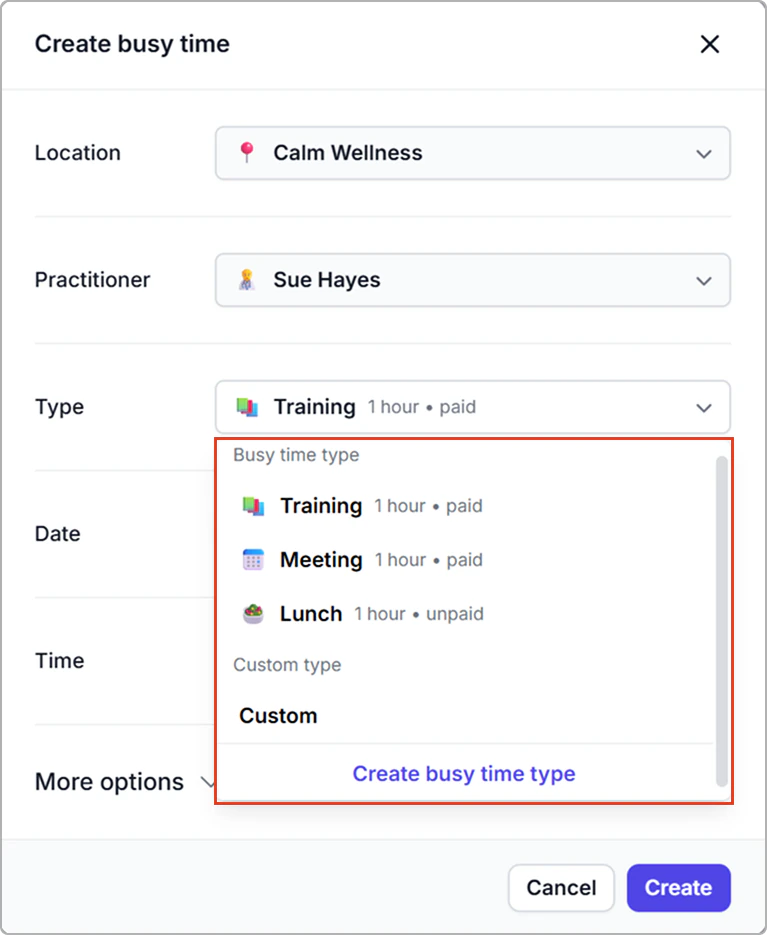
- Busy time type: Choose a default type (for example, Training, Meeting, Lunch, or Custom).
- Date and time: Set the date, start time, and duration.
- More options (optional): Add a Note, turn on Repeat, or add a Resource.
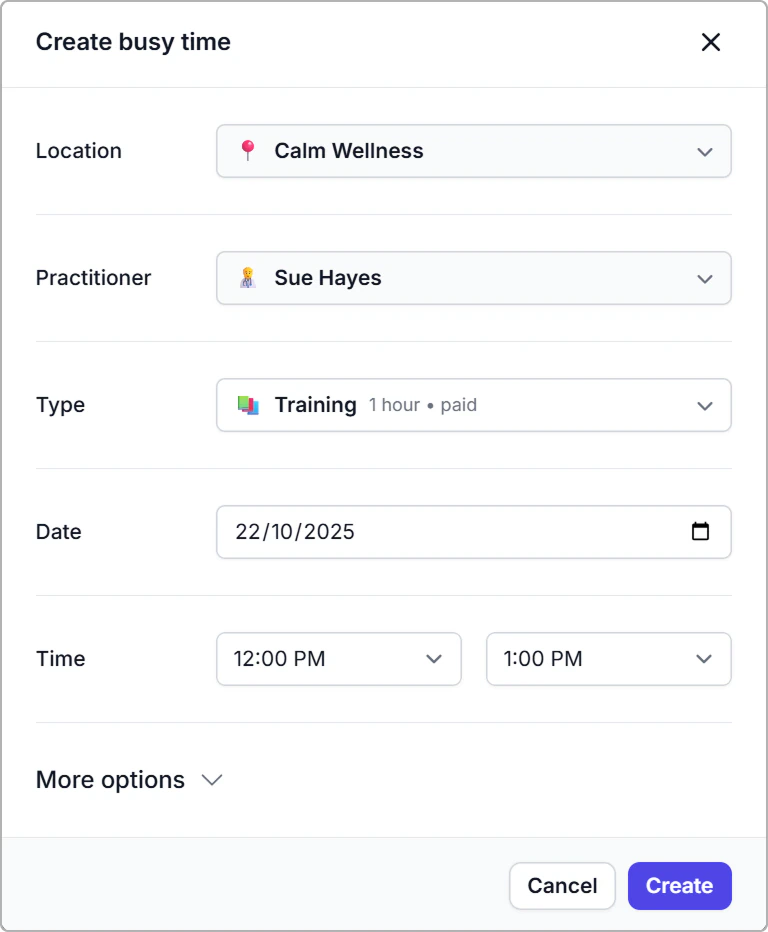
- Click Create.
Result
- New bookings cannot be made during that time either in the calendar or through online bookings.
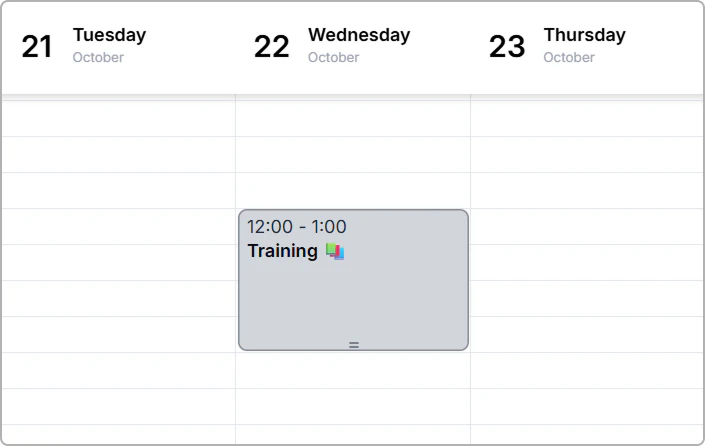
Busy time example.
Choose a busy time type
- Training / Meeting / Lunch: Preset name, emoji, and default duration. You can change the duration when adding it, or edit the presets in Settings → Busy time types.
- Custom: One off entry. Set a name for this entry only (optional).
Info
Select Create busy time type in Busy time type, set the details, and it will be available in the dropdown and in Settings → Busy time types. See Manage busy time types.
Fields reference
| Field | Description |
|---|---|
| Location | Where the busy time applies. |
| Practitioner | Who the busy time block belongs to. |
| Type | Pick a preset (Training, Meeting, Lunch, etc.) or Custom. Presets include a default duration and paid or unpaid flag that you can change. |
| Date | The day for the block. |
| Time | Start and end. You can override the default duration here. |
| Repeat | Create a repeating series.
|
| Room | Reserve a room. |
| Vehicle | Reserve a vehicle. |
| Resources | Reserve any items you need. |
| Note | Add context such as the meeting topic or location details. |
Example: : Set a repeating lunch break for Monday–Friday.
- Got to the Calendar. Set the location (clinic/practice) and practitioner.
- Click a desired time slot in the calendar and select Busy time.
- Enter the busy time details.
- Type: Lunch
- Time: 12:00 pm–1:00 pm
- More options → Repeat: On
- Repeat on days: Mon, Tue, Wed, Thu, Fri
- Repeat every: Week
- End after: entered 10 occurrences to create two weeks of weekday lunch blocks (one per day).
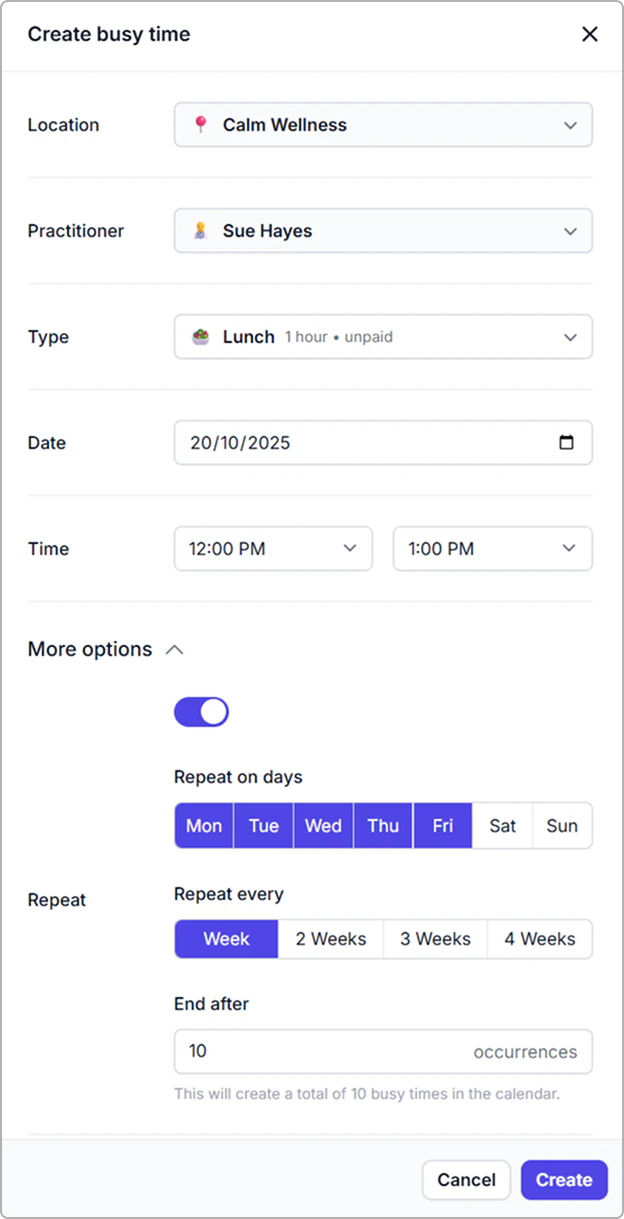
- Click Create. You’ll see the repeated busy times on the selected days.