> For the complete documentation index, see [llms.txt](https://support.caspen.com/llms.txt). Markdown versions of documentation pages are available by appending `.md` to page URLs; this page is available as [Markdown](https://support.caspen.com/integrations/calendar-feed/sync-your-caspen-calendar-with-google-calendar-microsoft-outlook-and-apple-calendar.md).
# Sync your Caspen calendar with Google Calendar, Microsoft Outlook, and Apple Calendar
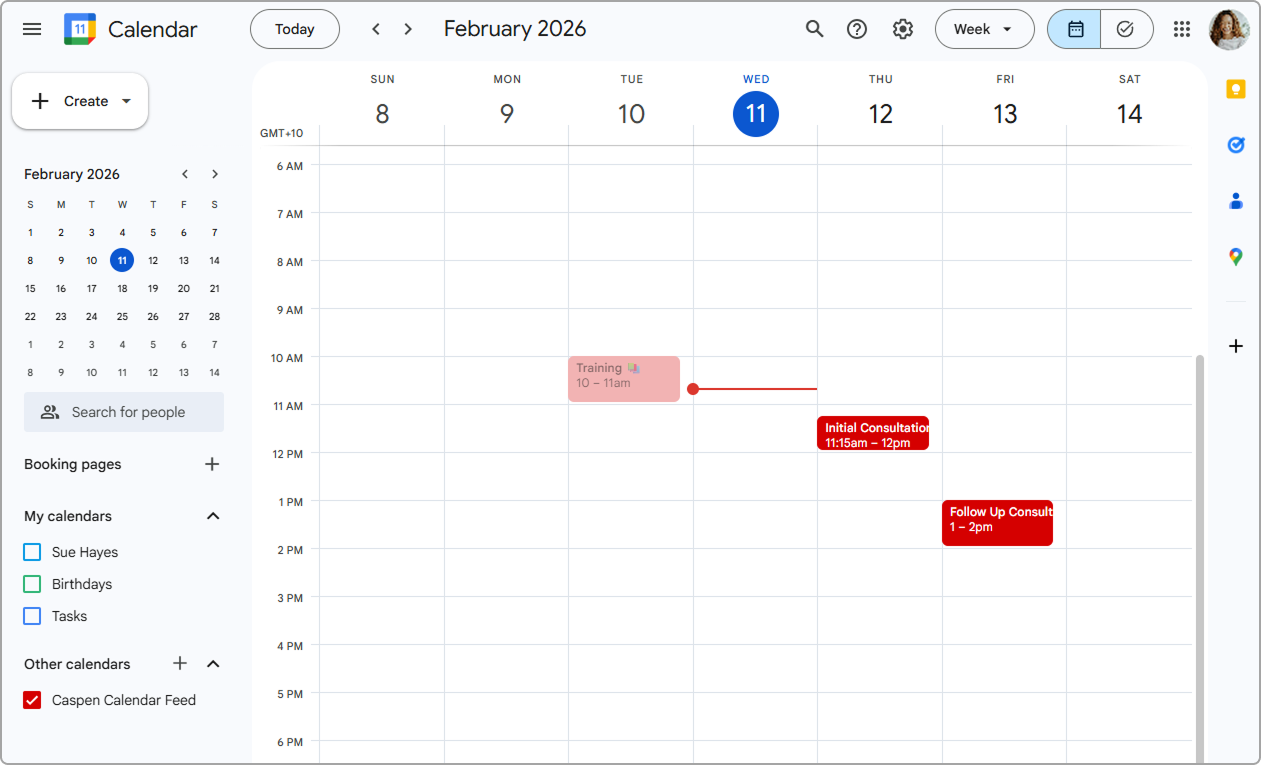
View your Caspen appointments, activities, classes, and busy times in your external calendar using Calendar Feed.
### Overview
Calendar Feed lets you sync your Caspen calendar to external calendar apps like Google Calendar, Microsoft Outlook, and Apple Calendar. \
\
The feed includes events **30 days in the past and 30 days in the future**.
In this article, you will learn how to:
* Enable your Calendar Feed and copy your feed link
* Add your Caspen calendar to Google Calendar, Microsoft Outlook, or Apple Calendar
* Disable your Calendar Feed and generate a new link if needed
**One-way integration**
This is a one way sync from Caspen to your calendar app. If you need to make changes, update them in Caspen. Changes made in your calendar app will not sync back to Caspen.
***
## Step 1: Enable Calendar Feed and copy your feed link
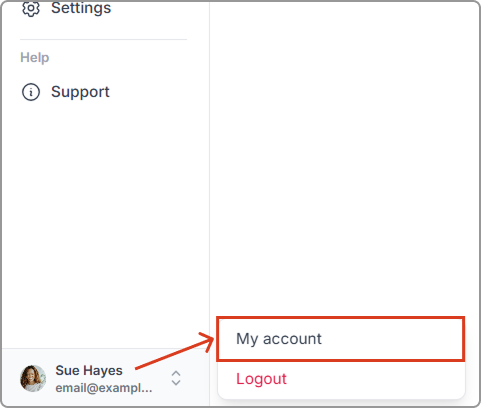
1. In Caspen, click your name in the bottom-left corner, then click **My account**.
2. Open the **Integrations** tab.
3. Find **Calendar Feed** and toggle it on.
4. **Copy** the Calendar Feed link that appears. You will paste this into your external calendar app in the next steps.
{% hint style="warning" %}
**Keep your Calendar Feed private**
Your Calendar Feed link is like a private access key. Anyone who has the link can sync to your Caspen calendar and view your appointments, activities, classes, and busy times.\\
\
If you think your feed link has been shared, forwarded, or copied somewhere it should not be, disable the Calendar Feed and then enable it again to generate a new link.
{% endhint %}
***
## Step 2: Add your Caspen calendar to an external calendar
Choose the calendar you want to connect and follow the steps below.
### Google Calendar
{% hint style="warning" %}
**For near instant calendar updates, we recommend using the** [**Google Calendar integration**](/integrations/google/set-up-google-calendar-integration.md) **instead of Calendar Feed.**\
Calendar Feed is a subscription link, and Google Calendar refreshes subscribed calendars on Google’s own schedule, which can take **8 to 24 hours** to update.
{% endhint %}
1. Open Google Calendar.
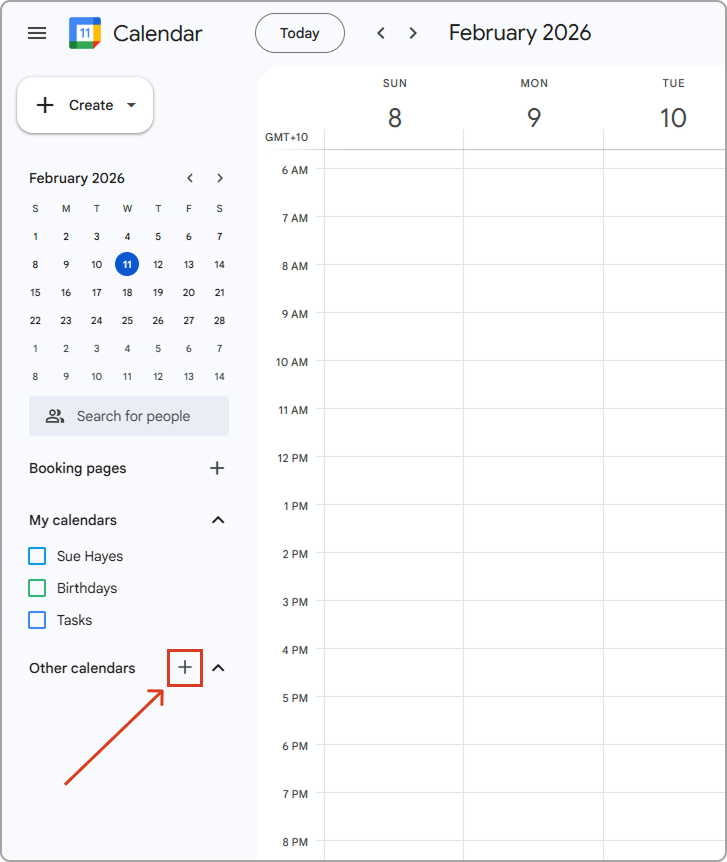
2. In the left sidebar, find **Other calendars** and click the plus icon.
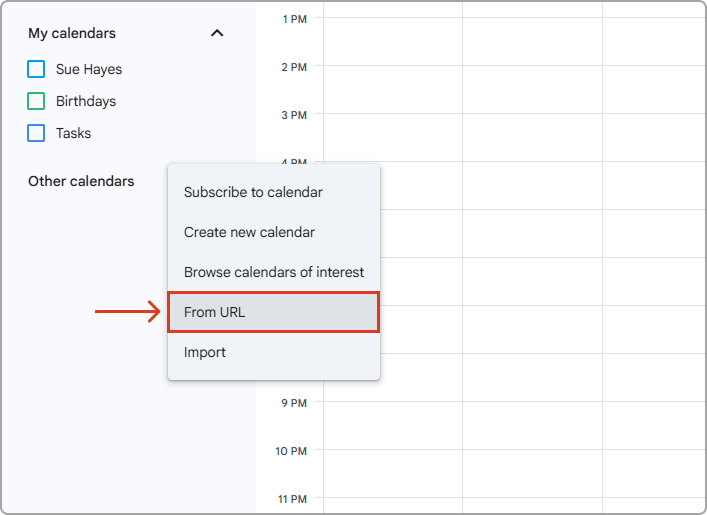
3. Select **From URL**.
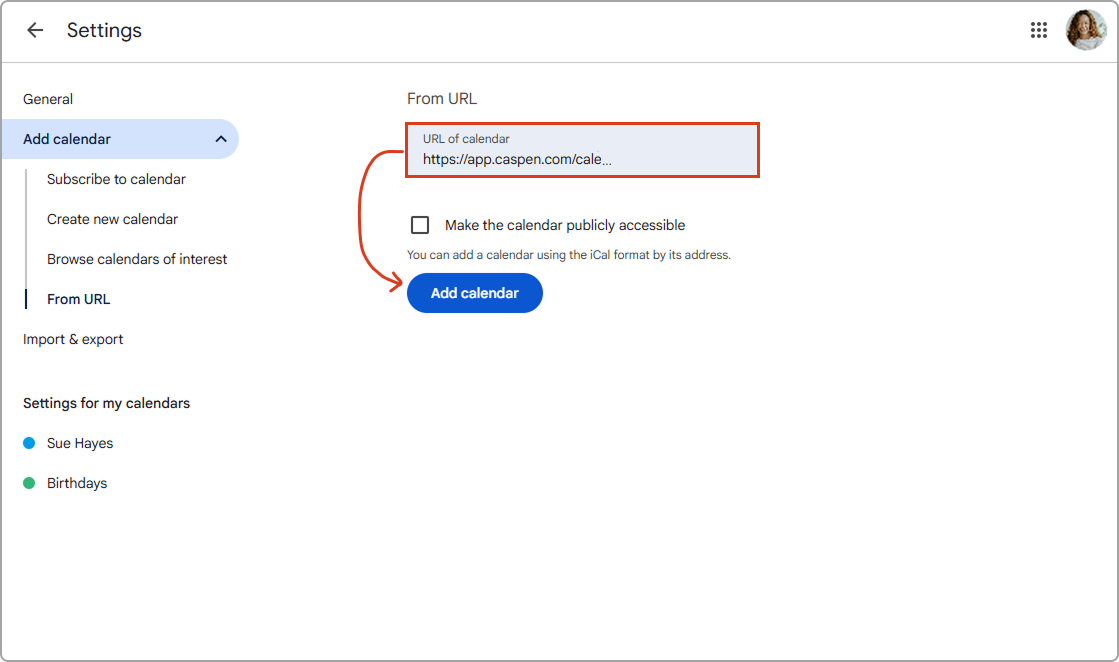
4. Paste your [Caspen Calendar Feed link](#step-1-enable-calendar-feed-and-copy-your-feed-link) in the URL field, then click **Add calendar**.
Your Caspen calendar will now sync with Google Calendar.
### Microsoft Outlook
{% hint style="warning" %}
**For near instant updates, we recommend using the** [**Outlook Calendar integration**](/integrations/microsoft/set-up-outlook-calendar-integration.md) **instead of Calendar Feed.**\
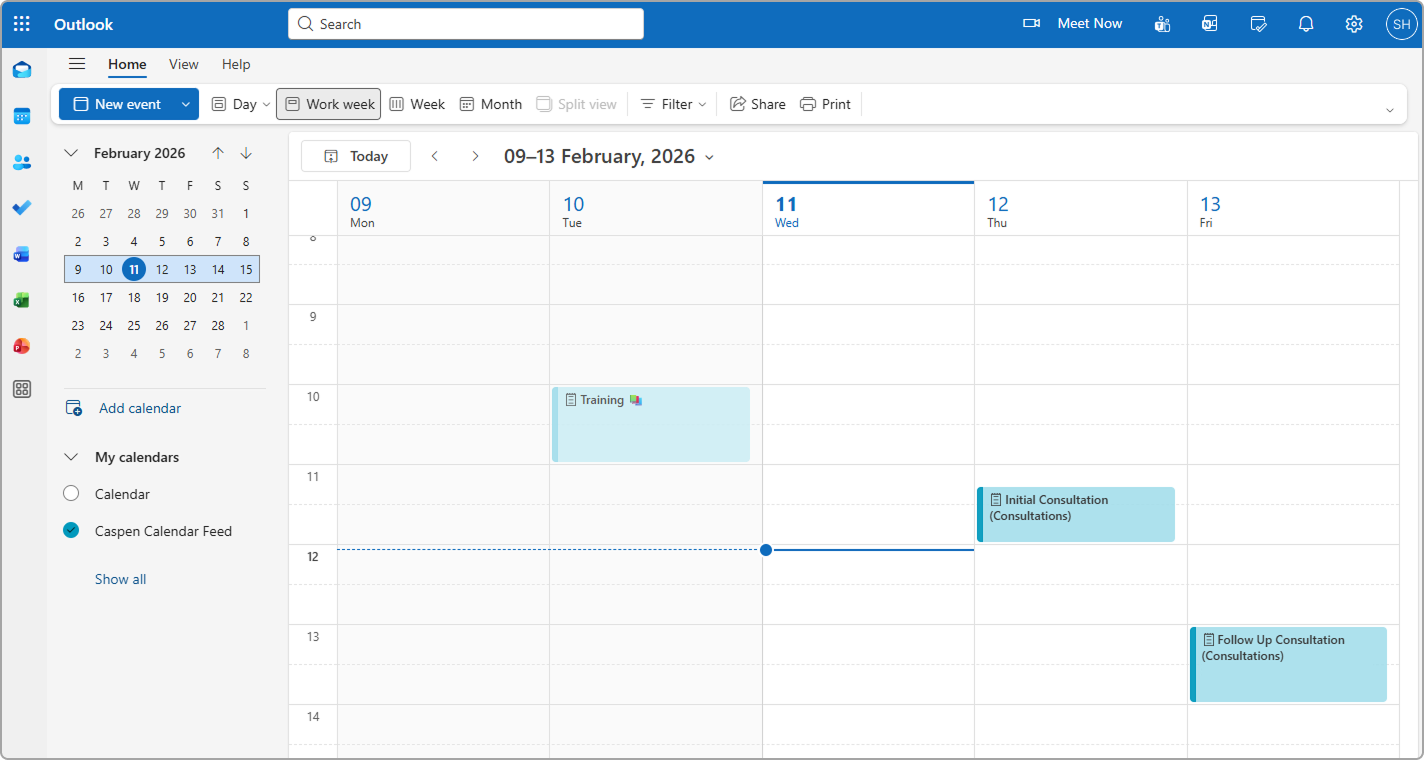
Calendar Feed is a subscription link, and Outlook refreshes subscribed calendars on its own schedule. Many users see updates within 3 hours, though it can take up to 24 hours.
{% endhint %}
1. Log into Outlook. \
Note: If you use the Outlook desktop app, add the calendar in Outlook on the web browser first. It will then appear in the app.
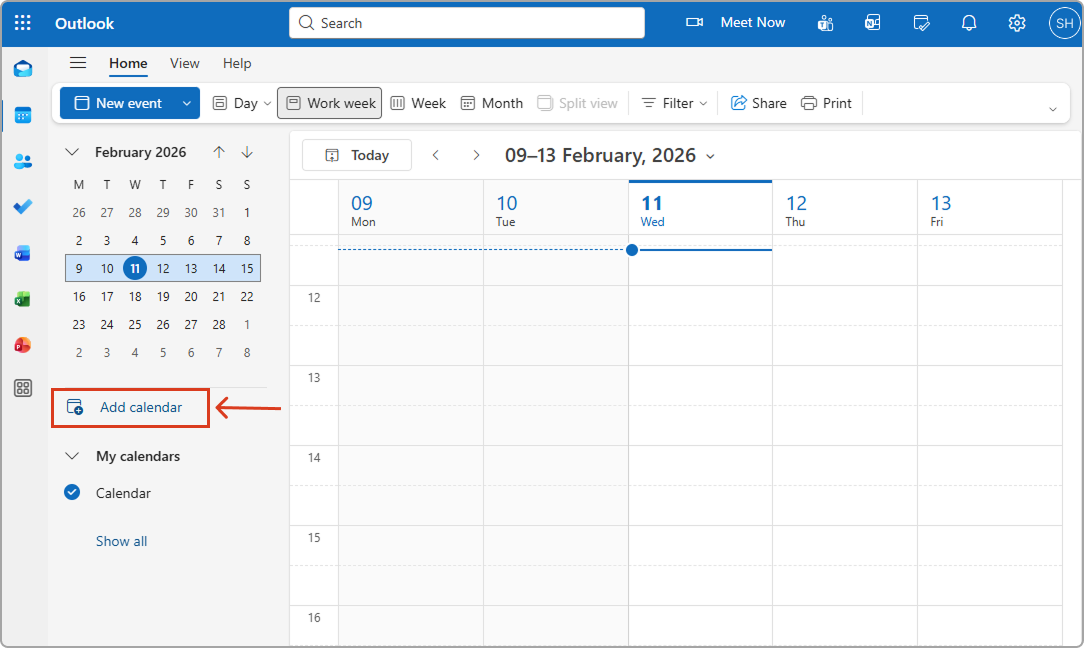
2. In the left side menu, click **Add calendar**.
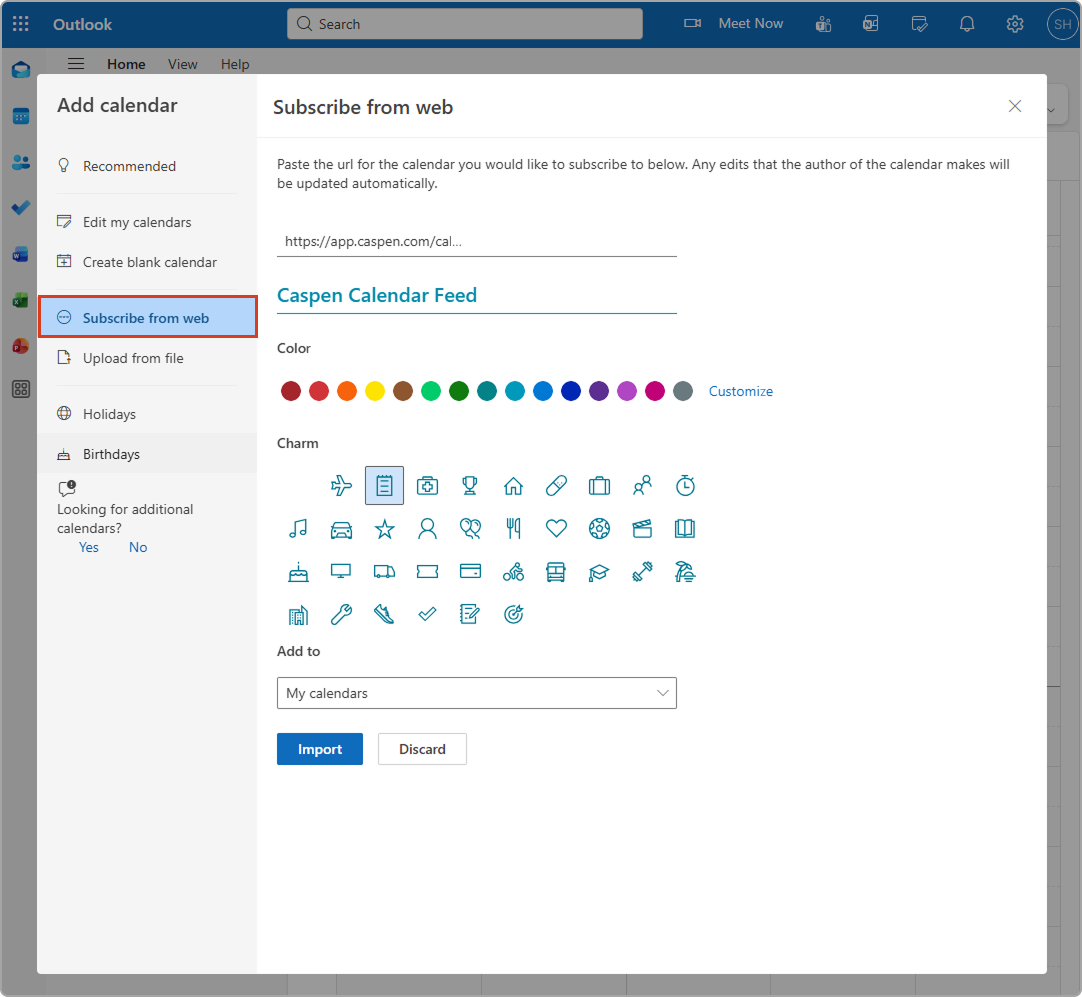
3. Select **Subscribe from web,** then paste your [Caspen Calendar Feed link](#step-1-enable-calendar-feed-and-copy-your-feed-link).
4. Enter a calendar name (for example, **Caspen Calendar Feed**). You can also choose a color and charm icon.
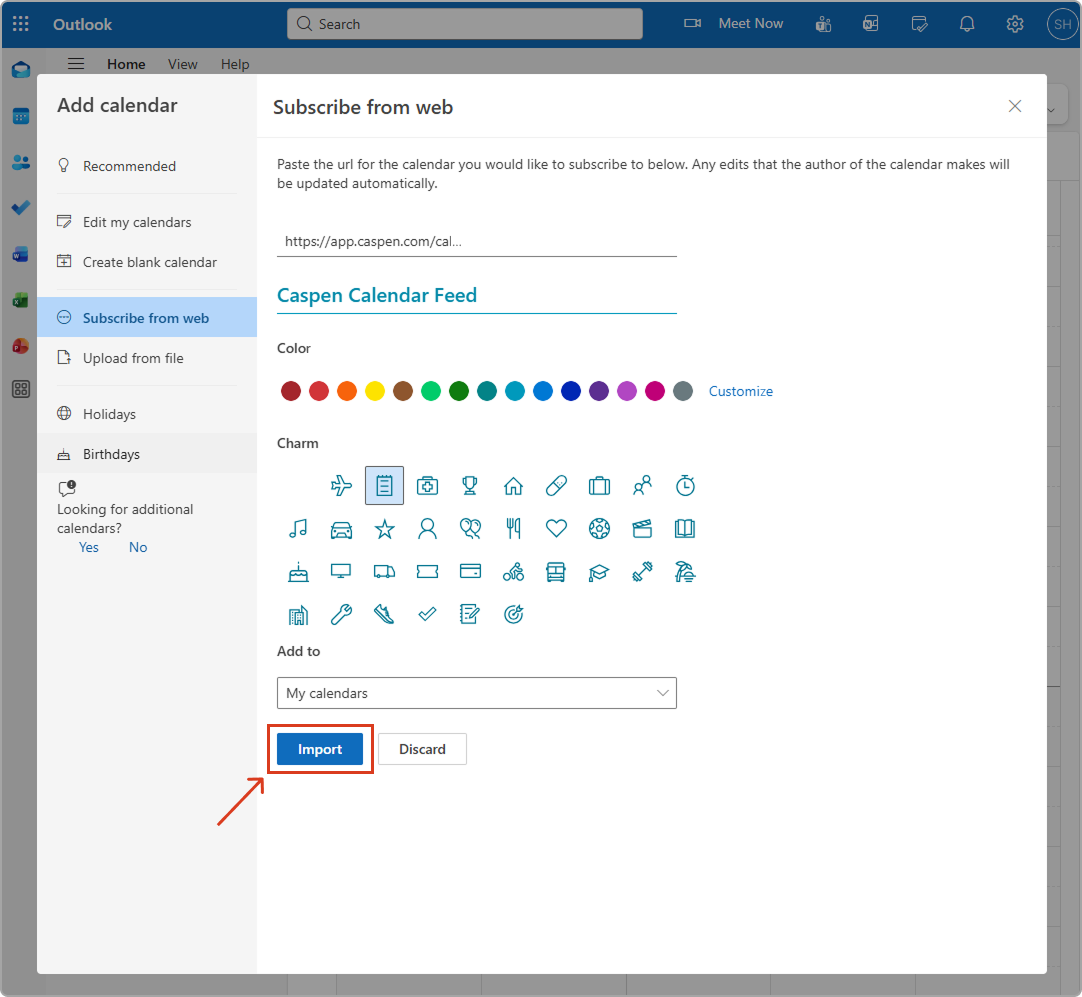
5. Select **Import**.
Your Caspen calendar will now sync with Microsoft Outlook.
### Apple Calendar
1. Open **Apple Calendar**.
2. In the top menu bar, click **File**, then **New Calendar Subscription**.
3. Paste your [Caspen Calendar Feed link](#step-1-enable-calendar-feed-and-copy-your-feed-link).
4. Click **Subscribe**.
5. Enter a calendar name, then set auto-refresh to how often you want Apple Calendar to check for updates.
6. Click **OK**.
Your Caspen calendar will now sync with Apple Calendar.
#### Refresh timing
Apple Calendar can refresh more frequently because you can choose the auto-refresh rate during setup.
***
## Disable Calendar Feed
To disable your Calendar Feed:
1. In Caspen, click your name in the bottom left corner.
2. Click **My account**.
3. Open the **Integrations** tab.
4. Find **Calendar Feed** and toggle it off.
Disabling Calendar Feed stops updates from being delivered to any external calendar that has subscribed using that link.
If you want to reconnect later, toggle Calendar Feed on again and copy the new link.
***
## Frequently asked questions
Will I see canceled appointments or classes in my external calendar?
Canceled appointments and canceled classes are removed from the Calendar Feed. This means they will not appear in your external calendar once they are canceled in Caspen.
Can I create one Calendar Feed link for the whole clinic?
Calendar Feed is set up per user. Each user must enable Calendar Feed in their own account to generate their own feed link. Each feed only shows that user’s Caspen calendar. \
\
Additional note: Only practitioner based user roles can enable Calendar Feed, because they are the roles that have a calendar in Caspen.
Why is the appointment location missing in my external calendar?
If your appointments are appearing in your external calendar without a location, it usually means your Caspen location does not have an address saved.
Your external calendar (Google, Outlook, or Apple) can only display a location if Caspen includes an address in the Calendar Feed. If a location has no address, the appointment will still sync, but the location field may be blank.
**How to fix it**
1. In Caspen, open **Settings**.
2. Go to **Locations** (or your location settings).
3. Open each location you use for appointments.
4. Enter a full address (and save).
Once you save an address, new appointments and any appointments you update will include the location **after your external calendar refreshes** the Calendar Feed.